
 Client area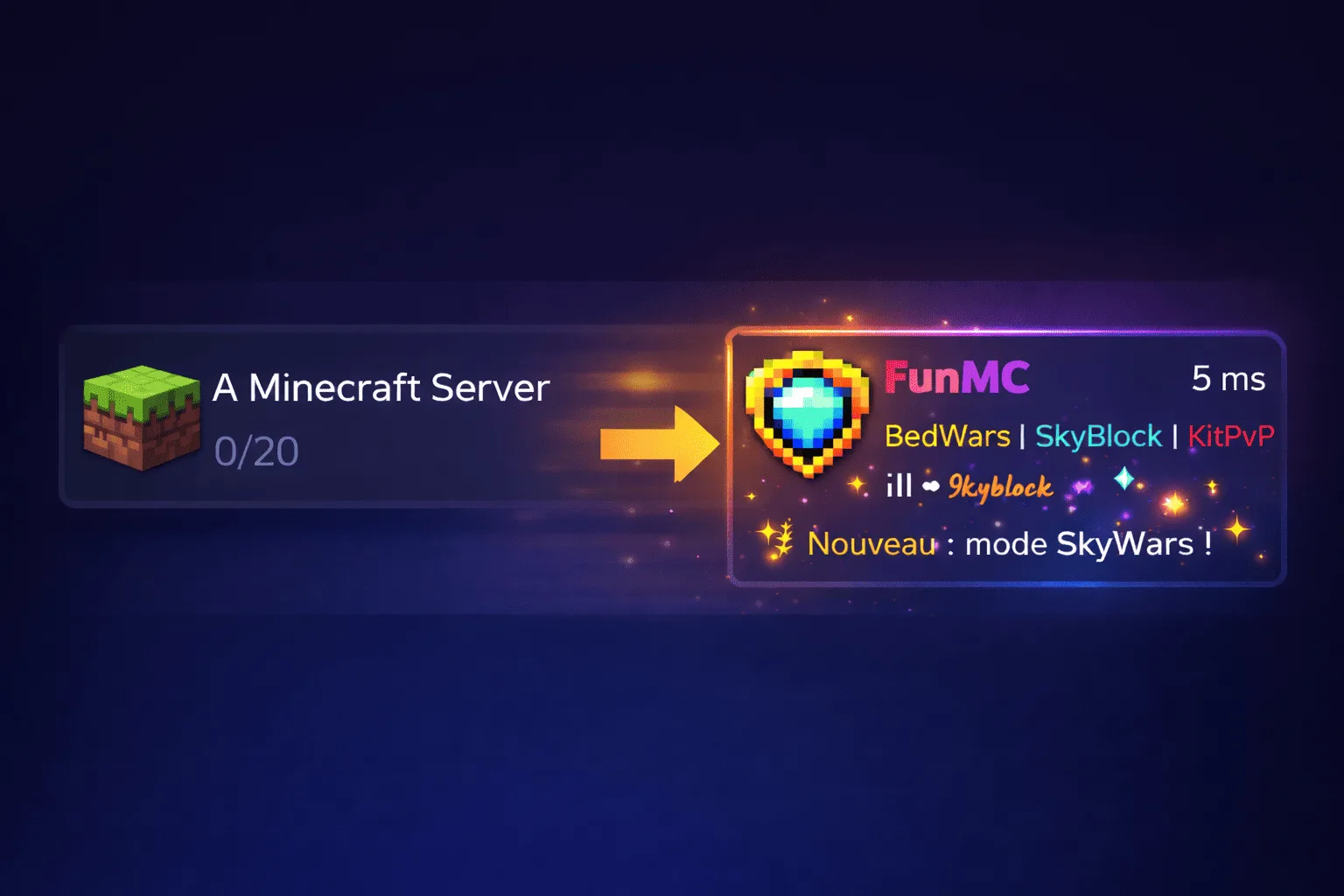
MOTD Minecraft: customize your server message
The MOTD is the first thing your players see when they add your server to their multiplayer list. A well-crafted message with colors and formatting immediately gives a professional impression and grabs attention. A generic Minecraft server MOTD (the famous default "A Minecraft Server") is like an empty storefront: it doesn't invite anyone in.
This guide explains how to customize your Minecraft MOTD in a few minutes, with complete color codes, copy-paste examples, and a link to our free MOTD generator.
What is the MOTD?
MOTD stands for "Message of the Day". In Minecraft, it's the text displayed under your server's name in the multiplayer server list. It appears on a maximum of two lines and supports colors, bold, italic, underline, and other formatting effects.
The MOTD is defined in the server.properties file at the line motd=. By default, its value is A Minecraft Server. It accepts Minecraft color codes (prefixed by \u00A7 or §) and formatting codes to style the text.

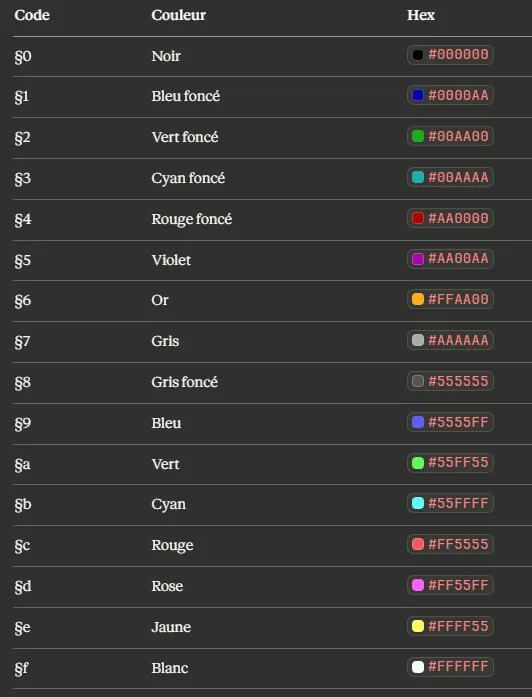
Minecraft color codes
Minecraft uses the symbol § followed by a character to apply a color or formatting effect. Here is the complete reference of Minecraft color codes.
Colors:
Formatting: §l Bold §o Italic §n Underline §m ~~Strikethrough~~ §k Obfuscated text (random characters) §r Reset (cancels all effects) An important point: formatting effects stack. If you type §c§l, the text will be red AND bold. To return to normal style, use §r before applying a new color.
How to modify the MOTD
Via server.properties (manual method)
The classic method is to directly edit the server.properties file at the root of your server.
Stop your server. Open the server.properties file in the OuiPanel File Manager (or via SFTP). Find the line motd= and replace the value. To add colors, use the character \u00A7 followed by the color code. For example: motd=\u00A7c\u00A7lMy Server \u00A7r\u00A7e- Welcome! will display "My Server" in bold red followed by "- Welcome!" in yellow. Save the file and restart the server.
The MOTD in server.properties supports only two lines. Use \n to separate the first and second line: motd=\u00A7bLine 1\n\u00A7eLine 2.
Via our free MOTD generator
Typing \u00A7 codes by hand is tedious and error-prone. That's why we created a visual tool that generates your MOTD in real-time.
🎨 Free Minecraft MOTD Generator
Type your text, click on colors, add bold or italic, and copy the generated code directly into your server.properties. Real-time preview included.
The generator gives you the code ready to paste. No need to memorize color codes or guess the final rendering.
Via a plugin (ServerListPlus, MiniMOTD)
If you want to go beyond the two static lines of server.properties, plugins allow for dynamic MOTDs.
MiniMOTD is the most popular plugin for this. It supports random MOTDs (the server displays a different message with each refresh), color gradients, placeholders (number of connected players, server version), and player count animation. Compatible with Paper, Spigot, Purpur, Velocity, and BungeeCord.
ServerListPlus is an older but still functional alternative. It also allows customizing the hover text and showing different messages depending on whether the player has visited the server before or not.
To install these plugins, follow the same procedure as for any plugin: download the .jar, place it in the plugins/ folder, restart.
10 creative MOTD examples
Here are examples of MOTDs ready to copy-paste into your server.properties. Each example uses the \u00A7 format compatible with the configuration file.
1. Classic two-tone motd=\u00A7b\u00A7lMyServer \u00A7r\u00A7f- \u00A7eSurvival & Creative
Rendering: MyServer (bold cyan) - Survival & Creative (yellow)
2. Warm welcome motd=\u00A76\u00A7l★ \u00A7e\u00A7lWelcome to PixelWorld \u00A76\u00A7l★\n\u00A7fJoin the adventure!
Rendering: ★ Welcome to PixelWorld ★ (gold/yellow) + line 2 in white

3. Aggressive PvP server motd=\u00A7c\u00A7l⚔ WARZONE ⚔ \u00A7r\u00A74Hardcore PvP\n\u00A77No mercy. No rules.
Rendering: ⚔ WARZONE ⚔ (bold red) Hardcore PvP (dark red) + tagline in gray

4. Chill Survival Server motd=\u00A7a\u00A7l GreenCraft \u00A7r\u00A72Vanilla Survival\n\u00A7fFriendly community since 2023
Rendering: GreenCraft (bold green) Vanilla Survival (dark green)

5. Mini-games Server motd=\u00A7d\u00A7l FunMC \u00A7r\u00A7f| \u00A7eBedWars \u00A7f| \u00A7bSkyBlock \u00A7f| \u00A7cKitPvP\n\u00A77New: SkyWars mode!
Rendering: FunMC (bold pink) | BedWars | SkyBlock | KitPvP

6. Elegant Minimalist motd=\u00A78\u00A7l━━━ \u00A7f\u00A7lATLAS \u00A78\u00A7l━━━\n\u00A77play.atlas-mc.fr
Rendering: ━━━ ATLAS ━━━ (gray lines, bold white name)

7. RP Server motd=\u00A75\u00A7l⚜ Kingdom of Eldoria ⚜\n\u00A7dMedieval Roleplay \u00A78| \u00A77Season 4
Rendering: ⚜ Kingdom of Eldoria ⚜ (bold purple) + Medieval Roleplay

8. Update Highlight motd=\u00A7a\u00A7l✔ \u00A7fCraftopia \u00A7r\u00A78[\u00A7a1.21.4\u00A78]\n\u00A7e NEW: Christmas Event!
Rendering: ✔ Craftopia [1.21.4] + event announcement in yellow

9. Modded Server motd=\u00A79\u00A7l TechnoForge \u00A7r\u00A73Create + Mekanism\n\u00A77200 mods \u00A78| \u00A7f16 GB RAM \u00A78| \u00A7a24/7
Rendering: TechnoForge (bold blue) Create + Mekanism

10. Ultra-simple motd=\u00A7fWelcome to our Minecraft server!\n\u00A7eSurvival \u00A77| \u00A7bCreative \u00A77| \u00A7cPvP
Rendering: clean white text + colored modes

All these examples are compatible with Java Edition. For Bedrock, the principle is the same but some Unicode characters (emojis) may display differently.
Advanced MOTD: server icon and hover text
Change the server icon (server-icon.png)
The server icon appears to the left of the MOTD in the multiplayer list. To customize it, create a 64x64 pixel image in PNG format, name it exactly server-icon.png, and place it at the root of your server (at the same level as server.properties). Restart the server for the icon to be recognized.
Some tips: use a simple logo with bright colors that stand out against the dark background of the server list. Avoid text that's too small, as it will be unreadable at 64x64. A symbol or mascot works better than text.
Customize the hover text
When a player hovers over the player count (e.g., "3/20") with their mouse, additional text appears. By default, it's the list of connected players. With a plugin like MiniMOTD or ServerListPlus, you can replace this text with a custom message: server rules, Discord link, event announcement, etc.
This is an often overlooked space that can display useful information without cluttering the main MOTD.
Ready to customize your MOTD? Start with our free Minecraft MOTD generator, then apply the result to your server. If you don't have a server yet, learn how to create one with OuiHeberg or check out our Minecraft hosting offers.