
 Client area
How to Upgrade Your Service to a Higher Plan
This guide explains how to upgrade to a higher plan on OuiHeberg in a few simple steps.
Prerequisites
- Have an active customer account on OuiHeberg
- Have an active service eligible for upgrade
Steps to Upgrade Your Service
1. Log in to your client area
Go to your OuiHeberg client area and log in with your credentials.
2. Access your services
Once logged in, click on Services in the main menu, then select My Services.
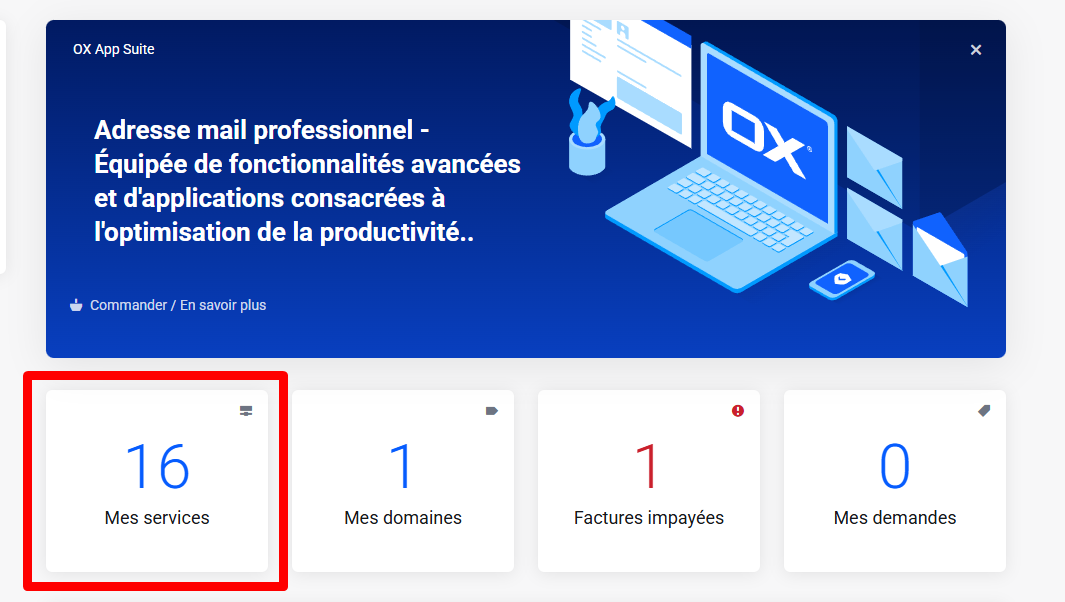
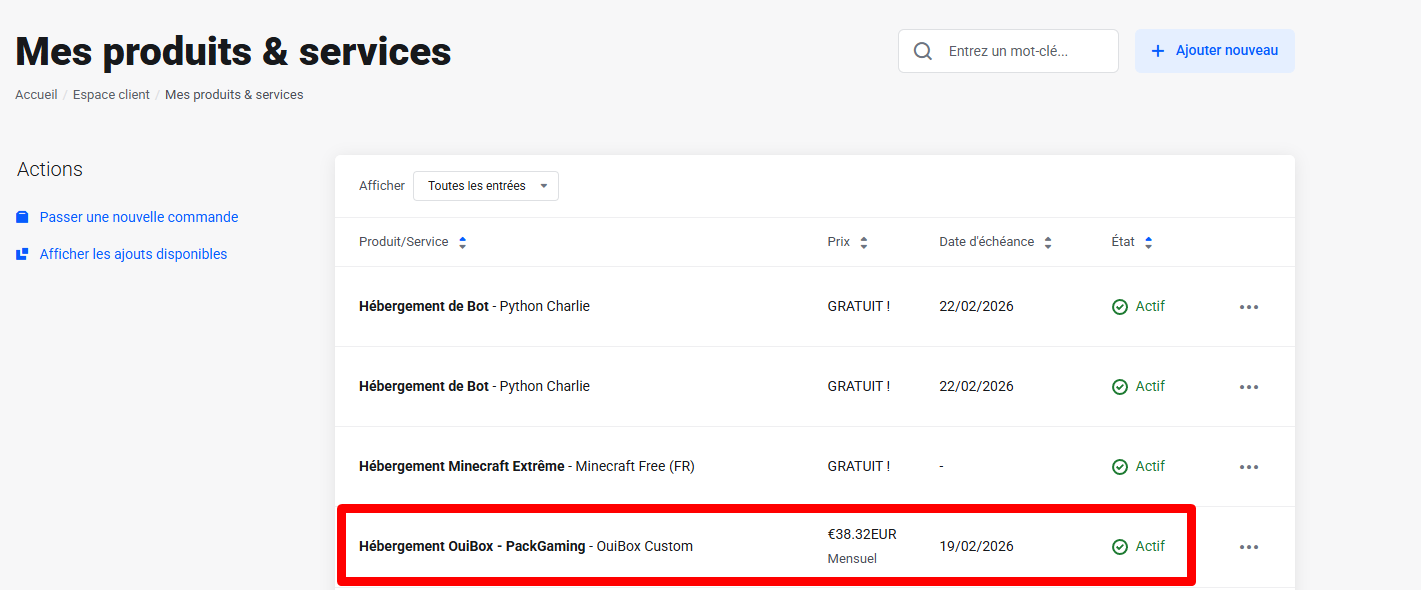
3. Select the service to upgrade
In the list of your active services, click on the service you want to upgrade to a higher plan.
4. Initiate the upgrade process
On your service management page, look for and click on the Change Plan or Upgrade/Downgrade button located in the sidebar or under available actions.
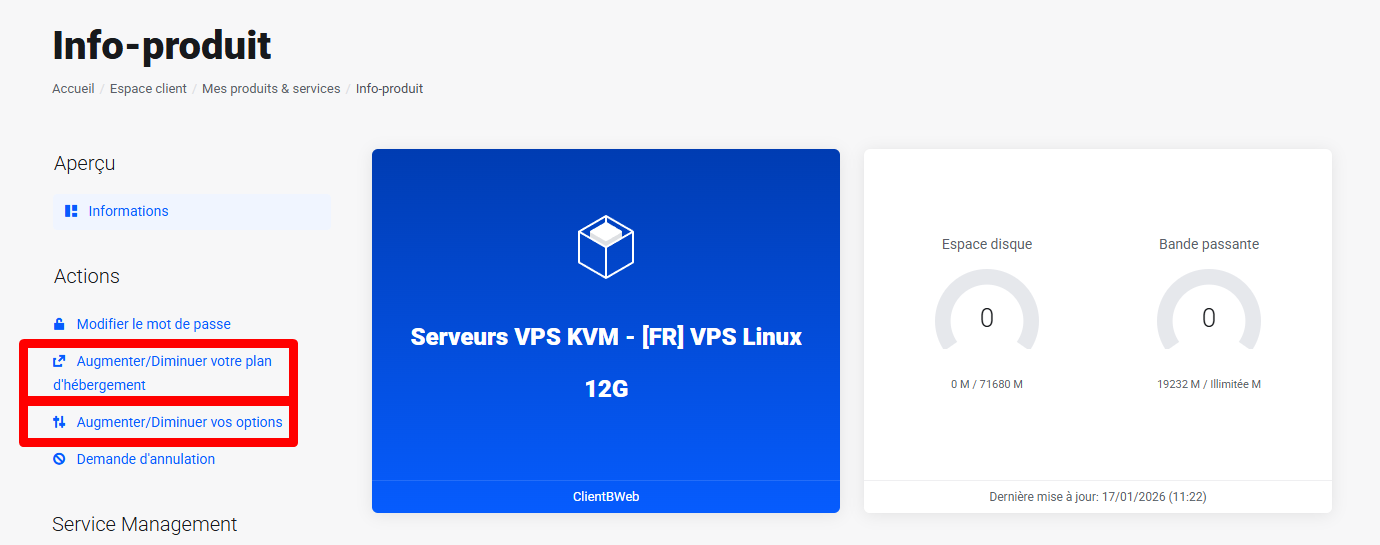
5. Choose your new plan
A list of available plans will be displayed. Select the higher plan you wish to migrate to. A summary of the differences between your current plan and the new plan may be shown.
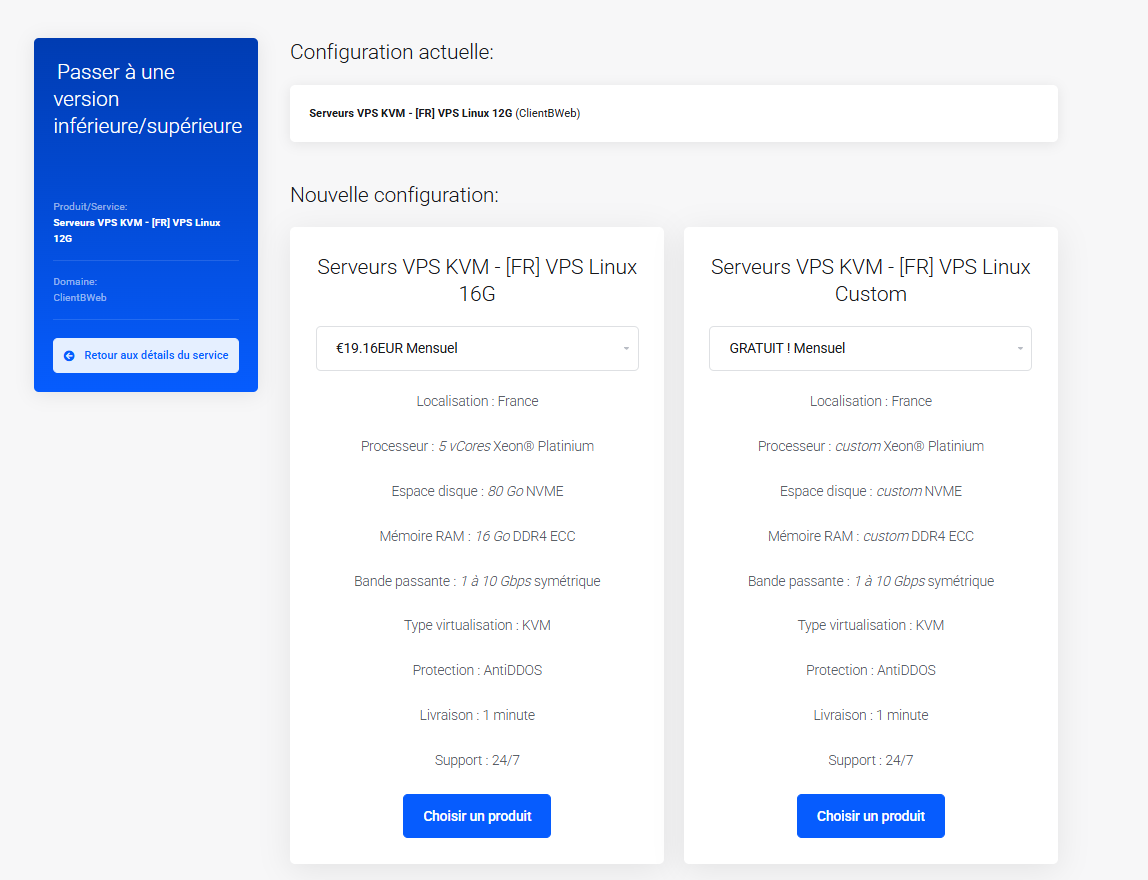
6. Review the summary
Before confirming, carefully check:
- The name of the new plan
- The new pricing (monthly, yearly, etc.)
- The prorated amount to be paid (difference calculated based on the remaining time in your current billing cycle)
7. Proceed with payment
Choose your payment method and settle the amount due to finalize the upgrade. An invoice will be automatically generated.
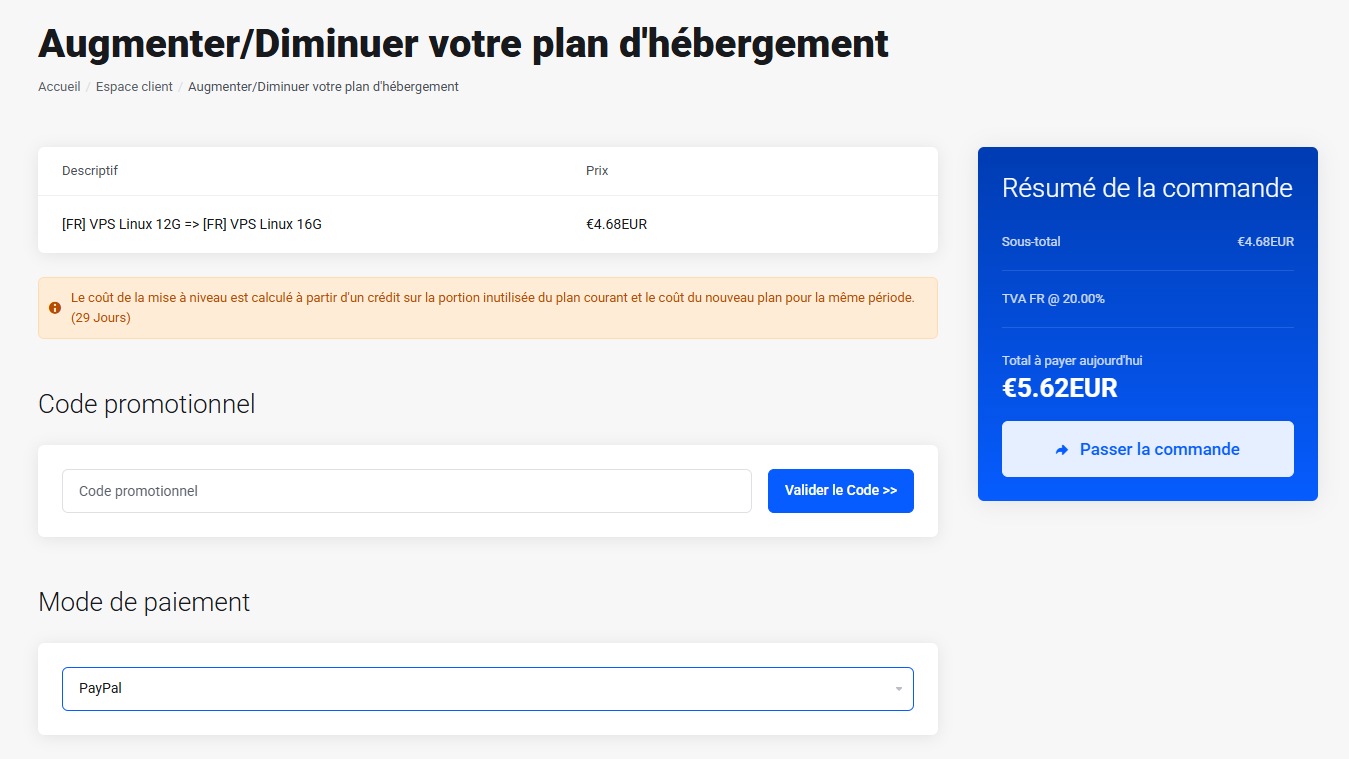
8. Confirmation
Once the payment is confirmed, your service will be automatically upgraded to the new plan. You will receive a confirmation email with details of your new plan.
9. Special Cases
VPS Services: After the upgrade, you need to restart your VPS to apply the changes. To do this:
- Access your VPS management panel
- Click on Stop to shut down your VPS
- Wait for the server to completely stop
- Click on Start to power on your VPS
The new resources (RAM, CPU, storage) will then be applied to your server.
Important Information
| Point | Detail |
|---|---|
| Billing | The amount is calculated pro rata based on the remaining time in your current cycle |
| Activation Time | The upgrade is typically effective immediately after payment |
| Data | Your data and configurations are retained during the upgrade |
| Downgrade | The same process can be used to switch to a lower plan (if available) |
Need Help?
If you encounter difficulties during the upgrade process, feel free to contact our technical support via:
- The ticket system from your client area
- Our support email
- Our live chat (if available)
Document updated for OuiHeberg client area