
 Client area
5 steps to secure your Windows VPS firewall
Check the status:
Get-NetFirewallProfile | Select Name, Enabledin PowerShell.Enable on all 3 profiles:
Set-NetFirewallProfile -Profile Domain,Private,Public -Enabled True.Create an inbound rule via the
wf.mscinterface orNew-NetFirewallRulein PowerShell.Restrict RDP (3389) to your source IP only.
Enable logging to audit blocked connections.
No server yet? Our Windows Server VPS plans come with the license and administrator access over RDP.
🛡️ Why the Windows Server firewall is critical on a VPS
A Windows VPS is directly exposed to the Internet. Without a properly configured firewall, anyone can attempt to connect to your open ports.
Network firewall vs OS firewall: two distinct layers.
At OuiHeberg, your Windows VPS has a network firewall at the infrastructure level. But this firewall does not replace Windows Defender Firewall: it operates at the OS level, rule by rule, program by program. Both must be active.
Risks if the Windows firewall is disabled:
RDP (port 3389) exposed to all scanning bots: continuous brute-force attacks.
SQL Server (1433), WinRM (5985/5986) accessible without restriction.
No visibility on blocked traffic (no logs).
The 3 network profiles: which one applies on a VPS?
Profile | When it activates | On a VPS |
|---|---|---|
Domain | Machine joined to an AD domain | Rarely active |
Private | Trusted network (LAN) | Possible depending on network config |
Public | Unknown network / Internet | Active by default on a VPS |
On a standalone VPS, it is the Public profile that applies. Enable rules on all 3 profiles to leave nothing to chance.
🔍 Check the firewall status before starting
Always start with an assessment. Connect via RDP, open PowerShell as administrator.
Via PowerShell: complete status of the 3 profiles:
Get-NetFirewallProfile | Select Name, Enabled, DefaultInboundAction, DefaultOutboundAction
Expected result:
Enabled = Trueon all 3 profiles. If one isFalse, enable it immediately.
Via the graphical interface:
Control Panel → System and Security → Windows Defender Firewall → check that each profile shows "Enabled".
Enable the firewall if disabled:
Set-NetFirewallProfile -Profile Domain,Private,Public -Enabled True
Check default actions (recommended):
Set-NetFirewallProfile -Profile Domain,Private,Public `
  -DefaultInboundAction Block `
  -DefaultOutboundAction Allow
Block all incoming traffic by default and only allow what you explicitly define: this is the correct security posture.
🖱️ Create a firewall rule (GUI method)
🖥️ Access the Windows Defender Firewall with Advanced Security interface
Two possible paths:
Windows key → type
wf.msc→ Enter.Control Panel → System and Security → Windows Defender Firewall → Advanced settings.
The interface displays 3 sections: Inbound traffic rules, Outbound traffic rules, Connection security rules.
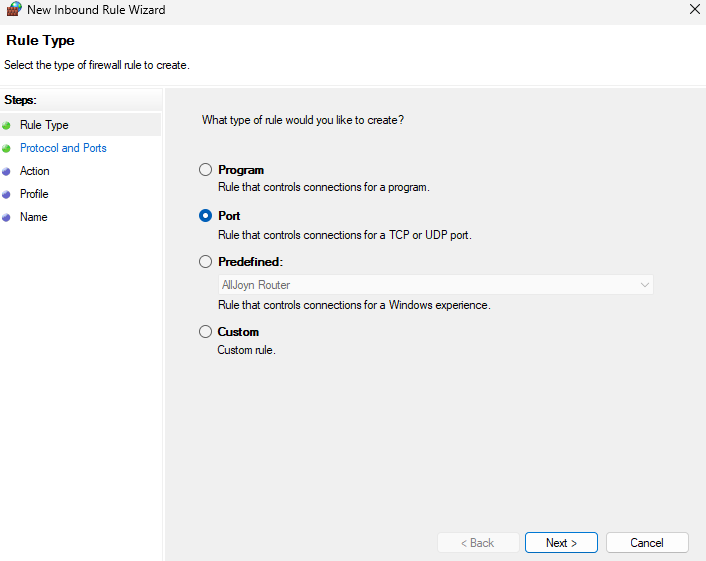
➡️ Create an inbound rule
Right-click on Inbound traffic rules → New rule.
Choose the type: Port, Program, Predefined or Custom.
Specify the protocol (TCP/UDP) and port number.
Action: Allow the connection or Block.
Select the relevant profiles (Domain, Private, Public).
Name the rule explicitly (e.g.,
Allow-HTTP-80-Inbound).
⬅️ Create an outbound rule
Most guides stop at inbound rules. This is a mistake.
Right-click on Outbound traffic rules → New rule.
Same process as for an inbound rule.
Useful for blocking a specific process or destination IP.
Concrete example: block outbound connections to a suspicious port or IP without affecting the rest of the traffic.
🔧 Define the type of rule
Type | Usage |
|---|---|
Port | Open/block a specific TCP or UDP port |
Program | Allow/block an executable (.exe) |
Predefined | Enable a built-in Windows rule group (RDP, file sharing…) |
Custom | Full control: port + program + source/destination IP address |
⚡ Create a firewall rule (PowerShell method)
PowerShell is the preferred method on a VPS: scriptable, reproducible, auditable. All commands below require an elevated (administrator) PowerShell session.
💻 Essential New-NetFirewallRule commands
Basic structure:
New-NetFirewallRule `
  -DisplayName "Descriptive name" `
  -Direction Inbound `          # or Outbound
  -Protocol TCP `
  -LocalPort 80 `
  -Action Allow `               # or Block
  -Profile Public,Private,Domain `
  -Enabled True
🔒 Secure RDP (port 3389): restrict to one IP
Never leave RDP open to the entire Internet. Restrict to your fixed IP or your VPN range.
# Block RDP for everyone
New-NetFirewallRule `
  -DisplayName "Block-RDP-All" `
  -Direction Inbound `
  -Protocol TCP `
  -LocalPort 3389 `
  -Action Block `
  -Profile Any

# Allow RDP only from your IP
New-NetFirewallRule `
  -DisplayName "Allow-RDP-MyIP" `
  -Direction Inbound `
  -Protocol TCP `
  -LocalPort 3389 `
  -RemoteAddress "203.0.113.10" `
  -Action Allow `
  -Profile Any
⚠️ Order of application: first create the Allow rule with your IP, then the Block rule. If in doubt, test from another open RDP session before closing the first one.
🌐 Open HTTP/HTTPS (ports 80 and 443)
New-NetFirewallRule `
  -DisplayName "Allow-HTTP-HTTPS-Inbound" `
  -Direction Inbound `
  -Protocol TCP `
  -LocalPort @(80, 443) `
  -Action Allow `
  -Profile Any
🗄️ Open SQL Server (port 1433): restrict to a subnet
SQL Server should never be exposed to the Internet. Limit to your application subnet.
New-NetFirewallRule `
  -DisplayName "Allow-SQLServer-LAN" `
  -Direction Inbound `
  -Protocol TCP `
  -LocalPort 1433 `
  -RemoteAddress "10.0.0.0/24" `
  -Action Allow `
  -Profile Any
🔌 Open WinRM (5985/5986) for remote management
WinRM allows remote PowerShell management. Must be restricted to a management IP.
# WinRM HTTP (5985) and HTTPS (5986)
New-NetFirewallRule `
  -DisplayName "Allow-WinRM-Management" `
  -Direction Inbound `
  -Protocol TCP `
  -LocalPort @(5985, 5986) `
  -RemoteAddress "203.0.113.10" `
  -Action Allow `
  -Profile Any
🚫 Block a specific port or IP
# Block an incoming port
New-NetFirewallRule `
  -DisplayName "Block-Port-8080-Inbound" `
  -Direction Inbound `
  -Protocol TCP `
  -LocalPort 8080 `
  -Action Block `
  -Profile Any

# Block a specific source IP (inbound)
New-NetFirewallRule `
  -DisplayName "Block-IP-Suspect" `
  -Direction Inbound `
  -RemoteAddress "198.51.100.42" `
  -Action Block `
  -Profile Any

# Block an outbound connection to an IP
New-NetFirewallRule `
  -DisplayName "Block-Outbound-IP" `
  -Direction Outbound `
  -RemoteAddress "198.51.100.42" `
  -Action Block `
  -Profile Any
📋 Predefined Windows Server rules to know
Windows Server includes ready-to-use rule groups. Enable them by group rather than rule by rule.
Useful groups:
Group | Usage |
|---|---|
| Allow RDP connections |
| SMB network sharing |
| Remote WMI management |
| PowerShell Remoting / WinRM |
| Fundamental network traffic (DNS, DHCP, ICMP) |
| Network discovery |
Enable an entire group with netsh:
netsh advfirewall firewall set rule group="remote desktop" new enable=Yes
netsh advfirewall firewall set rule group="Windows Remote Management" new enable=Yes
netsh advfirewall firewall set rule group="File and Printer Sharing" new enable=Yes
Enable a group with PowerShell:
Enable-NetFirewallRule -DisplayGroup "Remote Desktop"
Enable-NetFirewallRule -DisplayGroup "Windows Remote Management"
📝 Enable firewall logging
Without logs, it is impossible to diagnose a block or detect an intrusion attempt.
Why log:
Identify which rule is blocking a legitimate connection.
Detect port scans or brute-force attempts.
Satisfy security audit requirements.
Enable logs via PowerShell (all profiles):
Set-NetFirewallProfile -Profile Domain,Private,Public `
  -LogFileName "%SystemRoot%\System32\LogFiles\Firewall\pfirewall.log" `
  -LogMaxSizeKilobytes 4096 `
  -LogAllowed True `
  -LogBlocked True
Enable via netsh:
netsh advfirewall set allprofiles logging filename "%SystemRoot%\System32\LogFiles\Firewall\pfirewall.log"
netsh advfirewall set allprofiles logging maxfilesize 4096
netsh advfirewall set allprofiles logging droppedconnections enable
netsh advfirewall set allprofiles logging allowedconnections enable
Where to find the logs:
Default path: C:\Windows\System32\LogFiles\Firewall\pfirewall.log
Read the logs: key column format:
Column | Meaning |
|---|---|
| Timestamp of the event |
|
|
| Source IP |
| Destination IP |
| Source port |
| Destination port |
| Direction: |
To quickly read blocked connections in PowerShell:
Get-Content "C:\Windows\System32\LogFiles\Firewall\pfirewall.log" |
  Where-Object { $_ -match "DROP" } |
  Select-Object -Last 50
🔎 Audit and manage existing rules
This is the section you won't find at OVH or Amen. Managing existing rules is just as important as creating new ones.
List all active rules:
Get-NetFirewallRule | Where-Object { $_.Enabled -eq "True" } |
  Select-Object DisplayName, Direction, Action, Profile |
  Sort-Object Direction
List active rules with associated ports:
Get-NetFirewallRule | Where-Object { $_.Enabled -eq "True" } |
  ForEach-Object {
    $rule = $_
    $portFilter = $rule | Get-NetFirewallPortFilter
    [PSCustomObject]@{
      Name      = $rule.DisplayName
      Direction = $rule.Direction
      Action    = $rule.Action
      Protocol  = $portFilter.Protocol
      LocalPort = $portFilter.LocalPort
    }
  } | Format-Table -AutoSize
Disable a rule without deleting it:
Disable-NetFirewallRule -DisplayName "Rule name"
Reactivate a rule:
Enable-NetFirewallRule -DisplayName "Rule name"
Delete a rule permanently:
Remove-NetFirewallRule -DisplayName "Rule name"
Export all rules (backup):
netsh advfirewall export "C:\Backup\firewall-backup.wfw"
Import rules from a backup:
netsh advfirewall import "C:\Backup\firewall-backup.wfw"
💡 Best practice: export your rules before any major modification. In case of a problem, restoration takes 10 seconds.
🚨 Troubleshooting: connection refused despite an active rule
Your rule exists, it is enabled, but the connection still fails. Here are the 5 most common scenarios.
🔍 Check if the port is open locally
# Test from the server itself
[Upload...]
# Test from an external machine (replace the IP)
Test-NetConnection -ComputerName 203.0.113.50 -Port 443 -InformationLevel Detailed
If TcpTestSucceeded : False → the port is not accessible. If True → the problem lies elsewhere (application, DNS, etc.).
⚠️ Conflict between inbound and outbound rules
Windows applies Block rules with priority over Allow. If a more generic Block rule exists, it overrides your specific Allow rule.
Check for conflicting rules:
# Active Block rules inbound
Get-NetFirewallRule -Direction Inbound -Action Block -Enabled True |
  Select-Object DisplayName, Profile
📡 Incorrect network profile (Public vs Private)
Your rule is created for the Private profile, but your VPS is on the Public profile? It does not apply.
Check the active profile:
Get-NetConnectionProfile | Select-Object Name, NetworkCategory
Correct the profile if necessary:
Set-NetConnectionProfile -InterfaceAlias "Ethernet" -NetworkCategory Private
🏗️ OuiHeberg network firewall vs Windows firewall: which one is blocking?
If Test-NetConnection from the server itself succeeds but fails from the outside, the blockage comes from the OuiHeberg network firewall, not from Windows Defender Firewall.
Quick diagnostic:
From the VPS:
Test-NetConnection -ComputerName localhost -Port XXXX→ success = Windows OK.From your machine:
Test-NetConnection -ComputerName <IP_VPS> -Port XXXX→ failure = network firewall.
In this case, check your network firewall rules in the OuiHeberg client area.
📋 Check the logs to identify the blocking rule
# Search for DROP on a specific port (e.g. 8080)
Get-Content "C:\Windows\System32\LogFiles\Firewall\pfirewall.log" |
  Where-Object { $_ -match "DROP" -and $_ -match "8080" }
The path column indicates RECEIVE (inbound) or SEND (outbound). This confirms the direction of the block.
✅ Best firewall security practices on Windows VPS
Principle of least privilege: block everything by default.
Start with DefaultInboundAction Block and only open the strictly necessary ports. Each open port is an attack surface.
Change the RDP port (3389 → custom port).
Changing the port does not replace a good firewall rule, but reduces the noise from automated scans. Modify the registry key, then create the corresponding firewall rule:
# Example: RDP on port 54321
New-NetFirewallRule `
  -DisplayName "Allow-RDP-Custom-Port" `
  -Direction Inbound `
  -Protocol TCP `
  -LocalPort 54321 `
  -RemoteAddress "203.0.113.10" `
  -Action Allow `
  -Profile Any
Check our RDP connection guide for the complete port change procedure.
Restrict RDP to an IP or IP range.
If you have a static IP, this is the most effective measure. If your IP changes, use a VPN and only allow the VPN range.
Disable unused rules.
Do not delete: disable. You can reactivate them if needed. Audit active rules every quarter.
Regular audit of rules.
# Monthly export of active rules
Get-NetFirewallRule | Where-Object { $_.Enabled -eq "True" } |
  Export-Csv "C:\Audit\firewall-rules-$(Get-Date -Format 'yyyy-MM').csv" -NoTypeInformation
📊 Summary: Windows VPS Firewall Checklist
Action | PowerShell Command / GUI Location |
|---|---|
Check profile status |
|
Enable the firewall (3 profiles) |
|
Block all incoming traffic by default |
|
Create an inbound rule (port) |
|
Create an outbound rule (port) |
|
Restrict RDP to an IP |
|
Enable logging |
|
List active rules |
|
Disable a rule |
|
Delete a rule |
|
Export rules (backup) |
|
Test a port |
|
❓ FAQ
What is the difference between Windows Defender Firewall and a network firewall?
The network firewall (infrastructure level, at OuiHeberg) filters traffic before it reaches your VPS. Windows Defender Firewall operates at the OS level: it controls connections program by program, port by port, with rules per network profile. Both are complementary: one does not replace the other.
How to open a port on a Windows Server VPS?
In PowerShell (administrator):
New-NetFirewallRule -DisplayName "Allow-Port-XXXX" -Direction Inbound -Protocol TCP -LocalPort XXXX -Action Allow -Profile Any
Replace XXXX with the port number. If the port remains inaccessible from the outside, also check the OuiHeberg network firewall in your client area.
My application is not responding despite an open rule: what to do?
Check in this order:
Test-NetConnection -ComputerName localhost -Port XXXX: is the port being listened to?Does the active network profile match the profile of the rule?
Is a more generic Block rule overriding your Allow rule?
Is the blocking coming from the OuiHeberg network firewall (test from the outside)?
Check the logs:
Get-Content pfirewall.log | Where-Object { $_ -match "DROP" }
Should I enable the firewall on all profiles (Domain, Private, Public)?
Yes, always. On a VPS, the Public profile is generally active. But if the network configuration changes (adding an interface, joining a domain), another profile may become active. Enabling all 3 profiles ensures continuous protection regardless of the situation.
How to back up my Windows Server firewall rules?
netsh advfirewall export "C:\Backup\firewall-backup.wfw"
To restore:
netsh advfirewall import "C:\Backup\firewall-backup.wfw"
Schedule this export in a Windows scheduled task before each maintenance.
What port does RDP use by default and how to change it?
RDP uses port TCP 3389 by default. To change it:
Edit the registry key:
HKLM:\SYSTEM\CurrentControlSet\Control\Terminal Server\WinStations\RDP-Tcp→ valuePortNumber.Create a new firewall rule allowing the new port from your IP.
Disable (or delete) the rule on port 3389.
Restart the
TermServiceservice.
Check our RDP connection guide for the detailed procedure.