
 Client area
Estimated Time: 10 minutes
Difficulty: Beginner ⭐
Compatible Servers: Paper, Spigot, Purpur, Bukkit (not Vanilla)
📋 Introduction
Plugins are extensions that add features to your Minecraft server: economy systems, zone protections, extra commands, mini-games, and much more.
Plugin vs Mod: What's the Difference?
| Plugin | Mod |
|---|---|
| Installs server-side only | Requires installation server-side AND client-side |
| Compatible with Paper, Spigot, Purpur | Compatible with Forge, Fabric |
| Players don't need to install anything | Players need to install the same mods |
.jar files in the /plugins folder | .jar files in the /mods folder |
💡 This guide is for plugins. For mods (Forge/Fabric), refer to the dedicated guide.
🔧 Prerequisites
Check Server Compatibility
Plugins work only with these types of servers:
| Server Type | Compatible Plugins | Recommendation |
|---|---|---|
| ✅ Paper | Yes | ⭐ Recommended (better performance) |
| ✅ Spigot | Yes | Good choice |
| ✅ Purpur | Yes | Enhanced Paper |
| ✅ Bukkit | Yes | Old, prefer Paper |
| ❌ Vanilla | No | No plugins possible |
| ❌ Forge | No | Use mods |
| ❌ Fabric | No | Use mods |
| ❌ Bedrock | No | Use addons |
⚠️ Using Vanilla server? You must first switch to Paper or Spigot in your server settings.
📥 Where to Download Plugins?
Download your plugins only from reliable sources:
| Site | Link | Description |
|---|---|---|
| 🔶 SpigotMC | spigotmc.org/resources | Largest plugin library |
| 🟢 Modrinth | modrinth.com/plugins | Modern, verified plugins |
| 🟠 Hangar (PaperMC) | hangar.papermc.io | Plugins for Paper |
| 🟡 Bukkit | dev.bukkit.org | Historical, still active |
⚠️ Attention: Never download plugins from unofficial sites or suspicious Discord links. Risk of malware!
🚀 Installing a Plugin
Method 1: Via File Manager (Recommended)
Step 1: Download the Plugin
- Go to SpigotMC or Modrinth
- Search for the desired plugin (e.g., "EssentialsX")
- Check compatibility with your Minecraft version
- Click on Download to get the
.jarfile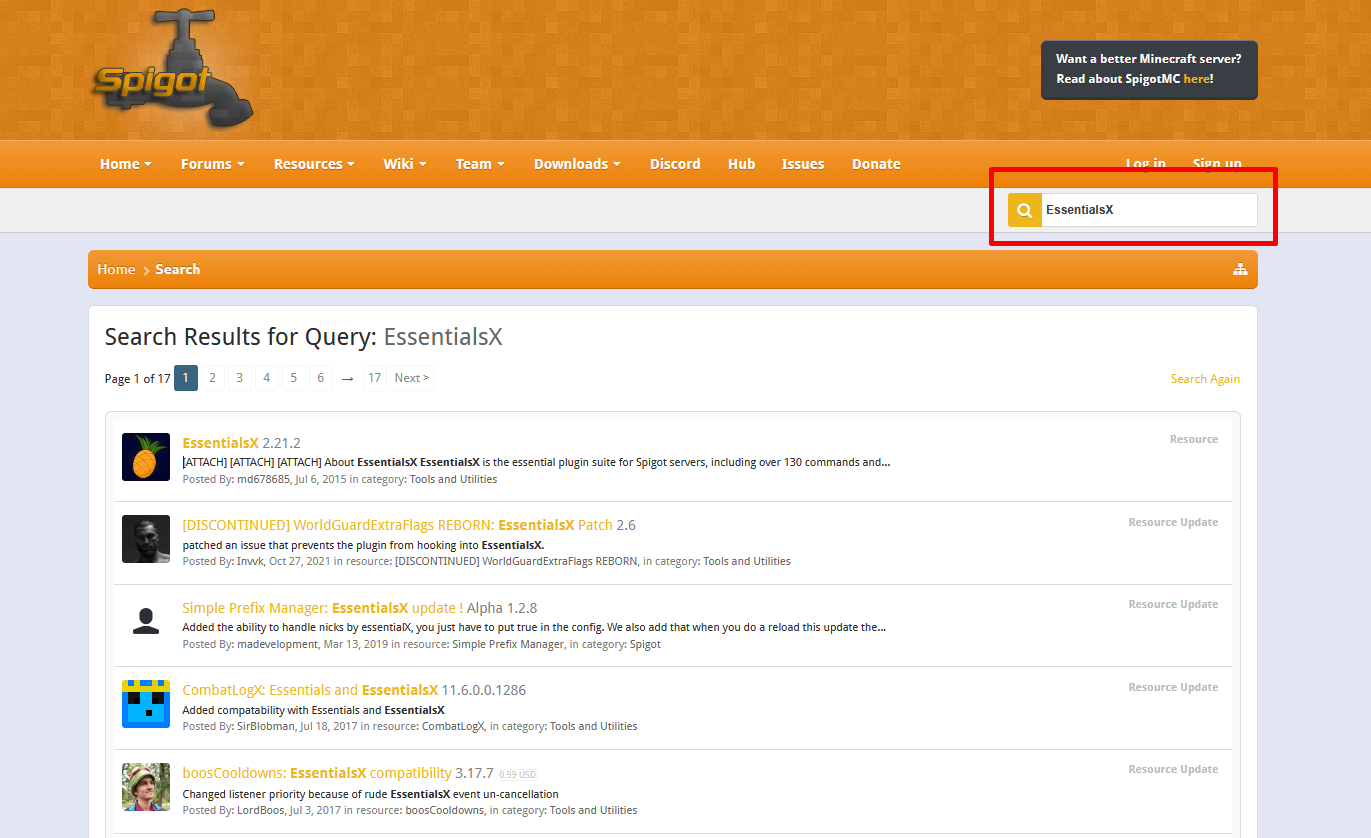
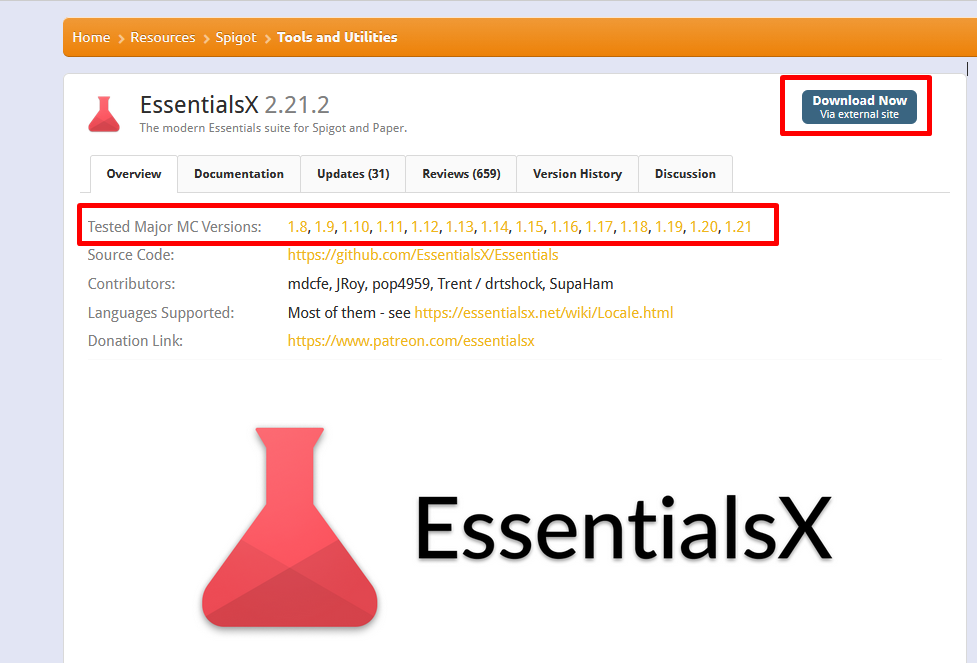
💡 Tip: Note any required dependencies (e.g., Vault for economy plugins).
Step 2: Access the File Manager
- Log in to OuiPanel
- Select your Minecraft server
- In the side menu, click on File Manager
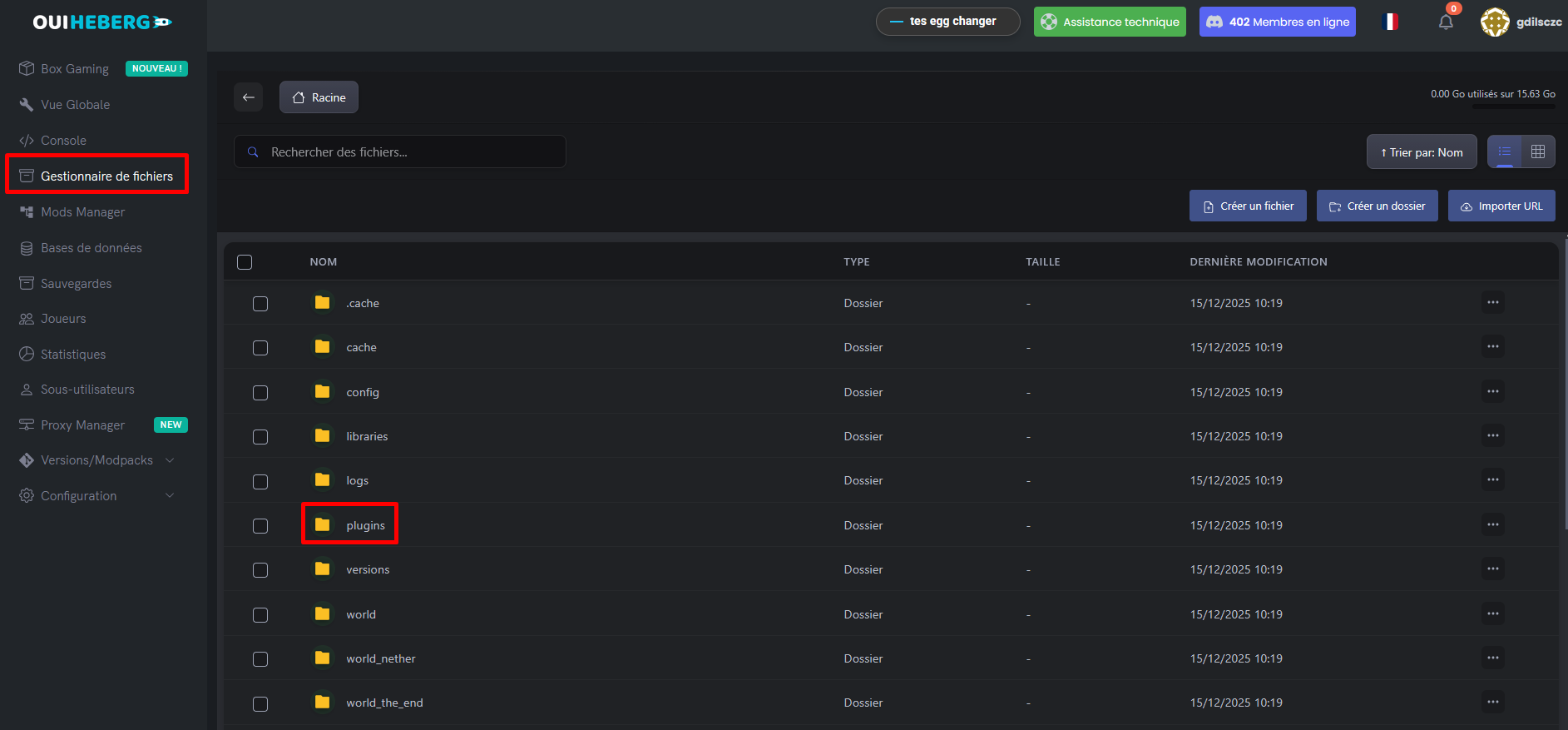
Step 3: Open the plugins folder
- In the file manager, click on the
pluginsfolder
📁 If the
pluginsfolder doesn't exist, start your server once and then stop it. The folder will be created automatically.
Step 4: Upload the plugin
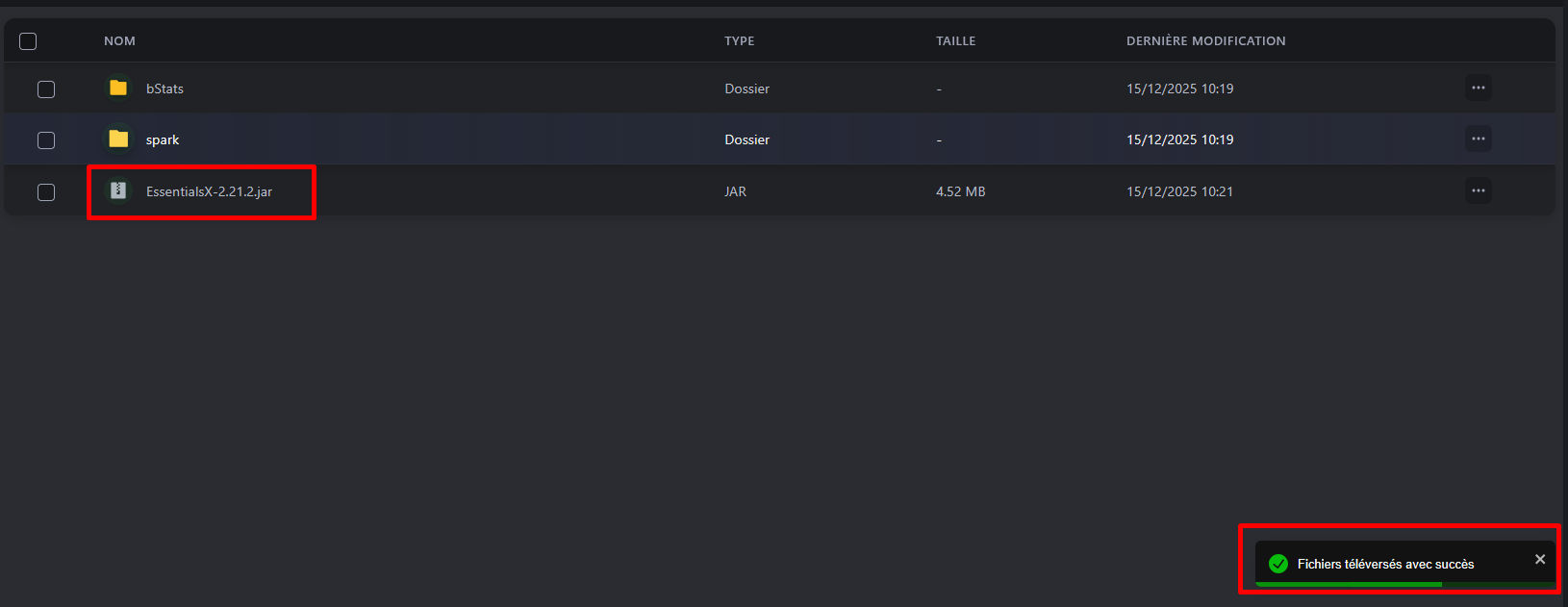
- Click on the Upload button
- Select the
.jarfile of the plugin from your computer - Wait for the upload to complete
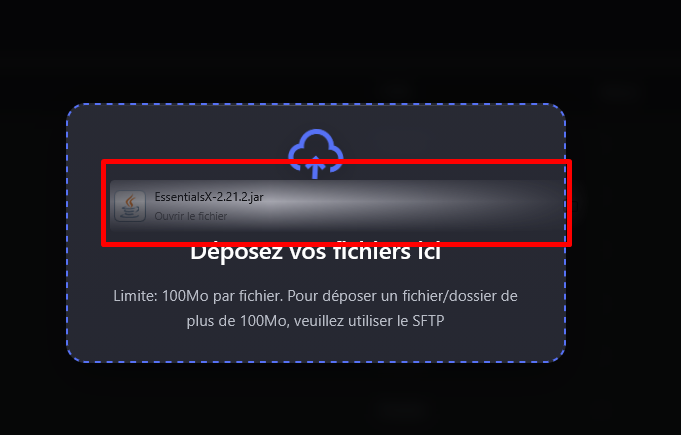
- The plugin will appear in the list of files:
Step 5: Restart the server
- Go back to your server's Console
- Click on Restart
- Wait for the server to fully start
- In the console logs, you should see the plugin loading:
[Server] [INFO] [EssentialsX] Enabling EssentialsX v2.20.1
 [Server] [INFO] [EssentialsX] Essentials: Using 1.20.4+ Provider as support
Step 6: Verify the installation
Log in to your Minecraft server and type the command:
/plugins
or
/pl
You will see the list of installed plugins:
- Green = Plugin enabled ✅
- Red = Plugin disabled/error ❌

If you run the command via OuiPanel console, please do not include the / to execute the command
Method 2: Via SFTP (Large Files)
If your plugin exceeds 100 MB (rare but possible), use SFTP:
- Connect via SFTP with FileZilla (see SFTP guide)
- Navigate to the
/pluginsfolder - Drag and drop the
.jarfile - Restart the server
📖 Check the "SFTP Access with FileZilla" guide for detailed instructions.
⚙️ Configuring a Plugin
Most plugins create a configuration folder on first startup.
File Structure
After the restart, your plugins folder looks like this:
📁 plugins/
├── 📄 EssentialsX.jar          ← The plugin
├── 📁 EssentialsX/             ← Configuration folder
│   ├── 📄 config.yml           ← Main configuration
│   ├── 📄 messages.properties  ← Customizable messages
│   └── ...
├── 📄 LuckPerms.jar
├── 📁 LuckPerms/
│   └── 📄 config.yml
└── ...
Modify the configuration
- In the File Manager, open the plugin folder
- Click on the file
config.yml - Click on the file to Edit
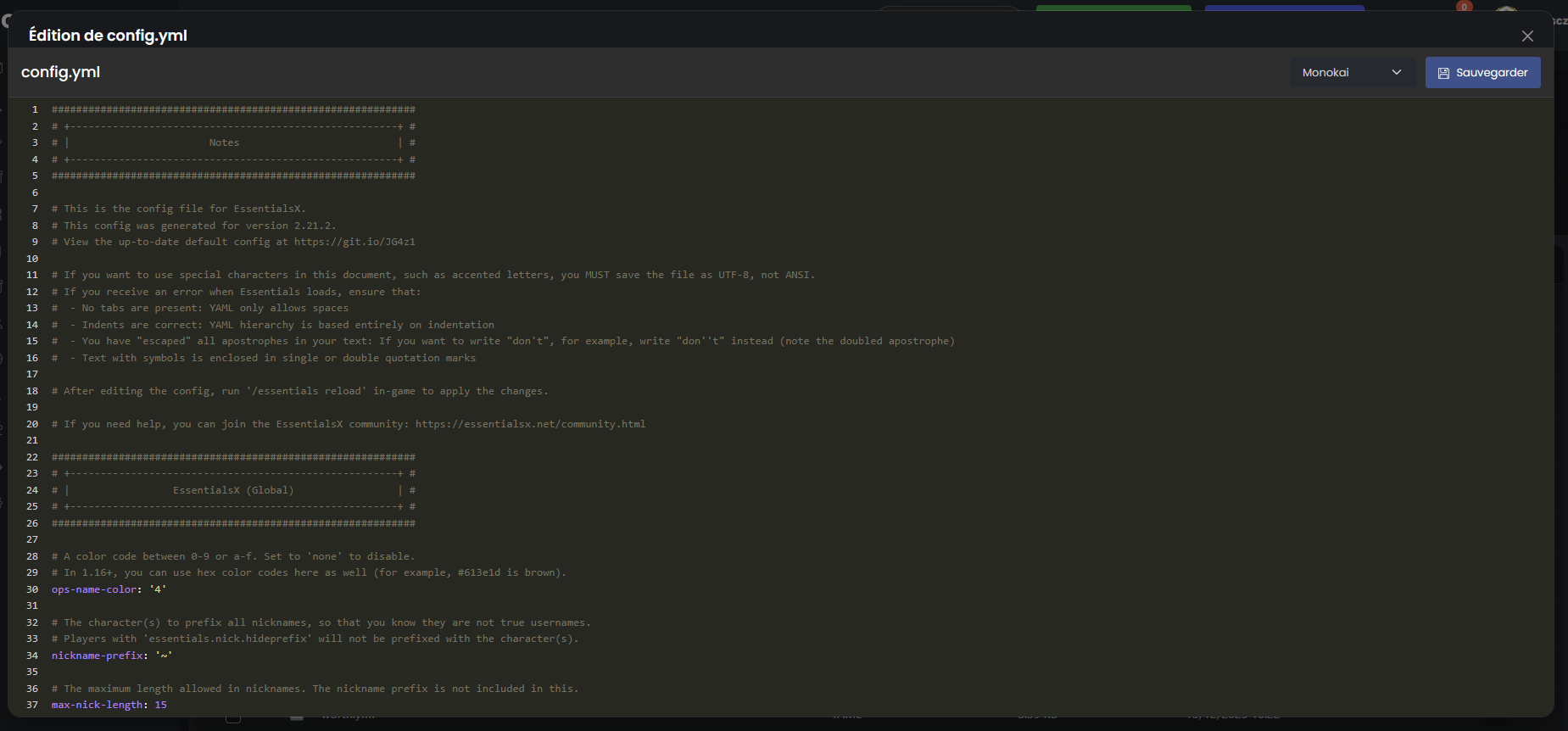
- Modify the settings according to your needs
- Click Save
- Restart the server to apply the changes
💡 Tip: Some plugins support
/reloador a specific reload command to avoid a full restart.
⭐ Recommended Popular Plugins
Essentials (Essential)
| Plugin | Description | Link |
|---|---|---|
| EssentialsX | Basic commands (/home, /spawn, /tpa, /kit...) | SpigotMC |
| LuckPerms | Permission and rank management | SpigotMC |
| Vault | Economy API (required by many plugins) | SpigotMC |
| WorldEdit | Massive terrain editing | SpigotMC |
| WorldGuard | Zone protection | SpigotMC |
Protection & Security
| Plugin | Description | Link |
|---|---|---|
| CoreProtect | Logs and anti-grief rollback | SpigotMC |
| GriefPrevention | Player protection claims | SpigotMC |
| AuthMe | Authentication (cracked servers) | SpigotMC |
Economy & Commerce
| Plugin | Description | Link |
|---|---|---|
| EssentialsX Economy | Simple economy system | Included with EssentialsX |
| ShopGUI+ | GUI shop interface | SpigotMC |
| ChestShop | Sign shops | SpigotMC |
Fun & Gameplay
| Plugin | Description | Link |
|---|---|---|
| mcMMO | RPG skills system | SpigotMC |
| Jobs Reborn | Jobs and money gains | SpigotMC |
| Citizens | Customizable NPCs | SpigotMC |
Administration
| Plugin | Description | Link |
|---|---|---|
| Plan | Statistics and analytics | SpigotMC |
| Multiverse-Core | Multi-world management | SpigotMC |
| TAB | TAB and nametags customization | SpigotMC |
🔧 Troubleshooting
The plugin does not load
| ❌ Issue | ✅ Solution |
|---|---|
| Incompatible version | Check if the plugin supports your Minecraft version |
| Missing dependency | Install required plugins (e.g., Vault) |
| Wrong folder | The .jar file should be in /plugins, not in a subfolder |
| Corrupted file | Re-download the plugin from the official source |
| Vanilla server | Switch to Paper or Spigot |
The plugin appears in red in /plugins
Check the Console to see the exact error:
[Server] [ERROR] Could not load 'plugins/MyPlugin.jar'
 [Server] [ERROR] java.lang.UnsupportedClassVersionError...
Common errors:
| Error | Meaning | Solution |
|---|---|---|
UnsupportedClassVersionError | Outdated Java version | Update Java in the settings |
NoClassDefFoundError: Vault | Missing dependency | Install Vault |
Plugin already initialized | Duplicate plugin | Remove duplicates |
Invalid plugin.yml | Corrupted or poorly compiled plugin | Re-download |
Plugin conflict
If your server crashes or lags after installing a plugin:
- Stop the server
- Delete the last installed plugin
- Restart the server
- Check if the issue persists
- Refer to the plugin page for known incompatibilities
The plugin is not functioning correctly
- Check the configuration (
config.yml) - Refer to the wiki or plugin documentation
- Check the permissions (LuckPerms)
- Test by giving yourself OP:
/op YourUsername
🗑️ Remove a Plugin
- Stop your server
- In the File Manager, open the
pluginsfolder - Delete the plugin's
.jarfile - (Optional) Remove the configuration folder of the plugin
- Restart the server
💡 Keep the configuration folder if you plan to reinstall the plugin later.
💡 Best Practices
Before installing a plugin
- ✅ Check the compatibility with your Minecraft version
- ✅ Read the reviews and rating on SpigotMC
- ✅ Check the last update date (abandoned plugin?)
- ✅ Read the required dependencies
- ✅ Make a backup before installing a large plugin
- 🔄 Regularly update your plugins
- 📊 Monitor performance (TPS) after each installation
- 🧹 Remove unused plugins
- 📝 Document installed plugins and their usefulness
Maintenance
📝 Summary
1. Download the plugin (.jar) from SpigotMC or Modrinth
 2. In OuiPanel → File Manager
 3. Open the "plugins" folder
 4. Click on "Upload" and upload the .jar
 5. Restart the server
 6. Check with /plugins in-game
7. Configure in plugins/PluginName/config.ymlNeed a Minecraft server?
Discover our Minecraft hosting plans starting from $2.28/month with automatic mod installation.