
 Client area
Quick Summary:
3 methods, from the simplest to the most comprehensive:
Windows Server Backup (native, free): complete system backup, bare-metal restore, zero installation.
Veeam Agent Free (free, professional level): bare-metal restore, backup to S3 object storage, clear interface.
Robocopy + Task Scheduler (free, lightweight): synchronization of critical files only, no bare-metal restore.
Quick recommendation: Veeam Agent Free for most Windows VPS. Windows Server Backup if you want 100% native. Robocopy as a complement for specific folders.
Why back up your Windows VPS?
The real risks without backup
A VPS without backup is a server that can disappear overnight. No dramatization: it's just reality.
Ransomware: attacks on Windows Server have exploded in the last 3 years. An infection encrypts all your files in minutes. Without off-site backup, everything is lost.
False manipulation: a misdirected del /f /s /q C:\inetpub\ command, a DROP DATABASE in production, a config file overwrite: it happens to everyone, even the experienced.
Disk failure: NVMe SSDs have an annual failure rate of about 0.5 to 1%. On a fleet of 100 servers, that's statistically 1 failure per year.
OS corruption: a Windows update that goes wrong, a sudden shutdown during a patch, an incompatible driver: the OS can become unbootable.
Basic rule: if you don't have a tested backup, you don't have a backup.
The 3-2-1 rule applied to Windows Server
The 3-2-1 rule is the industry standard. Simple, effective, proven.
Principle | What it means concretely on a VPS |
|---|---|
3 copies | The original on the VPS + 2 backups |
2 different media | Ex.: local disk of the VPS + remote object storage |
1 off-site copy | Storage in a different datacenter (or cloud) |
On a OuiHeberg VPS, the concrete implementation: local backup on a secondary volume + backup to a remote Object Storage (Backblaze B2, Wasabi).
Comparison of the 3 methods
Method | Cost | Difficulty | Recommended use | Bare-metal restore |
|---|---|---|---|---|
Windows Server Backup | Free | ⭐⭐ Easy | Complete system backup, simple environments | ✅ Yes |
Veeam Agent Free | Free | ⭐⭐⭐ Medium | Pro VPS, backup to S3, reliable restore | ✅ Yes |
Robocopy + Scheduler | Free | ⭐ Very easy | Critical files only, complement to another method | ❌ No |
Method 1: Windows Server Backup (native, free)
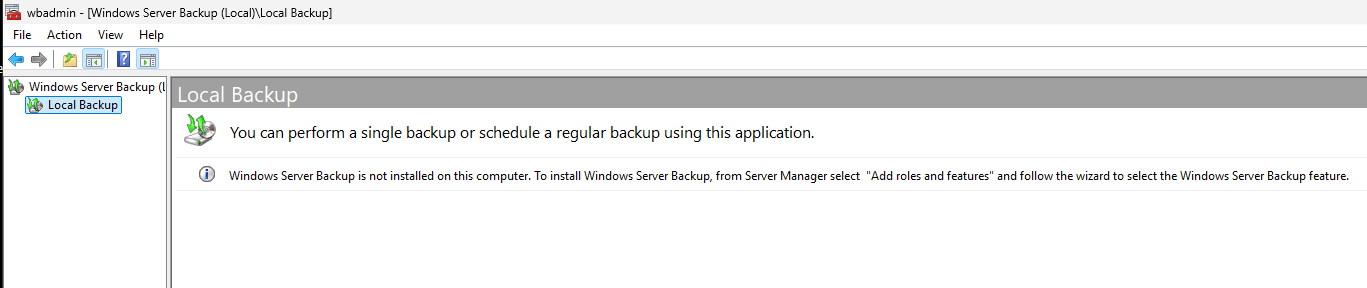
Windows Server Backup (WSB) is integrated into Windows Server 2016, 2019, and 2022. No need to install a third party. It manages complete backups, volumes, and bare-metal restoration via the Windows recovery environment.
Before you begin, ensure that your VPS is properly configured: check our guide Getting Started with Your Windows VPS if you haven't done so yet.
Install Windows Server Backup
Via PowerShell (recommended): open PowerShell as an administrator:
Install-WindowsFeature Windows-Server-Backup
Via Server Manager:
Open Server Manager → Manage → Add Roles and Features
Click Next until the Features step
Check Windows Server Backup
Click Install: no restart required
Verify the installation:
Get-WindowsFeature Windows-Server-Backup
The Install State field should display Installed.
Configure a scheduled backup
Via the graphical interface:
Open Windows Server Backup (search for "wbadmin" in the Start menu)
In the right panel, click Backup Schedule
Choose Full Server for a complete bare-metal backup
Select the frequency: Once a day at 02:00 (recommended)
Choose the destination: Dedicated disk or Shared network folder
Confirm and finish the wizard
Via wbadmin (command line):
wbadmin enable backup -addtarget:\\NAS\Backups\VPS -schedule:02:00 -include:C: -allCritical -quiet
Backup to a network share
For an on-demand backup to a network share:
wbadmin start backup -backupTarget:\\192.168.1.100\Backups -include:C: -allCritical -quiet
Key parameters:
-backupTarget: UNC path of the network share-include:C:: volume(s) to back up-allCritical: automatically includes all volumes necessary for system restoration-quiet: no interactive confirmation (useful for scripts)
To back up multiple volumes:
wbadmin start backup -backupTarget:\\192.168.1.100\Backups -include:C:,D: -allCritical -quiet
Restore from Windows Server Backup
Restore a specific file or folder:
wbadmin start recovery -version:MM/DD/YYYY-HH:MM -itemType:File -items:C:\inetpub\wwwroot -recursive -recoveryTarget:D:\Restore
Complete restore (bare-metal):
Boot from the Windows Server recovery media
Select Repair your computer → Troubleshoot → System Image Recovery
Select the WSB backup and follow the wizard
To list available versions before restoration:
wbadmin get versions
Method 2: Veeam Agent Free (professional, free)
Why Veeam Agent Free?
Veeam is the industry standard for Windows backup. The Free version broadly covers the needs of a VPS.
Bare-metal restore: Veeam Recovery Media allows restoring an entire server on different hardware
Backup to S3 object storage: compatible with Backblaze B2, Wasabi: off-site copy is native
Hot backup: uses VSS (Volume Shadow Copy) to back up while the server is running, without interruption
Limit of the Free version: 1 backup job per machine. Sufficient for a VPS.
Install Veeam Agent for Windows
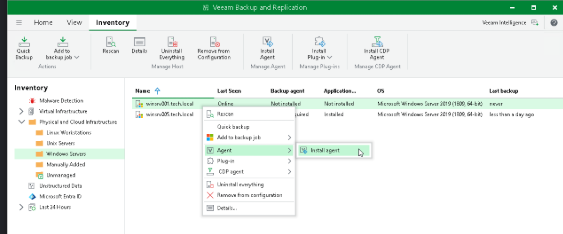
Download the installer from veeam.com/products/free/microsoft-windows.html (free account required)
Run
VeeamAgentWindows_x.x.x.exeas an administratorAccept the license → click Install
Wait for the installation to finish (2-3 minutes)
Restart if prompted
Veeam Agent then appears in the taskbar (green icon).
Configure a full backup job
Right-click on the Veeam icon in the taskbar → Add New Job
Name: give a descriptive name (e.g.
VPS-OuiHeberg-Full)Backup Mode: choose Entire Computer for a complete bare-metal backup
Destination: select Object Storage (S3) or Network Share depending on your target
Schedule: check Run the job automatically → Daily at 02:00
Retention: 7 restore points (14 if space allows)
Click Finish: the job starts according to the schedule
Backup to remote storage (S3 / Object Storage)
Veeam Agent Free natively supports S3 compatible storages. This is where the 3-2-1 rule makes perfect sense.
Configuration to Backblaze B2 / Wasabi):
In Veeam, at the Destination step, choose Object Storage
Click Add → select S3 Compatible
Fill in:
Service point: URL of your provider's S3 endpoint
Access key and Secret key: your Object Storage API keys
Bucket: name of the bucket created beforehand
Test the connection → Apply
To access your VPS and configure Veeam, check our guide Connecting to a Windows VPS via RDP.
File restoration:
Right-click on the Veeam icon → Restore → Individual files
Select the restore point
Navigate through the tree and restore the desired files
Bare-metal restore:
Create the Veeam Recovery Media: Veeam menu → Create Recovery Media → burn to USB
Boot the server from the Veeam USB stick
Select Bare Metal Recovery → connect to the backup storage
Select the restore point → Restore
Method 3: Robocopy + Task Scheduler (critical files)
When to use Robocopy?
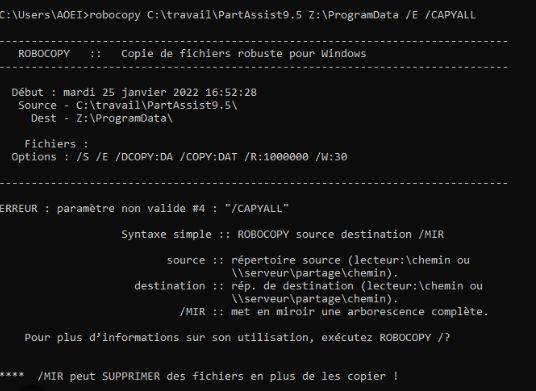
Robocopy is not a complete backup solution. It is a file synchronization tool, integrated into Windows since Vista.
Use Robocopy when:
You want to back up specific folders (configs, application data, SQL exports)
You already have WSB or Veeam for the system, and you want an additional copy of critical files
You need an ultra-lightweight script, with no external dependencies
Do not use it to replace a complete system backup: no bare-metal restore possible.
Robocopy script ready to copy
@echo off
:: ============================================================
:: Robocopy backup script: OuiHeberg Windows VPS
:: ============================================================

SET SOURCE=C:\inetpub\wwwroot
SET DEST=D:\Backups\wwwroot
SET LOG=D:\Backups\logs\robocopy_%date:~-4,4%%date:~-7,2%%date:~0,2%.log

robocopy "%SOURCE%" "%DEST%" ^
  /MIR ^
  /R:3 ^
  /W:10 ^
  /LOG:"%LOG%" ^
  /TEE ^
  /NP ^
  /NDL

:: Check return code
IF %ERRORLEVEL% LEQ 3 (
    echo Backup OK >> "%LOG%"
) ELSE (
    echo BACKUP ERROR - code %ERRORLEVEL% >> "%LOG%"
)
Explanation of parameters:
/MIR: complete mirror: copies new files, updates modified ones, deletes files deleted in the source. Caution: deletions propagate./R:3: 3 attempts in case of file copy failure/W:10: wait 10 seconds between each attempt/LOG:path: writes results to a dated log file/TEE: also displays results in the console (useful for debugging)/NP: does not display progress (less verbose logs)/NDL: does not display directory names in the log
Adjust
SOURCEandDESTto your actual paths. Create the folderD:\Backups\logs\before the first run.
Automate with Task Scheduler
Via command line (schtasks):
schtasks /create /tn "Robocopy-Backup-wwwroot" /tr "C:\Scripts\robocopy-backup.bat" /sc DAILY /st 03:00 /ru SYSTEM /f
Parameters:
/tn: task name/tr: path to the batch script/sc DAILY /st 03:00: every day at 03:00/ru SYSTEM: runs under the SYSTEM account (full access, no password)/f: forces creation even if the task already exists
Via the graphical interface:
Open Task Scheduler (taskschd.msc)
Create Basic Task in the right panel
Name:
Robocopy-Backup-wwwroot→ NextTrigger: Daily at 03:00
Action: Start a program → path to your
.batCheck Run whether user is logged on or not
Check Robocopy logs
Robocopy logs are in D:\Backups\logs\. Open the file of the day with Notepad or PowerShell:
Get-Content "D:\Backups\logs\robocopy_20260526.log" | Select-String "ERROR|ERREUR|New File|Newer"
Robocopy return codes (ERRORLEVEL):
Code | Meaning |
|---|---|
0 | No copy needed: source and destination identical |
1 | Files copied successfully |
2 | Additional files detected in the destination |
3 | Combination of 1 and 2: normal |
≥ 8 | Error: at least one file could not be copied |
A code ≤ 3 = successful backup. A code ≥ 8 = check for errors in the log.
Backup to remote storage
Why off-site storage is essential
A ransomware encrypts all accessible drives from the infected server: including mounted network shares. If your backup is on a disk attached to the same VPS, it is compromised.
Off-site copy (3-2-1 rule) protects against:
Ransomware: S3 object storage with versioning is immutable
Physical disaster: failure of the main datacenter
Human error: accidental deletion propagated to local backup
Compatible remote storage options
Provider | Price/GB/month | S3 Compatibility | FR Datacenter | Veeam Integration |
|---|---|---|---|---|
Cloudflare D1 | Starting at €0.05/GB | ✅ Yes | ✅ Yes | ✅ Native |
Backblaze B2 | ~$0.006/GB | ✅ Yes | ❌ No (US/EU) | ✅ Native |
Wasabi | ~$0.0068/GB | ✅ Yes | ✅ Yes (Amsterdam) | ✅ Native |
Configure Backblaze B2 as a destination
Step 1: Create a bucket
Log in to your OuiHeberg client area
Go to Object Storage → Create a bucket
Name it (e.g.
vps-backups) and choose the France regionEnable versioning to protect against accidental deletions
Step 2: Retrieve S3 keys
In Object Storage → Access Keys → Create a key
Note the Access Key and the Secret Key (displayed only once)
Note the S3 endpoint (format:
https://s3.ouiheberg.com)
Step 3: Configure in Veeam
Follow the steps in the section Method 2: Veeam Agent Free, part "Backup to remote storage".
Step 3 (alternative): Configure in Robocopy via rclone
rclone sync D:\Backups ouiheberg-s3:vps-backups/robocopy --progress
Test your restoration (a step that 90% of admins forget)
Why testing is mandatory
In 2023, a Veeam study showed that 58% of backups fail during an actual restoration attempt. The main cause: backups never tested.
An untested backup is not a backup. It is an illusion of security.
Real scenario: an admin configures WSB in 2024, never tests. In 2025, disk failure. He tries to restore: the backup file has been corrupted for 6 months. Everything is lost.
Monthly test checklist
Perform these checks every month:
Check backup logs: no errors in WSB / Veeam / Robocopy for the last 30 days
Test the restoration of a single file: restore a config file from the backup and check its content
Check the integrity of the backup file: in Veeam → right-click on the job → Verify; in WSB:
wbadmin get versionsCheck storage space: the backup destination must not be full (alert at 80%)
Test bare-metal restoration (annual): restore to an isolated test environment
How to test without interrupting production
Option 1: Temporary VM Snapshot:
If your hypervisor allows it (KVM/QEMU on OuiHeberg VPS), create a snapshot before the restoration test. Restore, verify, then revert to the snapshot.
Option 2: Isolated test environment:
Deploy a second test Windows VPS (can be off 99% of the time)
Restore the backup onto it via Veeam Recovery Media
Check that the services start correctly
Shut down the test VPS
A OuiHeberg Windows VPS deploys in 60 seconds: ideal for one-off tests without fixed costs.
Troubleshooting: 4 common errors
1. Error 0x80070005: Access denied (WSB)
Message: The backup operation that started at ... has failed with following error code '0x80070005' (Access is denied.)
Cause: the WSB service does not have rights on the backup destination (network share or local folder).
Solution:
:: Check rights on the destination folder
icacls "D:\Backups" /grant "NETWORK SERVICE:(OI)(CI)F"
icacls "D:\Backups" /grant "SYSTEM:(OI)(CI)F"
If the destination is a network share, ensure that the SYSTEM account has access to the share and that the NTFS rights are correct.
2. Veeam: "Failed to create snapshot" (VSS error)
Message: Failed to create snapshot. Error: The shadow copy provider had an unexpected error while trying to process the specified operation.
Cause: the VSS (Volume Shadow Copy) service is failing or a VSS writer is in error.
Solution:
:: List VSS writers in error
vssadmin list writers

:: Restart VSS services
net stop vss
net stop swprv
net start swprv
net start vss
If a writer is in Failed state, restart the associated service (e.g.: SQL Server VSS Writer → restart SQL Server).
3. Robocopy: ERROR 5 (0x00000005) Access denied
Message: ERROR 5 (0x00000005) Accessing Source Directory C:\...
Cause: the account running the script does not have access to the source folder (often a system or protected folder).
Solution:
:: Run the scheduled task under SYSTEM
schtasks /change /tn "Robocopy-Backup-wwwroot" /ru SYSTEM

:: Or explicitly grant rights
icacls "C:\DossierSource" /grant "SYSTEM:(OI)(CI)R"
4. Network backup: "The network path was not found"
Message: wbadmin: The network path was not found. (0x80070035)
Cause: the network share is inaccessible: blocking firewall, non-existent share, or failed authentication.
Solution:
Check that the share is accessible:
net use \\192.168.1.100\Backups /user:admin passwordCheck Windows firewall rules (port 445 TCP): refer to our guide Configure Windows Server Firewall on a VPS
Check that the Server service is started on the target machine:
Get-Service LanmanServer
FAQ: Backing up your Windows VPS
Q1: What is the best method to back up a Windows VPS?
Veeam Agent Free is the best compromise for most Windows VPS: free, bare-metal restoration, backup to S3 object storage, clear interface. Windows Server Backup is a good alternative if you prefer to stay 100% Microsoft native. Robocopy does not replace a real system backup.
Q2: Is Veeam Agent Free really free for a VPS?
Yes, Veeam Agent for Microsoft Windows Free is free and has no time limit. The main constraint: 1 backup job per machine. For a single VPS, this is more than sufficient. For centralized multi-server management, you need to switch to Veeam Backup & Replication.
Q3: How many backups should be kept?
The recommended minimum is 7 restore points (7 days). For critical environments, aim for 14 to 30 days. With Veeam, configure retention in the job settings. With WSB, retention depends on the available disk space on the destination.
Q4: Can a Windows VPS be backed up while in use?
Yes. Both WSB and Veeam use VSS (Volume Shadow Copy Service) to create a consistent snapshot of the volume while the server is running. Databases (SQL Server, Exchange) are backed up in a consistent state without service interruption.
Q5: What is the difference between a backup and a snapshot?
A snapshot is a snapshot of the disk state at a specific moment: quick to create, but stored on the same medium. A backup copies the data to a different medium (external, network, cloud). The snapshot protects against software errors; the backup protects against physical loss of the medium. Both are complementary.
Q6: How to automate backups without manual intervention?
With WSB: use wbadmin enable backup with a scheduled time. With Veeam: enable the Run the job automatically option in the job configuration. With Robocopy: create a task in Windows Task Scheduler (schtasks). In all cases, configure email alerts or check logs weekly.
Useful sources
Your OuiHeberg Windows VPS is delivered in 60 seconds with full root access. Discover Windows VPS offers →