
 Client area
Estimated time: 10 minutes
Difficulty: Beginner ⭐
Compatible servers: ARK: Survival Evolved on OuiPanel
📋 Introduction
Your ARK: Survival Evolved server is delivered with an admin password generated at random, on The Island map. This guide shows how to name it, pick the map, protect access, set the player count, add Steam Workshop mods, become admin in the game and change the settings in GameUserSettings.ini.
The first install downloads the game, which is over 20 GB. Allow about 10 to 15 minutes before the server is ready. After that, each restart takes about 4 minutes.
⚙️ Open the server variables
- Open your ARK server in OuiPanel.
- Go to Configuration › Server Settings, then scroll down to the Environment Variables card.
- Change a value, then click the check mark to the right of the field (Save). Switches save on their own.
- In Console, click Restart. Variables are read when the server starts.
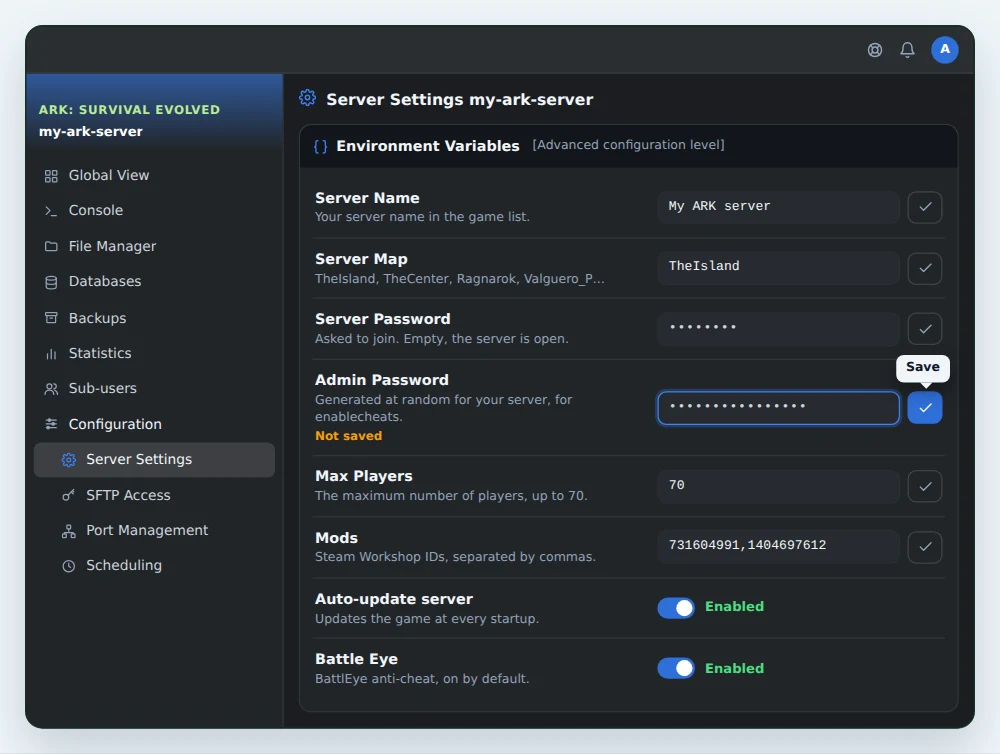
| Variable | What it does |
|---|---|
| Server Name | Your server name in the game list, up to 128 characters. Default A OuiHeberg Hosted ARK Server. |
| Server Map | The map loaded at startup, up to 20 characters. Default TheIsland. |
| Server Password | The password to join the server, with letters, numbers, - and _. Empty, the server is open to everyone. |
| Admin Password | The password for admin commands, 16 characters generated at random on delivery. You can replace it. |
| Max Players | The maximum number of players, up to 70. |
| Mods | Steam Workshop mod numbers, separated by commas. The Mods page fills it in for you. Empty by default. |
| Auto-update server | On by default. The server downloads the latest game version at every startup. |
| Battle Eye | On by default. BattlEye anti-cheat protects the server. Only turn it off if you know why. |
🏷️ Name the server
In Server Name, write the name your players will search for in the list, such as your group's name. Save, then restart. A unique name is easier to find than a common one.
🗺️ Pick the map
In Server Map, type the exact map name, capitals and _P included. Accepted names are TheIsland, TheCenter, Ragnarok, ScorchedEarth_P, Aberration_P, Extinction, Valguero_P, Genesis, CrystalIsles, Gen2, Fjordur.
- Each map keeps its own save. Switching back to a map brings its world back.
- Maps sold as expansions, like Scorched Earth, Aberration, Extinction or Genesis, must be bought by each player.
- Large maps need more memory. If the server runs short of RAM, upgrade your plan without losing data.
🔒 The two passwords
Server Password protects access to the server. Give it to your friends, or leave it empty for a server open to everyone.
Admin Password unlocks the game's admin commands. It's generated at random for your server. Keep it to yourself, and make it different from the server password if you change it.
💡 Both passwords accept letters, numbers, hyphens and underscores. Avoid spaces and other symbols.
👥 Set the player count
In Max Players, enter the maximum number of players, up to 70. Your plan's memory sets the recommended player count: up to about 10 on Start, 10 to 30 on Plus and 30 to 70 on Pro.
🧩 Add Steam Workshop mods
The Mods page in OuiPanel manages your server's Steam Workshop mods, up to 30, in the load order you choose. The server downloads them and updates them on its own at every startup.
- On the ARK Steam Workshop, open the mod's page and copy its address. Its number is the one after
id=, for example731604991. - In OuiPanel, open the server's Mods page. Paste the address or the number in Add a mod, then click Check.
- Read the mod preview, with its name, size and last update. The Add at position button puts the mod at the end of the list. If the mod can't be added, the preview tells you why.
- In Installed mods, set the order with the arrows. Mods load from top to bottom, and when two mods conflict, the one on top wins.
- Restart the server to apply the new list. On startup, ARK downloads the new mods.
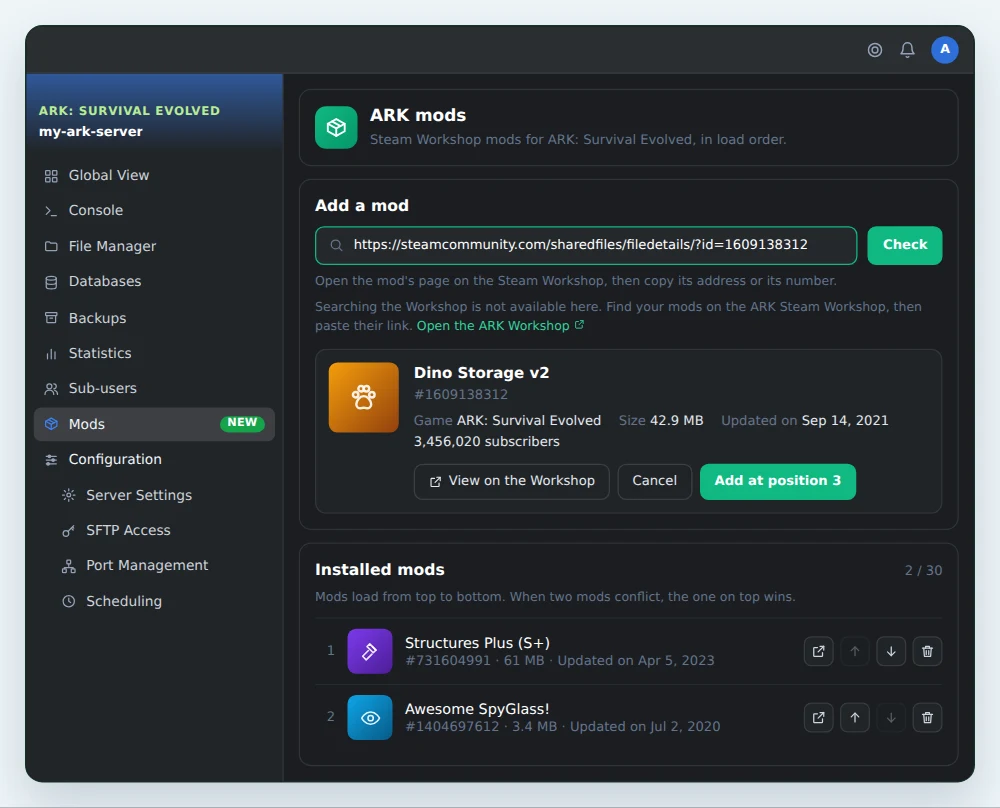
OuiPanel doesn't search the Workshop. Find your mods on Steam, then paste their link. Workshop collections are refused, so add their mods one by one.
The Mods variable in the server settings still works. It holds the mod numbers, separated by commas, and it's the variable the Mods page fills in for you.
💡 A modded server needs more memory, so pick the Plus or Pro plan. We don't provide support for mods.
🌍 Join the server
- Start the server from the OuiPanel Console and wait for the line
Server has completed startup and is now advertising for join. - About 25 seconds later, the server shows up in the unofficial server list.
- Launch ARK: Survival Evolved, open the server list and show unofficial servers.
- Look for the name you set in Server Name, then join the server and type its password if it has one.
👑 Become admin
- Once connected, open the game console with the Tab key.
- Type
enablecheatsfollowed by your admin password, for exampleenablecheats MyAdminPassword, then press Enter. - Admin commands are now active. They start with
admincheat, for exampleadmincheat SaveWorldto save the world.
Every command is listed in our complete ARK commands guide.
📝 Change game settings in GameUserSettings.ini
XP, harvest and taming rates, PvE and most server options live in ShooterGame/Saved/Config/LinuxServer/GameUserSettings.ini.
- Stop the server from the Console. The game rewrites this file when it stops, so a change made while it runs would be lost.
- Open the file in OuiPanel's File Manager, or over SFTP.
- In the
[ServerSettings]section, add or edit your lines, then save. - Start the server.
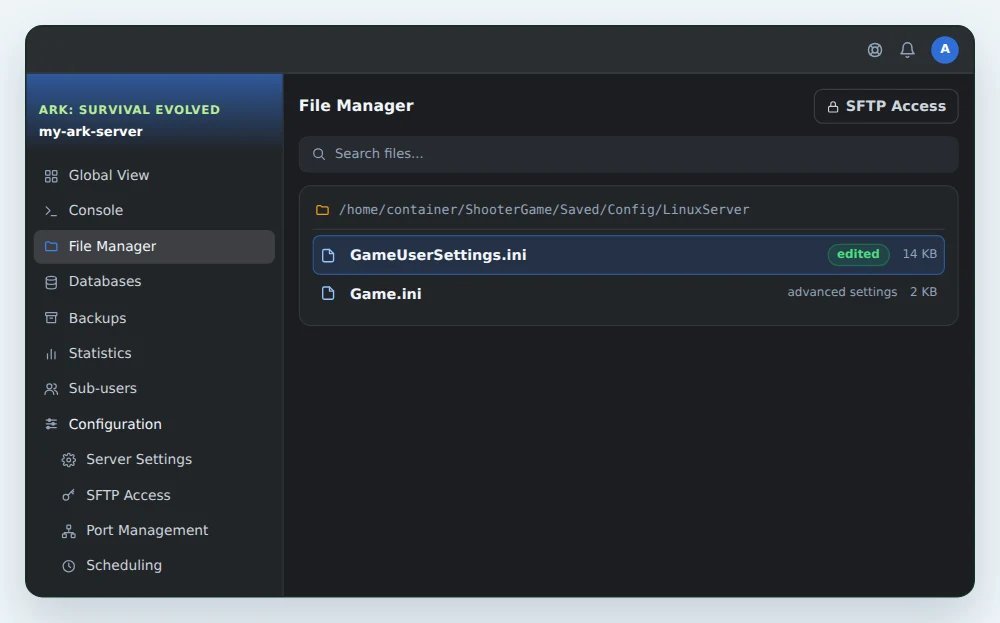
Here's an example that doubles XP and harvesting, triples taming speed and switches the server to PvE.
[ServerSettings]
XPMultiplier=2.0
HarvestAmountMultiplier=2.0
TamingSpeedMultiplier=3.0
serverPVE=True
The server is PvP by default. The line serverPVE=True switches it to PvE. The server name and passwords are set in the OuiPanel variables, which take priority over this file.
💡 Make a backup from the OuiPanel Backups page before changing your settings.
❓ Common issues
My server isn't in the list
On the first install, wait 10 to 15 minutes while the game downloads. Then check that the console shows advertising for join. If the server still doesn't show, open a ticket and our support will help you join it.
The admin password is refused
Copy it exactly from Admin Password, with no spaces. If you've just changed it, restart the server so it takes effect.
My GameUserSettings.ini changes disappeared
The file was edited while the server was running, and the game rewrote it when stopping. Stop the server, make the change again, save, then start it.
The map doesn't change
The name in Server Map must be written exactly as in the list, for example ScorchedEarth_P and not ScorchedEarth. Save, then restart.
➡️ Next steps
For every admin command, read the complete ARK: Survival Evolved commands guide. To open the server files from your computer, or import a save into ShooterGame/Saved/SavedArks, read How to connect via SFTP with FileZilla.
🚀 No server yet?
With our ARK server hosting, your ARK: Survival Evolved server holds up to 70 players, with DDoS protection, SFTP access and backups on demand or on a schedule.
Need an ARK server?
ARK server hosting from $6.92/month, up to 70 players, with the name, map and passwords set from the panel, world import over SFTP and DDoS protection included.