
 Client area
Estimated Time: 10 minutes
Difficulty: Beginner ⭐
📋 Introduction
SFTP (Secure File Transfer Protocol) allows you to securely transfer files between your computer and your server.
Why Use SFTP Instead of the File Manager?
| File Manager (OuiPanel) | SFTP (FileZilla) |
|---|---|
| ✅ Simple and fast | ✅ Unlimited transfers |
| ❌ Limit of 100 MB per file | ✅ No size limit |
| ❌ One file at a time | ✅ Multiple files/folders simultaneously |
| ✅ Integrated file editing | ✅ Drag and drop from your PC |
Use SFTP to:
- 📦 Upload a modpack or large mods
- 🗂️ Transfer a complete Minecraft world
- 📁 Upload multiple files/folders at once
- 💾 Download a complete backup of your server
🔧 Prerequisites
| Prerequisite | Description |
|---|---|
| 💻 FileZilla | Free SFTP client (download below) |
| 🔑 SFTP Credentials | Available in OuiPanel |
| 🌐 Internet Connection | Preferably stable |
🚀 Configuration in 4 Steps
Step 1: Download and Install FileZilla
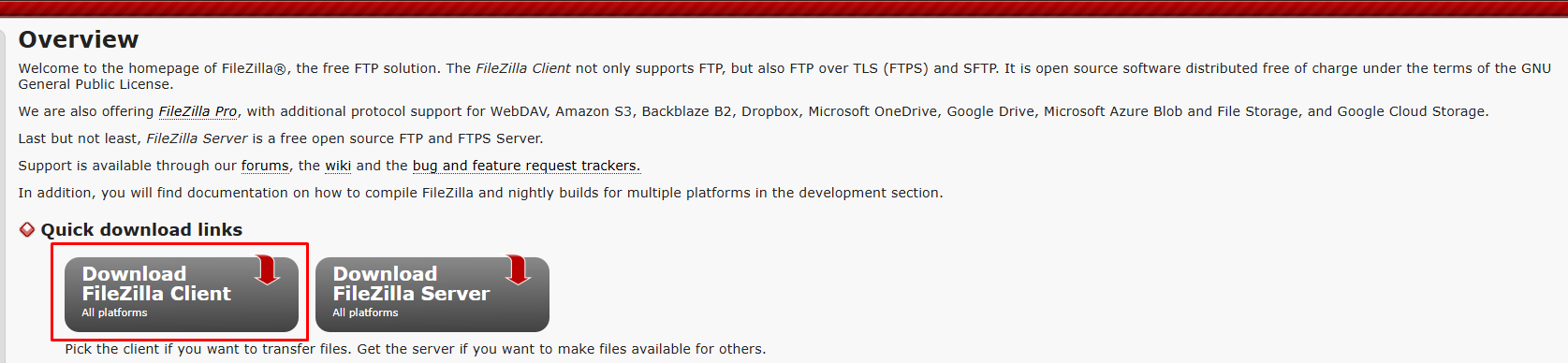
- Go to the official website: filezilla-project.org
- Click on Download FileZilla Client
- Choose the free version (without optional offers)
- Install FileZilla on your computer
💡 Alternative: You can also use WinSCP (Windows only).
Step 2: Retrieve SFTP Credentials
- Log in to OuiPanel
- Select your server
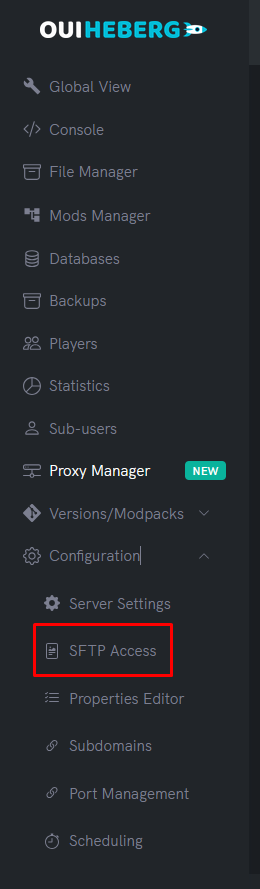
- In the side menu, click on Configuration
- Click on SFTP Access
- You will see your connection information:
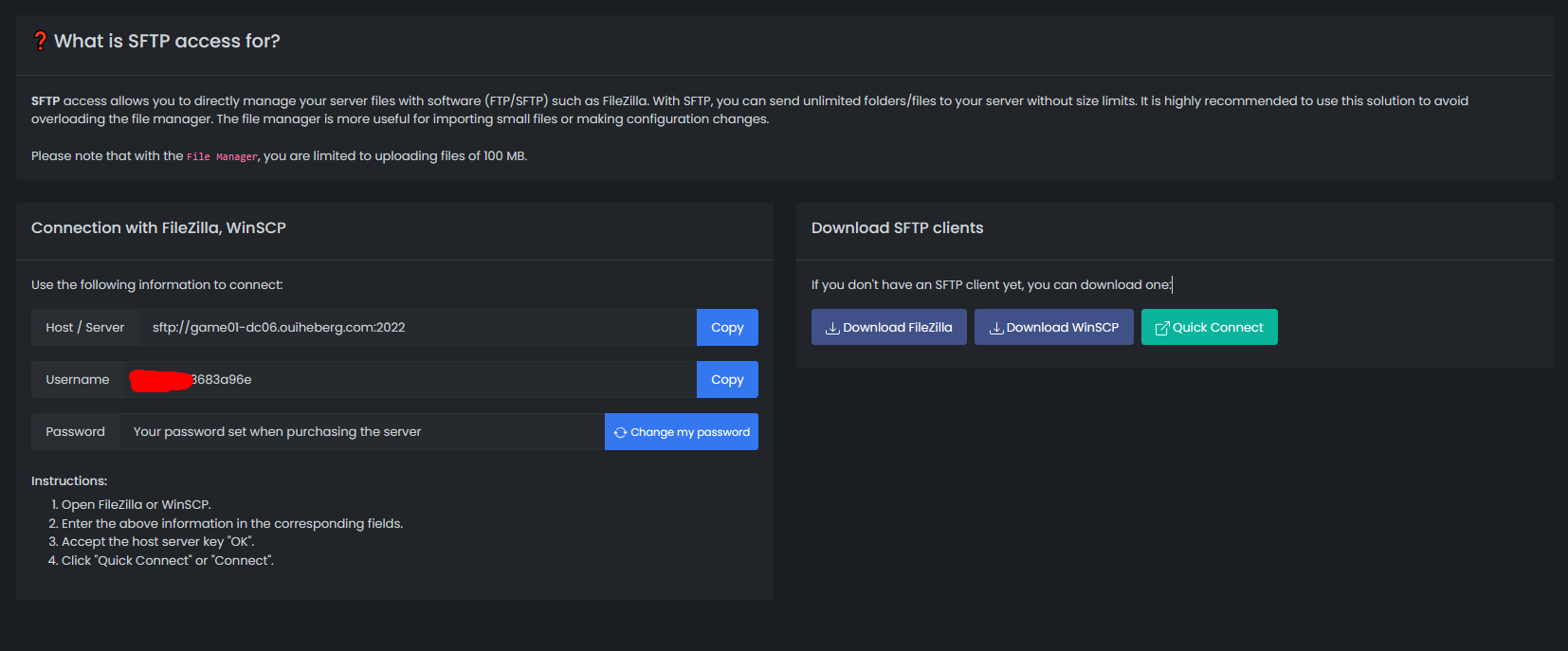
| Information | Description | Example |
|---|---|---|
| Host | SFTP server address | sftp://node-xx.ouiheberg.com |
| Username | Unique identifier | user.xxxxx |
| Password | SFTP password (click to display) | •••••••• |
💡 Tip: Click on the copy icon next to each field to quickly copy the value.
Step 3: Configure FileZilla
- Open FileZilla
- At the top of the window, you will see the quick connection bar:

- Fill in the fields:
| FileZilla Field | Value to Enter |
|---|---|
| Host | The server address (e.g., sftp://node-xx.ouiheberg.com) |
| Username | Your SFTP username |
| Password | Your SFTP password |
| Port | 2022 |
⚠️ Important: The SFTP port is 2022 (not 22 like standard SSH).
Step 4: Connect
- Click on Quick Connect
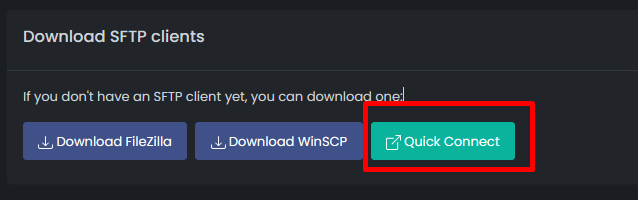
- If it's your first connection, FileZilla will display a warning about the server key:
-
Check Always trust this host then click OK
-
✅ You are connected! You will see:
- On the left: Your computer's files
- On the right: Your server's files
📁 Transfer Files
Send files to the server (Upload)
Method 1: Drag and Drop
- In the left part, navigate to the file/folder on your PC
- Drag it to the right part (server)
Method 2: Right-click
- In the left part, right-click on the file
- Click on Send
Download files from the server (Download)
Method 1: Drag and Drop
- In the right part, navigate to the file/folder on the server
- Drag it to the left part (your PC)
Method 2: Right-click
- In the right part, right-click on the file
- Click on Download
Track Progress
At the bottom of FileZilla, you can see:
- Queued Files: Transfers waiting
- Failed Transfers: Files that could not be transferred
- Successful Transfers: Files successfully transferred

💾 Save the Connection (Site Manager)
To avoid retyping your credentials every time:
- In FileZilla, click on File → Site Manager (or
Ctrl+S)
- Click on New Site
- Give it a name (e.g., "My OuiHeberg Server")
- Fill in the information:
| Field | Value |
|---|---|
| Protocol | SFTP - SSH File Transfer Protocol |
| Host | node-xx.ouiheberg.com (without the sftp://) |
| Port | 2022 |
| Authentication Type | Normal |
| Username | Your SFTP username |
| Password | Your SFTP password |
- Click OK to save
Now, click on the arrow next to the Site Manager icon to quickly connect!
🔑 Change SFTP Password
If you want to change your SFTP password:
- In OuiPanel, go to Configuration → SFTP Access
- Click on Change password
- A new password will be generated
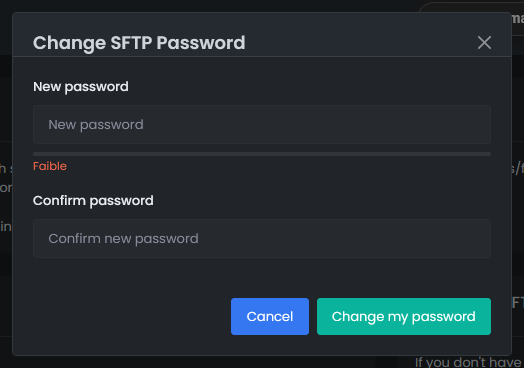
⚠️ Attention: Remember to update the password in FileZilla after changing it!
🔧 Troubleshooting
Error "Connection refused" or "Unable to connect"
| ❌ Cause | ✅ Solution |
|---|---|
| Incorrect port | Check that the port is indeed 2022 |
| Incorrect host | Check the server address in OuiPanel |
| Incorrect credentials | Copy and paste from OuiPanel |
| Firewall/Antivirus | Allow FileZilla in your firewall |
Error "Authentication failed"
| ❌ Cause | ✅ Solution |
|---|---|
| Incorrect password | Check the password in OuiPanel |
| Copy-paste with spaces | Re-enter without spaces before/after |
| Password changed | Retrieve the new one from OuiPanel |
Very slow transfer
| ❌ Cause | ✅ Solution |
|---|---|
| Slow internet connection | Check your speed |
| Many small files | Compress into .zip before sending |
| Overloaded server | Try at another time |
💡 Tip: To transfer many small files (mods, plugins), compress them into .zip, send the .zip, then decompress via the OuiPanel file manager.
Transfer interrupted
| ❌ Cause | ✅ Solution |
|---|---|
| Unstable connection | Check your internet connection |
| Timeout | In FileZilla: Edit → Settings → Connection → Timeout → Increase the value |
📱 Alternative: WinSCP (Windows)
If you prefer another interface, WinSCP is an excellent alternative:
- Download WinSCP: winscp.net
- Install and open WinSCP
- Configure the connection:
| Field | Value |
|---|---|
| Protocol | SFTP |
| Host name | node-xx.ouiheberg.com |
| Port | 2022 |
| Username | Your SFTP identifier |
| Password | Your SFTP password |
- Click on Connect
📝 Summary
1. Download FileZilla → filezilla-project.org
2. In OuiPanel → Configuration → SFTP Access
3. Copy: Host, User, Password
4. In FileZilla:
   • Host: sftp://node-xx.ouiheberg.com
   • Username: your user
   • Password: your password
   • Port: 2022
5. Click on "Quick Connect"
6. Drag and drop your files!