
 Client area
Estimated time: 10 minutes
Difficulty: Beginner ⭐
Compatible servers: Valheim on OuiPanel
📋 Introduction
Your Valheim server is delivered ready to start, with a default password. Change it first, before you give the server's join code to anyone.
This guide then shows how to name your server and your world, how to join the server from the game and how to make yourself an admin, based on the official Iron Gate guide.
⚙️ Change the password and name the world
- Open your Valheim server in OuiPanel.
- Go to Configuration › Server Settings, then scroll down to the Environment Variables card.
- In Server Password, replace the default password,
secret, with your own, then click the check mark to the right of the field (Save). - Set Server Name, the server name, and World Name, the world name, the same way, saving each one with its check mark.
- In Console, click Restart. The variables are read when the server starts.
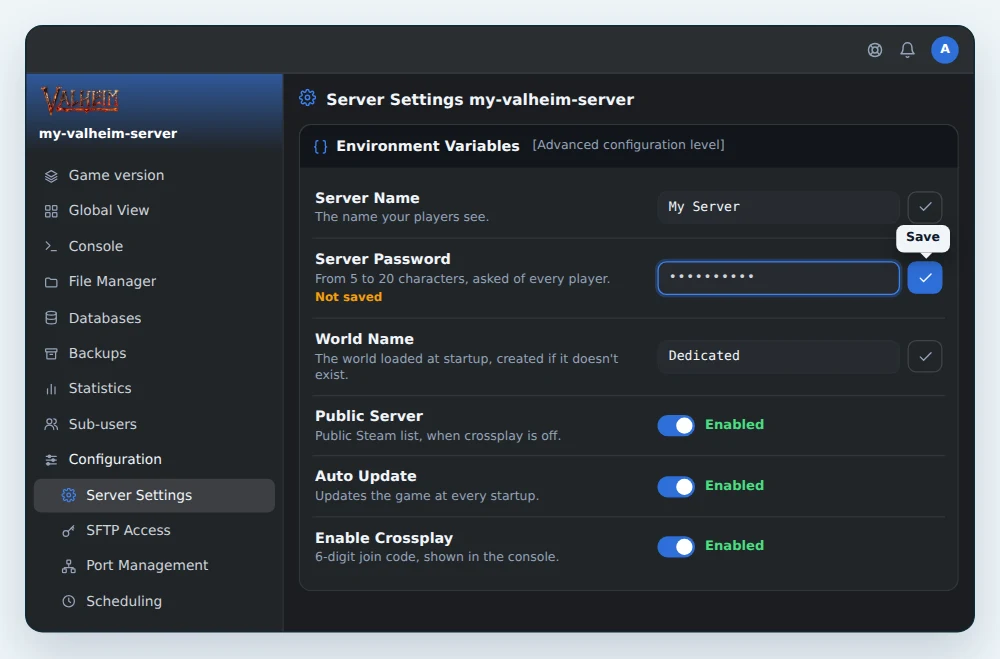
| Variable | Role |
|---|---|
| Server Name | The name shown to your players, 60 characters at most. By default, My Server. |
| Server Password | Asked from every player to join, from 5 to 20 characters. The delivered password, secret, must be changed. |
| World Name | The world loaded at startup, 20 characters at most. If it doesn't exist, the server creates it. By default, Dedicated. |
| Public Server | On by default. When crossplay is off, the server shows in the public Steam server list. |
| Auto Update | On by default. The game updates every time the server starts. |
| Enable Crossplay | On by default. The server goes through the game's crossplay service and shows a 6-digit code in the console. When off, only Steam players can see and join the server. |
💡 Pick a password that differs from the server name, and change it if someone leaves your group.
Changing the world name doesn't rename the current world. The server loads the world with the new name, or creates a new one. The old world stays on the server.
💡 The game also saves the world on its own. Backup Interval sets how often, every 1800 seconds by default, and Backup Count how many automatic copies the game keeps, 4 by default. They don't replace OuiPanel backups.
🌍 Join the server
Crossplay is on by default, with the Enable Crossplay variable. The server then registers with the game's crossplay service and gets a 6-digit code. Players on Steam, Xbox and the other platforms that support the game's crossplay join it with this code.
- Start the server from the OuiPanel Console.
- A few seconds after the world loads, the console shows two lines that start with
Session. The number afterjoin codeis your server's code. - Launch Valheim and pick your character.
- Open the Join Game tab, click Add server and paste the code.
- Join the server, then enter its password.
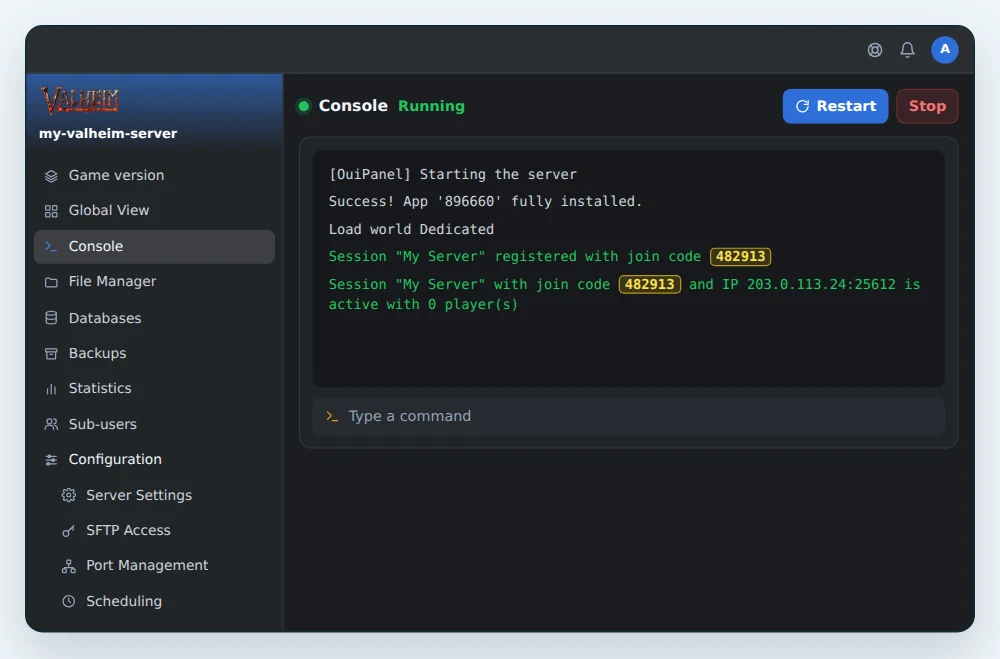
The line to look for reads like this one, with your server's name and your own code.
Session "My Server" with join code 482913 and IP 203.0.113.24:25612 is active with 0 player(s)
💡 Your friends follow the same steps, with the same code and the same password. Once connected, everyone also finds the code in the game's pause menu. A Valheim server takes 10 players at most.
The code shows at every startup. After a restart, check it again in the console, as it can change. Join Game and Add server are the labels given in Iron Gate's crossplay FAQ.
Play without crossplay
With crossplay on, the server doesn't show in the public Steam server list. If all your players are on Steam, you can turn crossplay off.
- In Server Settings, turn off Enable Crossplay.
- Leave Public Server on.
- Restart the server from the Console.
The server then has no code. It shows in the public Steam server list within about a minute, under the name set in Server Name. Its IP address and port stay displayed in the Server address block of the Console. Without crossplay, Iron Gate states that only Steam players can see and join the server.
🔑 Become an admin
An admin can manage players from the game, with the kick and ban commands. Being an admin doesn't give access to cheats.
- Join the server and press F2. The panel shows the connected players and their ID.
- Write down your ID exactly as it is shown. Depending on the version and the platform, it looks like
V_123456789orSteam_76561198000000000. - In OuiPanel, open Backups and click Create a backup, to be safe.
- Open the File Manager, then the game folder and the
adminlist.txtfile. - Add your ID on its own line, with no space or comment, then save the file.
- Restart the server from the Console.
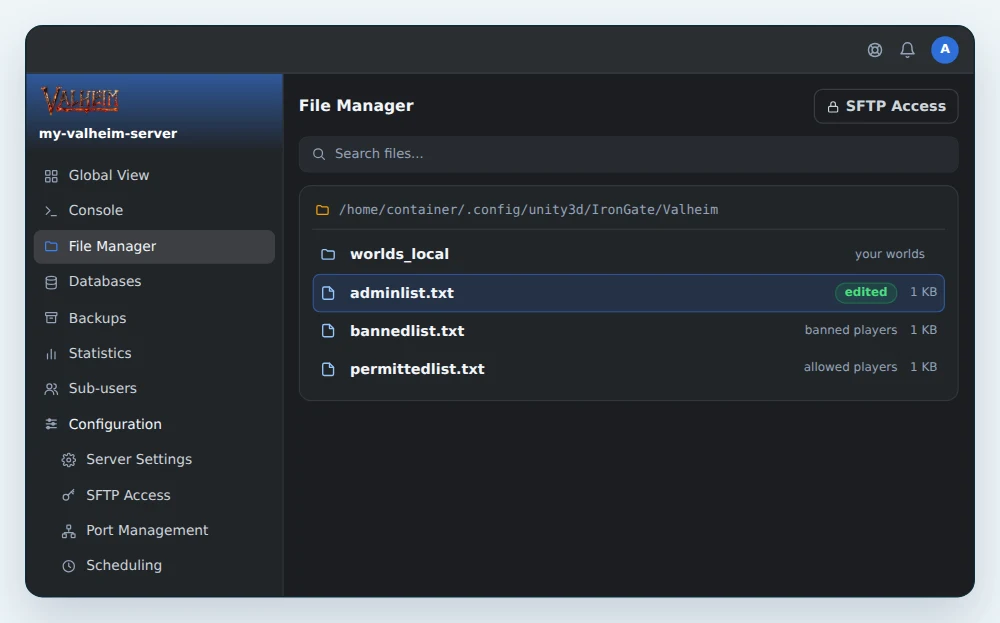
By default, the game folder is /home/container/.config/unity3d/IronGate/Valheim. Your worlds are in its worlds_local subfolder. An adminlist.txt file with two admins looks like this.
V_123456789
Steam_76561198000000000
🛡️ Manage players in the game
Once you are an admin, open the game console with F5 and type one of these commands.
| Command | Effect |
|---|---|
kick [name or ID] | Kicks a connected player. |
ban [name or ID] | Bans a player. |
unban [ID] | Lifts a ban. |
banned | Shows the list of banned players. |
💡 If the console doesn't open with F5, add
-consoleto the Valheim launch options in Steam.
🔒 Ban players or keep the server for your friends
Two other files in the same folder control access, with one ID per line. bannedlist.txt holds the banned players, who can no longer connect. permittedlist.txt is the allow list. As soon as it holds one ID, every player missing from the list is refused.
⚠️ Add your own ID to
permittedlist.txtbefore your friends' IDs, or you will be refused too. Restart the server after every change.
❓ Common issues
The password is refused
Check that it was saved with its check mark and that the server restarted since. It has 5 to 20 characters, and capitals matter.
I can't connect
Check that the server is running and that the code you typed is the one from the console, read again since the last restart. The server and the game must also run the same Valheim version. The server version is shown at the start of its log, in the Console. With Auto Update on, the server updates every time it starts. After a game update, restart it.
My server isn't in the Steam list
With crossplay on, that's expected. Join it with its code, or turn crossplay off as shown above. Without crossplay, check that Public Server is on and wait about a minute after startup.
A friend on Xbox can't join
Iron Gate states that crossplay must be enabled on the Xbox as well as on the server. If the option doesn't show in the game, check the console's parental controls. Also check that Enable Crossplay is on for your server.
My admin rights don't work
The ID in adminlist.txt must be exactly the one from the F2 panel, alone on its line and with no space. Save the file, then restart the server.
My world disappeared after a name change
The server loaded or created another world. Put the old name back in the world name variable, save, then restart. The old world was not deleted.
➡️ What's next
To add mods, follow Install mods on your Valheim server. To open the server files from your computer, read How to connect via SFTP with FileZilla. To run Valheim next to other games, see How to create and manage your servers on OuiBox.
🚀 No server yet?
With our Valheim server hosting, your server is ready in a few minutes, for up to 10 players, with anti-DDoS, SFTP access and on-demand or scheduled backups.
Need a Valheim server?
Valheim server hosting from $3.46/month, up to 10 players, with the password and world set from the panel, SFTP access, backups and DDoS protection included.