
 Client area
Estimated time: 15 minutes
Difficulty: Intermediate ⭐⭐
Compatible servers: Valheim on OuiPanel, except OuiBox
📋 Introduction
Valheim mods run through BepInEx, the mod loader used by almost every mod for the game. In OuiPanel, your server switches from the base version to the BepInEx version in a few clicks, without losing your worlds.
This guide shows how to change version, install a Thunderstore modpack or your own plugins, get your players ready, then go back to the base version.
⚠️ Iron Gate doesn't support mods, and neither does our support team. We help you with the version change in OuiPanel, not with how a mod works. Mods are played on PC only. They don't work for players on consoles.
🔁 Switch to the BepInEx version
- Open your Valheim server in OuiPanel and stop it from the Console. The panel refuses the change while the server is running.
- Open the Game version page in the server menu.
- On the Valheim BepInEx card, click Switch to this version.
- Leave the Make a backup before the change box ticked, then click Change version. The change starts as soon as the backup is finished. Stay on the page.
- The server reinstalls with the latest BepInEx version, downloaded from Thunderstore. Wait for the installation to finish, then start it from the Console.
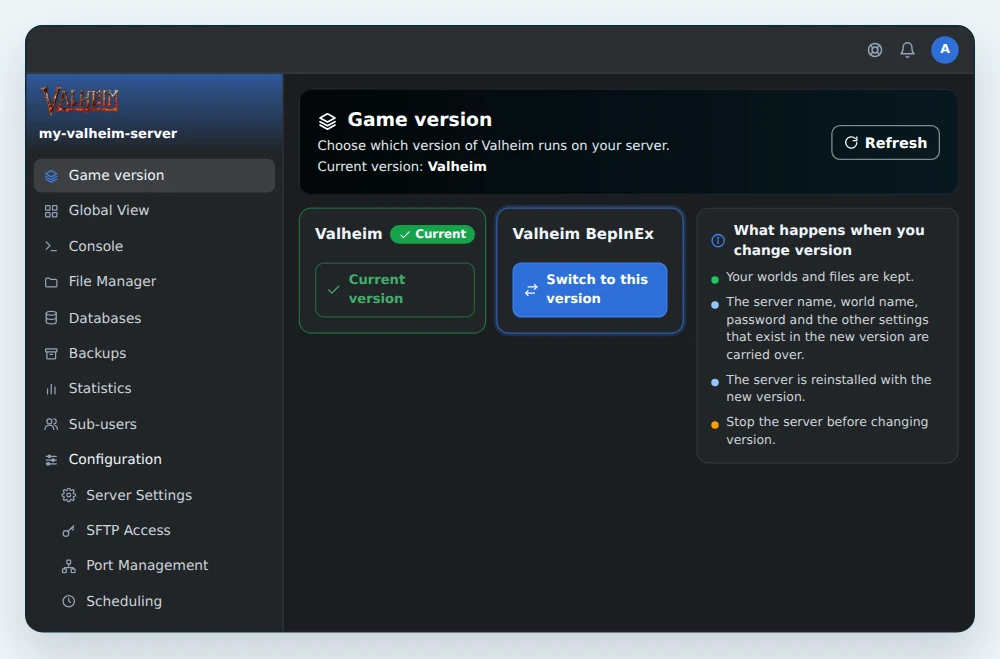
Your worlds are kept in .config/unity3d/IronGate/Valheim/worlds_local. The server name, the world name, the password and the Public Server setting carry over to the new version.
In the BepInEx version, Enable Crossplay is set to 0 by default, so crossplay is off. After the change, check its value in Server Settings.
📦 Install a Thunderstore modpack
A modpack is a list of mods published on Thunderstore. During the installation, the server downloads the mods on that list.
⚠️ With ModPack filled in, every reinstall first empties the whole
BepInEx/pluginsfolder, including the mods you added by hand. Back up the server before each reinstall, from the Backups page in OuiPanel.
- On Thunderstore, open the modpack page and copy its full Dependency string, version number included. It looks like
Author-ModpackName-1.0.0. - In OuiPanel, open the Backups page and create a backup.
- Go to Configuration › Server Settings, then scroll down to the Environment Variables card.
- Paste the Dependency string into ModPack, then click the check mark to the right of the field.
- On the same page, click Reinstall server. The ModPack variable is only read during the installation.
- Start the server from the Console.
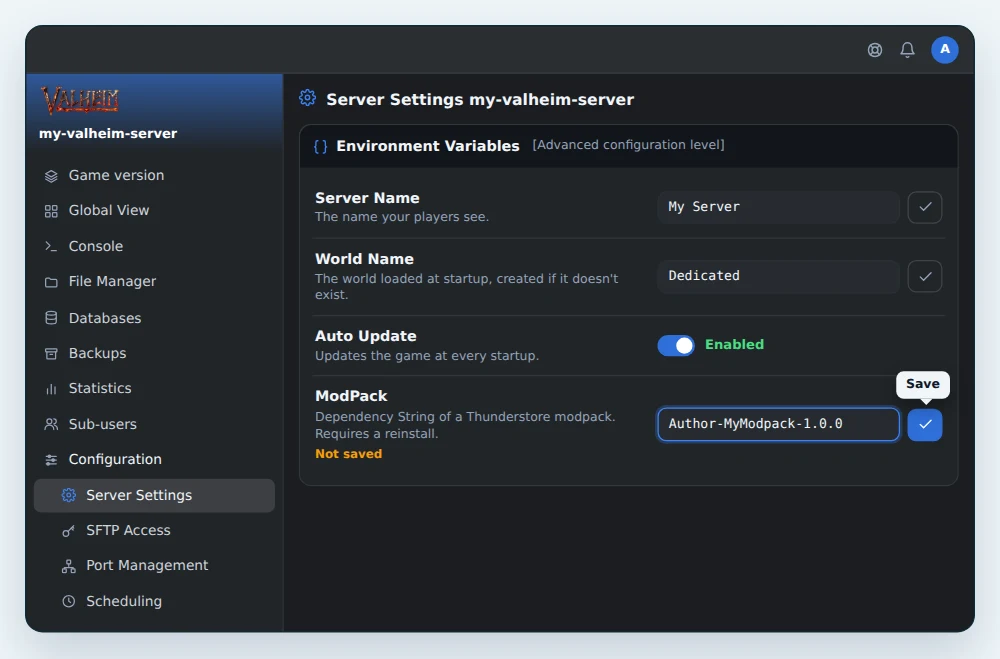
The server only installs the mods listed directly in the modpack. If one of them depends on another mod that isn't on the list, that mod is not installed. From each mod, the server only keeps the .dll files, placed at the root of BepInEx/plugins. Config files, assets and subfolders are not extracted. If a mod needs them, upload it by hand over SFTP after the reinstall. Do the same for a dependency missing from the modpack.
When the modpack releases a new version, make a backup, paste the new Dependency string into ModPack and reinstall. Until then, the server keeps the old version, which also lets you stay on a specific one. After each reinstall, upload the mods you added by hand again over SFTP.
🔌 Upload your plugins over SFTP
Without a modpack, install mods one by one.
- On the mod's Thunderstore page, click Manual Download, then unzip the archive on your computer.
- Connect to the server over SFTP, for example with FileZilla.
- Copy the mod's files, usually a
.dllfile or a folder, intoBepInEx/plugins. - Restart the server from the Console.
On the first start, most mods create their settings file in BepInEx/config. Edit it in the file manager, then restart. As long as ModPack stays empty, a reinstall leaves your plugins alone. If ModPack is filled in, it deletes them.
👥 Install the same mods for your players
Many mods must also be installed by every player, in the same version as on the server. Otherwise, the player gets disconnected. Others only run on the server, or only on the player's side. On Thunderstore, the Server-side and Client-side tags help you sort them out, and each mod's page usually says so.
With a modpack, the easiest way is for everyone to install the same one.
- Each player installs r2modman or another Thunderstore mod manager.
- In the manager, they pick Valheim, create a profile and install the server's modpack, in the same version.
- They launch the game from the manager, then join the server.
With Enable Crossplay off, the console shows no code. With Public Server on, the server shows under its name in the public Steam server list, within about a minute. Players on consoles can't install mods. If your mods must be installed by every player, console players won't be able to play on this server.
↩️ Go back to the base version
- Stop the server from the Console.
- In Game version, click Switch to this version on the Valheim card, and keep the backup offered.
- Start the server.
The BepInEx files and your plugins stay on the disk, but the base version doesn't load them. The ModPack variable doesn't exist in this version and comes back empty if you switch to BepInEx again. Write it down first.
💡 A world played with mods that add items or buildings can lose them without those mods. Keep the backup made before the change.
❓ Common issues
The server no longer starts after a game update
The Auto Update variable updates the game at every start, but not BepInEx. A game update can break BepInEx or a mod until its author adapts it. Read the Console to find the mod at fault and remove it from BepInEx/plugins. BepInEx itself only updates when you reinstall the server, which then fetches its latest version. With ModPack filled in, make a backup first. Until the mod is fixed, you can go back to the base version.
A player gets disconnected when joining the server
Their mods are not the server's, or not in the same version. Have them install the same modpack, or compare their mod list with the server's.
The console no longer shows a code since the switch to BepInEx
In this version, crossplay is off by default. With Public Server on, the server shows in the public Steam server list. Check the Enable Crossplay variable in Server Settings.
A mod doesn't load
Check that its files are in BepInEx/plugins and that it is up to date for the current Valheim version. The BepInEx/LogOutput.log file lists every mod loaded at startup. Installed through the ModPack variable, a mod that needs files other than its .dll, or a mod missing from the modpack, may not work. Upload what is missing by hand over SFTP, after the reinstall.
I can't see the Game version page
It doesn't exist for a OuiBox server. If you are a sub-user, ask the server owner for the right to reinstall it.
➡️ What's next
For the password, the world name and admin rights, read Set up your Valheim server. To open the server files from your computer, see How to connect via SFTP with FileZilla.
🚀 No server yet?
With our Valheim server hosting, your server is ready in a few minutes, for up to 10 players, with anti-DDoS, SFTP access and on-demand or scheduled backups.
Need a Valheim server?
Valheim server hosting from $3.46/month, up to 10 players, with the password and world set from the panel, SFTP access, backups and DDoS protection included.