
 Client area
Estimated Time: 10 minutes
Difficulty: Beginner ⭐
Prerequisites: An active OuiBox subscription
📋 Introduction
The OuiBox is OuiHeberg's Cloud Gaming offer that allows you to:
- Create and manage multiple game servers under the same subscription
- Distribute resources freely (RAM, CPU, Storage) among the servers
- Switch games at any time without losing your data
- Pause servers to temporarily free up resources
- Choose your datacenter from various locations (France, Germany, USA...)
💡 Don't have an OuiBox subscription yet?
Order one at: https://www.ouiheberg.com/en/ouibox-hosting
🎮 Available Games
The list of available games is constantly evolving based on customer needs. Here are the main categories:
| Category | Games |
|---|---|
| Minecraft | Minecraft Java, Forge, Fabric, Spigot, Paper, Bungeecord, Velocity |
| Survival | Palworld, Rust, Valheim, V Rising, Enshrouded, 7 Days to Die |
| GTA | FiveM, RedM |
| Simulation | Euro Truck Simulator 2, American Truck Simulator, BeamMP, Satisfactory |
| Action | Counter-Strike, Garry's Mod, Team Fortress 2, Left 4 Dead |
| Management | Factorio, Satisfactory, Colony Survival |
| Adventure | The Forest, Sons of the Forest, Project Zomboid |
| Others | Terraria, SCP: Secret Laboratory, Unturned, Core Keeper, ARK |
💡 Can't find your game? Contact OuiHeberg support to request the addition of a new game!
🔑 Accessing OuiBox
Connection
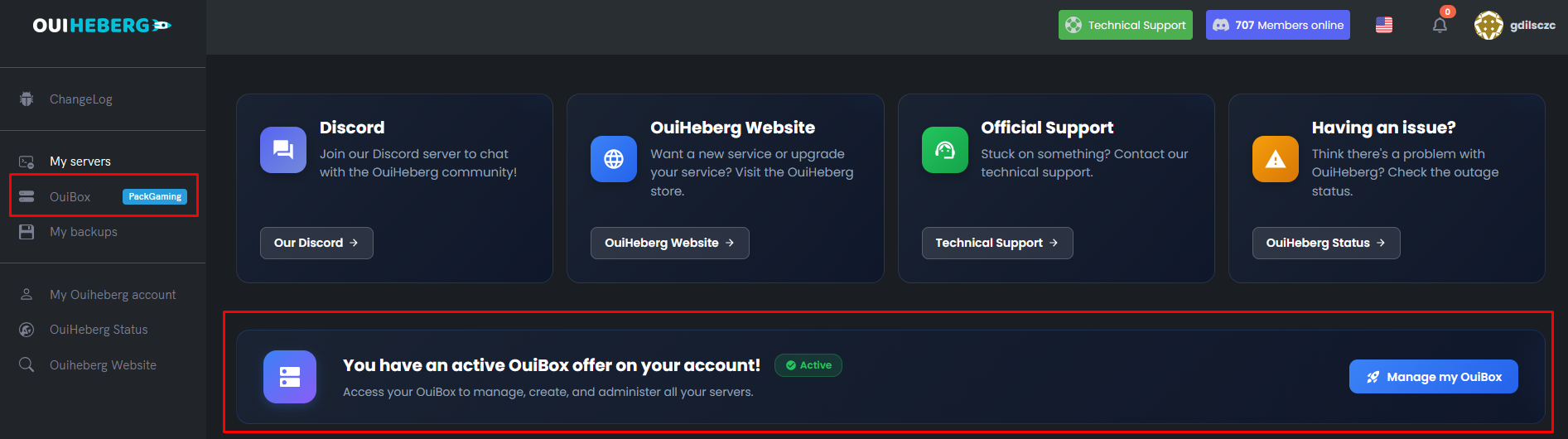
- Log in to OuiPanel: https://dash.ouipanel.com
- In the left sidebar menu, click on "OuiBox"
- You will access your Cloud dashboard
📊 Main Interface
Overview
The OuiBox interface is divided into several sections:
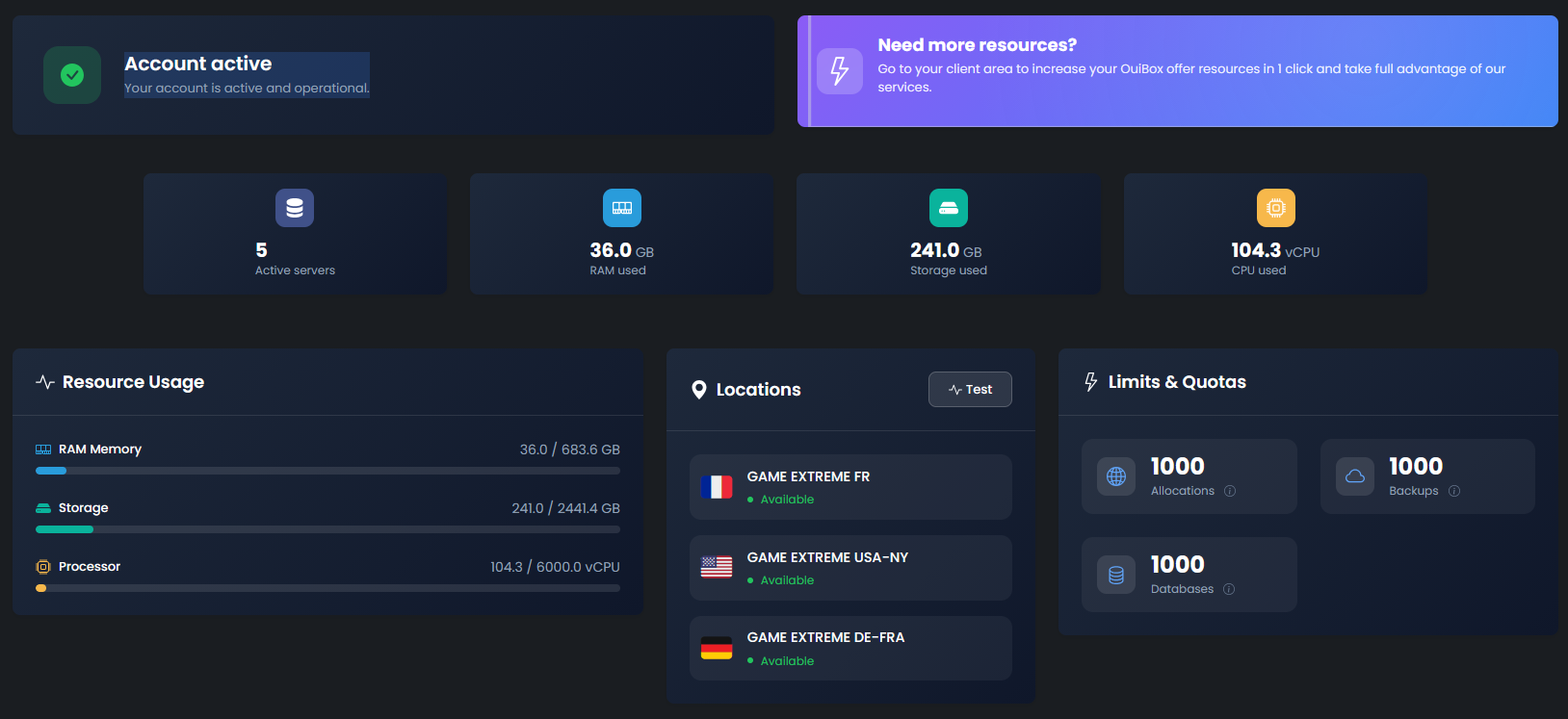
1. Account Status
Displays if your OuiBox account is:
- 🟢 Active: You can create and manage your servers
- 🔴 Suspended: Contact support to reactivate
2. Global Statistics
| Statistic | Description |
|---|---|
| Active Servers | Number of created servers |
| Used RAM | Total allocated memory (in GB) |
| Used Storage | Total disk space used (in GB) |
| Used CPU | Total allocated processor power (in vCPU) |
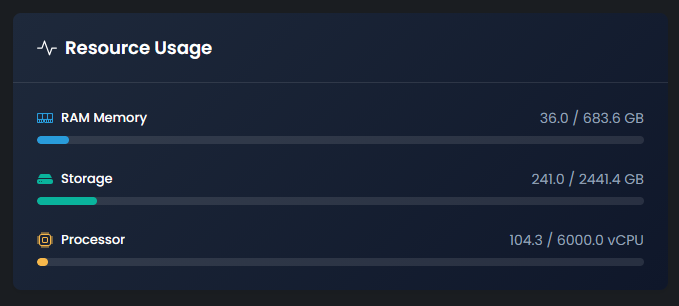
3. Available Resources
Progress bars show the usage of your resources:
RAM:      [████████░░░░░░░░] 8.0 / 16.0 GB
Storage: [██████░░░░░░░░░░] 60.0 / 100.0 GB
CPU:      [████░░░░░░░░░░░░] 4.0 / 8.0 vCPU
4. Available Locations
List of datacenters where you can deploy your servers:
- 🇫🇷 France (Marseille)
- 🇩🇪 Germany (Frankfurt)
- 🇺🇸 USA (New York)
Each location displays:
- The country flag
- The datacenter name
- Status (Available / Maintenance)
5. Offer Limitations (Quotas)
Your OuiBox offer has shared global quotas among all your servers:
| Quota | Description | Usage |
|---|---|---|
| Allocations | Total number of assignable network ports | Additional ports for Dynmap, Votifier, RCON... |
| Backups | Total number of storable backups | Restoration in case of issues |
| Databases | Total number of creatable MySQL databases | Plugins requiring a database |
💡 How does it work? When creating or modifying a server, you choose how many backups, databases, and allocations to assign to that server. The total cannot exceed your OuiBox offer quota.
➕ Create a New Server
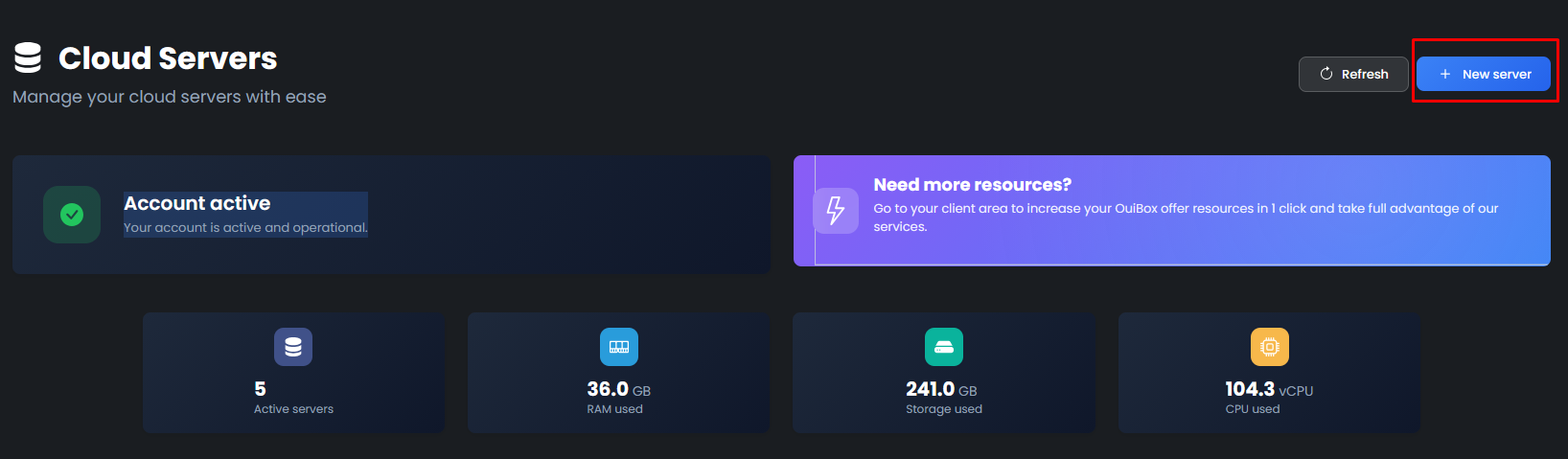
Step 1: Open the Creation Form
- On the OuiBox page, click on the "New server" button (blue, top right)
- A creation window will open
Step 2: Select the Game
- Click on "Select a game"
- A gallery of available games will appear
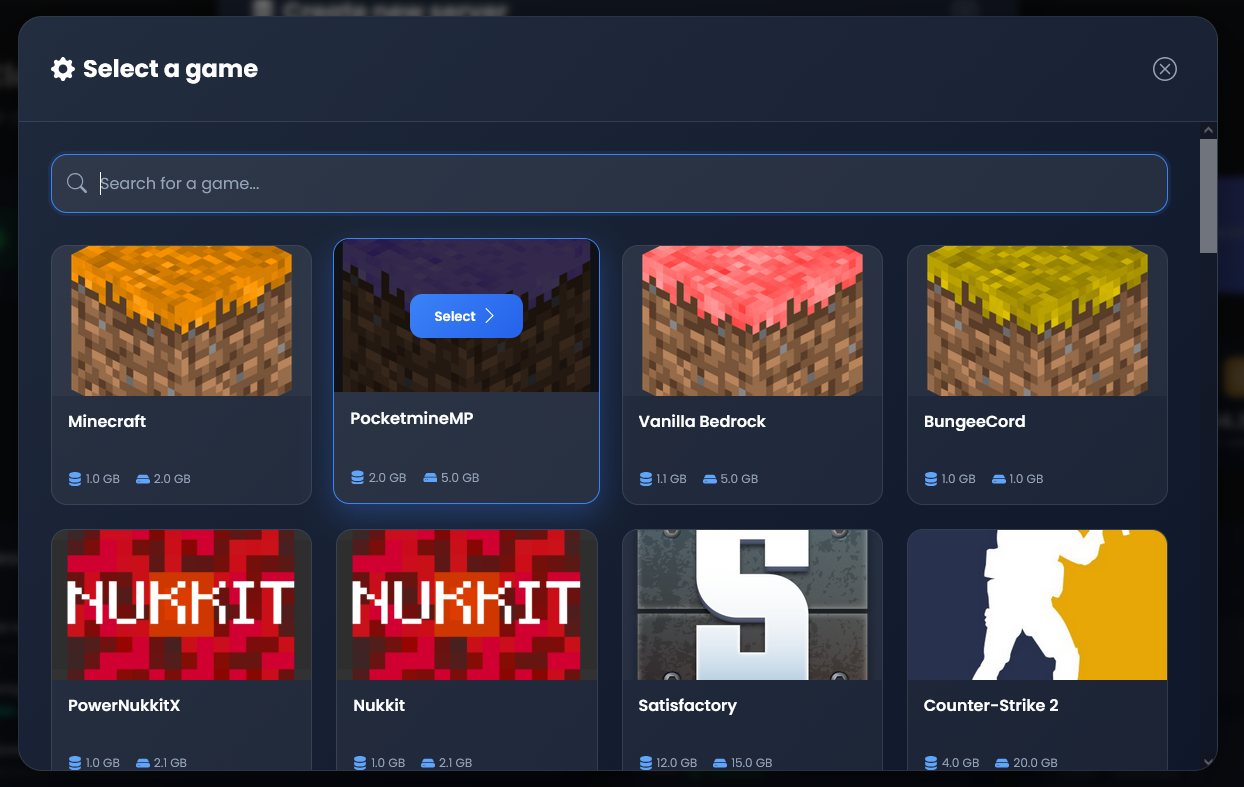
- Search: Use the search bar to find a game
- Browse: Navigate through the grid of available games
- Each game card displays:
- Game image
- Game name
- Minimum required RAM (e.g.,
2.0 GB RAM min) - Minimum required storage (e.g.,
10.0 GB Disk min)
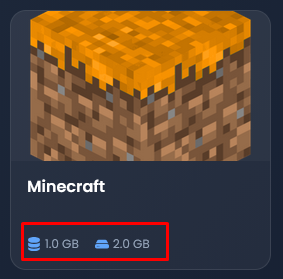
- Click on a game to select it
Step 3: Configure the Server
Once the game is selected, fill in the following fields: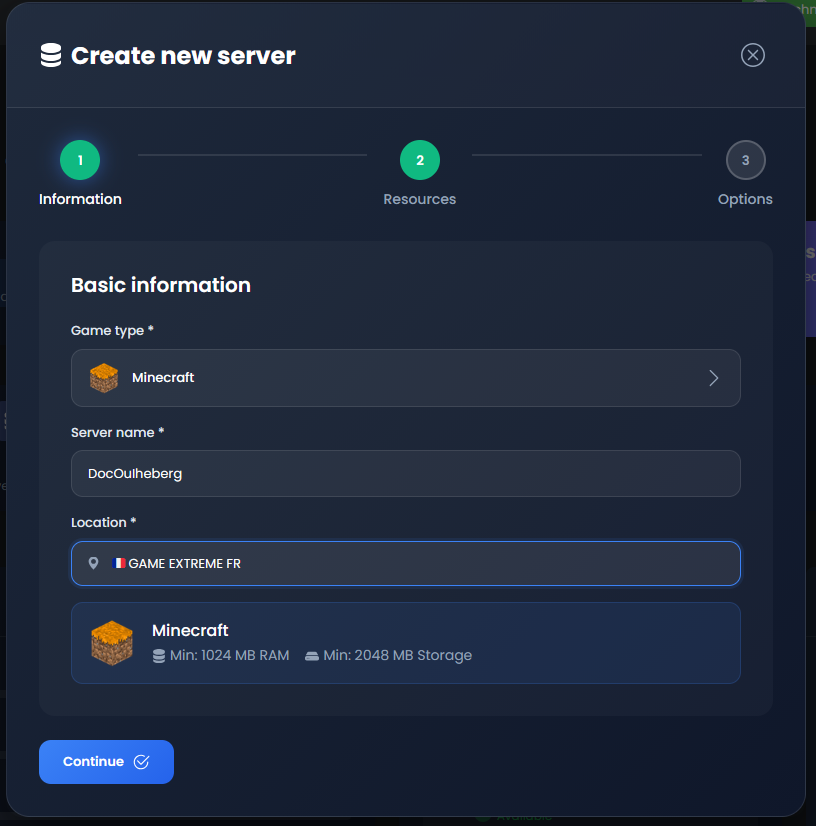
Basic Information
| Field | Description | Example |
|---|---|---|
| Server Name | Name displayed in your list | My Minecraft server |
| Location | Deployment datacenter | France - Marseille |
Resource Configuration
| Resource | Description | Notes |
|---|---|---|
| RAM | Allocated memory | Minimum defined according to the game |
| Storage | Disk space | Minimum defined according to the game |
| CPU | Processor power (in vCPU) | Minimum 1 vCPU (100%) |
⚠️ Important: Minimums are automatically set according to the selected game. You cannot go below.
Recommendations by game:
| Game | Minimum RAM | Recommended RAM | Min Storage |
|---|---|---|---|
| Minecraft Vanilla | 2 GB | 4 GB | 10 GB |
| Minecraft + Plugins | 4 GB | 6-8 GB | 20 GB |
| Minecraft + Mods | 6 GB | 8-12 GB | 30 GB |
| FiveM | 4 GB | 8-16 GB | 50 GB |
| Palworld | 8 GB | 16 GB | 30 GB |
| Satisfactory | 6 GB | 8-12 GB | 15 GB |
| Valheim | 4 GB | 6 GB | 10 GB |
| Rust | 8 GB | 12-16 GB | 30 GB |
| ARK | 8 GB | 12-16 GB | 50 GB |
Additional Options
These options use the quotas of your OuiBox offer:
| Option | Description | Utility |
|---|---|---|
| Backups | Number of backups for this server | Restore a previous version in case of issues |
| Databases | Number of MySQL databases for this server | Plugins like LuckPerms, ESX, economy... |
| Allocations | Number of additional network ports | Dynmap, Votifier, API requests, RCON... |
💡 Allocations: Each server has 1 main port by default (for player connection). Additional allocations allow adding ports for additional features.
Examples of allocation usage:
- Dynmap (Minecraft): Requires 1 allocation for the web port
- Votifier (Minecraft): Requires 1 allocation to receive votes
- RCON: Requires 1 allocation for remote console
- Query: Requires 1 allocation for server queries
Examples of backup usage:
- Backup before a major update
- Backup before installing a new plugin/mod
- Daily security backup
Step 4: Verify Resources
Before creating the server, make sure you have enough available resources:
Required Resources:
├── RAM: 4 GB
├── Storage: 20 GB
└── CPU: 2 vCPU

Available Resources:
├── RAM: 8 GB / 16 GB ✅
├── Storage: 40 GB / 100 GB ✅
└── CPU: 4 vCPU / 8 vCPU ✅
❌ If a resource is insufficient, free up by pausing or deleting other servers.
Step 5: Create the Server
- Click on the "Create Server" button
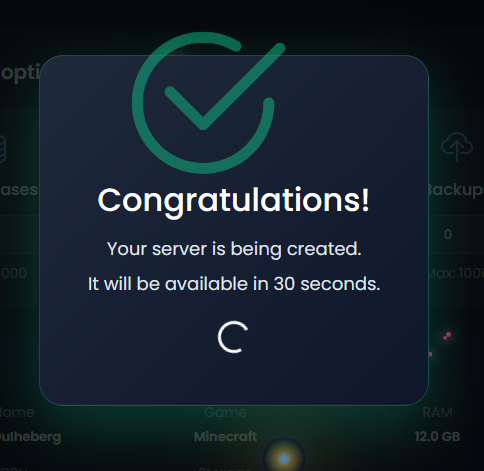
- Wait during creation (a few seconds to a few minutes)
- A success message appears: "Server created successfully"
- The server appears in your list
Possible Error Messages
| Error | Cause | Solution |
|---|---|---|
| Insufficient Resources | Not enough RAM/CPU/Storage | Free up resources or upgrade your offer |
| Invalid Name | Unauthorized characters | Use only letters, numbers, hyphens |
| Unavailable Location | Full or under maintenance datacenter | Choose another location |
| Limit Reached | Too many servers created | Delete or pause other servers |
📋 Manage Your Servers
List of Servers
Each server is displayed as a card with: 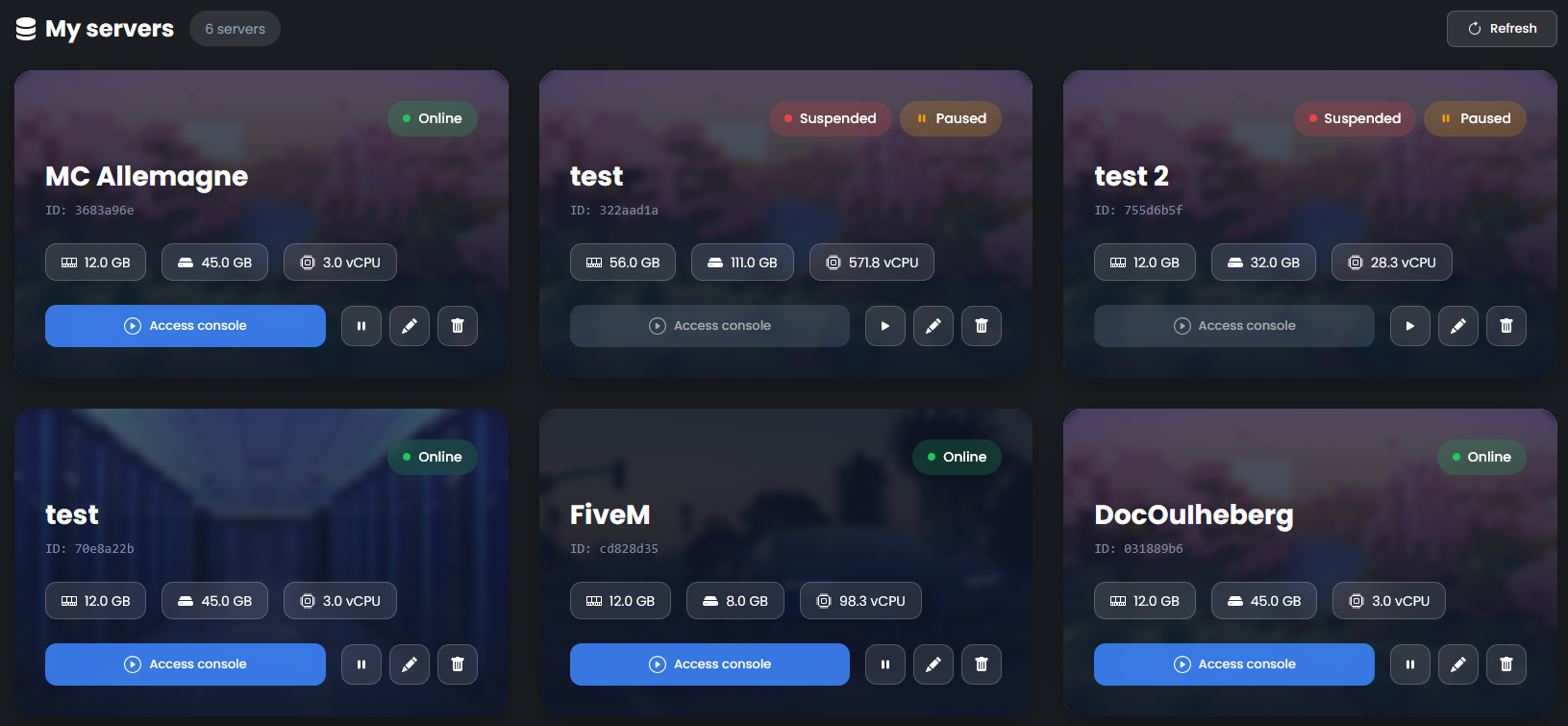
| Element | Description |
|---|---|
| Background Image | According to the game type |
| Server Name | The name you have given |
| ID | Unique identifier (e.g., a1b2c3d4) |
| Status | Current server state |
| Resources | Allocated RAM, Storage, CPU |
Possible Statuses
| Status | Color | Meaning |
|---|---|---|
| Online | 🟢 Green | Server started and accessible |
| Offline | 🔴 Red | Server stopped |
| Starting | 🔵 Blue | Server starting up |
| Installing | 🔵 Blue | Installation in progress |
| Paused | 🟠 Orange | Server paused (RAM/CPU released) |
| Suspended | 🔴 Red | Account suspended, contact support |
Available Actions
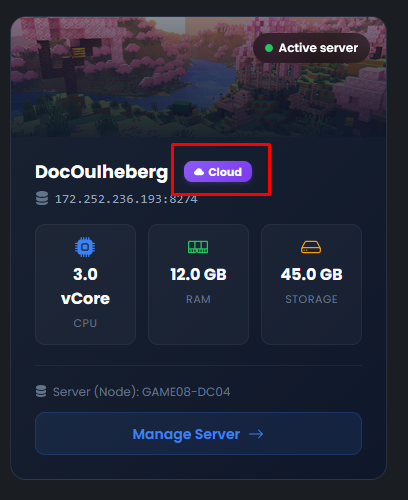
▶️ Access the Console
- Click on "Console" on the server card
- You access the classic OuiPanel management page
- From the console, you can:
- Start / Stop / Restart the server
- Send commands
- View logs
- Manage files
✏️ Modify a Server
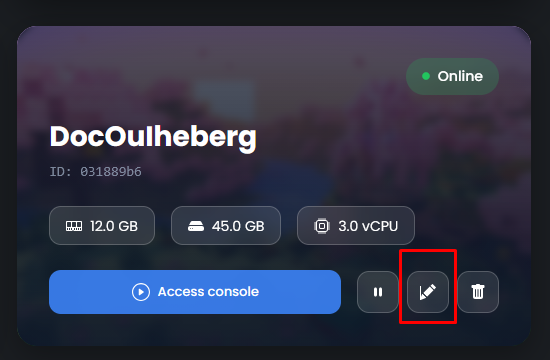
- Click on the pencil icon (edit) on the server card
- A modification window opens
- You can modify:
Resources:
| Resource | Description | Note |
|---|---|---|
| RAM | Allocated memory | Server must be stopped |
| Storage | Disk space | Can be increased hot |
| CPU | Processor power | Server must be stopped |
Options (quotas):
| Option | Description | Note |
|---|---|---|
| Backups | Number of backups for this server | Draws from your OuiBox global quota |
| Databases | Number of MySQL databases | Draws from your OuiBox global quota |
| Allocations | Number of additional ports | Draws from the global quota of your OuiBox |
- Click on "Save"
⚠️ Note: The server must be stopped to modify the RAM and CPU. Storage can usually be increased without stopping the server.
💡 Quotas: Backups, databases, and allocations are shared among all your servers. For example, if your OuiBox has a total of 15 backups and you assign 5 to a server, you have 10 left for the others.
⏸️ Pausing a Server
See the Pause System section
🗑️ Deleting a Server
- Click on the trash icon (red) on the server card
- A confirmation window appears
- Confirm the deletion
- An automatic backup is created before deletion
- The server and its files are deleted
- Resources are immediately released
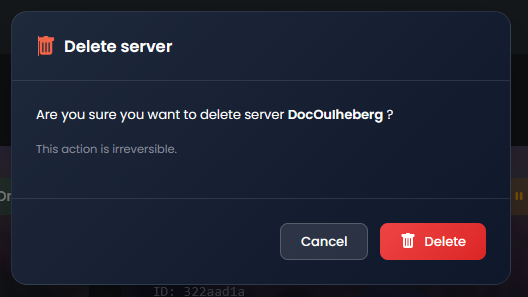
⚠️ Attention: Deletion is irreversible. Download your important files before!
⏸️ Pause System
What is Pause?
The Pause feature allows you to put a server on standby to:
- Free up RAM and CPU without deleting the server
- Keep all files and data
- Reuse resources for other servers
It's ideal when you are not using a server temporarily but want to keep it.
Resources Released vs. Kept
| 🔓 Released (Pause) | 🔒 Kept |
|---|---|
| RAM | Storage (all files) |
| CPU | Backups |
| Databases | |
| Ports (allocations) |
Pausing a Server
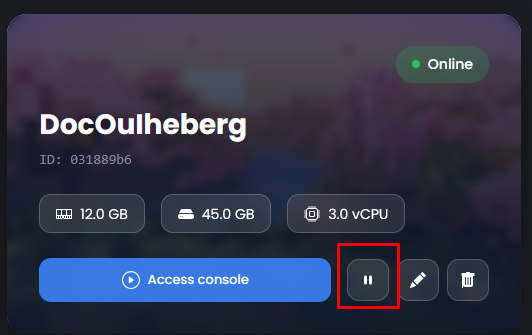
- On the server card, click on the pause icon (⏸️ orange)
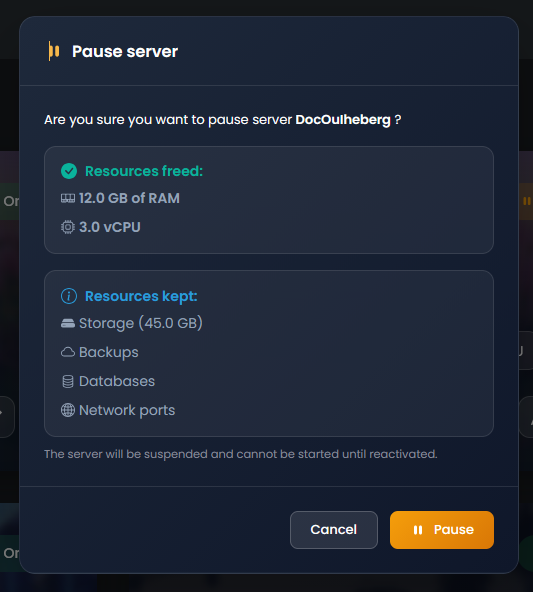
- A confirmation window appears with:
- The resources that will be released (RAM, CPU)
- The resources that will be kept (Storage, DB, etc.)
- Click on "Pause"
- The server stops and releases RAM + CPU
- The status changes to "Paused" (🟠 orange)
Resuming a Paused Server
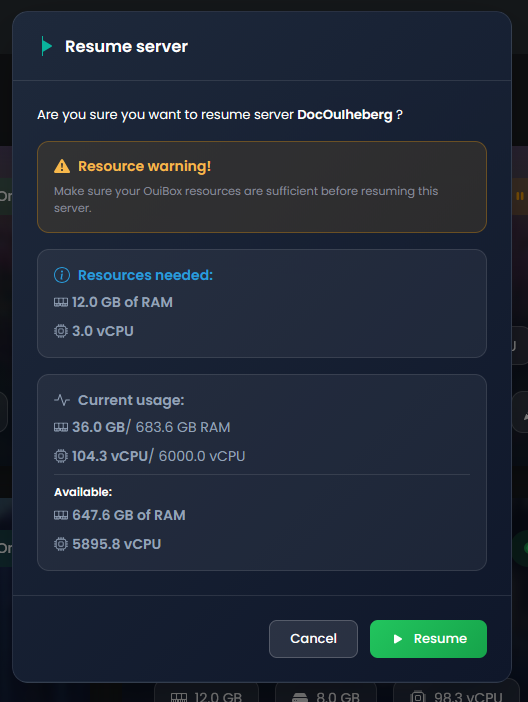
- On the paused server card, click on the play icon (▶️ green)
- A confirmation window appears with:
- The required resources (RAM, CPU)
- Your currently available resources
- Check that you have enough available resources
- Click on "Resume"
- The server retrieves its resources and can be started
Error "Insufficient Resources" on Resume
If you do not have enough resources available to resume a server:
| Solution | Description |
|---|---|
| Pause other servers | Free up their RAM/CPU |
| Reduce resources on other servers | Modify their allocation |
| Upgrade your OuiBox plan | More resources available |
🌐 Latency Test
What is the purpose of latency test?
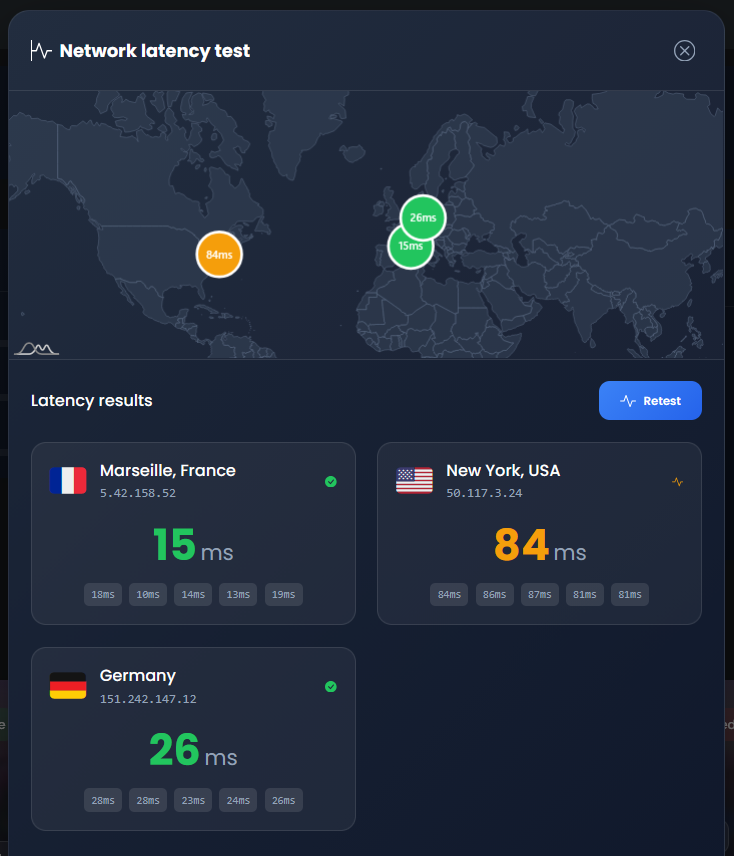
The latency test allows you to measure the ping between your connection and the various OuiHeberg datacenters. Choose the datacenter with the best latency for an optimal experience!
How to use it?
- In the "Locations" section, click on "Test Latency"
- A window opens with the list of datacenters
- Click on "Start Test"
- Wait a few seconds
- The results are displayed:
🇫🇷 France - Marseille:     12 ms  ⭐ Excellent
🇩🇪 Germany - Frankfurt:  25 ms  ✅ Very good
🇺🇸 USA - New York:         85 ms  ⚠️ Acceptable
Interpreting the Results
| Latency | Quality | Recommendation |
|---|---|---|
| < 30 ms | ⭐ Excellent | Perfect for all games, even competitive ones |
| 30-60 ms | ✅ Very good | Good for most games |
| 60-100 ms | ⚠️ Acceptable | OK for non-competitive games |
| > 100 ms | ❌ High | Choose another datacenter |
💡 Tip: Always choose the datacenter with the lowest latency for your game servers.
🔧 Troubleshooting
I cannot create a server
| ❌ Cause | ✅ Solution |
|---|---|
| Insufficient resources | Pause or delete other servers |
| Server limit reached | Delete unused servers |
| Suspended account | Contact OuiHeberg support |
The server does not start
| ❌ Cause | ✅ Solution |
|---|---|
| Not enough RAM | Increase allocated RAM |
| Configuration error | Check the logs in the Console |
| Corrupted files | Reinstall the server via Settings |
I cannot resume a paused server
| ❌ Cause | ✅ Solution |
|---|---|
| Insufficient available RAM | Pause other servers |
| Insufficient available CPU | Reduce CPU on other servers |
My server is lagging
| ❌ Cause | ✅ Solution |
|---|---|
| Insufficient RAM | Increase RAM |
| Insufficient CPU | Increase CPU |
| Wrong datacenter | Perform a latency test and change location |
| Too many plugins/mods | Optimize your configuration |
❓ FAQ
Can I create multiple servers?
Yes! You can create as many servers as your resources allow. The only limit is the amount of RAM, CPU, and storage available in your plan.
What happens if I run out of resources?
You will no longer be able to create new servers or resume paused servers. Solutions:
- Pause unused servers
- Reduce resources on existing servers
- Upgrade to a higher plan
Do paused servers retain their data?
Yes! Only RAM and CPU are released. All files, databases, backups, and ports are fully retained.
Can I change the game on an existing server?
Not directly. You must:
- Backup your important files
- Delete the current server
- Create a new server with the desired game
Are backups automatic?
- Upon deletion: ✅ Yes, a backup is created automatically
- During operation: ❌ No, create your backups manually via the console
How can I increase my resources?
Visit https://www.ouiheberg.com/en/ouibox-hosting to:
- Upgrade your OuiBox plan
- Switch to a Custom plan with more resources
📝 Summary
ACCESS OUIBOX:
└── dash.ouipanel.com → Side Menu → OuiBox

CREATE A SERVER:
1. Click on "New server" (blue button)
2. Click on "Select a game"
3. Choose the game from the gallery
4. Configure:
   ├── Server name
   ├── Location (Marseille, Frankfurt, New York)
   ├── RAM (minimum according to the game)
   ├── Storage (minimum according to the game)
   ├── CPU (minimum 1 vCPU)
   └── Options (backups, DB, allocations)
5. Click on "Create server"
6. Wait for creation
7. Access the Console → Start

MANAGE RESOURCES:
├── Pause: Releases RAM/CPU, retains files
├── Modify: Adjust RAM/CPU/Storage/Backups/Allocations
└── Delete: Releases all resources (auto backup)

SHARED QUOTAS:
├── Allocations: Additional ports (Dynmap, Votifier...)
├── Backups: Restorable backups
└── Databases: MySQL for plugins

LATENCY TEST:
└── Locations → Test latency → Choose the best datacenter