
 Client area
How to configure a domain name with Proxy Manager
Estimated time: 15 minutes (+ DNS propagation time)
Difficulty: Intermediate ⭐⭐
Availability: Python, Node.js, Minecraft
📋 Introduction
The Proxy Manager allows you to associate your own domain name with a web application hosted on your OuiHeberg server, with a free and automatic SSL/HTTPS certificate.
Concrete example:
- Your Node.js application runs on port
3000 - Thanks to the Proxy Manager, it becomes accessible via
https://monsite.com
Use cases
| Server type | Usage |
|---|---|
| 🟢 Node.js | Website, REST API, dashboard, Discord bot with web panel |
| 🐍 Python | Flask/Django application, FastAPI API, dashboard |
| 🎮 Minecraft | Dynmap, BlueMap, Plan, plugin web panel |
🔧 Prerequisites
Before you start, you must have:
| Prerequisite | Description |
|---|---|
| 🌐 A domain name | That you own (e.g., monsite.com, monserveur.fr) |
| 🔑 Access to the DNS zone | At your registrar (OuiHeberg, OVH, Cloudflare, Gandi, Ionos, etc.) |
| ✅ A functional application | Listening on a port of your server |
| 🚀 Server started | Your server must be online |
⚠️ Important: You must own your own domain name. OuiHeberg does not provide a domain with the Proxy Manager.
🚀 Configuration in 4 Steps
Step 1: Get the Proxy IP
- Log in to OuiPanel
- Select your server
- In the side menu, click on Proxy Manager
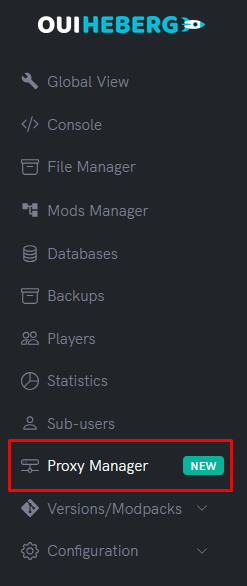
- At the top of the page, in the Overview section, locate the Proxy IP
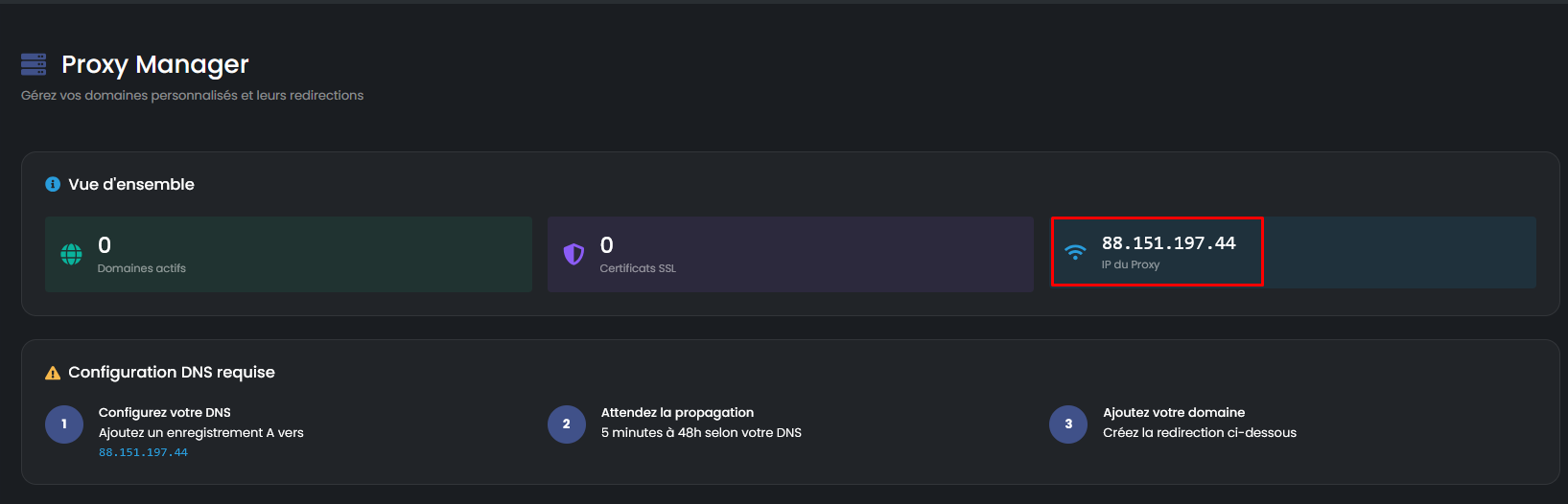
| Information | Description |
|---|---|
| Active domains | Number of domains already configured |
| SSL certificates | Number of domains with HTTPS enabled |
| Proxy IP | The IP address to use for your DNS |
📝 Take note of this IP (e.g.,
88.151.xxx.xxx), you will need it for the next step.
Step 2: Configure DNS at your Registrar
You must create an A Type DNS record pointing your domain to the Proxy IP.
Configuration to be done
| Field | Value |
|---|---|
| Type | A |
| Name / Host | @ (main domain) or subdomain (www, app, panel, etc.) |
| Value / Target | The Proxy IP copied in step 1 |
| TTL | 3600 (or Auto) |
Examples according to the desired domain
| You want to use | Host/Name to put |
|---|---|
monsite.com | @ or leave blank |
www.monsite.com | www |
app.monsite.com | app |
panel.monsite.com | panel |
api.monsite.com | api |
🟠 At Cloudflare
- Log in to your dashboard
- Select your domain
- Go to DNS → Records
- Click on Add record
- Fill in:
- Type:
A - Name:
@for the main domain or the desired subdomain - IPv4 address: The Proxy IP
- Proxy status: ⚠️ Disable the proxy (gray icon, "DNS only")
- TTL: Auto
- Type:
- Click on Save
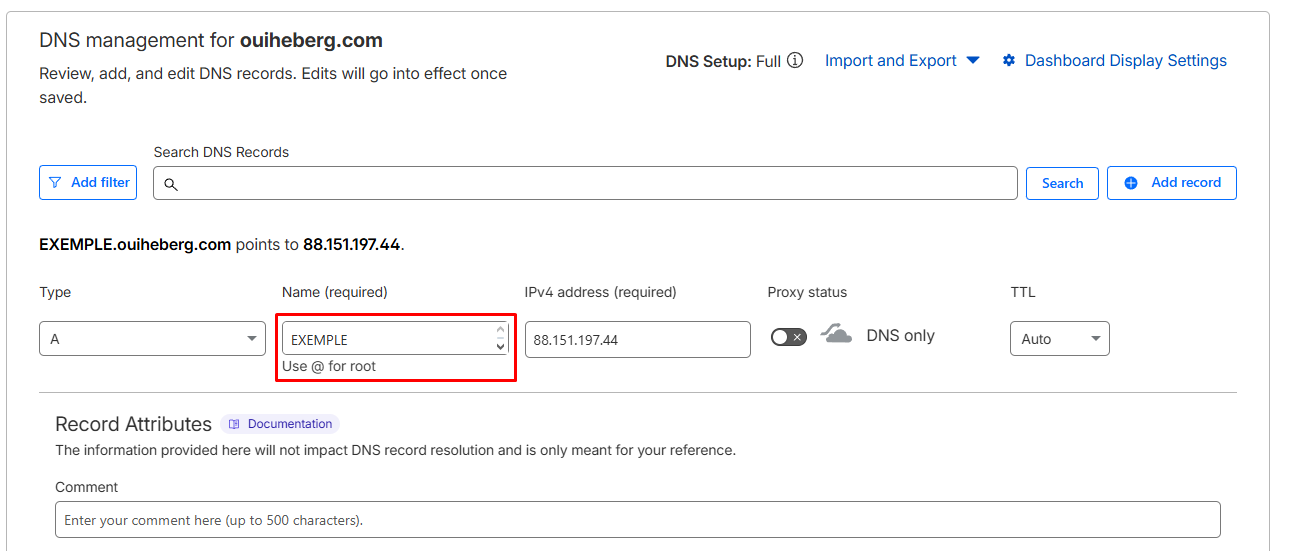
⚠️ IMPORTANT Cloudflare: You must disable the Cloudflare proxy (orange icon → gray). Otherwise, the SSL certificate cannot be generated.
Step 3: Check DNS Propagation
After configuring your DNS, you must wait for propagation. This delay varies depending on the registrars:
| Registrar | Average time |
|---|---|
| Cloudflare | 1 to 5 minutes |
| OuiHeberg | 1 to 5 minutes |
| Gandi | 30 minutes to 2 hours |
| Others | Up to 24-48 hours |
Check online
Use these free tools to check if your DNS has propagated:
| Tool | Link |
|---|---|
| DNS Checker | dnschecker.org |
| What's My DNS | whatsmydns.net |
| MX Toolbox | mxtoolbox.com/DNSLookup.aspx |
- Enter your domain (e.g.,
monsite.com) - Select the A type
- Verify that the displayed IP matches the OuiPanel Proxy IP
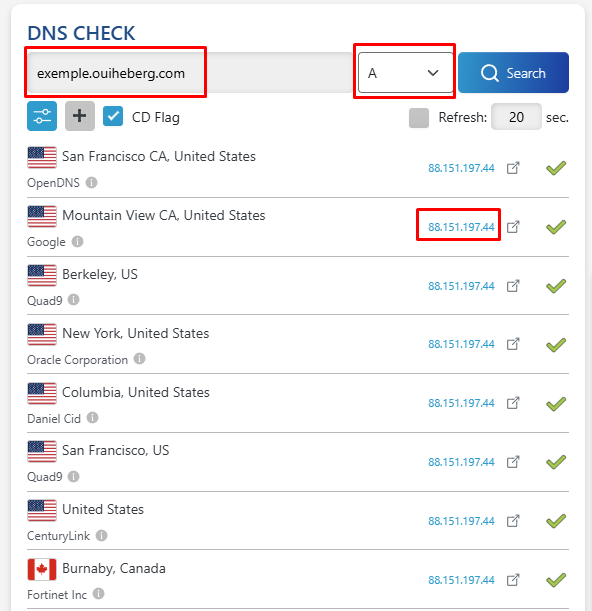
Check via OuiPanel
OuiPanel includes a verification tool:
- In the Proxy Manager, click on Add
- Enter your domain name
- Click on Check DNS
- The system indicates:
- ✅ DNS configured correctly → You can continue
- ❌ DNS not configured → Wait or correct the configuration
Step 4: Add the Domain in OuiPanel
Once the DNS has propagated:
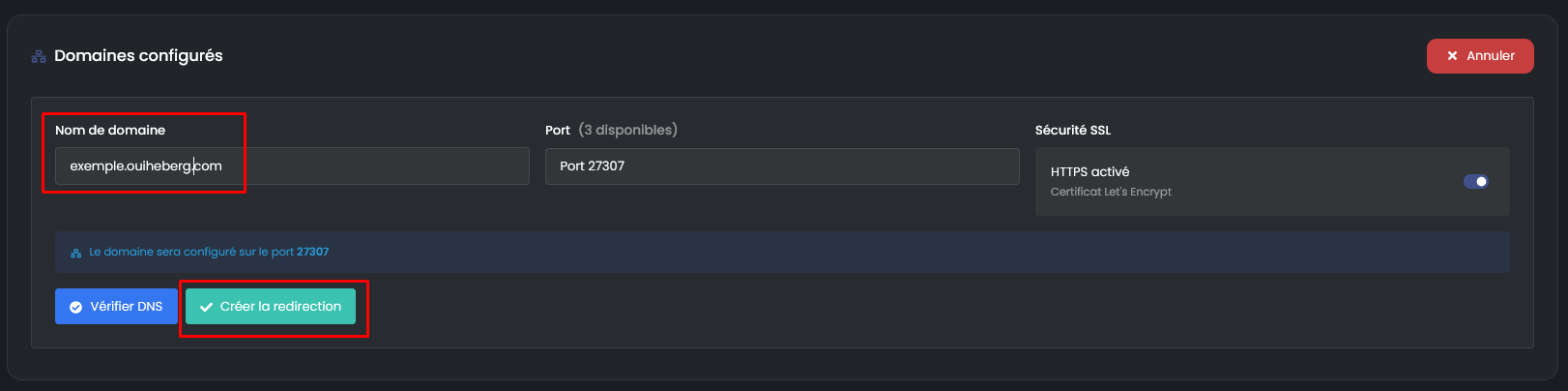
- In the Proxy Manager, click on Add
- Fill out the form:
| Field | Description | Example |
|---|---|---|
| Domain name | Your complete domain | monsite.com or app.monsite.com |
| Port | Your application's port | 3000, 8080, 8123... |
| SSL Security | Enable HTTPS (recommended) | ✅ Enabled |
-
Click on Create redirection
-
✅ Your domain is configured! Go to
https://monsite.com
⚙️ Manage your Domains
Dashboard
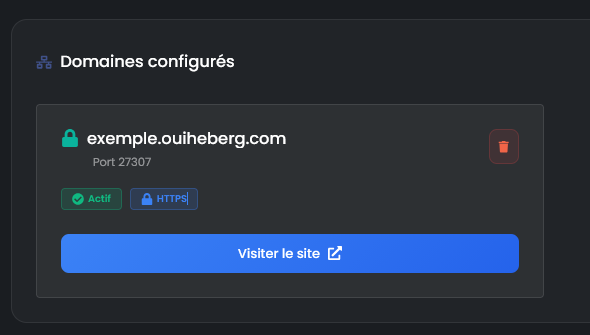
Your configured domains appear as cards with:
| Item | Description |
|---|---|
| 🔒 Green padlock | HTTPS enabled |
| 🔓 Red padlock | HTTP only |
| Port | Redirection port |
| SSL Badge | HTTPS (blue) or HTTP (orange) |
| Visit site | Opens the domain in a new tab |
Delete a domain
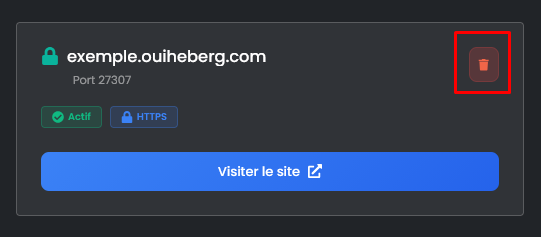
- On the domain card, click on the trash icon (red)
- Confirm deletion
- The domain and its SSL certificate are deleted
💡 You can always reconfigure the domain later.
🔧 Troubleshooting
"DNS not configured" even though I did the configuration
| ❌ Cause | ✅ Solution |
|---|---|
| Propagation in progress | Wait up to 48 hours according to the registrar |
| Incorrect IP | Check that the IP matches the Proxy Manager's |
| Cloudflare Proxy enabled | Disable it (mandatory gray icon) |
| CNAME type instead of A | Delete and recreate as Type A |
Site not loading (502 / 504 error)
| ❌ Cause | ✅ Solution |
|---|---|
| Application not started | Start your server in OuiPanel |
| Incorrect port | Check that the port matches your application |
| Crashed application | Check the Console for errors |
Application works locally but not via the domain
Your application must listen on all interfaces (0.0.0.0):
Node.js:
// ❌ Wrong
app.listen(3000, 'localhost');
app.listen(3000, '127.0.0.1');

// ✅ Correct
app.listen(3000, '0.0.0.0');
Python (Flask):
# ❌ Wrong
app.run(host='127.0.0.1', port=3000)

# ✅ Correct
app.run(host='0.0.0.0', port=3000)
SSL certificate error
| ❌ Cause | ✅ Solution |
|---|---|
| Certificate being generated | Wait a few minutes |
| Cloudflare Proxy enabled | Disable it (mandatory) |
| Incorrect DNS | Check that the domain points to the correct IP |
"Domain already in use"
This domain is already configured on another OuiPanel server.
Solutions:
- If it's your old server → Remove the domain from the old server
- If the old server is deleted → Contact OuiHeberg support
❓ FAQ
Can I use multiple domains?
Yes! You can add as many domains as needed. Each domain can point to a different port.
Is SSL free?
Yes! The SSL certificate is automatically generated via Let's Encrypt and renewed automatically.
Do I need to configure HTTPS in my application?
No. The Proxy Manager handles SSL termination. Your application continues to work in HTTP, the proxy takes care of encryption.
Can I use a subdomain?
Yes! Simply create a Type A DNS record for each desired subdomain.
📝 Summary
1. Get the Proxy IP in OuiPanel → Proxy Manager
2. At your registrar, create a DNS record:
   • Type: A
   • Name: @ (or subdomain)
   • Value: Proxy IP
3. Wait for DNS propagation (5 minutes to 48 hours)
4. Check on dnschecker.org that the IP is correct
5. In OuiPanel → Proxy Manager → Add
   • Domain: monsite.com
   • Port: 3000
   • SSL: Enabled
6. Done! → https://monsite.com