
 Client area
Estimated Time: 2 minutes
Difficulty: Beginner ⭐
Compatible Servers: All Java Minecraft servers
📋 Introduction
By default, a Minecraft server checks that each player has an official Minecraft account (premium) before allowing them to connect. This verification is called online mode (online-mode).
By disabling this option, you allow players with non-premium (cracked) versions to join your server.
Why Allow Cracked Versions?
| ✅ Advantages | ❌ Disadvantages |
|---|---|
| All your friends can play, even without an official account | Reduced security (possible username spoofing) |
| More potential players | Authentication plugins (AuthMe) become necessary |
| No Mojang verification | Official skins do not display by default |
⚙️ Method 1: Using OuiPanel Settings (Recommended)
The simplest method is to use the startup settings in OuiPanel.
Step 1: Accessing the Settings
- Log in to OuiPanel
- Select your Minecraft server
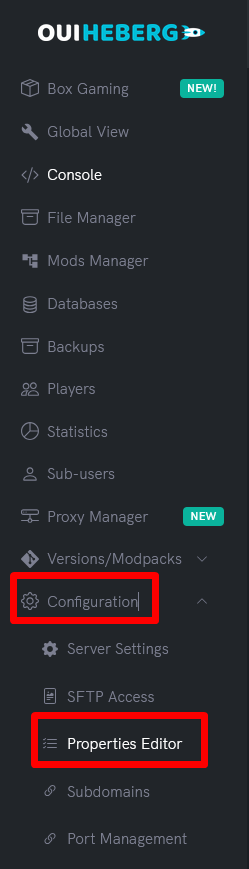
- In the side menu, click on Configuration
Step 2: Modifying the Online Mode Setting
- Look for the "Online Mode" or "online-mode" setting

-
Change the value:
- true → Only premium accounts can connect
- false → Everyone can connect (cracked allowed)
-
Select false to allow cracked versions
Step 3: Restart the Server
- Go back to Console
- Click on Restart
✅ Done! Cracked players can now join your server.
📁 Method 2: Using the server.properties File
You can also directly modify the configuration file.
Step 1: Stop the Server
- In Console, click on Stop
- Wait for the server to completely stop
⚠️ Important: Always modify server configuration files while the server is stopped to prevent your changes from being overwritten.
Step 2: Open server.properties
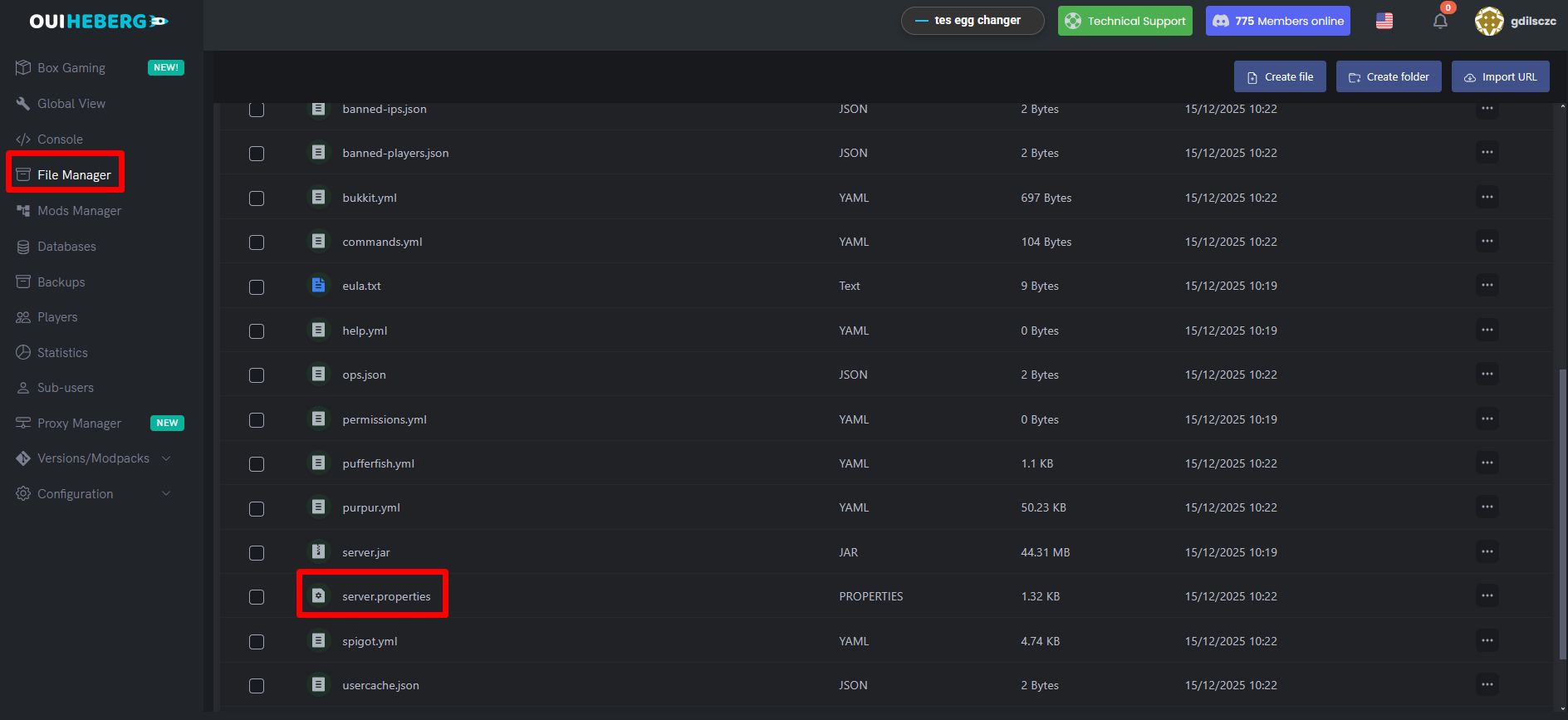
- In the side menu, click on File Manager
- At the root, find the
server.propertiesfile - Click on it to open
Step 3: Modify online-mode
- Look for the line:
online-mode=true
- Replace with:
online-mode=false- Click on Save
Step 4: Restart the Server
- Go back to Console
- Click on Start
- Check the logs:
[Server] Starting Minecraft server...
[Server] Online mode: false
✅ Done! Your server now accepts cracked players.
🔒 Secure Your Cracked Server
The Security Issue
When online-mode=false, anyone can connect with any username. A malicious player could:
- Connect with an admin's username and gain their permissions
- Impersonate other players
The Solution: Authentication Plugin
Install a plugin that requests a password upon login.
Recommended Plugins
| Plugin | Description | Link |
|---|---|---|
| AuthMe Reloaded | The most popular, very comprehensive | SpigotMC |
| Login Security | Simple and lightweight | SpigotMC |
| nLogin | Modern, good performance | SpigotMC |
Quick Installation of AuthMe
- Download AuthMe Reloaded on SpigotMC
- In OuiPanel → File Manager →
pluginsfolder - Upload the
.jarfile - Restart the server
Basic commands for players:
/register <password> <password>- Create an account/login <password>- Log in
Admin commands:
/authme reload- Reload the configuration/authme register <username> <password>- Register a player/authme unregister <username>- Delete an account
📖 Check the guide "Installing Plugins on Your Minecraft Server" for more details.
🎨 Bonus: Displaying Skins
In cracked mode, official skins do not display. To solve this issue:
SkinsRestorer Plugin
- Download SkinsRestorer: SpigotMC
- Install it in the
pluginsfolder - Restart the server
Commands for players:
/skin set <username>- Apply a premium player's skin/skin url <url>- Apply a skin from a URL/skin clear- Remove your skin
🔧 Troubleshooting
Cracked players still cannot connect
| ❌ Cause | ✅ Solution |
|---|---|
| Server not restarted | Completely restart the server |
| Incorrect file modified | Ensure you modified server.properties at the root |
| Incorrect value | Verify it is online-mode=false (without spaces) |
Error "Failed to verify username"
This error appears when online-mode=true. Check that:
- The parameter is set to
false - The server was restarted after the modification
A player can connect with another player's username
This is the normal behavior in crack mode. Install AuthMe to secure your server (see section above).
BungeeCord / Velocity (Proxy)
If you are using a proxy (BungeeCord, Velocity), the configuration is different:
- Backend servers (Lobby, Survival, etc.):
online-mode=false - Proxy: Configure authentication at the proxy level
⚠️ Also enable
bungeecord: trueinspigot.ymlon the backend servers.
📝 Summary
QUICK METHOD (YesPanel):
1. Configuration → Online Mode → false
2. Restart the server

MANUAL METHOD (server.properties):
1. Stop the server
2. File manager → server.properties
3. Change: online-mode=true → online-mode=false
4. Save
5. Start the server

SECURITY (highly recommended):
1. Install AuthMe Reloaded
2. Players must /register and /login

BONUS:
• SkinsRestorer to display skins
⚠️ Legal Warning
Allowing crack versions on your server is at your own risk. Mojang/Microsoft does not endorse this practice. This guide is provided for informational purposes for those who want to play with friends who have not yet purchased the game.
We encourage purchasing the official game on minecraft.net to support the developers.
Need a Minecraft server?
Discover our Minecraft hosting plans starting from $2.28/month with automatic mod installation.