
 Client area
How to set up GeyserMC (Java/Bedrock crossplay) on OuiPanel
Estimated time: 15-20 minutes
Difficulty: Intermediate ⭐⭐
Prerequisites: Minecraft Java server (Paper/Spigot), available additional port
📋 Introduction
GeyserMC is a plugin that allows Minecraft Bedrock Edition players to join your Minecraft Java Edition server. It acts as a translator between the two game versions, enabling true crossplay across all platforms.
Supported Platforms
| Platform | Support |
|---|---|
| 🖥️ Windows 10/11 (Bedrock) | ✅ Full |
| 📱 iOS (iPhone/iPad) | ✅ Full |
| 📱 Android | ✅ Full |
| 🎮 Xbox | ✅ Full |
| 🎮 Nintendo Switch | ✅ Full |
| 🎮 PlayStation 4/5 | ⚠️ Special configuration required |
| 🖥️ Java Edition | ✅ Native (no need for Geyser) |
How does it work?
┌─────────────────┐     ┌─────────────────┐     ┌─────────────────┐
│  Java Player    │────▶│                 │────▶│                 │
│  (PC)           │     │   Server        │     │                 │
└─────────────────┘     │   Minecraft     │     │    World        │
                        │   Java          │     │    Shared       │
┌─────────────────┐     │   +             │     │                 │
│  Bedrock Player │────▶│   GeyserMC      │────▶│                 │
│  (Mobile/Console)│     │   (Translator)  │     │                 │
└─────────────────┘     └─────────────────┘     └─────────────────┘
Geyser translates Bedrock data into Java data and vice versa, allowing both types of players to play together.
🧩 Required Components
| Plugin | Function | Required |
|---|---|---|
| GeyserMC | Translates Bedrock protocol → Java | ✅ Yes |
| Floodgate | Allows Bedrock players to connect without a Java account | ✅ Recommended |
| ViaVersion | Support for older Minecraft versions | ⚠️ Optional |
💡 Without Floodgate, Bedrock players would need a Minecraft Java Edition account to connect, which is usually not practical.
⚙️ Prerequisites
Compatible Server Type
GeyserMC works with the following server types:
| Type | Support | Geyser File |
|---|---|---|
| Paper | ✅ Recommended | Geyser-Spigot.jar |
| Spigot | ✅ Full | Geyser-Spigot.jar |
| Purpur | ✅ Full | Geyser-Spigot.jar |
| BungeeCord | ✅ Full | Geyser-BungeeCord.jar |
| Velocity | ✅ Full | Geyser-Velocity.jar |
| Fabric | ✅ Full | Geyser-Fabric.jar |
| NeoForge | ✅ Full | Geyser-NeoForge.jar |
| Vanilla | ❌ Not supported | - |
⚠️ Important: If you have a Vanilla server, you must first convert it to Paper or Spigot using the Version Manager.
Additional Port Requirement
GeyserMC requires an additional UDP port for Bedrock connections:
- Java Port:
25565(TCP) - for Java players - Bedrock Port:
19132(UDP) - for Bedrock players
💡 On OuiPanel, you can add an additional port via Configuration → Port Management.
📥 Step 1: Download the Plugins
Download GeyserMC
- Go to geysermc.org
- Click on Download
- Select the version corresponding to your server:
| Your server | File to download |
|---|---|
| Paper / Spigot / Purpur | Geyser-Spigot.jar |
| BungeeCord / Waterfall | Geyser-BungeeCord.jar |
| Velocity | Geyser-Velocity.jar |
| Fabric | Geyser-Fabric.jar |
| NeoForge | Geyser-NeoForge.jar |
Download Floodgate
- On geysermc.org, click on the Floodgate tab
- Download the version corresponding to your server:
| Your server | File to download |
|---|---|
| Paper / Spigot / Purpur | Floodgate-Spigot.jar |
| BungeeCord / Waterfall | Floodgate-BungeeCord.jar |
| Velocity | Floodgate-Velocity.jar |
| Fabric | Floodgate-Fabric.jar |
📤 Step 2: Install the Plugins on OuiPanel
Upload the files
- Log in to OuiPanel
- Select your Minecraft server
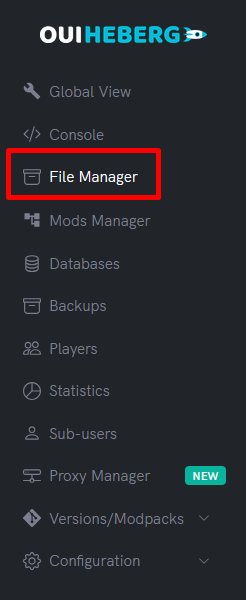
- Go to the File Manager
- Navigate to the
pluginsfolder (ormodsfor Fabric) - Click on Upload and upload:
Geyser-Spigot.jarFloodgate-Spigot.jar
First Start
- Go to the Console
- Start the server
- Wait for complete loading
- Check that Geyser is loading correctly:
[INFO]: [Geyser-Spigot] Loading Geyser version X.X.X...
[INFO]: [Geyser-Spigot] Geyser is now ready to accept Bedrock connections!
[INFO]: [Floodgate] Floodgate has been enabled!
- Stop the server to configure
⚙️ Step 3: Configure a Bedrock Port
Add a port on OuiPanel
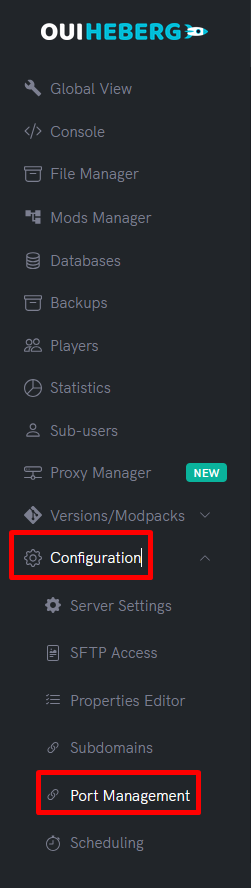
- Go to Configuration → Port Management (or Network)
- Click on Add a port
- Take note of the new assigned port (e.g.
19132or other) - Add a note: "Bedrock Port GeyserMC"
💡 Note: The default Bedrock port is
19132, but OuiPanel may assign you a different port. Make sure to take note of it!
⚙️ Step 4: Configure GeyserMC
Access the configuration file
- In the File Manager, navigate to:
/plugins/Geyser-Spigot/config.yml - Click on the file to edit it
Bedrock port configuration
Find the bedrock: section and modify the port:
bedrock:
  # The address Geyser listens on
  address: 0.0.0.0
  # The Bedrock port (change with your assigned port)
  port: 19132
  # Enable remote IP cloning
  clone-remote-port: false
  # MOTD displayed to Bedrock players
  motd1: "My Minecraft Server"
  motd2: "Crossplay Java & Bedrock!"
  # Server name in the list
  server-name: "My Server"
⚠️ Important: Replace
19132with the port you obtained in the previous step!
Java connection configuration
Find the remote: section:
remote:
  # The address of the Java server (usually localhost)
  address: auto
  # The Java server port
  port: 25565
  # Authentication type
  auth-type: floodgate
| Parameter | Value | Explanation |
|---|---|---|
address | auto | Automatic detection (recommended) |
port | 25565 | Your Java server port |
auth-type | floodgate | Use Floodgate for authentication |
Important options
# Prefix for Bedrock players (avoids username conflicts)
floodgate-key-file: key.pem

# Allow commands from Bedrock
command-suggestions: true

# Display coordinates to Bedrock players
show-coordinates: true

# Enable debug mode (disable in production)
debug-mode: false

# Maximum number of displayed Bedrock players
max-players: 100

# Enable anonymous statistics
metrics:
  enabled: true
Complete recommended configuration
Here is an optimized config.yml configuration:
bedrock:
  address: 0.0.0.0
  port: 19132  # Replace with your port!
  clone-remote-port: false
  motd1: "My Crossplay Server"
  motd2: "Java & Bedrock together!"
  server-name: "MyServer"
  compression-level: 6
  enable-proxy-protocol: false

remote:
  address: auto
  port: 25565
  auth-type: floodgate

floodgate-key-file: key.pem

command-suggestions: true
passthrough-motd: true
passthrough-player-counts: true
legacy-ping-passthrough: false

max-players: 100

show-coordinates: true

emote-offhand-workaround: "disabled"

cache-images: 0

allow-custom-skulls: true

add-non-bedrock-items: true

above-bedrock-nether-building: false

force-resource-packs: true

xbox-achievements-enabled: false
⚙️ Step 5: Configure Floodgate
Access Floodgate configuration
- Navigate to:
/plugins/floodgate/config.yml - Open the file to edit it
Floodgate configuration
# Prefix added to Bedrock usernames (avoids conflicts)
username-prefix: "."

# Replace spaces in usernames (Bedrock usernames can have spaces)
replace-spaces: "_"

# Debug mode
debug-mode: false

# Player database configuration
player-link:
  enabled: true
  type: sqlite
💡 Usernames prefix: With the prefix
., a Bedrock player named "Steve" will appear as.Steveon the server. This avoids conflicts if a Java player has the same username.
🔄 Step 6: Restart and Test
Restart the server
- Go to the OuiPanel Console
- Click on Start
- Wait for complete loading
Check the operation
In the console, you should see:
[INFO]: [Geyser-Spigot] Loading Geyser...
[INFO]: [Geyser-Spigot] Geyser version X.X.X
[INFO]: [Geyser-Spigot] Listening on /0.0.0.0:19132
[INFO]: [Geyser-Spigot] Geyser is now ready to accept Bedrock connections!
[INFO]: [Floodgate] Floodgate has been enabled!
Test the Bedrock connection
Use the command in the console:
geyser connectiontest IP:PORT
Example:
geyser connectiontest 123.456.789.0:19132
Expected result:
[Geyser] Connection test successful!
📱 Step 7: Connect Bedrock Players
Connection information
Bedrock players should use:
| Information | Value |
|---|---|
| Address | Your server's IP |
| Port | The configured Bedrock port (e.g. 19132) |
⚠️ Important: The Bedrock port is different from the Java port!
Connection from Windows 10/11
- Launch Minecraft for Windows (Bedrock Edition)
- Click on Play → Servers → Add a server
- Fill in:
- Server Name: Whatever you want
- Server Address: Your server's IP
- Port: Your Bedrock port (e.g. 19132)
- Click Save
- Select the server and click Join
Connection from Mobile (iOS/Android)
- Launch Minecraft on your device
- Click on Play → Servers → Add a server
- Enter the address and port
- Save and join
Connection from Xbox
- On Xbox, custom servers are not directly accessible
- Solutions:
- Use the BedrockConnect application (DNS modification)
- Or use MC Server Connector from the Microsoft Store
DNS Method (BedrockConnect)
- On Xbox, go to Settings → Network → Advanced settings
- DNS settings → Manual
- Enter:
- Primary DNS:
104.238.130.180 - Secondary DNS:
8.8.8.8
- Primary DNS:
- Restart Minecraft
- In the Servers tab, click on a partner server
- A menu will appear to enter your server's IP
Connection from Nintendo Switch
Same method as Xbox:
- System settings → Internet → Internet settings
- Select your network → Modify settings
- DNS settings → Manual
- Main DNS:
104.238.130.180 - Follow the same steps as Xbox
Connection from PlayStation
⚠️ Note: PlayStation is more restrictive. You must use a proxy application on your local network.
- Download BedrockConnect or Phantom on a PC on the same network
- Set up the proxy
- Change the DNS on your PlayStation to the proxy PC's IP
🔧 GeyserMC Commands
Console Commands
| Command | Description |
|---|---|
geyser reload | Reloads the configuration |
geyser version | Displays the Geyser version |
geyser dump | Generates a diagnostic report |
geyser statistics | Displays statistics |
geyser connectiontest IP:PORT | Tests the Bedrock connection |
geyser list | Lists connected Bedrock players |
Player (In-Game) Commands
| Command | Description |
|---|---|
/geyser help | Lists available commands |
/geyser offhand | Switches the offhand item |
/geyser advancements | Opens the advancements menu |
/geyser statistics | Opens the statistics menu |
/geyser settings | Geyser settings |
🔧 Troubleshooting
Bedrock players cannot connect
| Cause | Solution |
|---|---|
| Incorrect port | Check the port in config.yml and on OuiPanel |
| Port not open | Check in Port Management that the port is created |
| Wrong IP | Use the main server IP |
| Firewall | The port must be accessible via UDP |
Error "Unable to connect to world"
- Check that the server is started
- Check that Geyser is loaded (console logs)
- Test with
geyser connectiontest - Verify the port is correct
Error "Disconnected from server"
- Check
auth-type: floodgatein the Geyser config - Ensure Floodgate is installed and enabled
- Check that
key.pemexists in the Floodgate folder
Bedrock skins not displaying correctly
This is a known limitation. Solutions:
- Install the SkinsRestorer plugin for Java players
- Custom Bedrock skins do not work on Java
Chat issue (1.19.1+)
For versions 1.19.1 and above, you may need to:
- In
server.properties, add:enforce-secure-profile=false - Or install the NoEncryption / FreedomChat plugin
Error "Invalid credentials"
- Ensure
auth-typeis set tofloodgate - Restart the server
- Delete and recreate the
key.pemfiles
📊 Crossplay Limitations
Differences between versions
| Feature | Java | Bedrock via Geyser |
|---|---|---|
| PvP Combos | ✅ Native | ⚠️ Different |
| Redstone | ✅ Full | ⚠️ Minor differences |
| Some blocks | ✅ All | ⚠️ Different appearance |
| Commands | ✅ All | ⚠️ Sometimes different syntax |
| F3 (Debug) | ✅ Yes | ❌ No |
| Mods | ✅ If server is modded | ❌ No |
What works well
- ✅ Exploration and building
- ✅ Survival and adventure
- ✅ Basic mini-games
- ✅ Chat and communication
- ✅ Economy and standard plugins
Potential issues
- ⚠️ Competitive PvP (different mechanics)
- ⚠️ Complex piston/Redstone
- ⚠️ Some advanced plugins
- ⚠️ Custom resource packs
💡 Best Practices
Server Configuration
| Practice | Reason |
|---|---|
| Use Floodgate | Avoids requiring a Java account |
Set a prefix (.) | Prevents username conflicts |
| Regular testing | Ensure crossplay functionality |
| Update Geyser | New features and fixes |
For Players
| Tip | Explanation |
|---|---|
| Use the same username | Facilitates identification |
| Report bugs | Helps improve the experience |
| Be patient | Some mechanics are different |
📝 Summary
CONFIGURING GEYSERMC ON OUIPANEL:

1. PREREQUISITES
   ├── Paper/Spigot/Purpur Server (not Vanilla)
   ├── Additional available port
   └── Download Geyser + Floodgate

2. INSTALLATION
   ├── Upload Geyser-Spigot.jar to /plugins/
   ├── Upload Floodgate-Spigot.jar to /plugins/
   ├── Start the server (generates configs)
   └── Stop to configure

3. PORT CONFIGURATION
   ├── Configuration → Port Management
   ├── Add a new port
   └── Note the assigned port (e.g., 19132)

4. GEYSER CONFIGURATION
   ├── Edit /plugins/Geyser-Spigot/config.yml
   ├── Modify port: YOUR_PORT
   ├── Check auth-type: floodgate
   └── Save

5. BEDROCK CONNECTION
   ├── Address: Server IP
   ├── Port: Bedrock Port (different from Java!)
   └── Xbox/Switch: use DNS method

PORTS:
├── Java: 25565 (or your main port)
└── Bedrock: 19132 (or assigned port)

FILES:
├── /plugins/Geyser-Spigot/config.yml
└── /plugins/floodgate/config.yml

USEFUL COMMANDS:
├── geyser connectiontest IP:PORT
├── geyser reload
├── geyser list
└── geyser dump
📚 Resources
| Resource | URL |
|---|---|
| GeyserMC Official Site | geysermc.org |
| GeyserMC Wiki | wiki.geysermc.org |
| GeyserMC Discord | discord.gg/geysermc |
| GeyserMC GitHub | github.com/GeyserMC |
Need a Minecraft server?
Discover our Minecraft hosting plans starting from $2.28/month with automatic mod installation.