
 Client area
Estimated time: 10 minutes
Difficulty: Beginner ⭐
Compatible servers: All Java Minecraft servers
📋 Introduction
The server.properties file is the main configuration file for your Minecraft server. It allows you to customize the server name, game mode, difficulty, maximum number of players, and much more.
What you can configure
| Category | Examples |
|---|---|
| 🏷️ Identity | Server name (MOTD), icon |
| 🎮 Gameplay | Game mode, difficulty, PvP |
| 👥 Players | Max slots, whitelist, online mode |
| 🌍 World | Seed, world type, spawn protection |
| ⚙️ Performance | View distance, simulation distance |
| 🔒 Security | RCON, query, online mode |
📁 Accessing the File
Using the File Manager
- Log in to OuiPanel
- Select your Minecraft server
- In the side menu, click on File Manager
- At the root of the server, click on
server.properties - Click on the file to Edit
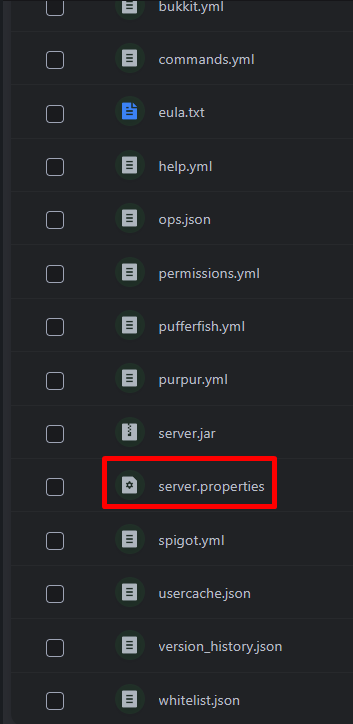
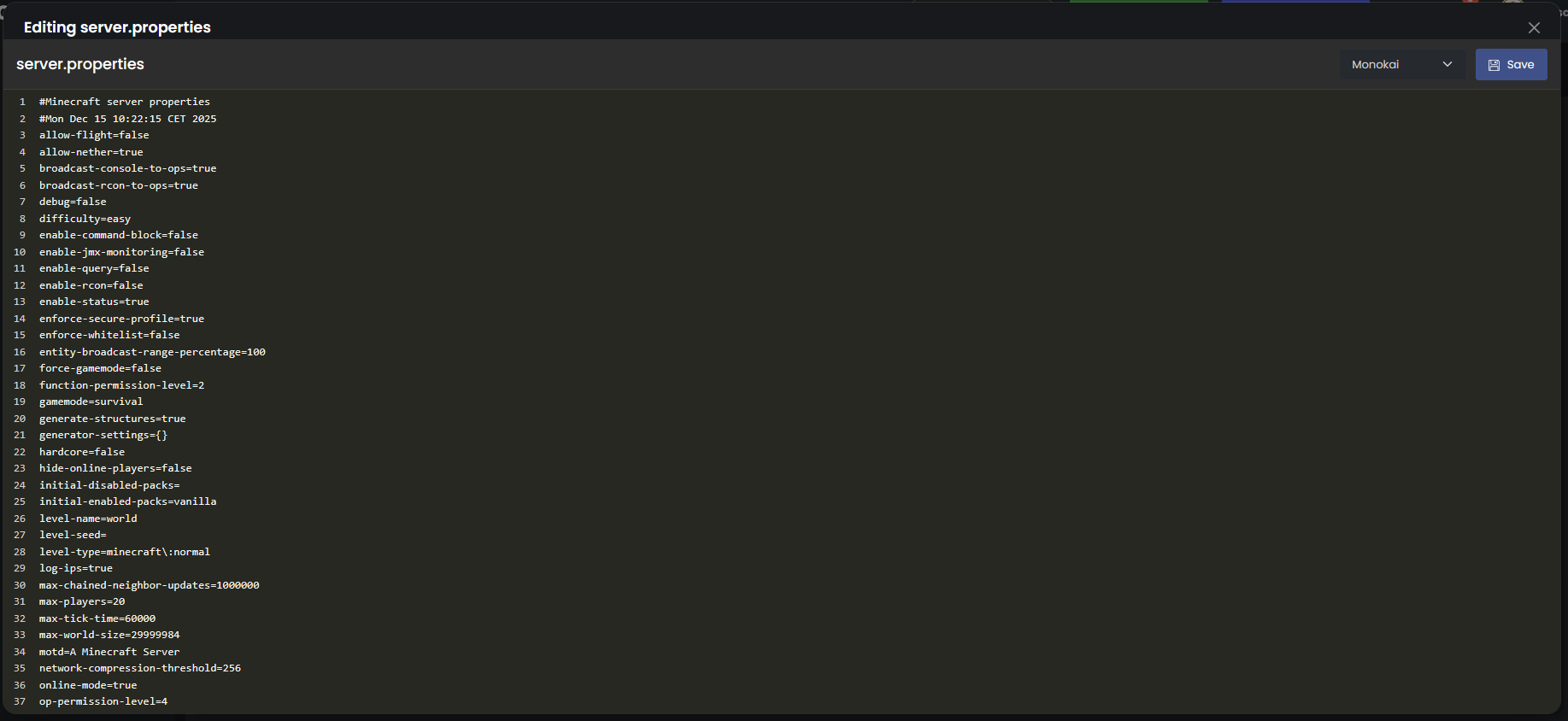
⚠️ Important: Stop your server before modifying this file, then restart it to apply the changes.
🏷️ Basic Configuration
Server Name (MOTD)
The MOTD (Message of the Day) is the text displayed in the server list.
motd=My Super Minecraft Server
With colors and formatting:
| Code | Effect |
|---|---|
\u00A70 | Black |
\u00A71 | Dark Blue |
\u00A72 | Dark Green |
\u00A73 | Dark Cyan |
\u00A74 | Dark Red |
\u00A75 | Purple |
\u00A76 | Gold |
\u00A77 | Gray |
\u00A78 | Dark Gray |
\u00A79 | Blue |
\u00A7a | Light Green |
\u00A7b | Cyan |
\u00A7c | Red |
\u00A7d | Pink |
\u00A7e | Yellow |
\u00A7f | White |
\u00A7l | Bold |
\u00A7n | Underlined |
\u00A7o | Italic |
Example with colors:
motd=\u00A7b\u00A7lMy Server \u00A7e- \u00A7aWelcome!
💡 Tip: Use an online MOTD generator to easily create colorful messages.
Maximum Number of Players
max-players=20
Sets the maximum number of players that can connect simultaneously.
| Value | Recommendation |
|---|---|
10 | Small server with friends |
20 | Medium server (default) |
50 | Large server |
100+ | Very large server (requires more RAM) |
⚠️ More players = more RAM needed. Estimate around 100-200 MB of RAM per player.
🎮 Gameplay Configuration
Default Game Mode
gamemode=survival
| Value | Description |
|---|---|
survival | Survival (default) |
creative | Creative |
adventure | Adventure |
spectator | Spectator |
Force Game Mode
force-gamemode=false
| Value | Effect |
|---|---|
false | Players keep their game mode between sessions |
true | Players are reset to default mode on each connection |
Difficulty
difficulty=normal
| Value | Description |
|---|---|
peaceful | Peaceful (no hostile mobs) |
easy | Easy |
normal | Normal (default) |
hard | Hard |
Enable/Disable PvP
pvp=true
| Value | Effect |
|---|---|
true | Players can fight each other |
false | Players cannot deal damage to each other |
Hardcore Mode
hardcore=false
| Value | Effect |
|---|---|
false | Normal mode |
true | Death = permanent ban (1 life only) |
⚠️ In hardcore mode, the difficulty is automatically set to "hard".
Allow Flight
allow-flight=false
| Value | Effect |
|---|---|
false | Survival players flying are kicked (basic anti-cheat) |
true | Flight is allowed (required for some plugins) |
💡 Set to
trueif you are using flight plugins like EssentialsX.
Allow Nether
allow-nether=true
| Value | Effect |
|---|---|
true | The Nether is accessible |
false | Nether portals do not work |
Enable Command Line
enable-command-block=false
| Value | Effect |
|---|---|
false | Command blocks are disabled |
true | Command blocks work |
🌍 World Configuration
World Name
level-name=world
Name of the folder containing the world. Change it to load a different world.
Examples:
level-name=world
level-name=MyWorld
level-name=survival2024
World Seed
level-seed=
Leave blank for a random seed, or enter a specific seed.
Examples:
level-seed=
level-seed=12345678
level-seed=minecraft
⚠️ The seed only affects the initial generation. Changing the seed on an existing world has no effect on already generated chunks.
World Type
level-type=minecraft\:normal
| Value | Description |
|---|---|
minecraft\:normal | Normal world (default) |
minecraft\:flat | Flat world (superflat) |
minecraft\:large_biomes | Large biomes |
minecraft\:amplified | Amplified terrain (giant mountains) |
minecraft\:single_biome_surface | Single biome |
Generate Structures
generate-structures=true
| Value | Effect |
|---|---|
true | Villages, temples, dungeons, etc. are generated |
false | No structures generated |
Spawn Protection
spawn-protection=16
Radius (in blocks) around spawn where only OPs can build/destroy.
| Value | Effect |
|---|---|
0 | No protection |
16 | 16 blocks protection (default) |
32 | Extended protection |
💡 Set
0if you are using a protection plugin like WorldGuard.
Spawn Animals and Monsters
spawn-animals=true
spawn-monsters=true
spawn-npcs=true
| Parameter | true | false |
|---|---|---|
spawn-animals | Animals spawn | No animals |
spawn-monsters | Monsters spawn | No monsters |
spawn-npcs | Villagers spawn | No villagers |
⚙️ Performance Configuration
View Distance
view-distance=10
Number of chunks rendered around each player.
| Value | Effect | Recommendation |
|---|---|---|
4-6 | Low distance | Server with low RAM |
8-10 | Normal distance | Recommended |
12-16 | Large distance | High-performance server |
20+ | Very large distance | Requires a lot of RAM |
⚠️ Reducing this value significantly improves performance.
Simulation Distance
simulation-distance=10
Distance (in chunks) where entities are active (mobs, redstone, etc.).
| Value | Recommendation |
|---|---|
4-6 | Server with low RAM |
8-10 | Recommended |
💡 Can be lower than
view-distanceto optimize performance.
Ticks per Second Rate
max-tick-time=60000
Maximum time (in ms) for a tick before the server stops.
| Value | Effect |
|---|---|
60000 | 60 seconds (default) |
-1 | Disables the watchdog (not recommended) |
Automatic Backup Interval (Paper/Spigot)
On Paper/Spigot, configure this in specific files (paper.yml, spigot.yml).
👥 Player Configuration
Online Mode (Premium Accounts)
online-mode=true
| Value | Effect |
|---|---|
true | Only official Minecraft accounts can connect |
false | "Cracked" server - all usernames accepted |
⚠️ Security: In
online-mode=false, use an authentication plugin like AuthMe to protect accounts.
Whitelist
white-list=false
enforce-whitelist=false
| Parameter | Effect |
|---|---|
white-list=true | Only whitelisted players can join |
enforce-whitelist=true | Non-whitelisted players are immediately kicked if whitelist is enabled in-game |
📖 Check the "Manage Players" guide to handle the whitelist.
Idle Player Limit
player-idle-timeout=0
Time (in minutes) before an AFK player is kicked.
| Value | Effect |
|---|---|
0 | No AFK kick |
10 | Kick after 10 minutes of inactivity |
30 | Kick after 30 minutes |
🔒 Security & Network Configuration
Server Port
server-port=25565
Port on which the server listens. Minecraft's default port is 25565.
⚠️ On OuiHeberg, the port is managed automatically. Do not change this value unless instructed otherwise.
Server Address
server-ip=
Leave blank to listen on all interfaces (recommended).
RCON (Remote Console)
enable-rcon=false
rcon.port=25575
rcon.password=
Allows remote control of the server via the RCON protocol.
| Parameter | Description |
|---|---|
enable-rcon | Enable/disable RCON |
rcon.port | RCON port |
rcon.password | RCON password (mandatory if enabled) |
⚠️ Only enable RCON if needed and use a strong password.
Query (Server Queries)
enable-query=false
query.port=25565
Allows monitoring sites to retrieve server information.
Network Compression
network-compression-threshold=256
Minimum size (in bytes) of packets before compression.
| Value | Effect |
|---|
256 Default, good balance 512 Less compression, more bandwidth -1 Disables compression 📄 Full File Example
Here is an example of an optimized server.properties for a survival server with friends:
# Basic configuration
motd=\u00A7b\u00A7lMy Server \u00A7e- \u00A7aSurvival with friends
max-players=10
server-port=25565

# Gameplay
gamemode=survival
force-gamemode=false
difficulty=normal
pvp=true
hardcore=false
allow-flight=false
allow-nether=true
enable-command-block=false

# World
level-name=world
level-seed=
level-type=minecraft\:normal
generate-structures=true
spawn-protection=0

# Entities
spawn-animals=true
spawn-monsters=true
spawn-npcs=true

# Performance
view-distance=10
simulation-distance=10
max-tick-time=60000

# Players
online-mode=true
white-list=false
enforce-whitelist=false
player-idle-timeout=0

# Network and security
server-ip=
enable-rcon=false
enable-query=false
network-compression-threshold=256
🔧 Troubleshooting
Changes not taking effect
| ❌ Cause | ✅ Solution |
|---|---|
| Server not restarted | Restart the server after making changes |
| File not saved correctly | Make sure you clicked "Save" |
| Syntax error | No spaces around =, no quotes |
Server not starting
| ❌ Cause | ✅ Solution |
|---|---|
| Error in server.properties | Check the syntax of each line |
| Invalid value | Refer to this guide for accepted values |
| Special character in MOTD | Use \u00A7 codes for colors |
To reset:
- Delete
server.properties - Restart the server
- A new default file will be created
MOTD not displaying correctly
| ❌ Cause | ✅ Solution |
|---|---|
| Incorrect color codes | Use \u00A7 instead of § |
| Special characters | Avoid accents and special characters |
| Client cache | Delete and re-add the server in Minecraft |
Players unable to build at spawn
This is normal! The spawn-protection protects the area around spawn.
Solutions:
- Set
spawn-protection=0to disable - Give OP to players who need to build
- Use a protection plugin (WorldGuard) for more control
📝 Summary of Important Settings
| Parameter | Recommended Value | Description |
|---|---|---|
motd | Custom | Name displayed in the list |
max-players | 10-20 | Available slots |
gamemode | survival | Default mode |
difficulty | normal | Difficulty |
pvp | true/false | Player combat |
online-mode | true | Premium accounts required |
white-list | false | Whitelist enabled |
view-distance | 8-10 | Render distance |
spawn-protection | 0-16 | Spawn protection |
📝 Summary
1. Stop the server
2. File manager → server.properties → Edit
3. Modify desired settings
4. Save the file
5. Restart the server
6. Verify changes have been appliedNeed a Minecraft server?
Discover our Minecraft hosting plans starting from $2.28/month with automatic mod installation.