
 Client area
Estimated Time: 15 minutes
Difficulty: Intermediate ⭐⭐
Server Type: Node.js
📋 Introduction
This guide explains how to host a Node.js web application (website, REST API, dashboard...) on OuiPanel with a custom domain name and automatic HTTPS.
What You Can Host
| Application Type | Examples |
|---|---|
| 🌐 Website | Showcase site, blog, portfolio |
| 🔌 REST API | Backend for mobile/web application |
| 📊 Dashboard | Admin panel, management interface |
| 🛒 Web Application | E-commerce, SaaS, online tool |
What You Need
| Prerequisites | Description |
|---|---|
| 📁 A Node.js application | Your functional source code |
| 💻 A Node.js server | Ordered on OuiHeberg |
| 🌐 A domain name | (Optional) For access via a custom URL |
📁 Step 1: Prepare the Application Files
File Structure
Your application must have this structure:
📁 MyApp/
├── 📄 index.js           ← Main file (or app.js, server.js...)
├── 📄 package.json       ← npm dependencies
├── 📄 .env               ← Environment variables (created on the server)
├── 📁 public/            ← (Optional) Static files (CSS, JS, images)
├── 📁 views/             ← (Optional) Templates (EJS, Pug, Handlebars)
└── 📁 routes/            ← (Optional) Application routes
package.json File
Create a package.json file with your dependencies:
{
  "name": "my-web-application",
  "version": "1.0.0",
  "description": "My Node.js web application",
  "main": "index.js",
  "scripts": {
    "start": "node index.js"
  },
  "dependencies": {
    "express": "^4.18.2",
    "dotenv": "^16.3.1"
  }
}
💡 Adapt
"main": "index.js"according to the name of your main file (app.js,server.js, etc.).
Main File (index.js)
Here is an example of an Express.js application configured for OuiPanel:
// Load environment variables from .env
require('dotenv').config();

const express = require('express');
const app = express();

// Port: use SERVER_PORT (OuiPanel) or PORT (.env) or 3000 by default
const PORT = process.env.SERVER_PORT || process.env.PORT || 3000;

// Middleware to parse JSON
app.use(express.json());
app.use(express.urlencoded({ extended: true }));

// Serve static files (CSS, JS, images)
app.use(express.static('public'));

// Main route
app.get('/', (req, res) => {
    res.send(`
        <!DOCTYPE html>
        <html lang="en">
        <head>
            <meta charset="UTF-8">
            <meta name="viewport" content="width=device-width, initial-scale=1.0">
            <title>My Application</title>
            <style>
                body { font-family: Arial, sans-serif; max-width: 800px; margin: 50px auto; padding: 20px; }
                h1 { color: #333; }
                .status { background: #d4edda; padding: 15px; border-radius: 5px; color: #155724; }
            </style>
        </head>
        <body>
            <h1>🚀 My Node.js Application</h1>
            <div>
                ✅ The application is working correctly!
            </div>
            <p>Server started on port ${PORT}</p>
        </body>
        </html>
    `);
});

// Example API route
app.get('/api/status', (req, res) => {
    res.json({
        status: 'online',
        message: 'Functional API',
        timestamp: new Date().toISOString()
    });
});

// API route with parameter
app.get('/api/hello/:name', (req, res) => {
    res.json({
        message: `Hello ${req.params.name}!`
    });
});

// Start the server on 0.0.0.0 (important for OuiPanel)
app.listen(PORT, '0.0.0.0', () => {
    console.log(`✅ Server started at http://0.0.0.0:${PORT}`);
    console.log(`📅 ${new Date().toLocaleString('en-US')}`);
});
⚠️ IMPORTANT: The server must listen on
0.0.0.0(all interfaces), not onlocalhostor127.0.0.1.
Example with EJS Templates
If you are using EJS templates:
package.json:
{
  "name": "my-web-application",
  "version": "1.0.0",
  "main": "index.js",
  "scripts": {
    "start": "node index.js"
  },
  "dependencies": {
    "express": "^4.18.2",
    "ejs": "^3.1.9",
    "dotenv": "^16.3.1"
  }
}
index.js:
require('dotenv').config();

const express = require('express');
const app = express();
const PORT = process.env.SERVER_PORT || process.env.PORT || 3000;

// EJS Configuration
app.set('view engine', 'ejs');
app.set('views', './views');

// Static files
app.use(express.static('public'));

// Main route
app.get('/', (req, res) => {
    res.render('index', {
        title: 'My Application',
        message: 'Welcome to my site!'
    });
});

app.listen(PORT, '0.0.0.0', () => {
    console.log(`✅ Server started on port ${PORT}`);
});
views/index.ejs:
<!DOCTYPE html>
<html lang="en">
<head>
    <meta charset="UTF-8">
    <title><%= title %></title>
</head>
<body>
    <h1><%= message %></h1>
</body>
</html>
📤 Step 2: Upload Files to OuiPanel
Using the File Manager
- Log in to OuiPanel
- Select your Node.js server
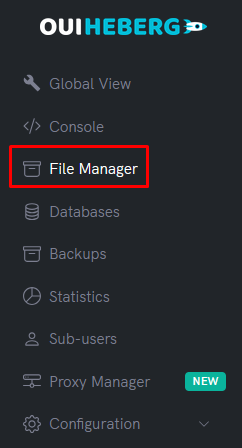
- In the side menu, click on File Manager
- Delete default files (if any)
- Click on Upload
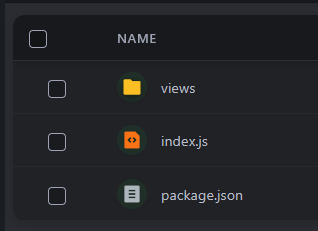
- Upload your files:
index.js(orapp.js,server.js...)package.json- Your folders (
public/,views/,routes/...) if needed
⚠️ Do not upload: The
.envfile will be created directly on the server (more secure).
Using SFTP (Recommended for multiple files)
- Connect via SFTP with FileZilla
- Drag and drop all the content of your application folder
- Verify that all files are uploaded correctly
📖 Check out the guide "SFTP Access with FileZilla" for detailed instructions.
🔑 Step 3: Create the .env File
Create a file .env to securely store your environment variables.
Create the .env file
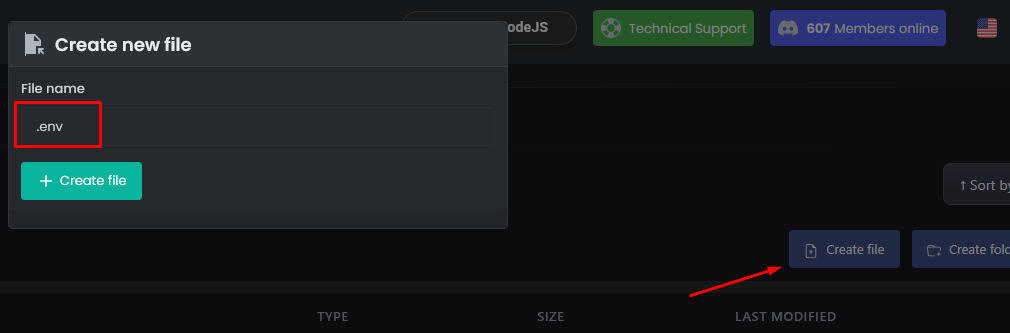
- In the File Manager, click on New file
- Name it
.env(with a dot in front) - Add your variables:
# Application configuration
PORT=3000
NODE_ENV=production

# Database (if needed)
DATABASE_URL=mysql://user:password@host:3306/database

# API Keys (examples)
API_KEY=your_api_key
SECRET_KEY=your_secret_key
- Click on Create or Save
💡 Tip: The variable
SERVER_PORTis automatically provided by OuiPanel. Use it as a priority in your code.
Final Structure on the Server
📁 Server Root/
├── 📄 .env               ← Environment variables
├── 📄 index.js           ← Your code
├── 📄 package.json       ← Dependencies
├── 📁 public/            ← Static files
├── 📁 views/             ← Templates
└── 📁 node_modules/      ← (automatically created)
⚙️ Step 4: Configure the Startup File
OuiPanel needs to know which file to execute at startup.
Accessing the settings
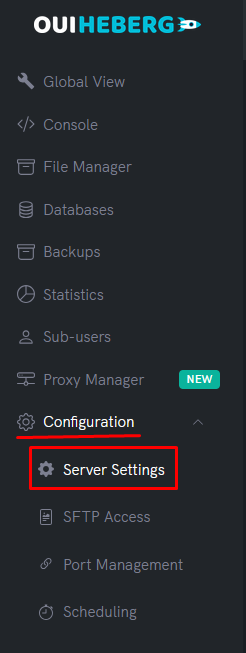
- In the sidebar menu, click on Configuration
- Click on Server Settings
Configuring the file to execute
Locate the File to Execute field:
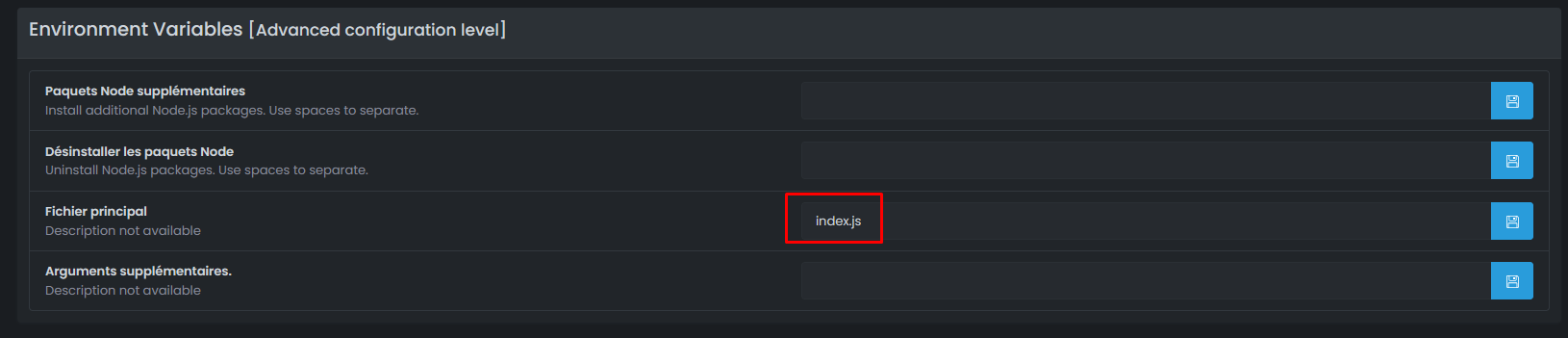
| Your main file | Value to set |
|---|---|
index.js | index.js |
app.js | app.js |
server.js | server.js |
src/index.js | src/index.js |
⚠️ Important: The name must match exactly your file (case-sensitive).
🚀 Step 5: Start the Application
Launching the server
- In the sidebar menu, click on Console
- Click on Start
Automatic Installation of Dependencies
Upon first startup, the server automatically runs npm install:
> npm install
added 62 packages in 4s

> node index.js
✅ Server started at http://0.0.0.0:25639
📅 15/12/2025 14:30:00
[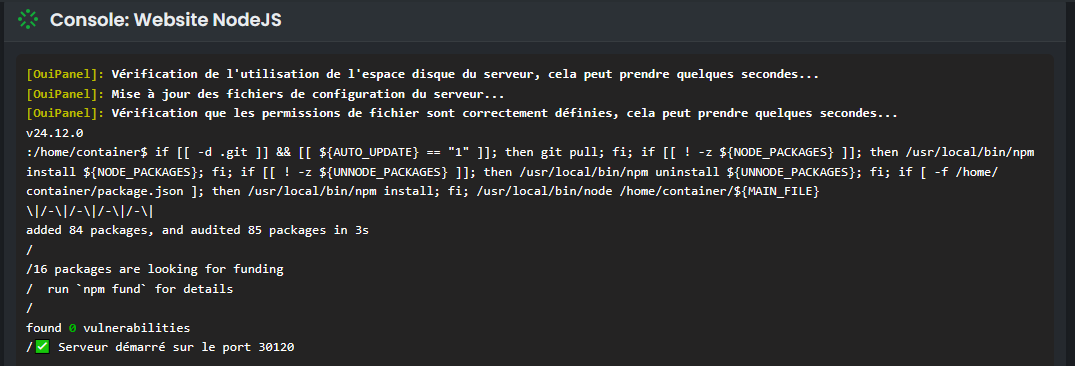
Screenshot taken with EJS configuration
Testing the application
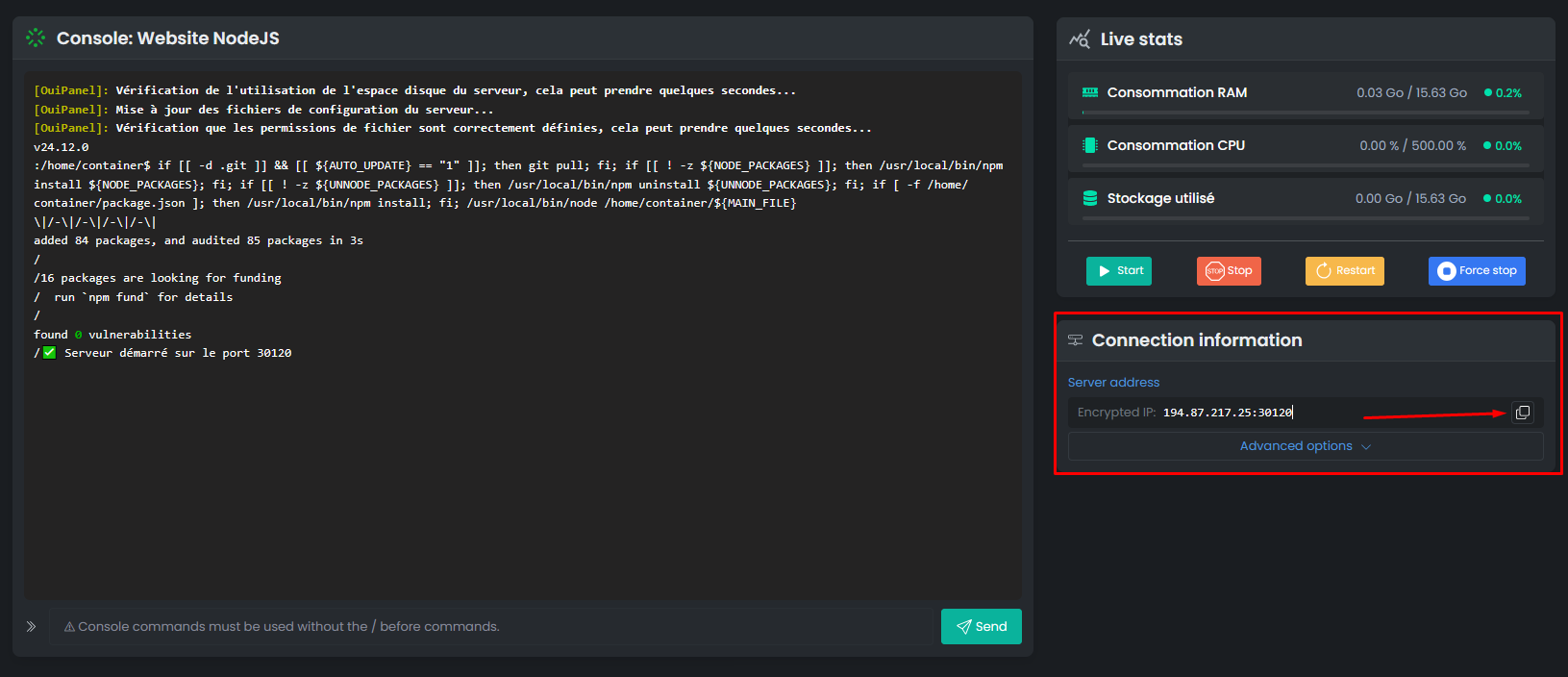
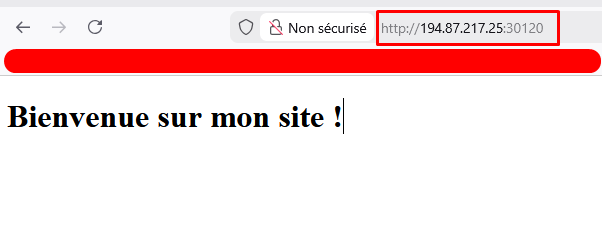
- Note the port displayed in the console (e.g.,
25639) - Retrieve the IP of your server in the Global View
- Access
http://IP:PORTin your browser
Example: http://51.77.xxx.xxx:25639
💡 For easier access with a domain name and HTTPS, configure the Proxy Manager (next step).
🌐 Step 6: Configure a Domain Name (Proxy Manager)
To access your application via a clean URL with HTTPS (e.g., https://myapp.com), use the Proxy Manager.
Prerequisites
- ✅ A domain name you own
- ✅ Access to the DNS zone of your domain
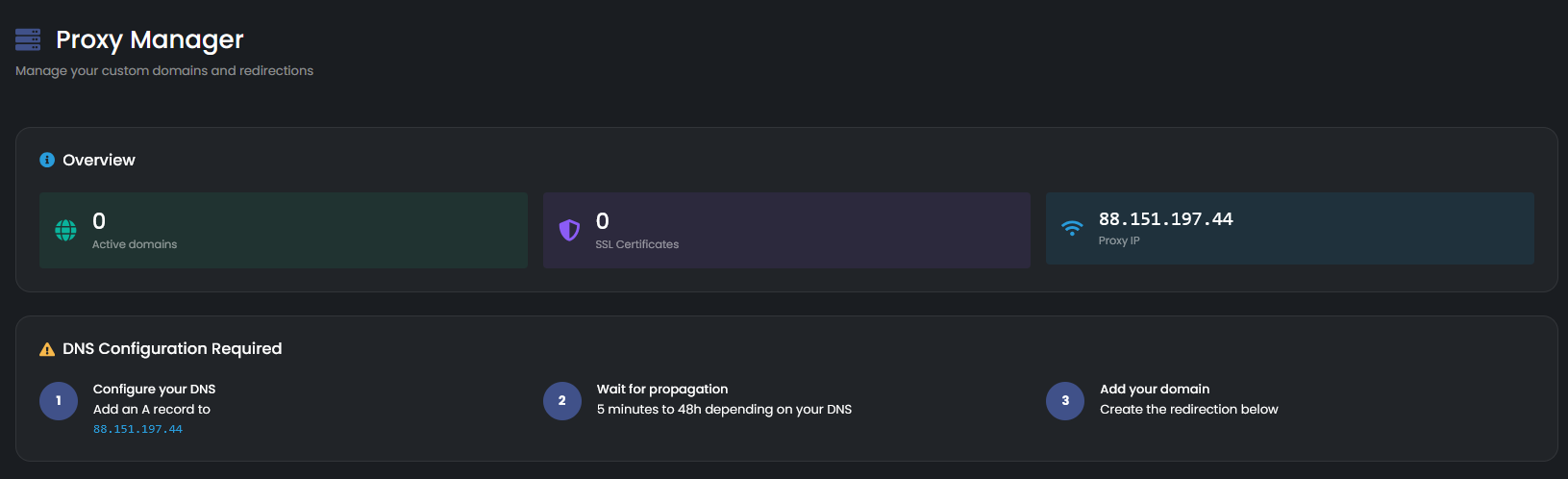
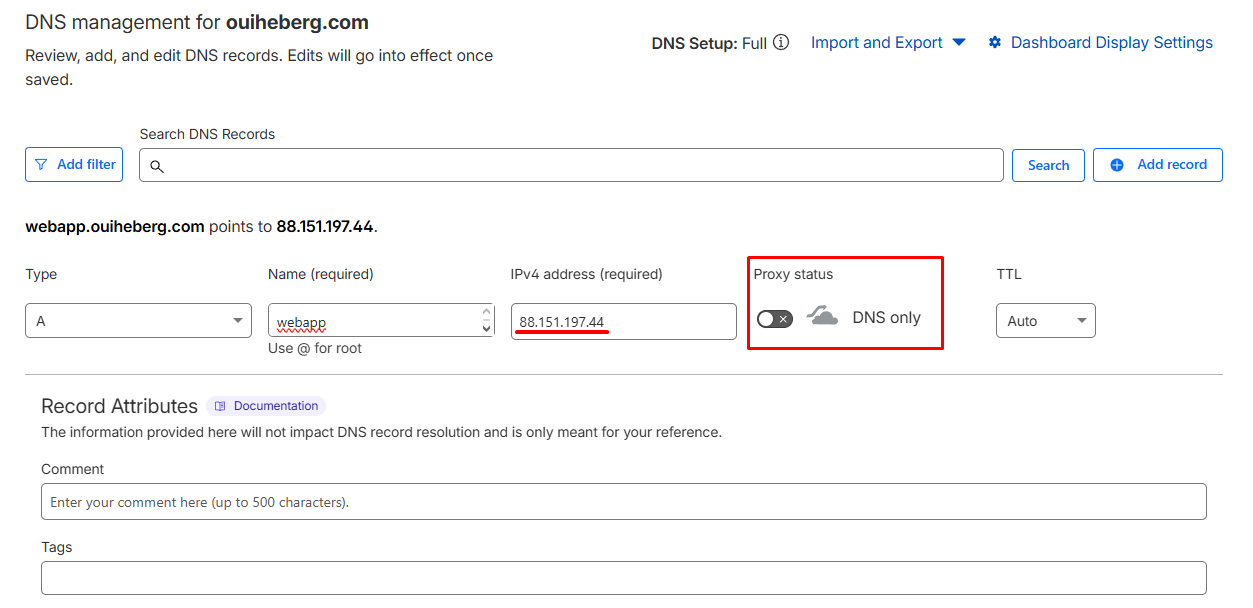
Configure the DNS
- In OuiPanel → Proxy Manager, note the Proxy IP
- At your registrar (OVH, Cloudflare, etc.), create a DNS record:
| Type | Name | Value |
|---|---|---|
A | @ or app | Proxy IP |
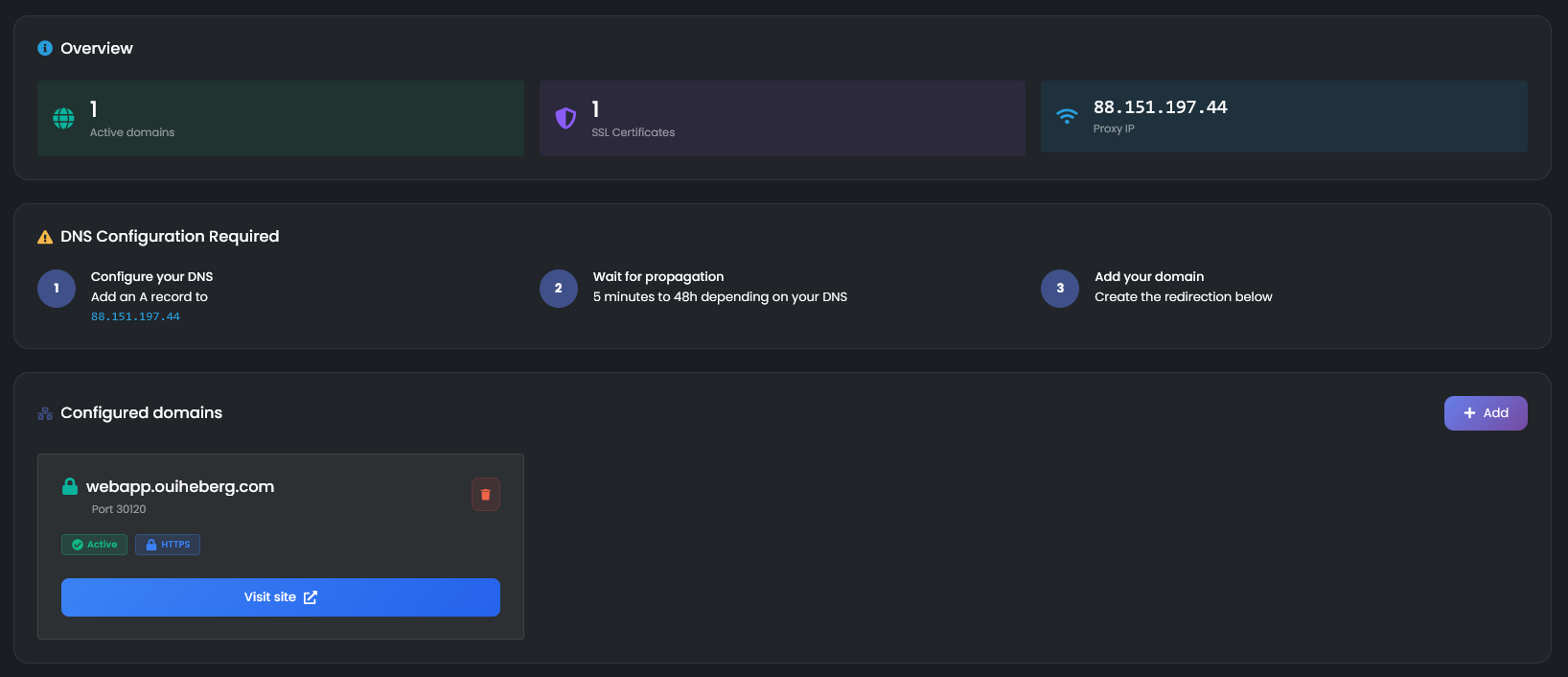
Add the domain in OuiPanel
- In the sidebar menu, click on Proxy Manager
- Click on Add
- Fill in:
| Field | Value |
|---|---|
| Domain Name | myapp.com or app.mydomain.com |
| Port | Your application's port (e.g., 25639) |
| SSL | ✅ Enabled |
- Click on Create redirection
Result
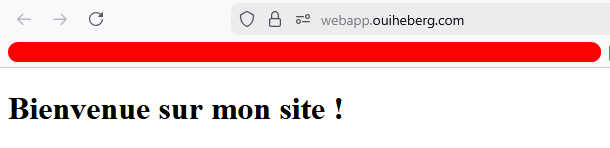
Your application is now accessible via:
- ✅
https://myapp.com(with automatic HTTPS) - ✅ Free SSL certificate (Let's Encrypt)
📖 Check out the guide "Configure a Domain Name with the Proxy Manager" for more details.
🔧 Troubleshooting
The application doesn't start
| ❌ Error | ✅ Solution |
|---|---|
Cannot find module 'express' | Check package.json and restart |
Cannot find module 'dotenv' | Add dotenv to package.json |
Error: Cannot find module './index.js' | Incorrect startup file configured |
SyntaxError | Error in your JavaScript code |
The application starts but is not accessible
| ❌ Cause | ✅ Solution |
|---|---|
Listens on localhost | Change to 0.0.0.0 |
| Incorrect port | Use process.env.SERVER_PORT |
| Firewall | The port must be the one assigned by OuiPanel |
Check your code:
// ❌ WRONG - listen only locally
app.listen(3000, 'localhost', () => {});
app.listen(3000, '127.0.0.1', () => {});

// ✅ CORRECT - listen on all interfaces
app.listen(PORT, '0.0.0.0', () => {});
502 Bad Gateway Error (Proxy Manager)
| ❌ Cause | ✅ Solution |
|---|---|
| Application not started | Start the server in OuiPanel |
| Wrong port in Proxy Manager | Check the configured port |
| Application crashed | Check the Console |
Application Crashes on Startup
| ❌ Cause | ✅ Solution |
|---|---|
| Missing environment variable | Check the .env file |
| Syntax error | Correct the code |
| Missing package | Check package.json |
Add error handling:
// Handling uncaught errors
process.on('uncaughtException', (error) => {
    console.error('Uncaught error:', error);
});

process.on('unhandledRejection', (error) => {
    console.error('Promise rejected:', error);
});
npm install Fails
| ❌ Error | ✅ Solution |
|---|---|
package.json not found | Check that the file is at the root |
ERESOLVE unable to resolve | Update versions in package.json |
🔒 Security
.env File
| ✅ To Do | ❌ Not To Do |
|---|---|
Create the .env on the server | Upload the .env from your PC |
Add .env to .gitignore | Commit the .env to GitHub |
| Use variables for secrets | Put API keys in the code |
Recommended .gitignore file:
# Environment variables
.env
.env.local
.env.production

# Node modules
node_modules/
Security Best Practices
const helmet = require('helmet');  // HTTP Security
const rateLimit = require('express-rate-limit');  // Anti-DDoS

// Add in package.json: "helmet": "^7.1.0", "express-rate-limit": "^7.1.5"

app.use(helmet());

const limiter = rateLimit({
    windowMs: 15 * 60 * 1000, // 15 minutes
    max: 100 // 100 max requests per IP
});
app.use(limiter);
💡 Best Practices
Performance
- ✅ Use
NODE_ENV=productionin production - ✅ Enable compression with
compression - ✅ Cache static files
const compression = require('compression');
app.use(compression());

// Cache static files (1 day)
app.use(express.static('public', { maxAge: '1d' }));
Advanced Structure
For a more complex application:
📁 MyApp/
├── 📄 index.js              ← Entry point
├── 📄 package.json
├── 📄 .env
├── 📁 config/
│   └── 📄 database.js       ← DB Configuration
├── 📁 routes/
│   ├── 📄 index.js          ← Main routes
│   ├── 📄 api.js            ← API routes
│   └── 📄 auth.js           ← Authentication routes
├── 📁 controllers/
│   └── 📄 userController.js
├── 📁 models/
│   └── 📄 User.js
├── 📁 middleware/
│   └── 📄 auth.js
├── 📁 public/
│   ├── 📁 css/
│   ├── 📁 js/
│   └── 📁 images/
└── 📁 views/
    ├── 📄 index.ejs
    └── 📄 layout.ejs
📦 Supported Frameworks
OuiPanel supports all Node.js frameworks:
| Framework | Description |
|---|---|
| Express.js | Minimalistic framework (used in this guide) |
| Fastify | Fast alternative to Express |
| Koa | Lightweight framework by the Express team |
| NestJS | Structured TypeScript framework |
| Next.js | React framework with SSR |
| Nuxt.js | Vue.js framework with SSR |
💡 The principle remains the same: listen on
0.0.0.0with the port provided by OuiPanel.
📝 Summary
1. Prepare files (index.js + package.json with dotenv)
2. Ensure the server listens on 0.0.0.0:PORT
3. Upload files to OuiPanel (without the .env)
4. Create the .env file on the server
5. Configure the startup file (index.js, app.js...)
6. Start the server
7. Test via http://IP:PORT
8. (Optional) Configure Proxy Manager for a domain with HTTPSNeed Node.js hosting?
Deploy your Node.js applications with our optimized hosting and dedicated support.