
 Client area
Estimated Time: 15 minutes
Difficulty: Intermediate ⭐⭐
Server Type: Node.js
📋 Introduction
This guide explains how to host a Discord bot developed with discord.js (JavaScript/Node.js) on OuiPanel. Your bot will be online 24/7.
What You Need
| Prerequisite | Description |
|---|---|
| 🤖 A Discord bot | Created on the Discord Developer Portal |
| 🔑 The bot's token | Secret key to connect your bot |
| 📁 The bot's files | Your source code (index.js, package.json, etc.) |
| 💻 A Node.js server | Ordered on OuiHeberg |
🤖 Step 1: Create the Bot on Discord (if not already done)
If you already have your bot and its token, proceed to step 2.
Create the Application
- Go to the Discord Developer Portal
- Log in with your Discord account
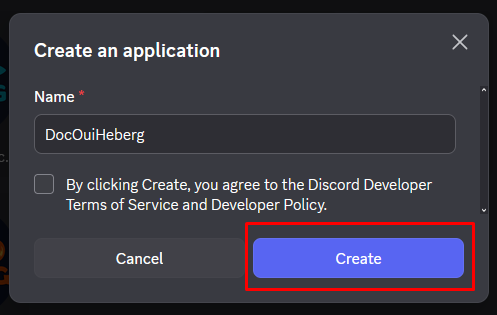
- Click on New Application
- Give your application a name (e.g., "My Bot")
- Click on Create

Create the Bot
- In the left menu, click on Bot
- Click on Add Bot then Yes, do it!
- Your bot is created!
[Screenshot: Bot Section with Add Bot button]
Get the Token
- In the Bot section, click on Reset Token
- Confirm and copy the displayed token
- Keep this token secret! Never share it.
⚠️ Important: The token is like a password. If someone obtains it, they can control your bot. Never put it in public code (GitHub, etc.).
Enable Intents
- Still in the Bot section, scroll down to Privileged Gateway Intents
- Enable the necessary intents:
- ✅
PRESENCE INTENT(optional) - ✅
SERVER MEMBERS INTENT(optional) - ✅
MESSAGE CONTENT INTENT(required to read messages)
- ✅
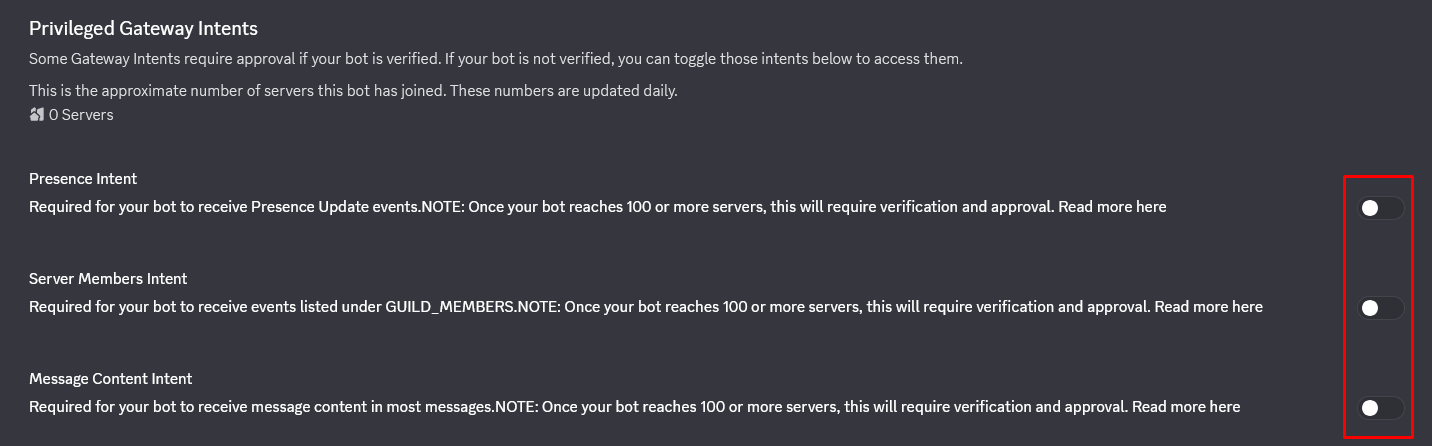
⚠️ Important: Without
MESSAGE CONTENT INTENT, your bot won't be able to read message content.
Invite the Bot to Your Server
- In the left menu, click on OAuth2 → URL Generator
- In Scopes, check
botandapplications.commands - In Bot Permissions, check the necessary permissions (or
Administratorfor all) - Copy the generated URL
- Open this URL and invite the bot to your Discord server

📁 Step 2: Prepare the Bot's Files
File Structure
Your bot should have this structure:
📁 MyBot/
├── 📄 index.js         ← Main file (or bot.js, main.js...)
├── 📄 package.json     ← npm dependencies
├── 📄 .env             ← Bot's token (created on the server)
├── 📁 commands/        ← (Optional) Commands folder
└── 📁 events/          ← (Optional) Events folder
File package.json
Create a package.json file with the discord.js and dotenv dependencies:
{
  "name": "my-discord-bot",
  "version": "1.0.0",
  "description": "My Discord bot",
  "main": "index.js",
  "scripts": {
    "start": "node index.js"
  },
  "dependencies": {
    "discord.js": "^14.14.1",
    "dotenv": "^16.3.1"
  }
}
💡 Adapt
"main": "index.js"according to the name of your main file (bot.js,main.js, etc.).
Main File (index.js)
Create your main file with dotenv to load the token:
// Load environment variables from .env
require('dotenv').config();

const { Client, GatewayIntentBits } = require('discord.js');

// Create the Discord client
const client = new Client({
    intents: [
        GatewayIntentBits.Guilds,
        GatewayIntentBits.GuildMessages,
        GatewayIntentBits.MessageContent
    ]
});

// Event: Bot ready
client.once('ready', () => {
    console.log(`✅ Bot connected as ${client.user.tag}`);
});

// Event: Message received
client.on('messageCreate', message => {
    if (message.author.bot) return;

    // Use the prefix from .env (optional)
    const prefix = process.env.PREFIX || '!';

    if (message.content === `${prefix}ping`) {
        message.reply('🏓 Pong!');
    }
});

// Error handling
process.on('unhandledRejection', error => {
    console.error('Unhandled error:', error);
});

client.on('error', error => {
    console.error('Discord error:', error);
});

// Connect with the token from .env
client.login(process.env.DISCORD_TOKEN);
⚠️ Important:
require('dotenv').config();must be the first line of your file.
📤 Step 3: Upload the Files to OuiPanel
Using the File Manager
- Log in to OuiPanel
- Select your Node.js server
- In the side menu, click on File Manager
- Delete default files (if any)
- Click on Upload
- Upload your files:
index.js(orbot.js,main.js...)package.json- Your folders (
commands/,events/...) if needed
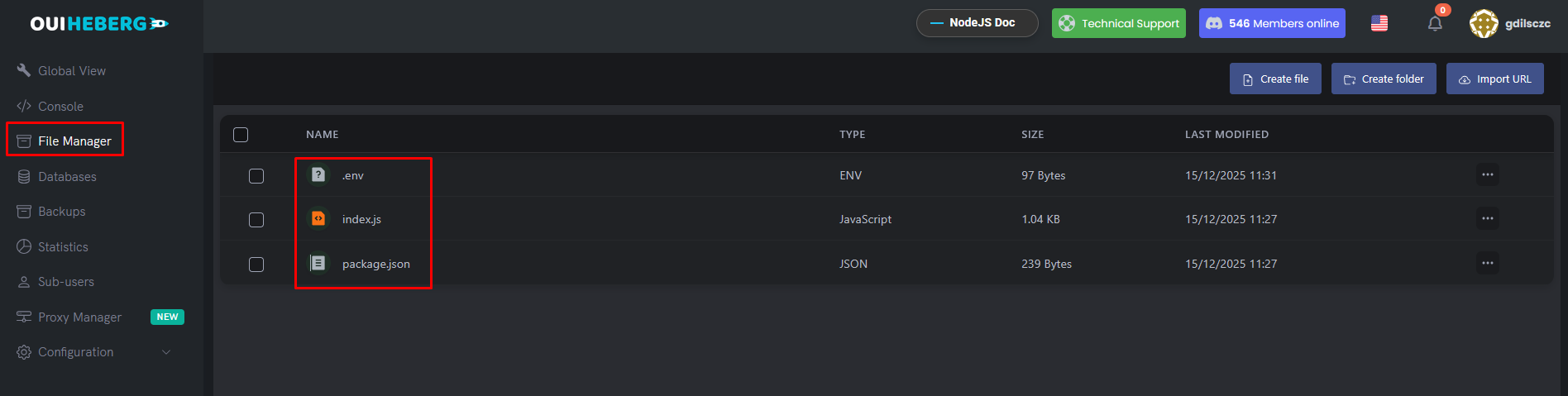
⚠️ Do not upload: The
.envfile will be created directly on the server in the next step.
Using SFTP (Recommended for multiple files)
- Connect via SFTP with FileZilla
- Drag and drop all the content of your bot folder
- Ensure all files are successfully uploaded
📖 Check the guide "SFTP Access with FileZilla" for detailed instructions.
🔑 Step 4: Create the .env File (Token)
Never put your token directly in the code! Create a .env file on the server.
Create the .env file
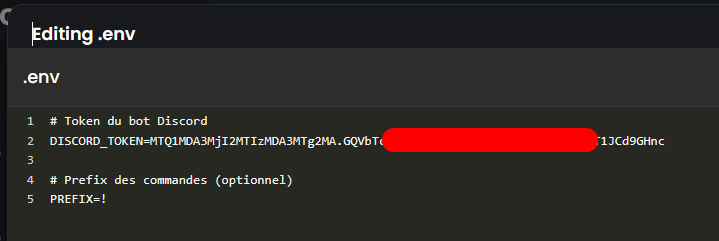
- In the File Manager, click on New file
- Name it
.env(with the dot in front) - Add the following content:
# Discord bot token
DISCORD_TOKEN=your_token_here

# Command prefix (optional)
PREFIX=!
- Click on Create or Save
Example with your real token:
DISCORD_TOKEN=MTIzNDU2Nzg5MDEyMzQ1Njc4OQ.ABcdEF.abcdefghijklmnopqrstuvwxyz123456
PREFIX=!
⚠️ Important:
- No spaces around the
=- No quotes around the values
- Never share this file
Final Structure on the Server
📁 Server Root/
├── 📄 .env              ← Contains DISCORD_TOKEN
├── 📄 index.js          ← Your code
├── 📄 package.json      ← Dependencies
└── 📁 node_modules/     ← (created automatically)
⚙️ Step 5: Configure the Startup File
OuiPanel needs to know which file to execute at startup.
Access the settings
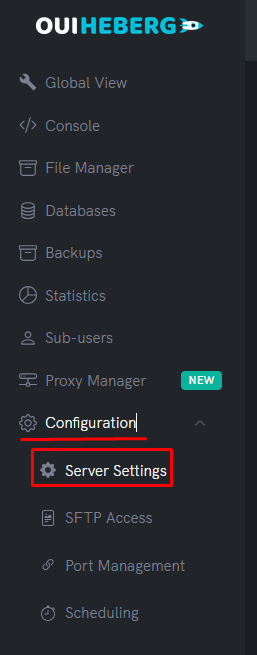
- In the side menu, click on Configuration
- Click on Server Settings
Configure the file to execute
Locate the File to execute field:
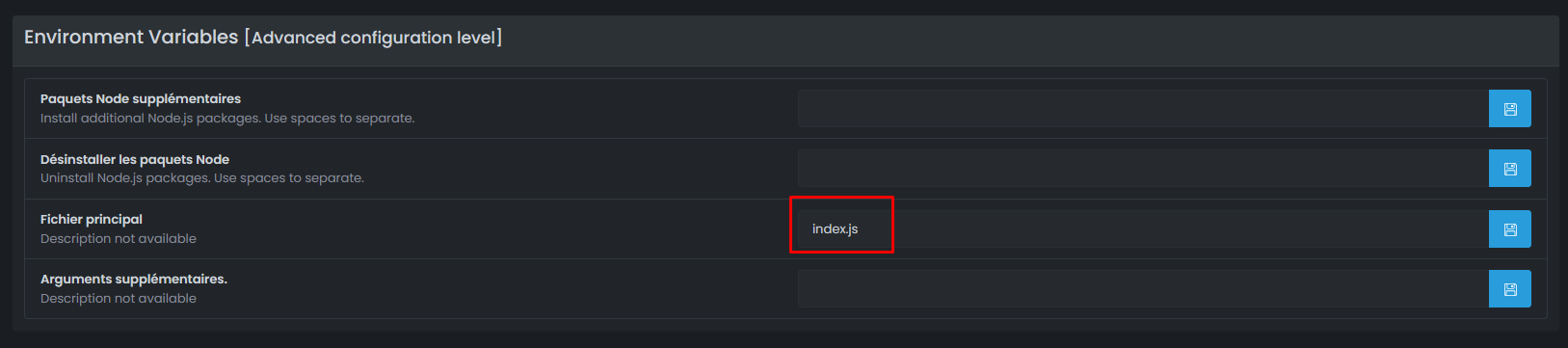
| Your main file | Value to set |
|---|---|
index.js | index.js |
bot.js | bot.js |
main.js | main.js |
src/index.js | src/index.js |
app.js | app.js |
⚠️ Important: The name must match exactly your file (case-sensitive).
🚀 Step 6: Start the Bot
Launch the server
- In the side menu, click on Console
- Click on Start
Automatic Installation of Dependencies
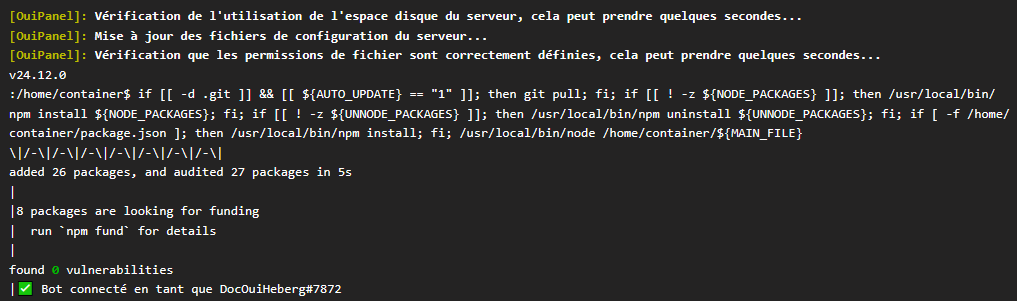
Upon first startup, the server automatically runs npm install:
> npm install
added 45 packages in 3s

> node index.js
✅ Bot connected as MyBot#1234
✅ Step 7: Verify the Bot is Working
In the OuiPanel Console
You should see:
✅ Bot connected as MyBot#1234
On Discord
- Open Discord
- Your bot should appear online (green dot)
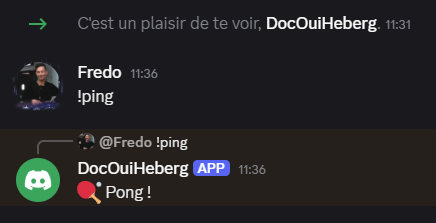
- Test a command:
!ping - The bot responds: 🏓 Pong !
🔧 Troubleshooting
The bot doesn't start
| ❌ Error | ✅ Solution |
|---|---|
Cannot find module 'discord.js' | Check package.json and restart |
Cannot find module 'dotenv' | Add dotenv to package.json |
Error: Cannot find module './index.js' | Incorrect startup file configured |
ENOENT: no such file or directory | The specified file does not exist |
Token Error
| ❌ Error | ✅ Solution |
|---|---|
An invalid token was provided | Check the token in .env |
TOKEN_INVALID | Regenerate the token on the Discord portal |
Used disallowed intents | Enable intents on the Discord portal |
The bot doesn't read messages
| ❌ Cause | ✅ Solution |
|---|---|
| MESSAGE CONTENT INTENT disabled | Enable it on the Discord portal |
| Incorrect intents in the code | Add GatewayIntentBits.MessageContent |
The .env file is not read
| ❌ Cause | ✅ Solution |
|---|---|
| dotenv not installed | Check that it's in package.json |
| Incorrect require placement | require('dotenv').config(); should be the first line |
| Incorrectly named file | The file must be named exactly .env |
npm install fails
| ❌ Error | ✅ Solution |
|---|---|
package.json not found | Check that the file is at the root |
ERESOLVE unable to resolve | Update the versions in package.json |
🔒 Security of the .env file
| ✅ To Do | ❌ Not To Do |
|---|---|
Keep the .env file only on the server | Share the .env file |
Create the .env file directly on OuiPanel | Upload the .env file from your PC |
Add .env to .gitignore | Commit the .env file to GitHub |
Recommended .gitignore file:
# Environment variables
.env

# Node modules
node_modules/
💡 Best Practices
Security
- ✅ Never share your token
- ✅ Create the
.envfile directly on the server - ✅ Regenerate the token if compromised
Performance
- ✅ Only enable the necessary intents
- ✅ Handle errors with try/catch
- ✅ Add logs for debugging
📂 Advanced Structure (Recommended)
For a more organized bot:
📁 MyBot/
├── 📄 index.js              ← Entry point
├── 📄 package.json
├── 📄 .env                  ← Created on the server
├── 📁 commands/
│   ├── 📄 ping.js
│   ├── 📄 help.js
│   └── 📄 info.js
├── 📁 events/
│   ├── 📄 ready.js
│   └── 📄 messageCreate.js
└── 📄 config.json           ← Non-sensitive configuration
📝 Summary
1. Create the bot on Discord Developer Portal
2. Retrieve the Token and activate the Intents
3. Prepare the files (index.js + package.json with dotenv)
4. Upload the files to OuiPanel (without the .env)
5. Create the .env file on the server with the token
6. Configure the startup file (index.js, bot.js...)
7. Start the server
8. Verify that the bot is online on DiscordNeed Node.js hosting?
Deploy your Node.js applications with our optimized hosting and dedicated support.