
 Client area
Managing FTP Accounts on cPanel
OuiHeberg - Technical Documentation
Complete guide to create and manage your FTP accounts
What is FTP?
FTP (File Transfer Protocol) is a standard protocol for transferring files between your computer and the web server. It is one of the fastest and most efficient methods to manage your website files.
FTP Advantages:
- Fast transfer of large files
- Management of multiple files simultaneously
- Direct access to the server directory structure
- Possibility to resume interrupted transfers
- Precise control over access permissions
Available Protocols
| Protocol | Port | Security | Recommendation |
|---|---|---|---|
| FTP | 21 | ❌ Not encrypted | ⚠️ Avoid |
| FTPS (FTP over TLS) | 21 | ✅ SSL/TLS encrypted | ✅ Recommended |
| SFTP (SSH FTP) | 22 | ✅ SSH encrypted | ✅ Recommended |
💡 Tip: Always use FTPS or SFTP to protect your credentials and files during transfer.
Popular FTP Clients
| Client | Platforms | Free | Link |
|---|---|---|---|
| FileZilla | Windows, Mac, Linux | ✅ | filezilla-project.org |
| WinSCP | Windows | ✅ | winscp.net |
| Cyberduck | Windows, Mac | ✅ | cyberduck.io |
| Transmit | Mac | ❌ | panic.com/transmit |
Default FTP Accounts
When you create a cPanel hosting, two special FTP accounts are automatically created:
Main FTP Account
- Username: Your cPanel username
- Password: Your cPanel password
- Access: Entire hosting space (root directory
/) - Usage: Complete administration
Logs Access Account
- Usage: Downloading raw log files
- Access: Logs directory only
⚠️ Important: These special accounts cannot be modified or deleted.
Accessing the FTP Accounts Interface
Logging into cPanel
- Log in to your OuiHeberg client area
- Access your hosting and click on Access cPanel
Locating the FTP Accounts Tool
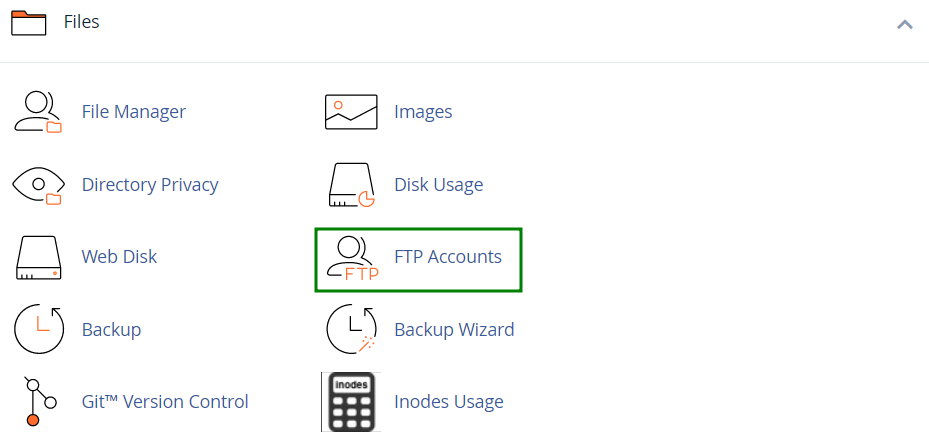
In cPanel, look for FTP Accounts in the Files section.
Creating an FTP Account
Step 1: Accessing the Creation Form
In the Add FTP Account section, you will find the form to create a new account.
Step 2: Fill in the Information
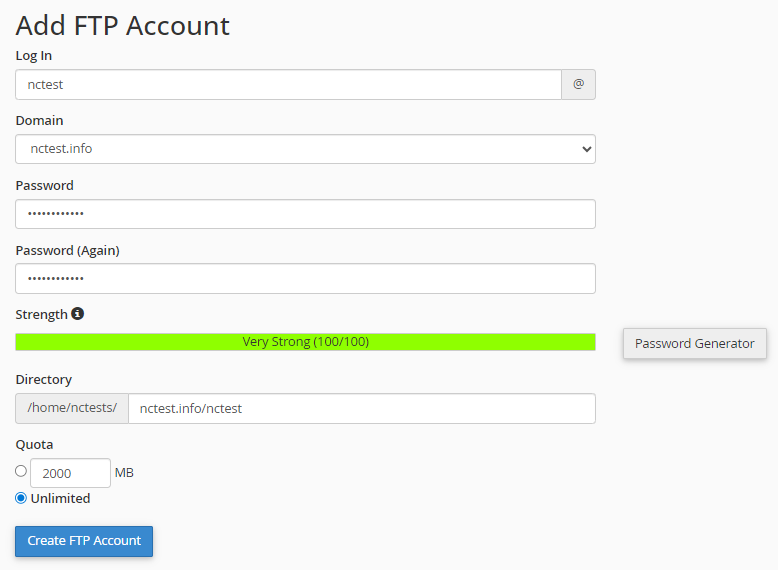
| Field | Description | Example |
|---|---|---|
| Log In | FTP account username | webmaster |
| Domain | Associated domain for the account | mysite.com |
| Password | Secure password | Use the generator |
| Password (Again) | Password confirmation | Identical |
| Directory | Authorized access directory | public_html |
| Quota | Disk space limit (MB) | Unlimited or value in MB |
Understanding the Full Username
The complete FTP username is formed as follows:
[login]@[domain]
Example: If you enter webmaster for the domain mysite.com, the complete username will be:
webmaster@mysite.com
Step 3: Configure the Access Directory
The Directory field is crucial as it determines where the FTP user can access.

Important Rules:
- The user cannot navigate above the specified directory
- The user can access all files and subdirectories in this directory
- cPanel automatically pre-fills a directory based on the username
Directory Configuration Examples
| Directory | Granted Access | Use Case |
|---|---|---|
/ | Entire account (root) | Main administrator |
public_html | Main website only | Webmaster |
public_html/blog | Blog subdirectory only | Blog writer |
public_html/uploads | Uploads folder only | Media manager |
public_html/mysite.com | Specific addon domain | External developer |
Step 4: Set the Quota
The quota limits the disk space the FTP user can utilize:
- Unlimited: No limit (uses the total account space)
- Value in MB: Strict limit (e.g.,
500for 500 MB)
💡 Tip: Set a quota for third-party accounts to prevent a user from filling up all disk space.
Step 5: Create the Account
Click on Create FTP Account. A confirmation message will appear:

Managing Existing FTP Accounts
All your FTP accounts are listed in the FTP Accounts section.
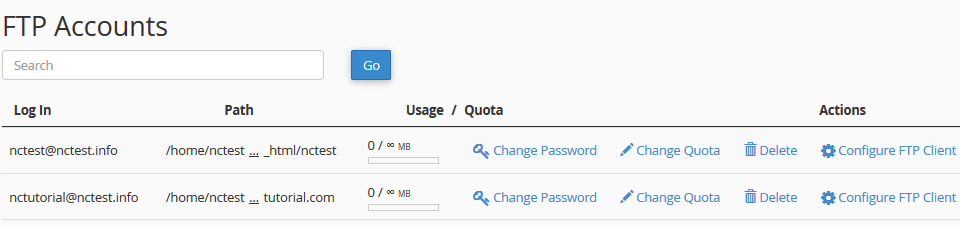
Available Actions
| Action | Description |
|---|---|
| Change Password | Modify the password |
| Change Quota | Modify the disk space limit |
| Delete | Delete the account |
| Configure FTP Client | Get connection settings |
Changing the Password
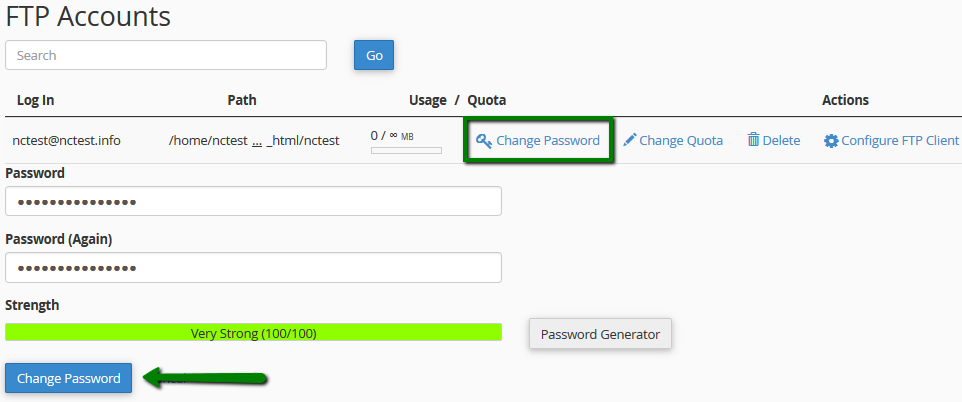
- Click on Change Password next to the relevant account
- Enter the new password (use the generator for a strong password)
- Confirm the password
- Click on Change Password
Modifying the Quota
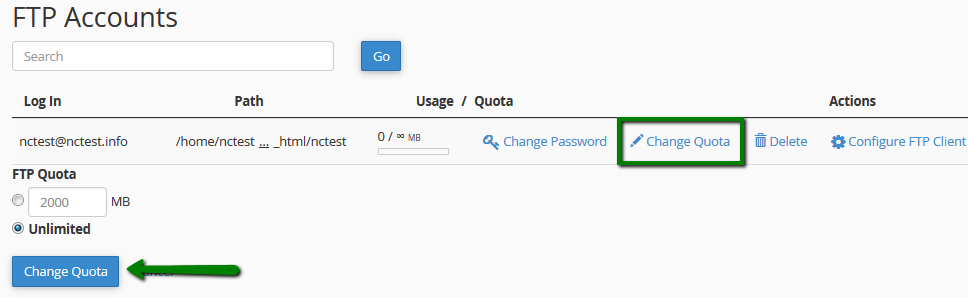
- Click on Change Quota next to the relevant account
- Enter the new value in MB or select Unlimited
- Click on Change Quota
Modifying the Access Directory
⚠️ Important: It is not possible to modify the directory of an FTP account after its creation.
Solution: Delete the account and recreate it with the correct directory.
Deleting an FTP Account
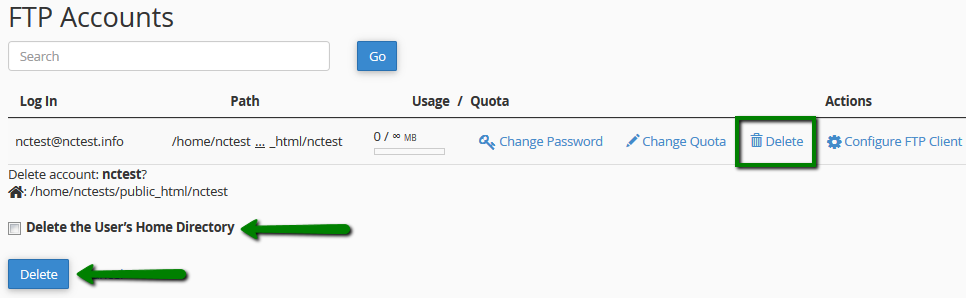
- Click on Delete next to the relevant account
- Choose the deletion option:
| Option | Description |
|---|---|
| Delete | Deletes only the FTP account (files remain) |
| Delete the User's Home Directory | Deletes the account AND all files in the directory |
| Cancel | Cancel the operation |
⚠️ Attention: If the directory is
public_html, choosing "Delete the User's Home Directory" will delete your entire website!
Configuring an FTP Client
Getting Connection Settings
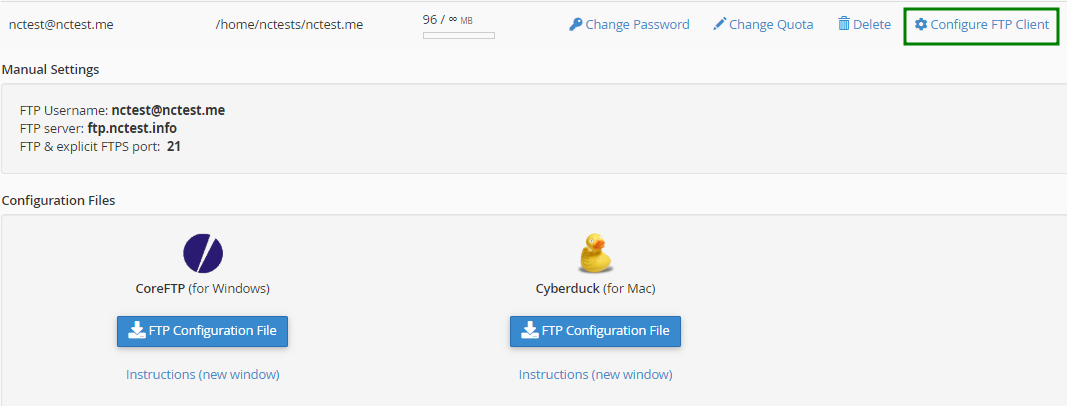
- In the list of FTP accounts, click on Configure FTP Client
- The connection information will be displayed:
Connection Settings
| Setting | Value |
|---|---|
| Host / Server | ftp.yourdomain.com or server IP |
| FTP Port | 21 |
| SFTP Port | 22 |
| Username | user@yourdomain.com |
| Password | Your FTP password |
| Encryption | Explicit TLS (FTPS) recommended |
Configuring FileZilla
FileZilla is the most popular free FTP client.
Quick Configuration (Quickconnect):
- Open FileZilla
- Fill in the quick connect bar:
- Host:
ftp.yourdomain.com - Username:
user@yourdomain.com - Password: Your password
- Port:
21
- Host:
- Click on Quickconnect
Configuration with Site Manager (recommended):
- Open FileZilla
- Go to File > Site Manager
- Click on New Site
- Configure:
| Setting | Value |
|---|---|
| Protocol | FTP - File Transfer Protocol |
| Host | ftp.yourdomain.com |
| Port | 21 |
| Encryption | FTP explicit TLS if available |
| Logon Type | Normal |
| Username | user@yourdomain.com |
| Password | Your password |
- Click on Connect
Configuring WinSCP
- Open WinSCP
- In the connection window:
For SFTP (recommended):
| Setting | Value |
|---|---|
| Protocol | SFTP |
| Host name | yourdomain.com |
| Port | 22 |
| Username | Your cPanel username |
| Password | Your cPanel password |
For FTPS:
/home/user/
├── .htpasswds/
├── .trash/
├── etc/
├── logs/
├── mail/
├── public_ftp/
├── public_html/          ← Root of your main site
│   ├── .htaccess
│   ├── index.php
│   ├── wp-content/
│   └── addon.com/        ← Addon domain
├── ssl/
└── tmp/
Important Directories
| Setting | Value |
|---|
| Directory | Description | Recommended FTP Access |
|---|---|---|
public_html | Main website files | Webmasters |
public_html/[addon] | Addon domain files | Specific developers |
mail | Email data | ❌ Do not grant access |
logs | Log files | Administrators |
ssl | SSL certificates | ❌ Do not grant access |
Practical Use Cases
Case 1: Granting access to a web developer
Objective: Allow a provider to modify the site without access to emails or other data.
Configuration:
- Login:
developer - Directory:
public_html - Quota:
Unlimitedor as needed
Case 2: Restricted access for a writer
Objective: Allow only image uploads in a specific folder.
Configuration:
- Login:
writer - Directory:
public_html/wp-content/uploads - Quota:
500MB
Case 3: Access to an addon domain only
Objective: A client manages their own site hosted on an addon domain.
Configuration:
- Login:
client-siteB - Directory:
public_html/siteB.com - Quota:
1000MB
Case 4: External backup account
Objective: Allow a backup service to retrieve files.
Configuration:
- Login:
backup - Directory:
public_html - Quota:
Unlimited
Troubleshooting
❓ Error "530 Login incorrect"
Possible Causes:
- Incorrect username or password
- Domain missing in the username (e.g.
userinstead ofuser@domain.com) - Non-existent FTP account
Solutions:
- Ensure you are using the full username:
user@domain.com - Reset the password in cPanel
- Check if the account exists in the FTP Accounts list
❓ Error "530 User cannot log in, home directory inaccessible"
Cause: The directory assigned to the FTP account does not exist or has been deleted.
Solutions:
- Recreate the directory via File Manager
- Delete and recreate the FTP account with a valid directory
❓ Error "Connection timed out"
Possible Causes:
- Firewall blocking port 21
- Passive mode not enabled
- FTP server unavailable
Solutions:
- Enable passive mode in your FTP client
- Check that port 21 is not blocked by your firewall/antivirus
- Try using port 22 (SFTP) instead
❓ Error "425 Can't open data connection"
Cause: Issue with transfer mode (active vs passive).
Solution: Enable passive mode in your FTP client settings.
In FileZilla:
- Go to Edit > Settings
- Connection > FTP
- Check Passive mode
❓ Unable to see files after connection
Possible Causes:
- Empty directory
- Hidden files (starting with
.) - Incorrect directory configured
Solutions:
- Enable display of hidden files in your FTP client
- Check the directory configured in cPanel
- Manually navigate to
public_html
❓ Slow or failed transfers
Solutions:
- Reduce the number of simultaneous connections (max 2-3)
- Temporarily disable antivirus
- Use binary mode for non-text files
- Check your internet connection
❓ SSL certificate error
Cause: The server's certificate is not recognized by the client.
Solution: Accept the certificate on the first connection. In FileZilla, check "Always trust this certificate".
Security Best Practices
🔒 Essential Recommendations
| Practice | Importance |
|---|---|
| Use FTPS or SFTP (never plain FTP) | ⭐⭐⭐ Critical |
| Strong passwords (16+ characters) | ⭐⭐⭐ Critical |
| One FTP account per user/project | ⭐⭐ Important |
| Limit access to necessary directories | ⭐⭐ Important |
| Set appropriate quotas | ⭐ Recommended |
| Remove unused accounts | ⭐⭐ Important |
| Regularly change passwords | ⭐ Recommended |
🛡️ FTP Security Checklist
- [ ] All accounts use unique and complex passwords
- [ ] Each account is limited to the necessary directory
- [ ] Temporary accounts are deleted after use
- [ ] Connections use encryption (FTPS/SFTP)
- [ ] Quotas are set for third-party accounts
- [ ] The main cPanel account is not shared
⚠️ What NEVER to do
- ❌ Share your main cPanel credentials
- ❌ Grant access to
/(root) to third parties - ❌ Use the same password for multiple accounts
- ❌ Leave unused FTP accounts active
- ❌ Use unencrypted FTP on public networks
File Permissions
Recommended Permissions
| Type | Permission | Numeric Value |
|---|---|---|
| Directories | rwxr-xr-x | 755 |
| PHP Files | rw-r--r-- | 644 |
| Config Files | rw------- | 600 |
| .htaccess Files | rw-r--r-- | 644 |
Changing Permissions via FTP
In FileZilla:
- Right-click on the file/folder
- File Permissions...
- Enter the numeric value or check the boxes
- Click OK
Summary
| Step | Action |
|---|---|
| 1 | Access FTP Accounts in cPanel |
| 2 | Fill out the form: Login, Domain, Password |
| 3 | Configure the access directory (crucial!) |
| 4 | Set the quota if needed |
| 5 | Click on Create FTP Account |
| 6 | Set up your FTP client with the settings |
| 7 | Connect via FTPS or SFTP |
| 8 | Transfer your files! |
Quick Login Information
Keep these details handy:
═══════════════════════════════════════════
 FTP CONNECTION DETAILS
═══════════════════════════════════════════
 FTP Host      : ftp.yourdomain.com
 FTP Port      : 21
 SFTP Port     : 22
 Encryption    : Explicit TLS (FTPS)

 Username      : user@yourdomain.com
 Password      : [your password]
═══════════════════════════════════════════