
 Client area
Palworld Server: Complete Guide to Creating and Configuring Your Server
Palworld exploded upon its early access release in early 2024, and the game continues to evolve with regular updates. If you're playing co-op with friends, you've probably already encountered the limitations of the integrated multiplayer mode: a maximum of 4 players, the world disappearing when the host disconnects, and performance entirely dependent on the connection of the player hosting the game.
A dedicated Palworld server solves all these problems. It runs 24/7, accommodates up to 32 players simultaneously, and gives you full control over game settings, saves, and administration. Whether you want to set up a survival server with friends or a larger community, this guide centralizes everything you need to know: creation, configuration, backups, performance, and FAQ.
Why a Dedicated Palworld Server?
Dedicated Server vs. Co-op World
The co-op mode of Palworld (also called "guest world") is convenient for quick sessions, but it has significant constraints. The limit is set at 4 players, the world is only accessible when the host is connected, and performance depends on the host's PC and connection. If the host crashes or quits the game, everyone is disconnected.
A Palworld dedicated server operates independently of your game session. It runs on a separate machine (at a host or on a dedicated PC), remains accessible at all times, and supports up to 32 players. You can configure every aspect of gameplay: XP rates, damage, spawns, PvP, difficulty. Your players connect via the server's IP or from the community server list, and their progress is saved even when no one is online.
For a group of more than 4 people or for a server that needs to stay online permanently, the dedicated server is the only viable option.
How Many Players? How Much RAM?
Palworld is a resource-intensive server game. Unlike Minecraft, where a vanilla server runs with 2 GB of RAM, Palworld easily consumes 6 to 8 GB even with few players. Here are the recommendations based on your usage.
1 to 4 players (session with friends): 8 GB of RAM minimum. Sufficient for exploring, capturing Pals, and building a main base. The server consumes about 4 to 6 GB at rest and gradually increases with the number of bases and active Pals.
5 to 16 players (medium community): 12 to 16 GB of RAM. Several active bases, more Pals working simultaneously, more loaded chunks. RAM consumption increases significantly with each additional base.
16 to 32 players (large community server): 16 to 24 GB of RAM. At this scale, also plan for a powerful processor. The world becomes very active with dozens of bases and hundreds of active Pals.
An important point: Palworld has experienced memory leak issues since its release. Even though Pocketpair has fixed the most severe cases, the RAM consumed tends to increase gradually over hours of gameplay. A planned restart every 6 to 12 hours remains a good practice to maintain stable performance.
Creating a Palworld Server with a Host
Choosing a Suitable Offer
The simplest method to launch a Palworld server is to go through a specialized Palworld host. At OuiHeberg, the process takes less than 5 minutes.
Check out our Palworld server hosting and select a OuiBox suitable for your number of players. For a server with friends (4-8 players), a OuiBox 8 GB is enough to start. For a larger community, opt for 12 or 16 GB.

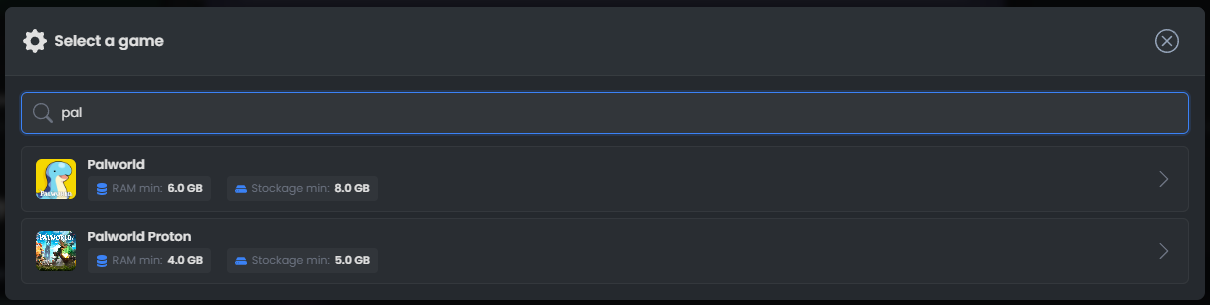
Once the order is validated, your OuiBox is ready in a few minutes. Log in to OuiPanel, create a new server, and select Palworld from the list of games. The server installs automatically with the latest version.
First Launch and Connection
At the first start, the server generates the configuration files and the world. This step takes a few minutes. You can follow the progress in the OuiPanel console. Once the "started" message appears in the logs, your server is ready.

To connect, launch Palworld and choose "Join a Multiplayer Server." Enter the IP address and port of your server (visible in OuiPanel). If you have set a server password, the game will ask for it upon connection.
Since the v0.5.0 update (March 2025), Palworld supports crossplay between Steam, Xbox, and PS5. If your players are on different platforms, the CrossplayPlatforms setting is enabled by default on recent versions.
Configuring Game Settings
All the settings for your Palworld server are found in the PalWorldSettings.ini file, located in the Pal/Saved/Config/LinuxServer/ directory. At OuiHeberg, most settings can be modified directly from the Settings tab of the panel, without manually touching the file.
For a complete detail of each setting, check our guide to modify Palworld server settings and our comprehensive reference of all settings. Here is a summary of the most requested settings.
Difficulty and XP
The Difficulty setting accepts the values Easy, Normal, and Hard. It globally adjusts the game's difficulty (damage received, aggressiveness of wild Pals, etc.). For an open community server, Normal is the standard choice. For a hardcore server, Hard significantly increases the challenge.
The XP rate (ExpRate) is a multiplier. The default value is 1.0. Set it to 2.0 to double the progression speed, which is common on community servers where players don't want to grind for dozens of hours to reach end-game content.
Spawns and Camps
PalSpawnNumRate controls the number of wild Pals that appear. The default value (1.0) is suitable for most servers. Increasing it makes the world more populated but consumes more server resources.
BaseCampMaxNum limits the number of camps per guild. This is a parameter to monitor on large servers, as each active camp with working Pals consumes RAM and CPU.
PvP and Damage
To enable PvP, set bIsPvP to True. You can then fine-tune player versus player damage with PlayerDamageRateAttack and PlayerDamageRateDefense. A ratio of 0.5 for attack halves PvP damage, preventing one-shots and making fights more tactical.
Managing Saves and Migration
Automatic Saves
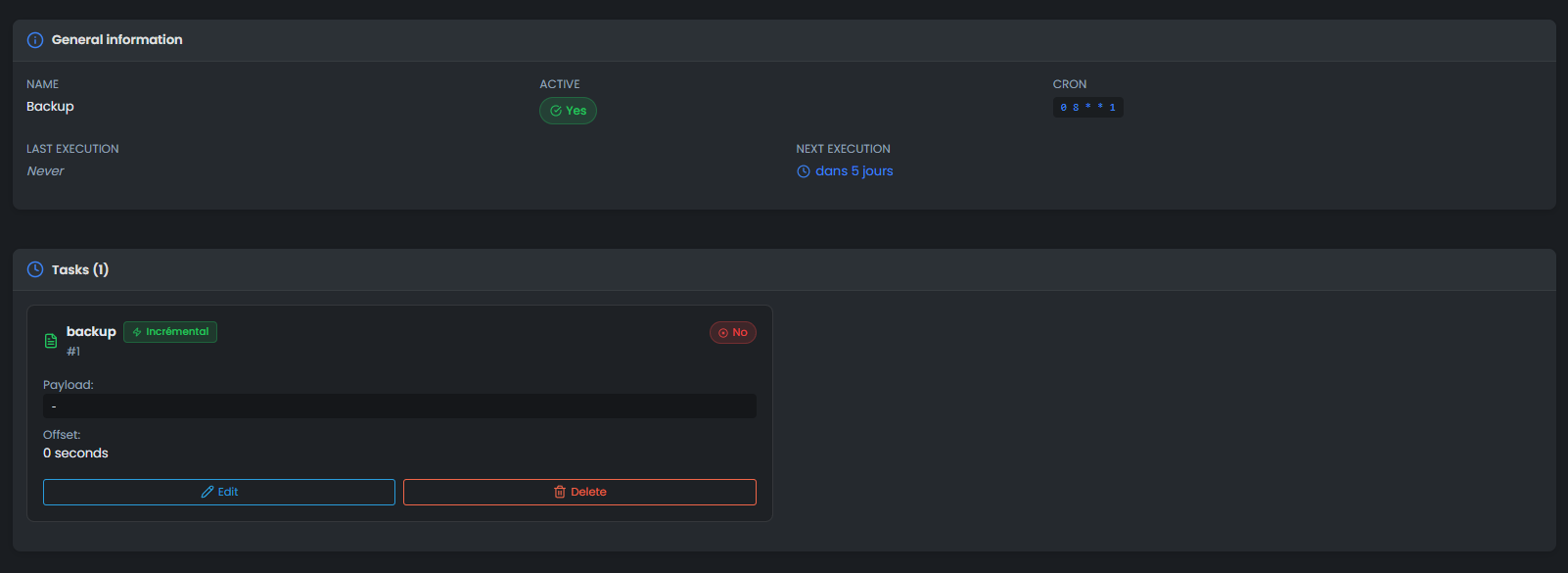
Palworld performs automatic saves every 20 minutes by default (setting AutoSaveSpan). Additionally, OuiPanel offers scheduled tasks to back up your server at regular intervals. Set up an hourly backup via the scheduled tasks panel to have a safety net in case of problems.
Save files are located in Pal/Saved/SaveGames/0/. Each world has a folder identified by a unique hash containing world data and player files.
Importing an Existing Save
Do you have a solo or co-op game you want to transfer to your dedicated server? It's possible. The process involves copying your local save files to the server via SFTP, then adjusting the GameUserSettings.ini file to point to the correct save.
For the complete step-by-step tutorial, check our guide to import a Palworld save. If you're migrating player data from a co-op world (transferring Pals, inventories, and levels), also check our co-op to dedicated server migration guide.
Optimizing Server Performance
Recommended RAM by Profile
The performance of a Palworld server mainly depends on three factors: allocated RAM, processor power, and the number of active bases in the world.
For a smooth server, apply the following rule: count about 8 GB as a base, then add 1 GB for every 3 to 4 active players. A 16-player server should run comfortably with 12 GB. A 32-player server will need 16 to 24 GB depending on base activity.
Resolving Crashes and Memory Leaks
OOM (Out of Memory) crashes remain the most frequent problem on Palworld servers. They occur when the server consumes more RAM than allocated. Several actions can help limit these crashes.
Schedule an automatic restart every 6 to 12 hours via OuiPanel's scheduled tasks. This frees up memory accumulated by residual leaks. Limit the BaseCampWorkerMaxNum setting to 15 or less, as working Pals in bases are one of the main sources of memory consumption. Monitor real-time RAM consumption from the OuiPanel dashboard.
For detailed solutions and advanced stabilization settings, check our guide to resolving Palworld server crashes and memory leaks.
If your server crashes regularly despite these optimizations, consider increasing your OuiBox's RAM. Upgrading from 8 to 12 GB resolves most cases for a 4 to 8 player server.
Essential Admin Commands
As an administrator, you have access to in-game commands to manage your server live. Type /AdminPassword yourpassword in the chat to authenticate, then use commands like /Save (force a save), /Broadcast message (send a message to all players), /KickPlayer, or /BanPlayer to moderate.
For the complete list of commands with practical examples, check our Palworld admin commands guide.
Palworld Server FAQ
Are there free Palworld servers?
Palworld does not offer official free servers like some games with integrated servers. To host a Palworld server, you have two options: self-hosting on your own PC (free but your machine must stay on and performance depends on your hardware) or renting from a host (at OuiHeberg, the server installs itself in a few minutes, with 24/7 support).
Self-hosting is feasible for testing, but for a stable server accessible at all times, a dedicated host remains the recommended solution. Palworld server hosting plans.
Does Steam/Xbox/PS5 crossplay work on a dedicated server?
Yes. Since the v0.5.0 update of Palworld (March 2025), full crossplay is available between Steam, Xbox (console and Game Pass PC), and PS5. The CrossplayPlatforms setting in the server configuration allows specifying which platforms can connect. By default, all platforms are enabled: CrossplayPlatforms=(Steam,Xbox,PS5,Mac).
A point to note: on PS5, support for dedicated servers has been added gradually. Ensure your PS5 players have the latest version of the game installed to join your server via the community server list.
How do I update my server?
Palworld updates are frequent. At OuiHeberg, the server can be updated with one click from OuiPanel (Version Manager section). Stop the server, launch the update, then restart. Your saves are preserved.
Remember to notify your players before an update, as the game client must also be updated on the player side for versions to match. An announcement via /Broadcast a few minutes before the restart is a good practice.
Can I install mods on a Palworld server?
Mod support on Palworld is still limited compared to Minecraft. A few server-side mods exist (mainly via third-party tools), but the ecosystem is young. For now, customization mainly involves technical configuration settings that already offer a lot of flexibility.
Additional Resources
This article is your starting point for everything related to Palworld servers. To go further on each topic, here are our detailed guides.
Configuration: Modify Palworld server settings and Complete guide to all settings.
Administration: Palworld admin commands.
Saves: Import a save and Migrate from co-op to dedicated server.
Performance: Resolve crashes and memory leaks.