
 Client area

A VPS can be backed up automatically every night with an add-on option. This guide explains how to check whether your VPS has it, what the option does, how to add it and how to use your backups from the client area at dash.ouiheberg.com.
Is your VPS backed up?
Open the VPS page in My Services. On the Overview tab, the Backups card tells you.
Not included in your offer means no automatic backup is made.
Included in your plan means the option is in place.
The details are in the Backups tab of the left-hand menu.
What the option does
A full copy of your server is made every night. It is stored outside the server.
You choose how many backups to keep. The oldest one makes way for the newest.
A restore is started in one click from the Backups tab.
The VPS is not interrupted, neither when the option is activated nor during a backup.
Add backups to your VPS
Open the VPS's Backups tab. Without the option, it shows Your server is not backed up.
On the right, set the number of Backups kept with the − and + buttons. One backup equals one night. With 3 backups, you can go back up to 3 days.
The monthly price appears under the counter, along with the cost per backup kept. It depends on your plan.
Click Add backups.
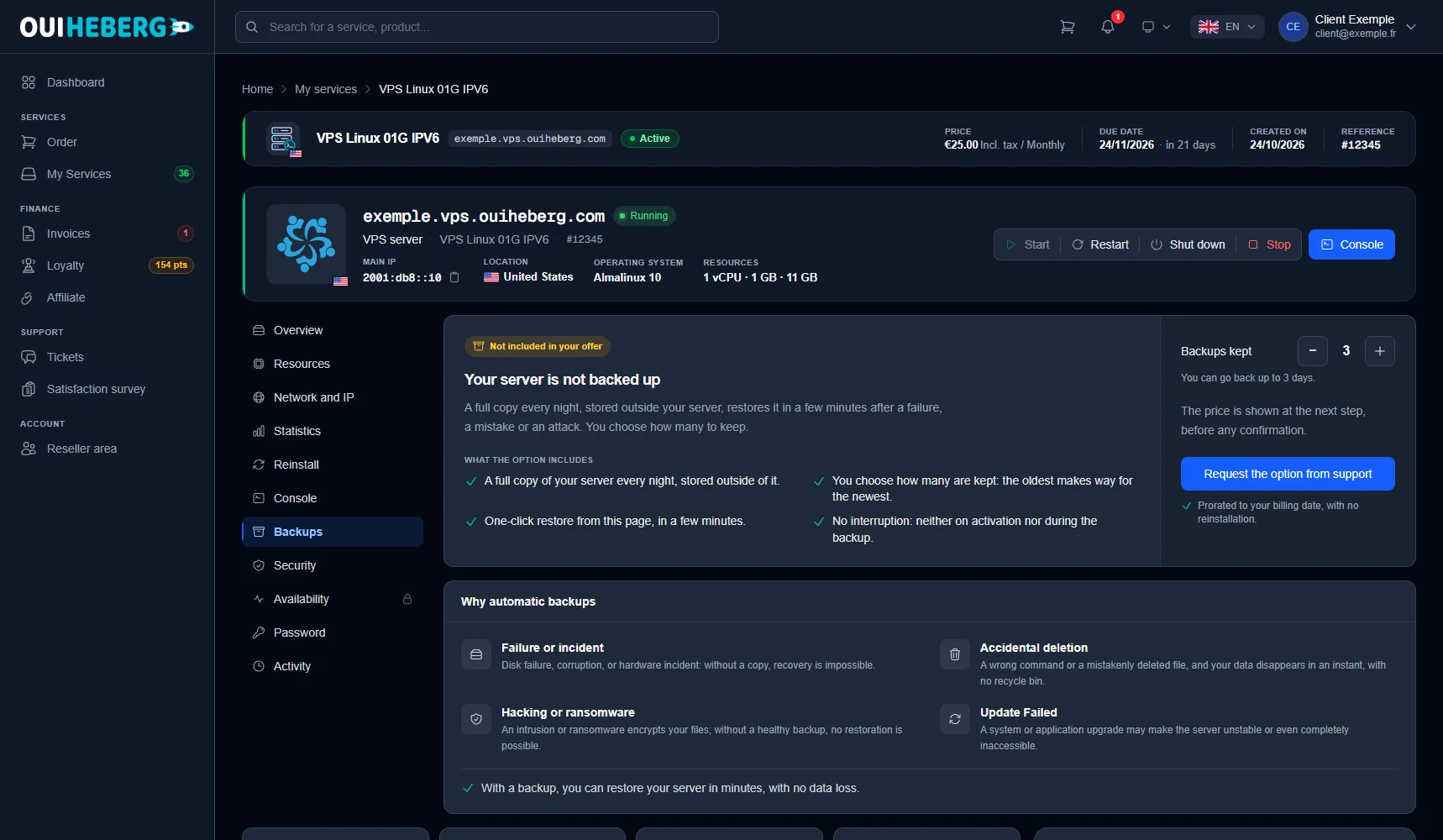
The option is prorated to your billing date. It is added without reinstalling the VPS. Only the account holder can add it.
💡 Ordering a new VPS? Take the daily backup option right away, on the plan's configuration page.
Your VPS has the option
Right after you add it, the Backups tab may show Your backups are being activated. We are setting them up on our side and you have nothing to order. If this lasts, open a ticket.
Once the option is active, the Backups tab shows two cards.
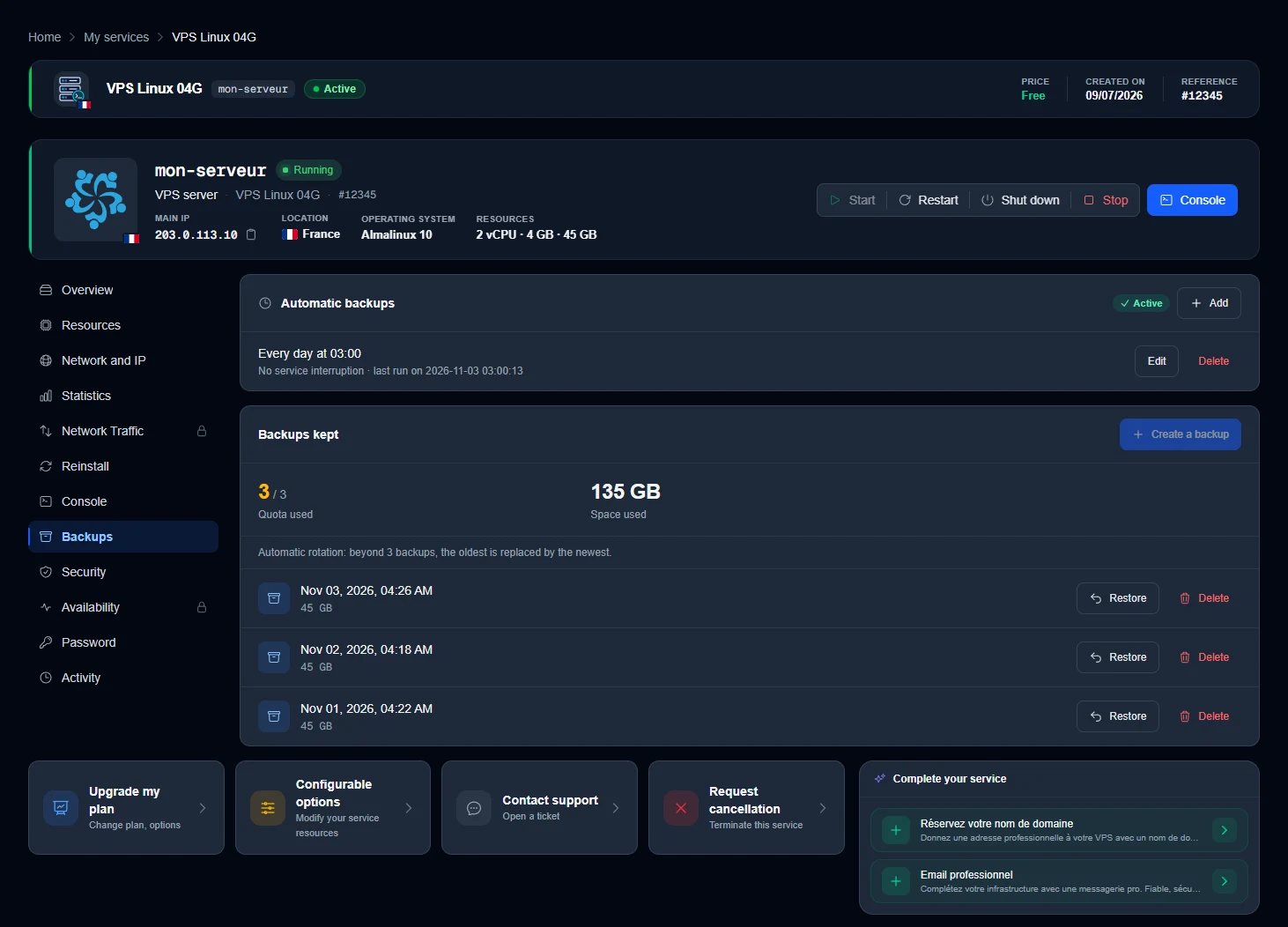
Automatic backups
The Active badge confirms that backups are running. Below it, a line shows the schedule, for example every day at 03:00, with the note "No service interruption" and the date of the last run.
Edit lets you change this schedule.
Delete removes the schedule. Your VPS is then no longer backed up automatically on that schedule.
Backups kept
This card keeps count. Quota used shows how many backups are kept out of the number your option allows, and Space used how much room they take. The "Automatic rotation" line recalls the rule: once the quota is reached, the oldest backup is replaced by the newest.
Each backup has its own line, with its date, time and size, and two buttons.
Restore puts the VPS back in the state of that backup. The current disk is replaced, and everything changed since then is lost. Save any recent files you need first.
Delete erases the backup. It cannot be recovered.
The Create a backup button at the top of the card starts a backup on demand, for example before a major update. It counts towards the quota. When the quota is full, the button is greyed out. Delete a backup first to be able to create a new one.
Good to know
A reinstallation wipes the entire VPS. Make sure a recent backup exists before you start one.
To keep an extra copy of your files elsewhere, see Rclone: cloud synchronization on a Linux VPS or, on Windows, Back up your Windows VPS.
Need help?
Open a ticket from Tickets › Open a Ticket, or from the Contact support tile at the bottom of the VPS page. You can also ask your question on the OuiHeberg Discord.