
 Client area
Day-to-day VPS management happens on the VPS page in the client area at dash.ouiheberg.com. This guide shows how to start or stop the server, open its console, change its password, reinstall it and set its reverse DNS. It applies to both Linux and Windows VPS.
Open the VPS page
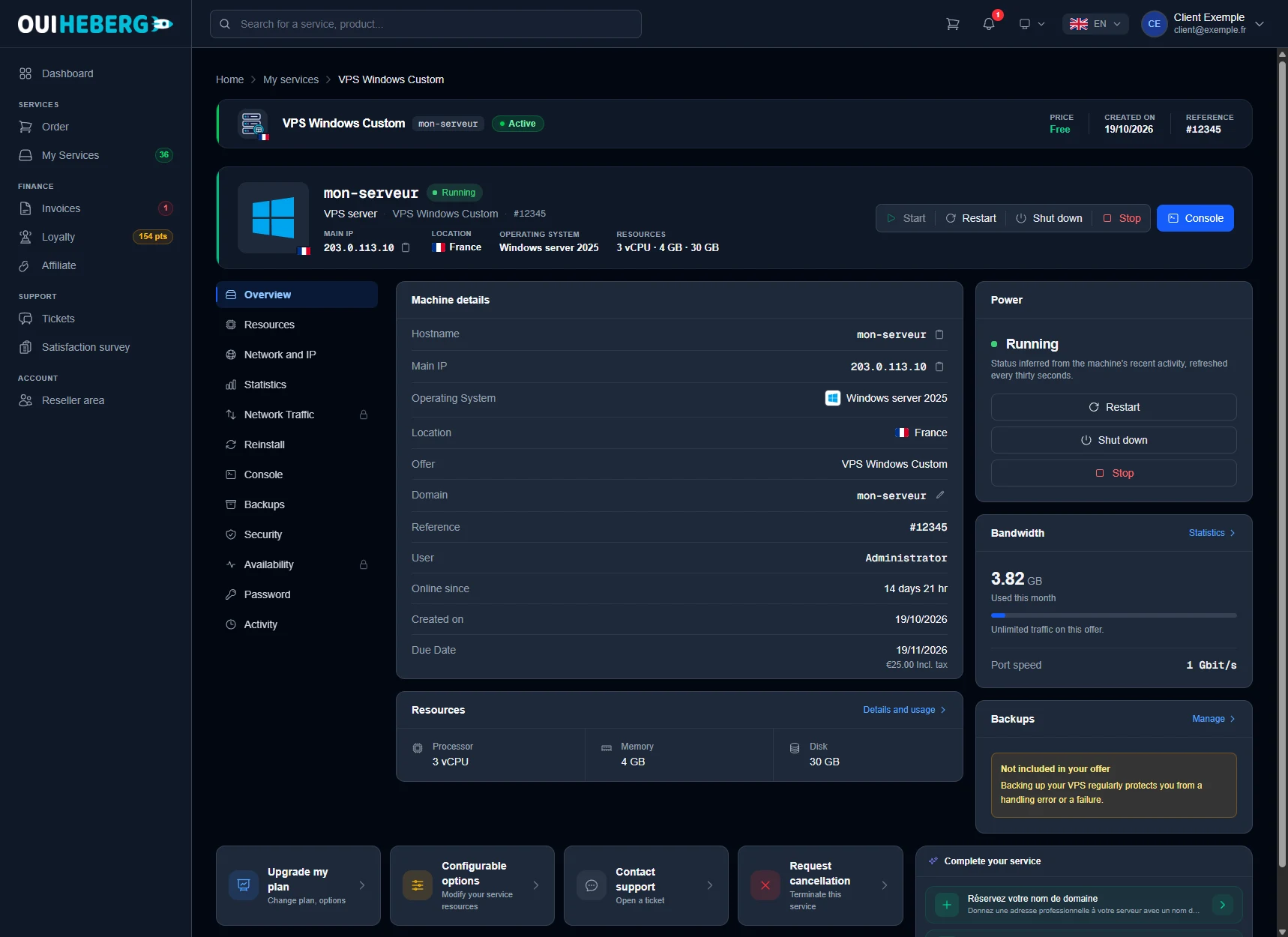
In My Services, click your VPS. The banner at the top sums up the machine. It shows the status, the Main IP with a copy button, the location, the operating system and the resources. The power buttons and the Console button are on the right.
The left-hand menu holds the tabs, from Overview to Activity. A padlock marks an Expert Mode tab, such as Network Traffic or Availability. You can turn this mode on in Settings, Expert Mode section.
Start, restart, shut down or stop the VPS
The four buttons in the banner do not do the same thing.
| Button | Effect |
|---|---|
| Start | Powers on a VPS that is off. The button is greyed out while the VPS is running. |
| Restart | Restarts the system cleanly. Your services are interrupted for a few moments. |
| Shut down | Shuts the system down cleanly. The VPS stays offline until you start it again from this page. |
| Stop | Cuts power at once, like pulling the plug. Unsaved data is lost. Use it only when the system no longer responds. |
dash asks for confirmation before restarting, shutting down or stopping the VPS. For Stop, the confirmation button is called Force stop. The Power card on the Overview tab shows the machine's status and has the same buttons.
💡 Added resources with the Configurable options tile? Click Shut down, then Start. The VPS comes back with its new resources.
Open the console (the VPS screen)
The console shows the VPS screen in your browser. It gets you out of trouble when SSH or Remote Desktop stops responding, for example after a firewall mistake.
Click the blue Console button at the top right of the page.
The Open the remote console? window appears. Click Open the console.
A new window opens with the VPS screen. Log in with the user and password shown in the Password tab.
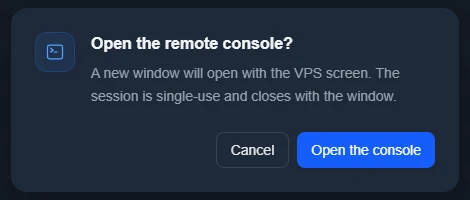
The session is single-use and closes with the window. To come back later, click Console again. If the VPS is off, start it first to see its screen.
Change the VPS password
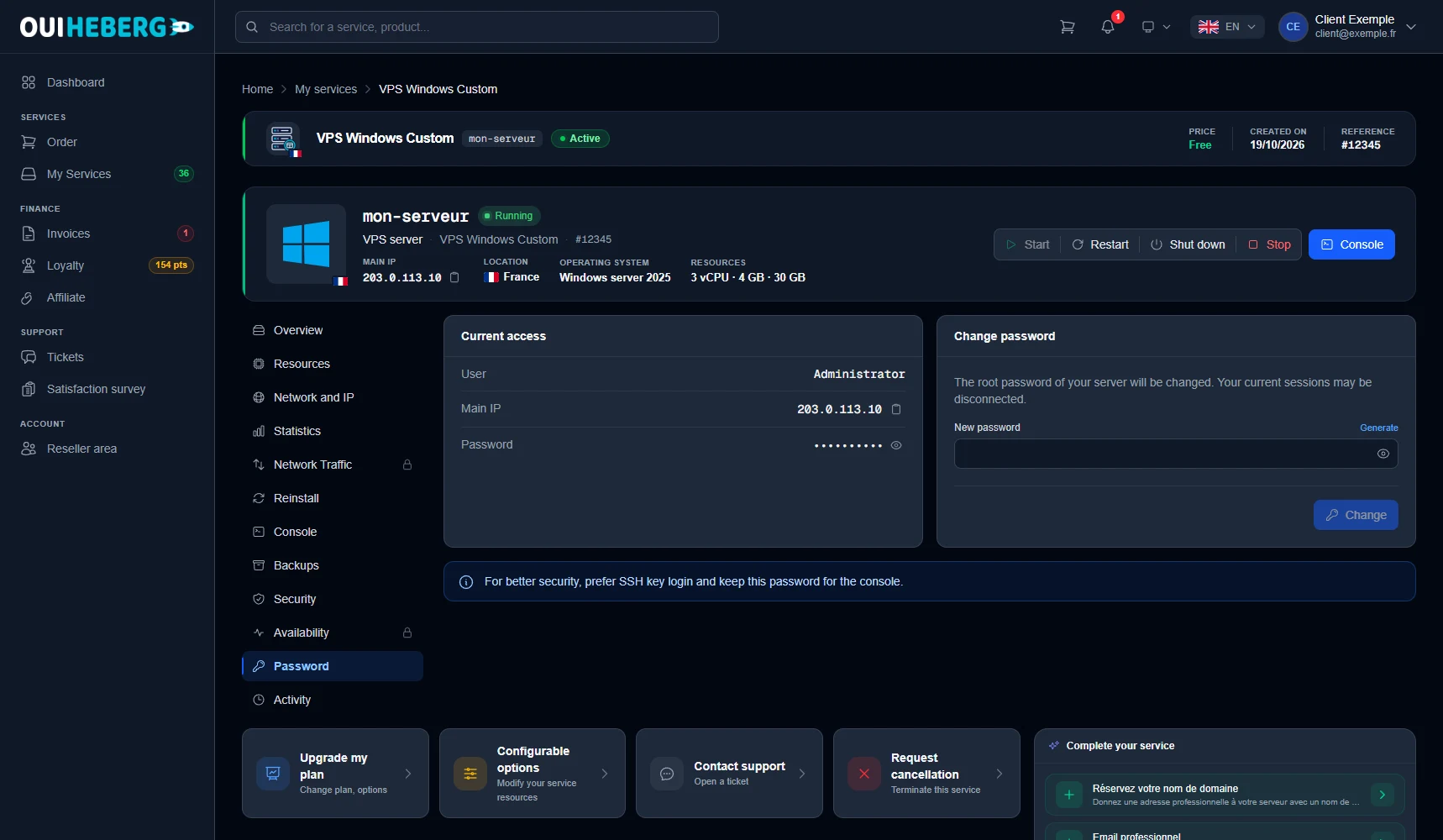
Open the Password tab. The Current access card shows the User (root on a Linux VPS, Administrator on a Windows VPS), the Main IP and the current password, hidden. The eye icon reveals it.
In the Change password card, type the new password in the New password field. The Generate link, above the field on the right, creates one for you.
Store it somewhere safe, then click Change.
The server password is then changed. Sessions currently open on the VPS may be disconnected.
On a Linux VPS, SSH key login is safer. The password then remains useful for the console. The guide Set up an SSH key on a Linux VPS walks you through it. On a Windows VPS, this password is the one for Remote Desktop, covered in Connect to a Windows VPS via RDP.
Reinstall the operating system
💡 A reinstallation wipes the entire VPS. All data on the disk is permanently lost. Make a backup before you continue.
Open the Reinstall tab.
At the Select an operating system step, click the card of the system you want. Each card shows how many versions are available.
At the Server access step, choose how you will log in to the new system. On a Windows VPS, the only option is Password, and the current Administrator password is kept. On a Linux VPS, Password keeps the current root password. The SSH key option also installs your public keys, one per line.
At the Confirmation step, type the VPS host name shown above the field. Tick I understand that all data on the VPS will be erased.
Click Reinstall the VPS.
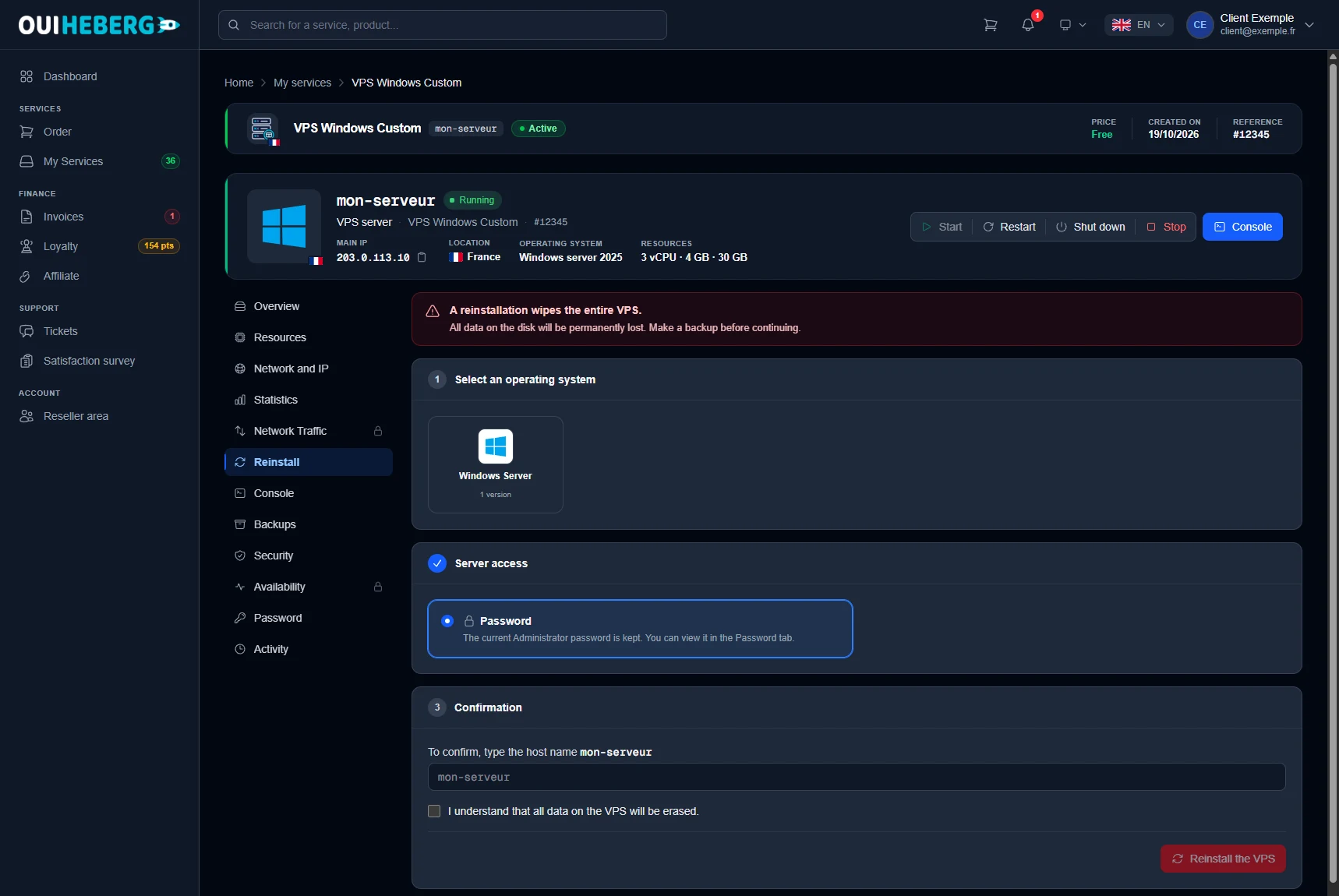
After the reinstallation, the password can still be read in the Password tab.
Network and reverse DNS
The Network and IP tab counts the VPS's IPv4 and IPv6 addresses and the configured rDNS entries. The Network configuration card lists the addresses, gateways and MAC address. The Private network card links your VPS in the same location to each other.
The VPS addresses list shows each address with its rDNS. The DEFAULT VALUE label marks the original name.
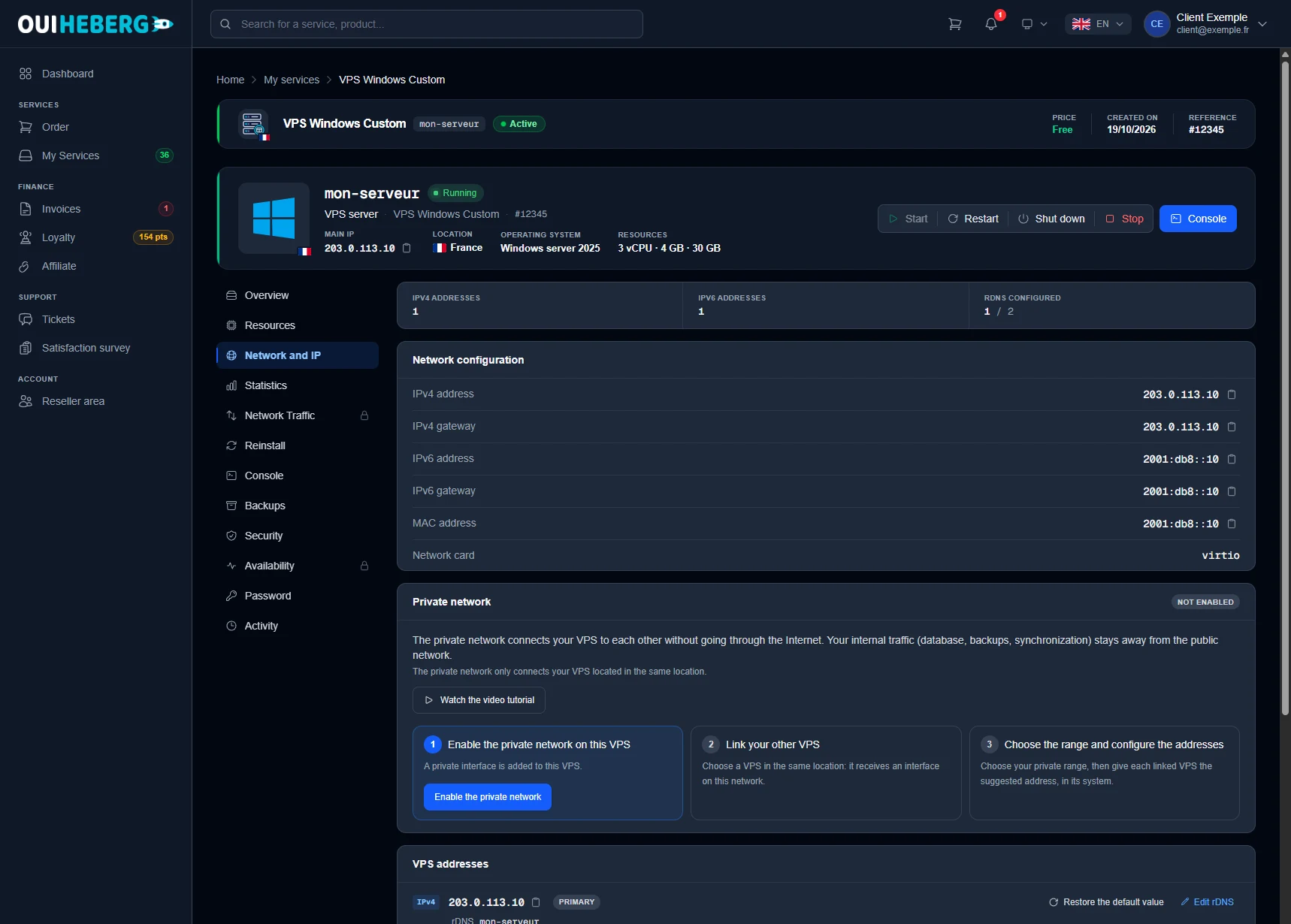
Set the reverse DNS of an address
Reverse DNS (rDNS) links a host name to an address. Mail servers check it, so it matters as soon as your VPS sends email.
First, in your domain's DNS zone, create an A record pointing the chosen name to the VPS address (AAAA for an IPv6 address). The rDNS must target a name that itself resolves to this address.
In VPS addresses, click Set an rDNS next to the address.
Enter the full name, for example
mail.example.com, then save.
The change is visible right away on the OuiHeberg DNS servers. It can take up to an hour to appear everywhere.
Open ports
The client area has no network firewall for VPS. Ports are opened inside the VPS operating system. On Linux, follow UFW: configure the firewall of your Linux VPS. On Windows, follow Configure the Windows Server firewall on a VPS.
Need help?
Open a ticket from Tickets › Open a Ticket, or from the Contact support tile at the bottom of the VPS page. In the Related Service field, pick the VPS so the team saves time. You can also ask your question on the OuiHeberg Discord.