
 Client area
Getting started on cPanel: Complete guide for beginners
Estimated Time: 10 minutes
Difficulty: Beginner ⭐
📋 Introduction
cPanel is the most widely used control panel in the world for managing your web hosting. With its intuitive graphical interface, you can manage your files, emails, databases, and domains without any technical knowledge.
This guide will walk you through your first steps on cPanel: how to access it, understand the interface, and discover essential features.
What You Will Learn
- ✅ How to access cPanel
- ✅ Understanding the Jupiter interface
- ✅ Navigating through different sections
- ✅ Locating essential tools
- ✅ Customizing your dashboard
🔐 Step 1: Accessing cPanel
There are several methods to access your cPanel.
Method 1: Via OuiHeberg Client Area (Recommended)
- Log in to your OuiHeberg Client Area
- In the Hosting section, click on Manage
- Click on the Access cPanel button
✅ This method logs you in automatically without having to enter your credentials.
Method 2: Via Direct URL
You can directly access cPanel via your browser:
| Protocol | URL | Port |
|---|---|---|
| HTTPS (secure) | https://your-domain.com:2083 | 2083 |
| HTTP | http://your-domain.com:2082 | 2082 |
Example: https://web07.ouiheberg.com:2083
Method 3: Via the /cpanel Shortcut
The simplest method:
https://your-domain.com/cpanel
You will be automatically redirected to the login page.
Login Page
You will land on the cPanel login page:
Enter your credentials:
- Username: Provided in your welcome email
- Password: Provided in your welcome email
💡 Tip: You can change the language at the bottom of the login page.
🖥️ Step 2: Exploring the Jupiter Interface
Once logged in, you will encounter the Jupiter interface of cPanel (current default theme).
Dashboard Overview
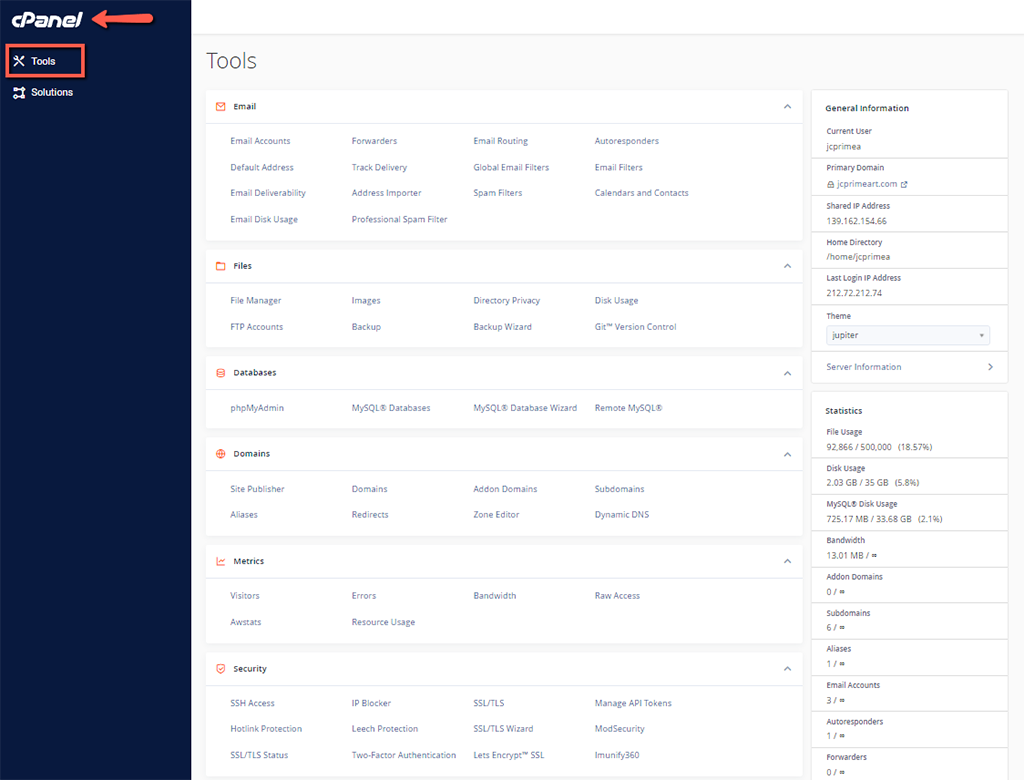
The Jupiter interface consists of 3 main areas:
| Area | Description |
|---|---|
| 🔍 Navigation Bar | Top: search, user account, settings |
| 🛠️ Tools Area | Center: all features organized by categories |
| 📊 General Information | Right: account statistics and info |
Navigation Bar

The navigation bar includes:
| Item | Description |
|---|---|
| 🔍 Search Bar | Quickly search for a feature |
| 👤 User Menu | Access preferences, password, logout |
| ⚙️ Tools / Solutions | Switch between Tools and Solutions pages |
User Menu
Click on your username to access options:
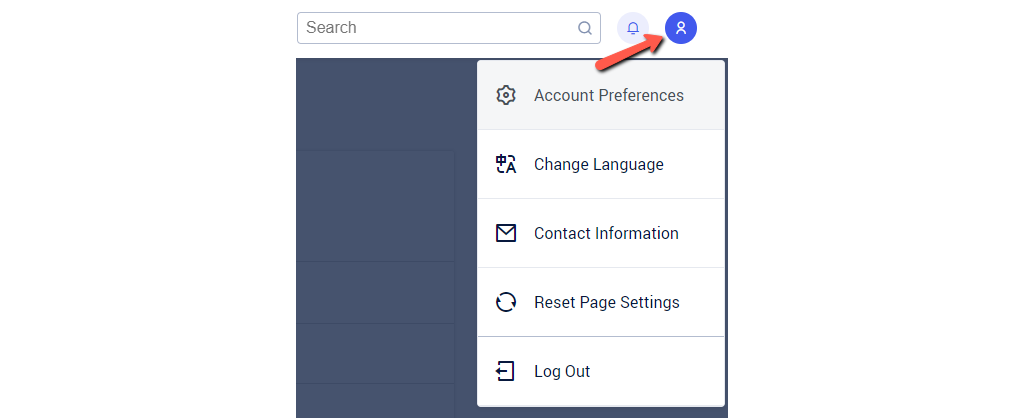
| Option | Description |
|---|---|
| Account Preferences | Customize the interface |
| Password and Security | Change your password |
| Change Language | Interface in French, English, etc. |
| Contact Information | Notification email |
| Reset Settings | Restore default interface |
| Logout | Log out of cPanel |
General Information Panel
On the right side of the interface, you will find information about your account:
| Information | Description |
|---|---|
| Current User | Your cPanel username |
| Main Domain | Your hosting's main domain |
| Home Directory | Path to your files (/home/username) |
| Shared IP Address | Server's IP |
| Last Login | Date and IP of last login |
| Theme | Current theme (Jupiter) |
Statistics
The Statistics panel displays your resource usage:
| Resource | Description |
|---|---|
| Disk Space | Used / available storage |
| Bandwidth | Monthly traffic used / available |
| Email Accounts | Number of created accounts |
| MySQL Databases | Number of databases created |
| Addon Domains | Additional domains |
| Subdomains | Created subdomains |
⚠️ Attention: If a resource is approaching its limit, it will display in orange or red.
📂 Step 3: Main Sections
The cPanel interface organizes features into logical categories. Here are the main sections:
📁 FILES
| Tool | Description |
|---|---|
| File Manager | Navigate, upload, edit your web files |
| Images | Resize, convert images |
| Directory Privacy | Protect directories with a password |
| Disk Usage | View space occupied by directory |
| Web Disk | WebDAV access to your files |
| FTP Accounts | Create FTP access |
| Backup | Download/restore backups |
| Backup Wizard | Step-by-step guided backup |
| Tool | Description |
|---|---|
| Email Accounts | Create and manage your email addresses |
| Autoresponders | Automatic out-of-office messages |
| Forwarders | Forward emails to another address |
| Email Filters | Automatic sorting rules |
| Default Address | What to do with emails without a recipient |
| Mailing Lists | Create mailing lists |
| Delivery Tracking | View sent/received emails |
| Spam Filters | Configure SpamAssassin |
| Encryption | GPG keys for encrypted emails |
| Email Deliverability | SPF, DKIM, DMARC |
Databases
| Tool | Description |
|---|---|
| MySQL Databases | Create and manage your databases |
| MySQL Database Wizard | Guided creation of databases |
| phpMyAdmin | Graphical interface for MySQL |
| Remote MySQL | Allow external connections |
| PostgreSQL Databases | Alternative to MySQL (if available) |
Domains
| Tool | Description |
|---|---|
| WordPress Toolkit | Manage your WordPress installations |
| Domains | Manage all your domains |
| Zone Editor | Edit DNS records |
| Redirects | Create domain redirects |
| Dynamic DNS | Configure DDNS |
Metrics
| Tool | Description |
|---|---|
| Visitors | Visit statistics |
| Errors | Site error logs |
| Bandwidth | Traffic usage |
| Raw Access | Apache access logs |
| Awstats | Advanced statistics |
| Webalizer | Traffic analysis |
Security
| Tool | Description |
|---|---|
| SSL/TLS | Manage SSL certificates |
| SSL/TLS Status | View your certificates' status |
| IP Blocker | Block IP addresses |
| Imunify360 | Anti-malware protection (if available) |
| Two-Factor Authentication | Enable 2FA |
| Hotlink Protection | Prevent image theft |
| Leech Protection | Limit abusive downloads |
Software
| Tool | Description |
|---|---|
| Softaculous | One-click installation (WordPress, etc.) |
| Select PHP Version | Change PHP version |
| Cron Jobs | Schedule automatic scripts |
| MultiPHP Manager | Configure PHP per directory |
| MultiPHP INI Editor | Modify PHP settings |
Advanced
| Tool | Description |
|---|---|
| Terminal | SSH command line |
| Error Pages | Custom error pages |
| Cron Jobs | Script automation |
| Index Manager | Directory behavior |
| MIME Handlers | File types |
Search Step 4: Using Search
The search bar is your best friend! Instead of manually looking for a feature, simply type what you are looking for:
Search Examples
| You're looking for... | Type... |
|---|---|
| Create an email | email or messaging |
| Manage files | files or file |
| Database | mysql or database |
| SSL Certificate | ssl or certificate |
| Install WordPress | softaculous or wordpress |
💡 Tip: The search works in real-time and displays results instantly.
Customize Interface Step 5: Customizing the Interface
Reorganize Sections
You can rearrange categories according to your preferences:
- Click and hold on the title of a section
- Drag and drop the section to the desired location
- The order is automatically saved
Change Language
To switch the interface to French:
- Click on your username (top right)
- Select Change Language
- Choose French from the list
- Click Modify
Reset Interface
If you wish to revert to the default display:
- Click on your username
- Select Reset Page Settings
- Confirm
The 5 Most Common Actions
Here are the actions you will perform most frequently:
1️⃣ Manage your files
📁 Files → File Manager
Upload, edit, or delete files on your hosting.
2️⃣ Create an email
📧 Email → Email Accounts
Create professional email addresses @your-domain.com.
3️⃣ Install WordPress
⚙️ Software → Softaculous Apps Installer → WordPress
Install WordPress in a few clicks.
4️⃣ Manage a database
🗄️ Databases → MySQL Databases
Create databases for your applications.
5️⃣ Configure SSL
🔒 Security → SSL/TLS or SSL/TLS Status
Enable HTTPS on your site.
Troubleshooting
I can't find my feature
| ❌ Issue | ✅ Solution |
|---|---|
| Feature not found | Use the search bar |
| Interface in English | Change the language in the user menu |
| Grayed-out feature | Contact support (may be disabled) |
Connection Error
| ❌ Issue | ✅ Solution |
|---|---|
| Forgot password | Use "Forgot password" or reset via the Client Area |
| Account blocked | Too many attempts → Wait 15 min or contact support |
| Blank page | Clear browser cache, try another browser |
Slow Interface
| ❌ Cause | ✅ Solution |
|---|---|
| Slow connection | Check your internet connection |
| Outdated browser | Update Chrome/Firefox/Edge |
| Extensions | Disable ad blockers |
📝 Summary
ACCESS CPANEL:
├── Via the OuiHeberg Client Area (recommended)
├── Via https://your-domain.com:2083
└── Via https://your-domain.com/cpanel

JUPITER INTERFACE:
├── Navigation Bar: Search + User Menu
├── Central Area: Tools organized by categories
└── Right Panel: Information + Statistics

MAIN SECTIONS:
├── 📁 Files: Manager, FTP, Backups
├── 📧 Email: Accounts, Filters, Spam
├── 🗄️ Databases: MySQL, phpMyAdmin
├── 🌐 Domains: DNS, Redirects, WordPress Toolkit
├── 📊 Metrics: Statistics, Logs
├── 🔒 Security: SSL, IP Blocking, 2FA
└── ⚙️ Software: Softaculous, PHP, Cron

KEY TIP:
└── Use the search bar to find quickly!