
 Client area
Estimated Time: 5 minutes
Difficulty: Beginner ⭐
Prerequisites: Access to cPanel
Impact: 60-80% reduction in file size
📋 Introduction
GZIP compression is a technique that significantly reduces the size of files sent by your web server to your visitors' browsers. It is one of the simplest and most effective optimizations to speed up your website.
How does it work?
Without GZIP:
Server ──────────────────────────────────> Browser
         HTML File: 100 KB (original size)

With GZIP:
Server ─────────> Browser
         30 KB     (automatically decompressed)
         ↓
         100 KB (original file reconstructed)
The server compresses the files before sending them, and the browser automatically decompresses them. The process is transparent to the user.
🚀 Advantages of GZIP Compression
Performance Gains
| Metric | Improvement |
|---|---|
| 📉 File Size Reduction | 60% to 80% |
| ⚡ Loading Time | Up to 50% faster |
| 📊 Bandwidth | Significantly reduced |
| 🔍 PageSpeed Score | Noticeable improvement |
| 📱 Mobile Experience | Better (less data) |
Concrete Example of Compression
| File Type | Original Size | Compressed Size | Reduction |
|---|---|---|---|
| HTML | 100 KB | 25 KB | 75% |
| CSS | 80 KB | 18 KB | 78% |
| JavaScript | 150 KB | 45 KB | 70% |
| JSON/XML | 50 KB | 12 KB | 76% |
| Fonts (SVG) | 40 KB | 15 KB | 63% |
💡 Real Example: A typical 500 KB WordPress page can be reduced to about 150 KB with GZIP, resulting in a 70% reduction!
📂 Types of Files to Compress
✅ Files to Compress (text)
| Type | Extensions | MIME Type |
|---|---|---|
| HTML | .html, .htm | text/html |
| CSS | .css | text/css |
| JavaScript | .js | application/javascript |
| JSON | .json | application/json |
| XML | .xml | application/xml |
| Text | .txt | text/plain |
| SVG | .svg | image/svg+xml |
| Fonts | .ttf, .otf | font/ttf, font/otf |
| WOFF | .woff | font/woff |
❌ Files Not to Compress
| Type | Reason |
|---|---|
| Images (JPEG, PNG, GIF, WebP) | Already compressed |
| Videos (MP4, WebM) | Already compressed |
| Audio (MP3, OGG) | Already compressed |
| Already compressed | |
| Archives (ZIP, RAR, GZ) | Already compressed |
⚠️ Important: Compressing already compressed files can increase their size and unnecessarily slow down the server.
⚙️ Method 1: Optimize Website (Recommended)
This is the simplest method, directly integrated into cPanel.
Step 1: Access the Tool
- Log in to cPanel
- In the Software section, click on Optimize Website

💡 Tip: Use the cPanel search bar and type "optimize" to quickly find the tool.
Step 2: Choose the Compression Type
The interface presents 3 options:
| Option | Description | Recommendation |
|---|---|---|
| Disabled | Compression disabled | ❌ Not recommended |
| Compress All Content | Compresses all content | ✅ Recommended |
| Compress the specified MIME types | Compresses only specified types | ⚠️ Advanced |
Step 3: Enable Compression
For most sites:
- Select "Compress All Content"
- Click on "Update Settings"
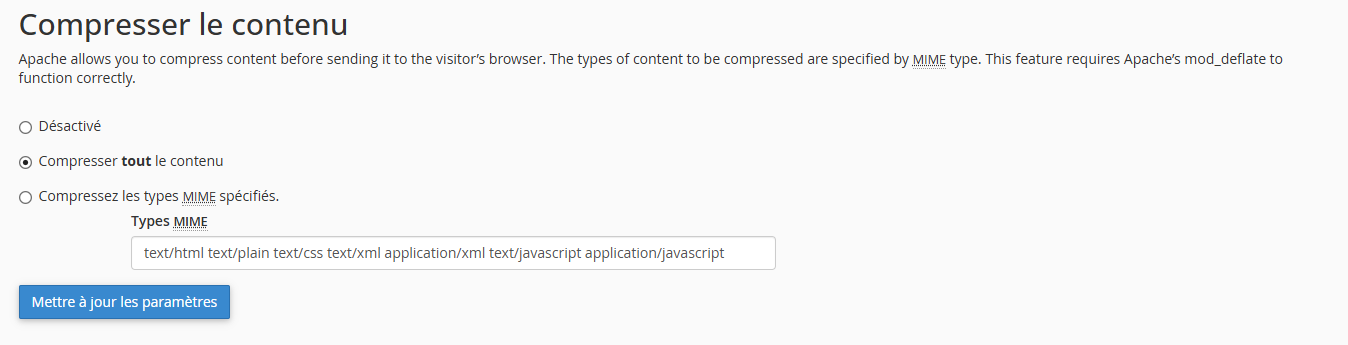 Confirmation message:
✅ Website optimization preferences updated.
Content compression is now enabled.
Content compression is now enabled for all content.
Advanced Option: Specific MIME Types
If you prefer precise control:
- Select "Compress the specified MIME types"
- Enter the MIME types to compress:
text/html text/plain text/xml text/css text/javascript
application/javascript application/x-javascript application/xml
application/json application/rss+xml application/xhtml+xml
image/svg+xml font/ttf font/otf font/woff font/woff2
- Click on "Update Settings"
📝 Method 2: Via .htaccess
If the "Optimize Website" tool is not available or for finer control.
Step 1: Access the .htaccess File
- In cPanel, open the File Manager
- Go to the
public_htmlfolder - Click on Settings in the top right
- ✅ Check "Show hidden files (dotfiles)"
- Locate and edit the
.htaccessfile
Step 2: Add the Compression Code
Add this code at the beginning of the .htaccess file:
# =============================================
# GZIP COMPRESSION
# =============================================
<IfModule mod_deflate.c>
    # Compress HTML, CSS, JavaScript, Text, XML, and fonts
    AddOutputFilterByType DEFLATE text/html
    AddOutputFilterByType DEFLATE text/plain
    AddOutputFilterByType DEFLATE text/xml
    AddOutputFilterByType DEFLATE text/css
    AddOutputFilterByType DEFLATE text/javascript
    AddOutputFilterByType DEFLATE application/xml
    AddOutputFilterByType DEFLATE application/xhtml+xml
    AddOutputFilterByType DEFLATE application/rss+xml
    AddOutputFilterByType DEFLATE application/atom+xml
    AddOutputFilterByType DEFLATE application/javascript
    AddOutputFilterByType DEFLATE application/x-javascript
    AddOutputFilterByType DEFLATE application/json
    AddOutputFilterByType DEFLATE application/ld+json
    AddOutputFilterByType DEFLATE application/manifest+json
    AddOutputFilterByType DEFLATE application/vnd.ms-fontobject
    AddOutputFilterByType DEFLATE application/x-font-ttf
    AddOutputFilterByType DEFLATE application/x-font-opentype
    AddOutputFilterByType DEFLATE application/x-font-truetype
    AddOutputFilterByType DEFLATE font/ttf
    AddOutputFilterByType DEFLATE font/otf
    AddOutputFilterByType DEFLATE font/opentype
    AddOutputFilterByType DEFLATE font/woff
    AddOutputFilterByType DEFLATE font/woff2
    AddOutputFilterByType DEFLATE image/svg+xml
    AddOutputFilterByType DEFLATE image/x-icon

    # Old browser compatibility
    BrowserMatch ^Mozilla/4 gzip-only-text/html
    BrowserMatch ^Mozilla/4\.0[678] no-gzip
    BrowserMatch \bMSIE !no-gzip !gzip-only-text/html

    # Do not compress images (already compressed)
    SetEnvIfNoCase Request_URI \.(?:gif|jpe?g|png|webp)$ no-gzip

    # Vary header for proxies
    Header append Vary User-Agent env=!dont-vary
</IfModule>
# =============================================
# END GZIP COMPRESSION
# =============================================
Minimal Simplified Code
If you prefer a shorter version:
# GZIP COMPRESSION (simple version)
<IfModule mod_deflate.c>
    AddOutputFilterByType DEFLATE text/html text/plain text/xml text/css
    AddOutputFilterByType DEFLATE text/javascript application/javascript
    AddOutputFilterByType DEFLATE application/xml application/json
    AddOutputFilterByType DEFLATE image/svg+xml
</IfModule>
Step 3: Save
- Click on Save Changes
- Test your site to ensure it works correctly
🔧 Method 3: Via WordPress Plugin
For WordPress sites, some cache plugins automatically enable GZIP.
Plugins with Built-in GZIP Compression
| Plugin | Free | GZIP Configuration |
|---|---|---|
| WP Rocket | ❌ Paid | Automatic |
| LiteSpeed Cache | ✅ Free | Automatic (LiteSpeed servers) |
| W3 Total Cache | ✅ Free | Performance → Enable HTTP compression |
| WP Super Cache | ✅ Free | Advanced → Compress pages |
| WP Fastest Cache | ✅ Free | Options → Gzip |
| Autoptimize | ✅ Free | Not included (only minification) |
Example: Enable GZIP with WP Super Cache
- Install and activate WP Super Cache
- Go to Settings → WP Super Cache
- Tab Advanced
- ✅ Check "Compress pages so they're served more quickly to visitors"
- Click on Update Status
Example: Enable GZIP with W3 Total Cache
- Install and activate W3 Total Cache
- Go to Performance → General Settings
- In the Browser Cache section
- ✅ Check "Enable HTTP (gzip) compression"
- Click on Save all settings
✅ Check if GZIP is Enabled
Method 1: Online Tools
Use these free tools to check compression:
| Tool | URL | Advantage |
|---|---|---|
| GiftOfSpeed | giftofspeed.com/gzip-test | Simple and fast |
| CheckGzipCompression | checkgzipcompression.com | Detailed |
| GTmetrix | gtmetrix.com | Comprehensive analysis |
| PageSpeed Insights | pagespeed.web.dev | Official Google tool |
| KeyCDN Tools | tools.keycdn.com/http2-test | Multi-tests |
Method 2: Browser (DevTools)
- Open your site in Chrome or Firefox
- Press F12 to open DevTools
- Go to the Network tab
- Reload the page (F5)
- Click on a file (e.g., the main HTML document)
- In the Headers tab, look for:
Content-Encoding: gzipIf you see Content-Encoding: gzip → Compression is active ✅
Method 3: Command Line (curl)
curl -I -H "Accept-Encoding: gzip,deflate" https://your-site.com
Look for in the response:
Content-Encoding: gzip
📊 Compare Before/After
Using GTmetrix
- Go to gtmetrix.com
- Test your URL before enabling GZIP
- Note the page weight and loading time
- Enable GZIP
- Test again
- Compare the results
Result Example
| Metric | Before GZIP | After GZIP | Improvement |
|---|---|---|---|
| Total weight | 2.5 MB | 850 KB | -66% |
| Loading time | 4.2s | 2.1s | -50% |
| Performance Score | 72/100 | 89/100 | +17 points |
🔧 Troubleshooting
GZIP Not Working
| ❌ Issue | ✅ Solution |
|---|---|
| mod_deflate module not installed | Contact the host to enable it |
| .htaccess code ignored | Ensure AllowOverride is enabled |
| Incompatible PHP Handler | CGI/FastCGI may require different config |
| CDN disables compression | Enable GZIP in CDN settings |
| Browser cache | Clear cache and test in incognito mode |
500 Error after .htaccess Modification
-
Using FTP or File Manager :
- Edit the
.htaccessfile - Remove the added GZIP code
- Save
- Edit the
-
mod_deflate module not available :
- The code
<IfModule mod_deflate.c>should prevent the error - Contact the host to check the availability of the module
Active GZIP but not on all files
Check these points:
- Missing MIME Types: Add missing types to the .htaccess code
- Cache Plugin: Some plugins serve static files without GZIP
- CDN: Files served by the CDN may not be compressed
- External Resources: Files hosted elsewhere are not under your control
Conflict with other .htaccess rules
Place the GZIP code at the beginning of the
.htaccessfile, before the WordPress rules:# GZIP COMPRESSION (place first) <IfModule mod_deflate.c> # ... compression code ... </IfModule> # BEGIN WordPress # ... WordPress rules ... # END WordPress
⚡ GZIP vs Brotli
Brotli is a newer compression algorithm, offering better performance.
Comparison
Criterion GZIP Brotli Compression ~70% ~75-80% Browser Support 99%+ 96%+ Compression Speed Fast Slower Decompression Speed Fast Fast Server Support Universal Modern Enable Brotli (if available)
# BROTLI COMPRESSION (if mod_brotli available)
<IfModule mod_brotli.c>
    AddOutputFilterByType BROTLI_COMPRESS text/html text/plain text/xml
    AddOutputFilterByType BROTLI_COMPRESS text/css text/javascript
    AddOutputFilterByType BROTLI_COMPRESS application/javascript application/json
    AddOutputFilterByType BROTLI_COMPRESS image/svg+xml
</IfModule>
💡 Most shared hosting uses GZIP. Brotli is more common on VPS/dedicated and CDNs like Cloudflare.
🎯 Best Practices
Combine GZIP with other optimizations
Optimization Impact Priority ✅ GZIP Compression -70% file size 🔴 High ✅ Minify CSS/JS -10-30% additional 🟠 Medium ✅ Browser Cache Avoid re-downloads 🔴 High ✅ Optimize Images -50-80% image size 🔴 High ✅ CDN Reduce latency 🟠 Medium ✅ HTTP/2 Multiplex connections 🟢 Bonus
Complete .htaccess Code (GZIP + Cache)
# =============================================
# GZIP COMPRESSION
# =============================================
<IfModule mod_deflate.c>
    AddOutputFilterByType DEFLATE text/html text/plain text/xml
    AddOutputFilterByType DEFLATE text/css text/javascript
    AddOutputFilterByType DEFLATE application/xml application/xhtml+xml
    AddOutputFilterByType DEFLATE application/rss+xml application/atom+xml
    AddOutputFilterByType DEFLATE application/javascript application/x-javascript
    AddOutputFilterByType DEFLATE application/json application/ld+json
    AddOutputFilterByType DEFLATE image/svg+xml image/x-icon
    AddOutputFilterByType DEFLATE font/ttf font/otf font/woff font/woff2
</IfModule>

# =============================================
# BROWSER CACHE
# =============================================
<IfModule mod_expires.c>
    ExpiresActive On

    # Images
    ExpiresByType image/jpeg "access plus 1 year"
    ExpiresByType image/png "access plus 1 year"
    ExpiresByType image/gif "access plus 1 year"
    ExpiresByType image/webp "access plus 1 year"
    ExpiresByType image/svg+xml "access plus 1 year"
    ExpiresByType image/x-icon "access plus 1 year"

    # Fonts
    ExpiresByType font/ttf "access plus 1 year"
    ExpiresByType font/otf "access plus 1 year"
    ExpiresByType font/woff "access plus 1 year"
    ExpiresByType font/woff2 "access plus 1 year"

    # CSS and JavaScript
    ExpiresByType text/css "access plus 1 month"
    ExpiresByType application/javascript "access plus 1 month"

    # HTML
    ExpiresByType text/html "access plus 0 seconds"
</IfModule>

# =============================================
# SECURITY AND PERFORMANCE HEADERS
# =============================================
<IfModule mod_headers.c>
    # Vary header for proxies
    Header append Vary Accept-Encoding

    # Keep-Alive
    Header set Connection keep-alive
</IfModule>
📝 Summary
ENABLE GZIP COMPRESSION: METHOD 1 - Optimize Website (Recommended): 1. cPanel → Software → Optimize Website 2. Select "Compress All Content" 3. Click on "Update Settings" 4. Done! ✅ METHOD 2 - .htaccess: 1. Open File Manager 2. Edit .htaccess in public_html 3. Add compression code 4. Save METHOD 3 - WordPress Plugin: └── WP Super Cache, W3 Total Cache, WP Fastest Cache... CHECK ACTIVATION: ├── giftofspeed.com/gzip-test ├── gtmetrix.com ├── DevTools → Network → Headers └── Look for "Content-Encoding: gzip" TYPES TO COMPRESS: ├── ✅ HTML, CSS, JavaScript, JSON, XML ├── ✅ Fonts (TTF, OTF, WOFF, WOFF2) ├── ✅ SVG, text └── ❌ Images, videos, PDF (already compressed) EXPECTED BENEFITS: ├── 📉 Size reduction: 60-80% ├── ⚡ Loading: up to 50% faster └── 📊 PageSpeed Score: +10-20 points - The code