
 Client area
Estimated Time : 15 minutes
Difficulty : Intermediate ⭐⭐
Prerequisites : Access to cPanel, domain with managed DNS
📋 Introduction
SPF, DKIM, and DMARC are three essential email authentication protocols for:
- ✅ Improving the deliverability of your emails
- 🛡️ Protecting your domain against spoofing and phishing
- 📬 Preventing your emails from landing in spam
- ✨ Meeting the requirements of Gmail and Yahoo (mandatory since February 2024)
🔍 Understanding SPF, DKIM, and DMARC
Overview
| Protocol | Function | Analogy |
|---|---|---|
| SPF | Verifies that the server is authorized to send | List of authorized factors |
| DKIM | Adds a digital signature to the email | Seal of authenticity |
| DMARC | Defines the policy in case of failure | Instructions to the recipient |
SPF (Sender Policy Framework)
SPF allows you to specify which servers are authorized to send emails for your domain.
How it works:
- You publish a list of authorized servers in a DNS TXT record
- The recipient server checks if the email comes from an authorized server
- If not authorized → the email may be rejected or marked as spam
Example of an SPF record:
v=spf1 +a +mx +ip4:123.456.789.0 include:_spf.google.com ~all
DKIM (DomainKeys Identified Mail)
DKIM adds a cryptographic signature to each outgoing email.
How it works:
- Your server signs each email with a private key
- The public key is published in your DNS
- The recipient verifies the signature with the public key
- If the signature is valid → the email is authentic and unaltered
Example of a DKIM record:
default._domainkey.yourdomain.com IN TXT "v=DKIM1; k=rsa; p=MIGfMA0GCSqGSIb3DQEBA..."
DMARC (Domain-based Message Authentication, Reporting & Conformance)
DMARC defines what the recipient should do if SPF or DKIM fails.
How it works:
- You define a policy (none, quarantine, reject)
- The recipient applies this policy to unauthenticated emails
- You receive reports on spoofing attempts
Example of a DMARC record:
v=DMARC1; p=quarantine; rua=mailto:dmarc@yourdomain.com; pct=100
📊 Summary Table
| Element | SPF | DKIM | DMARC |
|---|---|---|---|
| Record Type | TXT | TXT | TXT |
| Name | @ or domain | default._domainkey | _dmarc |
| Required | ✅ Yes | ✅ Yes | ⚠️ Recommended |
| Automatically Configured | ✅ cPanel | ✅ cPanel | ❌ Manual |
| Protects Against | Unauthorized servers | Content forgery | Identity theft |
⚙️ Method 1: Automatic Configuration (Email Deliverability)
cPanel offers a Email Deliverability tool that automatically configures SPF and DKIM.
Step 1: Access Email Deliverability
- Log in to cPanel
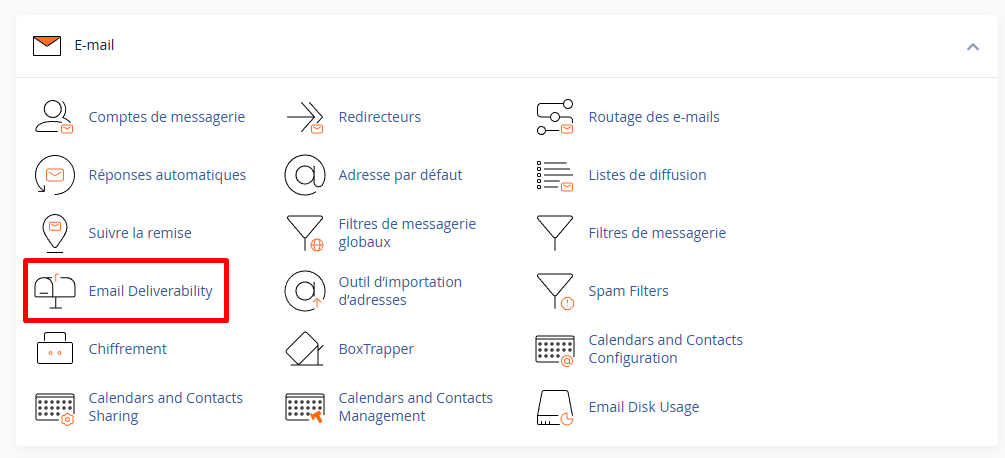
- In the Email section, click on Email Deliverability
Step 2: Check the Current Status
You will see the list of your domains with their status:
| Status | Meaning |
|---|---|
| ✅ Valid | SPF and DKIM correctly configured |
| ⚠️ Problems Exist | Missing or incorrect configuration |
Step 3: Automatically Repair
If problems are detected:
- Click on Repair next to the affected domain
- cPanel displays the suggested records
- Click on Repair to automatically apply

💡 Note : This method only works if your DNS is managed by the same server as cPanel. Otherwise, use the manual method.
Step 4: Verify the Configuration
After the repair, the status should change to Valid ✅
You can click on Manage to see the details of each record.
⚙️ Method 2: Manual Configuration
If your DNS is managed elsewhere (Cloudflare, OVH, Gandi, etc.), you need to add the records manually.
Step 1: Retrieve Values in cPanel
- Go to Email → Email Deliverability
- Click on Manage next to your domain
- Note the suggested values for SPF and DKIM
Step 2: Add the SPF Record
In cPanel (Zone Editor)
- Go to Domains → Zone Editor
- Click on Manage next to your domain
- Click on + Add Record → Add TXT Record
| Field | Value |
|---|---|
| Name | yourdomain.com (or @) |
| TTL | 14400 |
| Type | TXT |
| Record | v=spf1 +a +mx +ip4:YOUR_IP include:_spf.google.com ~all |
- Click on Save Record
SPF Records Based on Your Configuration
| Situation | SPF Record |
|---|---|
| cPanel Email Only | v=spf1 +a +mx ~all |
| With MailChannels | v=spf1 +a +mx include:relay.mailchannels.net ~all |
| With Google Workspace | v=spf1 include:_spf.google.com ~all |
| With Microsoft 365 | v=spf1 include:spf.protection.outlook.com ~all |
| With SendGrid | v=spf1 include:sendgrid.net ~all |
| With Mailchimp | v=spf1 include:servers.mcsv.net ~all |
| Combined (cPanel + Google) | v=spf1 +a +mx include:_spf.google.com ~all |
Understanding SPF Syntax
| Element | Meaning |
|---|---|
v=spf1 | Version of the SPF protocol |
+a | Authorizes the domain's IP (A record) |
+mx | Authorizes the domain's MX servers |
+ip4:123.456.789.0 | Authorizes a specific IP |
include:domain.com | Includes authorized servers from another domain |
~all | Soft fail: mark as suspicious if not authorized |
-all | Hard fail: reject if not authorized |
?all | Neutral: do not check |
⚠️ Important : A domain can have only one SPF record. If you use multiple services, combine them into a single record.
Step 3: Add the DKIM Record
Retrieve the DKIM Key
- In Email Deliverability, click on Manage
- Under DKIM, copy the full value of the public key
Add the Record
- In Zone Editor, click on + Add Record → Add TXT Record
| Field | Value |
|---|---|
| Name | default._domainkey.yourdomain.com |
| TTL | 14400 |
| Type | TXT |
| Record | v=DKIM1; k=rsa; p=MIGfMA0GCSqGSIb3DQEB... (your key) |
- Click on Save Record
💡 Note : The selector
defaultmay vary depending on your configuration. Some services use other selectors likeselector1, etc.
Step 4: Add the DMARC Record
DMARC is not automatically configured by cPanel. You need to add it manually.
- In Zone Editor, click on + Add Record → Add TXT Record
| Field | Value |
|---|---|
| Name | _dmarc.yourdomain.com (or _dmarc) |
| TTL | 14400 |
| Type | TXT |
| Record | v=DMARC1; p=none; rua=mailto:dmarc@yourdomain.com |
- Click on Save Record
📝 Recommended DMARC Configurations
Progressive Policy (recommended for beginners)
Start with a soft policy, then gradually strengthen:
Phase 1: Monitoring (2-4 weeks)
v=DMARC1; p=none; rua=mailto:dmarc@yourdomain.com; pct=100
p=none: Do nothing, just monitorrua=mailto:...: Receive aggregate reports
Phase 2: Quarantine (2-4 weeks)
v=DMARC1; p=quarantine; rua=mailto:dmarc@yourdomain.com; pct=25
p=quarantine: Mark unauthenticated emails as spampct=25: Apply to 25% of emails (progressive test)
Phase 3: Full Quarantine
v=DMARC1; p=quarantine; rua=mailto:dmarc@yourdomain.com; pct=100
Phase 4: Reject (maximum protection)
v=DMARC1; p=reject; rua=mailto:dmarc@yourdomain.com; ruf=mailto:dmarc-forensic@yourdomain.com; pct=100
p=reject: Completely reject unauthenticated emailsruf=mailto:...: Receive detailed forensic reports
DMARC Parameters Explained
| Parameter | Values | Description |
|---|---|---|
v | DMARC1 | Version (required) |
p | none, quarantine, reject | Policy for the domain |
sp | none, quarantine, reject | Policy for subdomains |
pct | 0-100 | Percentage of emails to filter |
rua | mailto:email@domain.com | Address for aggregate reports |
ruf | mailto:email@domain.com | Address for forensic reports |
adkim | r (relaxed), s (strict) | DKIM alignment |
aspf | r (relaxed), s (strict) | SPF alignment |
fo | 0, 1, d, s | Failure reporting options |
Examples of DMARC Configurations
| Use Case | DMARC Record |
|---|---|
| Beginner (monitoring) | v=DMARC1; p=none; rua=mailto:dmarc@domain.com |
| Standard | v=DMARC1; p=quarantine; rua=mailto:dmarc@domain.com; pct=100 |
| Strict | v=DMARC1; p=reject; rua=mailto:dmarc@domain.com; pct=100 |
| Complete with subdomains | v=DMARC1; p=reject; sp=quarantine; rua=mailto:dmarc@domain.com; ruf=mailto:forensic@domain.com; fo=1; pct=100 |
✅ Verify the Configuration
Method 1: cPanel Email Deliverability
- Return to Email → Email Deliverability
- Check that the status is Valid ✅ for your domain
Method 2: Online Tools
| Tool | URL | Checks |
|---|---|---|
| MXToolbox | mxtoolbox.com/SuperTool.aspx | SPF, DKIM, DMARC |
| Mail Tester | mail-tester.com | Overall score + authentication |
| DMARC Analyzer | dmarcanalyzer.com/dmarc/dmarc-record-check | DMARC |
| Google Admin Toolbox | toolbox.googleapps.com/apps/checkmx | MX, SPF, DKIM |
| DKIM Validator | dkimvalidator.com | DKIM |
| EasyDMARC | easydmarc.com/tools | SPF, DKIM, DMARC |
Method 3: Verification Commands
Check SPF
# Linux/Mac
dig TXT yourdomain.com +short

# Windows
nslookup -type=TXT yourdomain.com
Expected Result :
"v=spf1 +a +mx ~all"
Check DKIM
# Linux/Mac
dig TXT default._domainkey.yourdomain.com +short

# Windows
nslookup -type=TXT default._domainkey.yourdomain.com
Expected Result :
"v=DKIM1; k=rsa; p=MIGfMA0GCSqGSIb3DQEB..."
Check DMARC
# Linux/Mac
dig TXT _dmarc.yourdomain.com +short

# Windows
nslookup -type=TXT _dmarc.yourdomain.com
Expected Result :
"v=DMARC1; p=quarantine; rua=mailto:dmarc@yourdomain.com"
Method 4: Send a Test Email
- Send an email to check-auth@verifier.port25.com
- You will receive a detailed report with SPF, DKIM, and DMARC results
Or use mail-tester.com:
- Go to mail-tester.com
- Copy the provided temporary email address
- Send an email to that address
- Check your score and authentication details
📧 Configuration for External Services
Google Workspace (Professional Gmail)
SPF
v=spf1 include:_spf.google.com ~all
DKIM
- In the Google Admin console, go to Apps → Google Workspace → Gmail → Authenticate Emails
- Generate the DKIM key
- Add the TXT record provided by Google
Microsoft 365 (Professional Outlook)
SPF
v=spf1 include:spf.protection.outlook.com ~all
DKIM
- In the Microsoft 365 Admin Center
- Settings → Domains → Select your domain
- Copy the provided DKIM CNAME records
Email Sending Services
| Service | Include SPF | DKIM Documentation |
|---|---|---|
| SendGrid | include:sendgrid.net | SendGrid Panel |
| Mailchimp | include:servers.mcsv.net | Account → Settings → Verified domains |
| Sendinblue | include:sendinblue.com | Settings → Senders → Domains |
| Mailjet | include:spf.mailjet.com | Account Settings → Domains |
| Amazon SES | include:amazonses.com | AWS SES Console |
Example: cPanel + Mailchimp Combined
v=spf1 +a +mx include:servers.mcsv.net ~all
🔧 Troubleshooting
SPF: "Too many DNS lookups"
Problem : SPF is limited to a maximum of 10 DNS lookups.
Solution :
- Reduce the number of
include: - Use direct IPs (
ip4:) instead ofinclude: - Use a "SPF flattening" service
SPF: "Multiple SPF records"
Problem : You have multiple SPF records.
Solution : Merge all your records into one:
❌ Incorrect (2 records) :
v=spf1 +a +mx ~all
v=spf1 include:_spf.google.com ~all
✅ Correct (1 single record) :
v=spf1 +a +mx include:_spf.google.com ~all
DKIM: "No DKIM record found"
| Cause | Solution |
|---|---|
| Wrong selector | Check the selector name (default, google, etc.) |
| DNS Propagation | Wait 24-48h after creation |
| Truncated key | Check that the key is complete |
| Wrong domain | Check the format selector._domainkey.domain.com |
DKIM: Key too long
If your DKIM key exceeds 255 characters, it must be split:
"v=DKIM1; k=rsa; p=MIIBIjANBgkqhkiG9w0BAQEFAAOCAQ8AMIIBCgKCAQEA..." "...continuation of the key..."
Some DNS handle this automatically, others require manual splitting.
DMARC: "DMARC record not found"
| Cause | Solution |
|---|---|
| Incorrect name | Must be exactly _dmarc.yourdomain.com |
| DNS Propagation | Wait a few hours |
| Incorrect syntax | Check with a DMARC validator |
Emails still in spam
Check in order:
- ✅ SPF configured and valid
- ✅ DKIM configured and valid
- ✅ DMARC configured
- ✅ PTR (Reverse DNS) configured
- ✅ IP not blacklisted (check on mxtoolbox.com/blacklists.aspx)
- ✅ Email content (no spam words, good text/image ratio)
📊 Read DMARC Reports
Report format
DMARC reports are sent in XML. Simplified example:
<record>
  <row>
    <source_ip>123.456.789.0</source_ip>
    <count>10</count>
    <policy_evaluated>
      <disposition>none</disposition>
      <dkim>pass</dkim>
      <spf>pass</spf>
    </policy_evaluated>
  </row>
</record>
DMARC Analysis Services
XML reports are hard to read. Use a free service:
| Service | URL | Features |
|---|---|---|
| DMARC Analyzer | dmarcanalyzer.com | Limited free |
| Postmark DMARC | dmarc.postmarkapp.com | Free |
| EasyDMARC | easydmarc.com | Limited free |
| URIports | uriports.com | Free |
| DMARCLY | dmarcly.com | Limited free |
⚠️ Best Practices
To do ✅
| Practice | Reason |
|---|---|
Start DMARC in p=none mode | Observe before blocking |
| Test after each change | Avoid interruptions |
| Monitor DMARC reports | Detect issues |
| Update SPF if you change service | Keep the list up to date |
Use ~all instead of -all at first | More error-tolerant |
Avoid ❌
| Practice | Risk |
|---|---|
Jump straight to p=reject | Block your own emails |
| Forget to include all sending services | Rejected emails |
| Have multiple SPF records | Invalid configuration |
| Ignore DMARC reports | Miss issues |
| Copy configurations without adapting | Incorrect values |
📝 Summary
EMAIL AUTHENTICATION - CPANEL CONFIGURATION

┌─────────────────────────────────────────────────────────────┐
│                         SPF                                 │
├─────────────────────────────────────────────────────────────┤
│ Type: TXT                                                   │
│ Name: yourdomain.com (or @)                                │
│ Value: v=spf1 +a +mx ~all                                  │
│ → Allows servers to send on behalf of your domain          │
└─────────────────────────────────────────────────────────────┘

┌─────────────────────────────────────────────────────────────┐
│                         DKIM                                │
├─────────────────────────────────────────────────────────────┤
│ Type: TXT                                                   │
│ Name: default._domainkey.yourdomain.com                    │
│ Value: v=DKIM1; k=rsa; p=YOUR_PUBLIC_KEY                   │
│ → Cryptographically signs each email                        │
└─────────────────────────────────────────────────────────────┘

┌─────────────────────────────────────────────────────────────┐
│                        DMARC                                │
├─────────────────────────────────────────────────────────────┤
│ Type: TXT                                                   │
│ Name: _dmarc.yourdomain.com                                │
│ Value: v=DMARC1; p=none; rua=mailto:dmarc@domain.com      │
│ → Defines the policy if SPF/DKIM fails                     │
└─────────────────────────────────────────────────────────────┘

AUTOMATIC CONFIGURATION (cPanel):
1. Email → Email Deliverability
2. Click "Repair" if issues detected
3. Add DMARC manually in Zone Editor

RECOMMENDED DMARC PROGRESSION:
Phase 1: p=none (monitoring) → 2-4 weeks
Phase 2: p=quarantine; pct=25 → 2-4 weeks
Phase 3: p=quarantine; pct=100 → 2-4 weeks
Phase 4: p=reject; pct=100 → Maximum protection

VERIFICATION:
├── cPanel Email Deliverability → Status "Valid"
├── mail-tester.com → Score 10/10
├── mxtoolbox.com → Full check
└── dig TXT yourdomain.com → View records