
 Client area
Estimated Time: 5 minutes
Difficulty: Beginner ⭐
Compatible Servers: FiveM
📋 Introduction
Artifacts are the core files that make your FiveM server work. Each artifact version brings bug fixes, performance improvements, or new features.
Why Change Artifact Version?
| Reason | Description |
|---|---|
| 🐛 Fix Bugs | A new version can solve an issue you are facing |
| ⬇️ Downgrade | Go back to a stable version if the new one causes issues |
| 🆕 New Features | Access the latest FiveM features |
| 🔧 Compatibility | Some resources require a specific version |
🔍 Step 1: Choose the Artifact Version
Official Artifacts Site
Visit the official FiveM artifacts site:
👉 https://runtime.fivem.net/artifacts/fivem/build_proot_linux/master/
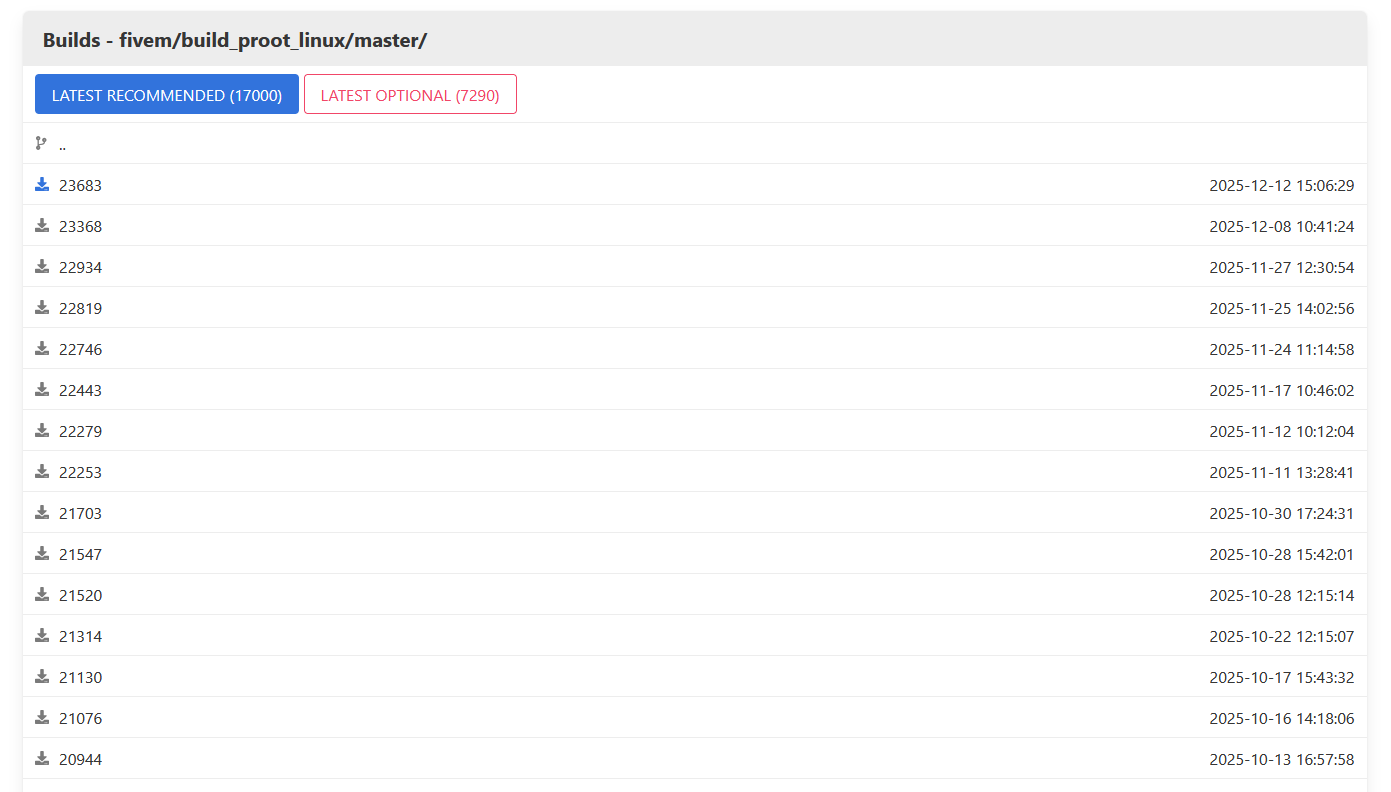
💡 Note: OuiHeberg uses Linux servers, so always use the
build_proot_linuxartifacts.
Understanding the List of Artifacts
Each line represents a version with:
| Item | Example | Description |
|---|---|---|
| Build Number | 7290 | Version number (higher = newer) |
| Hash | a1b2c3d4... | Unique identifier of the version |
| Date | 2024-01-15 | Publication date |
Full Format: 7290-a1b2c3d4e5f6g7h8i9j0...
Which Version to Choose?
| Choice | Recommendation |
|---|---|
| ✅ Recommended | Recent stable version without known bugs |
| ⚠️ Latest | Latest version (may contain bugs) |
| 🔒 Specific | Version required by a resource |
Recommendation Site (FiveM Artifacts DB)
To find the best version without known bugs, check:
👉 https://artifacts.jgscripts.com/
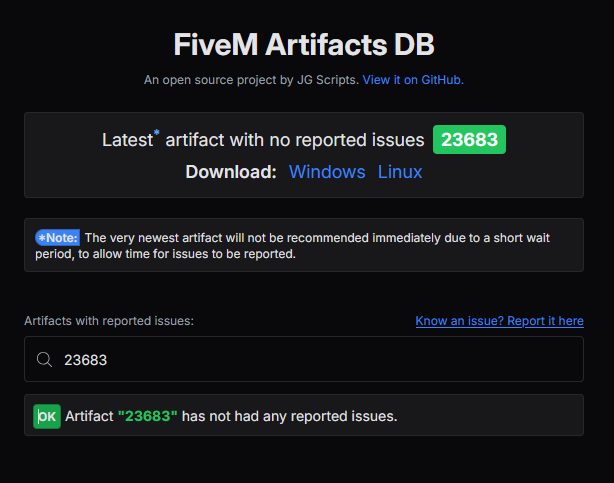
This community site indicates:
- ✅ The latest stable version recommended
- ❌ Versions to avoid with their known bugs
Example: At the time of writing, version 23683 is recommended.
Versions to Avoid (Known Bugs)
Here are problematic versions to avoid:
| Version | Issue |
|---|---|
21547 | Server errors and crashes |
16276 | JavaScript loading issues |
14583-14716 | Crash with onEntityBucketChange |
13759-13890 | Mumble (voice) connections blocked |
12933-13045 | Crashes when restarting resources |
12255 | Unidentified server issues |
12092-12135 | Client crashes with SetPlayerModel |
10268-10309 | Server crashes and downgrade problems |
💡 Check https://artifacts.jgscripts.com/ for the up-to-date list.
📋 Step 2: Copy the Version Identifier
On the Artifacts Site
- Find the desired version in the list
- Right-click on the download icon (📥) next to the version
- Click on "Copy link address"
Extracting the Identifier
The copied link looks like:
https://runtime.fivem.net/artifacts/fivem/build_proot_linux/master/7290-a1b2c3d4e5f6g7h8i9j0k1l2m3n4o5p6q7r8s9t0/fx.tar.xz
Extract only the part between master/ and /fx.tar.xz:
7290-a1b2c3d4e5f6g7h8i9j0k1l2m3n4o5p6q7r8s9t0
💡 This complete string (number + hash) is what you need to copy.
Quick Method
- Paste the link in a text editor (Notepad)
- Delete
https://runtime.fivem.net/artifacts/fivem/build_proot_linux/master/ - Delete
/fx.tar.xz - Keep only the identifier in the middle
Example:
- Link:
https://runtime.fivem.net/artifacts/fivem/build_proot_linux/master/7290-abc123def456.../fx.tar.xz - Identifier:
7290-abc123def456...
⚙️ Step 3: Modify the Version in OuiPanel
Accessing the Configuration
- Log in to OuiPanel
- Select your FiveM server
- Stop your server if not already done
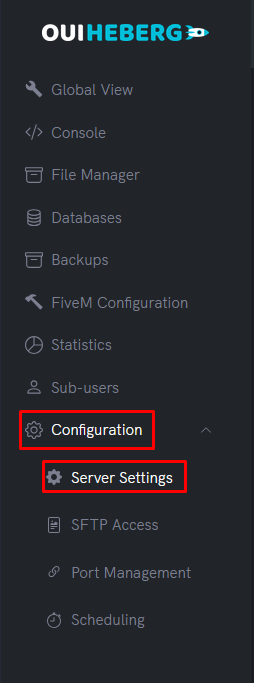
- In the side menu, click on Configuration
Modify the FiveM Version
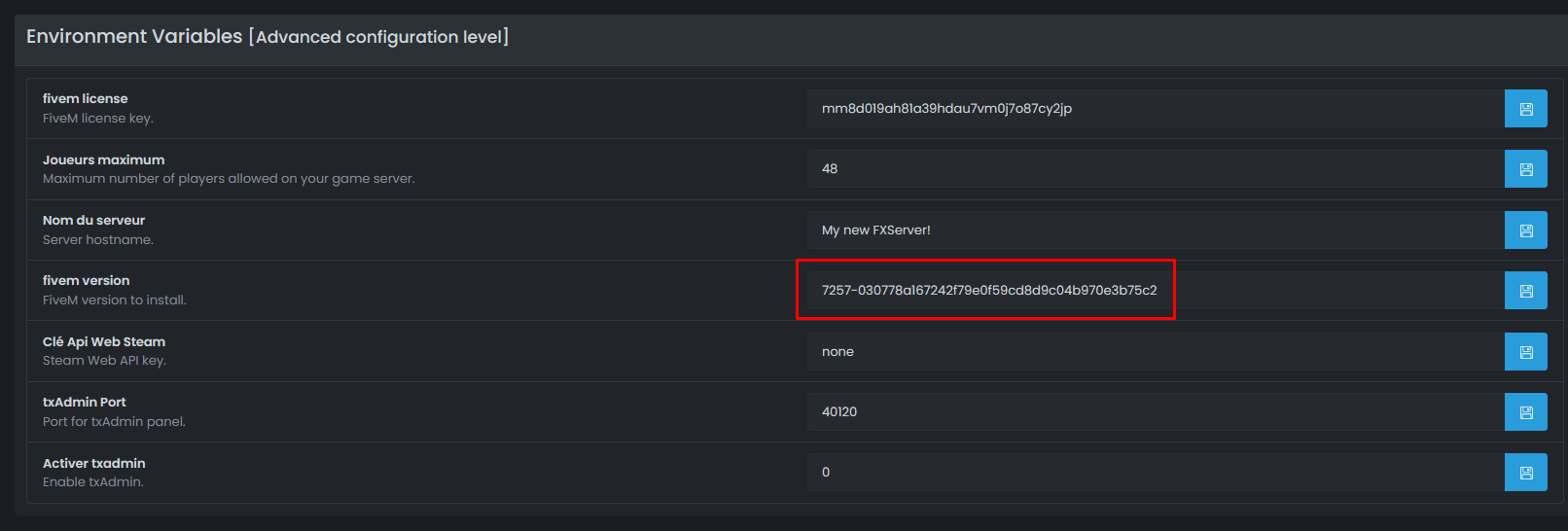
- In the Configuration page, find the "FIVEM VERSION" field (or "Version FiveM")
- Delete the current content
- Paste the previously copied version identifier
Examples of valid values:
7290-a1b2c3d4e5f6g7h8i9j0k1l2m3n4o5p6q7r8s9t0
23683-1062db8a7b8e0c03f7c159be4cbfa181f49b2cc1
- Press Enter to save
Special Values
You can also use these special values:
| Value | Description |
|---|---|
latest | Latest available version (automatic) |
recommended | Version recommended by Cfx.re |
⚠️ Caution:
latestmay install a version with bugs. Prefer a tested specific version.
🔄 Step 4: Reinstall the Server
To apply the change, you need to reinstall the artifact files.
Accessing the Settings
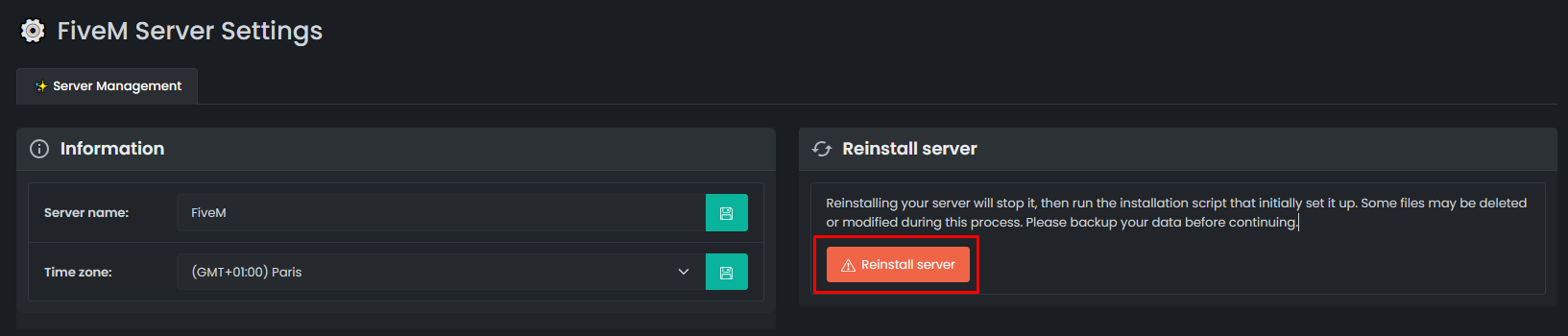
- In the side menu, click on Settings
Reinstalling the Server
- Find the "Reinstall the server" button
- Click on it
- Confirm the reinstallation
⚠️ Important: Only the
alpinefolder (basic FiveM files) will be deleted and replaced. Your resources, configurations, and databases will NOT be affected.
Wait for the reinstallation
Reinstallation usually takes 1 to 2 minutes:
[OuiPanel] Downloading the artifact...
[OuiPanel] Extracting files...
[OuiPanel] Reinstallation completed!
✅ Step 5: Check the New Version
Start the server
- Go back to Console
- Click on Start
Check in the console
Upon startup, the artifact version is displayed in the logs:
[ 14070] citizen:server:main: Starting FiveM server version XXXXXCheck in-game
- Connect to your FiveM server
- Open the console (press F8)
- The version is displayed at the top
🔧 Troubleshooting
The server does not start after the change
| ❌ Cause | ✅ Solution |
|---|---|
| Incorrect identifier | Check the format (complete number-hash) |
| Incompatible version | Try another version (newer or older) |
| Reinstallation not performed | Click on "Reinstall the server" |
Startup errors
| ❌ Error | ✅ Solution |
|---|---|
Could not find resource | Your resources may be incompatible with this version |
Failed to load | Downgrade to an older version |
| Crash on startup | Use a version without known bugs |
Incompatible resources
Some resources require a minimum artifact version.
Solution:
- Check the resource documentation
- Update to the required version
- Or update the resource itself
Revert to the previous version
If the new version causes issues:
- Note the identifier of your old version (if you have it)
- Or choose a stable version on https://artifacts.jgscripts.com/
- Repeat steps 2 to 5 with the old version
💡 Best Practices
Before changing version
- ✅ Backup your important files (server.cfg, custom resources)
- ✅ Note down your current version just in case
- ✅ Check that the new version has no known bugs
- ✅ Test on a test server if possible
Version choice
- ✅ Prioritize recommended and stable versions
- ✅ Avoid very recent versions (< 1 week)
- ✅ Regularly check the FiveM changelogs
- ✅ Use https://artifacts.jgscripts.com/ for recommendations
Maintenance
- ✅ Update regularly (at least once a month)
- ✅ Follow Cfx.re announcements for important updates
- ✅ Test new versions outside peak hours
📚 Useful Resources
| Resource | URL |
|---|---|
| Artifacts Linux | https://runtime.fivem.net/artifacts/fivem/build_proot_linux/master/ |
| Artifacts Windows | https://runtime.fivem.net/artifacts/fivem/build_server_windows/master/ |
| Recommended Versions | https://artifacts.jgscripts.com/ |
| Cfx.re Forum | https://forum.cfx.re/ |
| Changelogs | https://github.com/citizenfx/fivem/commits/master |
📝 Summary
1. Choose the version on runtime.fivem.net/artifacts/fivem/build_proot_linux/master/
   (or check artifacts.jgscripts.com for the recommended one)

2. Right-click → Copy link address

3. Extract the identifier: XXXXX-hash...
   (between "master/" and "/fx.tar.xz")

4. OuiPanel → Configuration → "FIVEM VERSION" field
   → Paste the identifier → Enter

5. OuiPanel → Settings → Reinstall the server

6. Start the server and verify
Tired of managing artifacts by hand? Our FiveM hosting keeps your server up to date, txAdmin included.
Need a GTA/FiveM server?
Discover our GTA V / FiveM hosting plans starting from $9.98/month with instant deployment.