
 Client area
How to change PHP version on cPanel
Estimated Time: 5 minutes
Difficulty: Beginner ⭐
Prerequisites: Access to cPanel
📋 Introduction
PHP (Hypertext Preprocessor) is the programming language that powers the majority of websites, including WordPress, PrestaShop, Joomla, and many others.
Changing the PHP version of your hosting allows you to:
- ✅ Improve performance (PHP 8.3 is up to 3x faster than PHP 7.4)
- ✅ Enhance security (older versions no longer receive patches)
- ✅ Ensure compatibility with the latest WordPress versions and plugins
- ✅ Access new language features
📊 PHP Versions in 2025
Table of versions and their status
| Version | Status | Active Support | End of Life | Recommendation |
|---|---|---|---|---|
| PHP 8.4 | 🟢 Current | Nov 2026 | Nov 2028 | ✅ Recommended (if compatible) |
| PHP 8.3 | 🟢 Current | Nov 2025 | Nov 2027 | ✅ Recommended |
| PHP 8.2 | 🟡 Security | Dec 2024 | Dec 2026 | ✅ Compatible |
| PHP 8.1 | 🟠 End of Life | Nov 2023 | Dec 31, 2025 | ⚠️ Update required |
| PHP 8.0 | 🔴 Obsolete | Nov 2022 | Nov 2023 | ❌ Do not use anymore |
| PHP 7.4 | 🔴 Obsolete | Nov 2021 | Nov 2022 | ❌ Do not use anymore |
| PHP 7.3 and below | 🔴 Obsolete | - | - | ❌ Dangerous |
⚠️ Attention: PHP 8.1 reaches its end of life on December 31, 2025. Update to PHP 8.3 or 8.4 as soon as possible.
WordPress Compatibility
| WordPress Version | Minimum PHP | Recommended PHP | PHP 8.3 | PHP 8.4 |
|---|---|---|---|---|
| WordPress 6.7+ | 7.2.24 | 8.3 | ✅ Compatible | 🟡 Beta |
| WordPress 6.6 | 7.2.24 | 8.2 | ✅ Compatible | 🟡 Beta |
| WordPress 6.5 | 7.2.24 | 8.1 | ✅ Compatible | 🟡 Beta |
| WordPress 6.3-6.4 | 7.2.24 | 8.0 | ✅ Compatible | ⚠️ Test |
💡 WordPress.org recommends PHP 8.3 for optimal performance.
Performance Gains per Version
Average response time (WordPress benchmark):

PHP 7.4  ████████████████████████████████  100% (reference)
PHP 8.0  ██████████████████████████        77%  (-23%)
PHP 8.1  ████████████████████████          72%  (-28%)
PHP 8.2  ██████████████████████            66%  (-34%)
PHP 8.3  ████████████████████              60%  (-40%)
🚀 PHP 8.3 is about 40% faster than PHP 7.4 for WordPress!
🔍 Check Your Current PHP Version
Before changing the version, check which version is currently in use.
Method 1: Via cPanel (MultiPHP Manager)
- Log in to cPanel
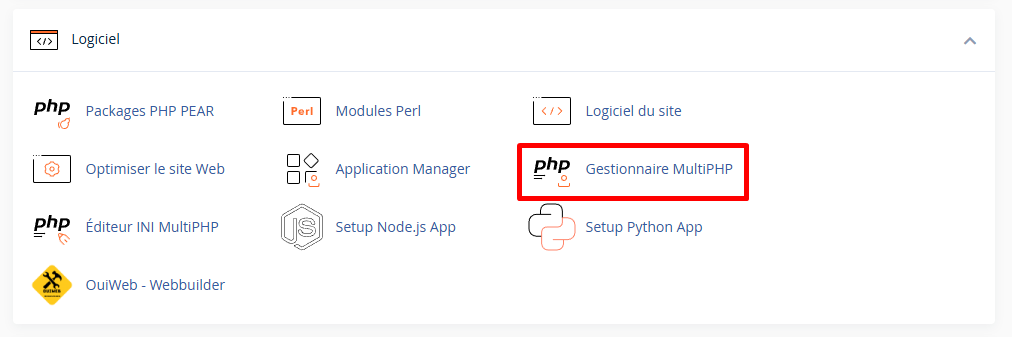
- In the Software section, click on MultiPHP Manager
- Check the PHP Version column for each domain
Method 2: Via WordPress (Site Health)
- Log in to the WordPress admin
- Go to Tools → Site Health
- Click on Info
- Scroll down to the Server section
- Check the PHP Version line
Method 3: Create a phpinfo File
- Create a file
phpinfo.phpwith the following content:
<?php
phpinfo();
?>
- Upload it to the root of your site (
public_html) - Access
https://your-site.com/phpinfo.php - Delete the file after use (sensitive information)
⚙️ Change PHP Version with MultiPHP Manager
MultiPHP Manager is the cPanel tool that allows you to change the PHP version of your domains in a few clicks.
Step 1: Access MultiPHP Manager
- Log in to cPanel
- In the Software section, click on MultiPHP Manager
Step 2: Select the Domain(s)
- You see the list of all your domains and subdomains
- ✅ Check the box to the left of the domain to modify
- You can select multiple domains to modify at once

Step 3: Choose the New PHP Version
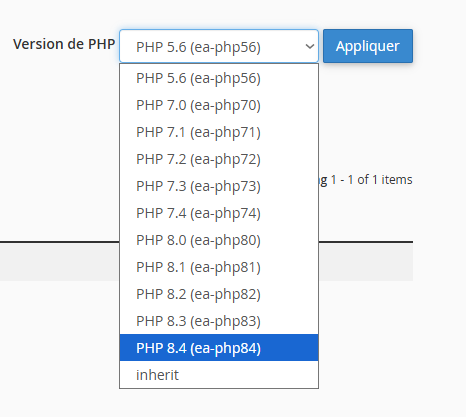
- In the top right, click on the dropdown menu PHP Version
- Select the desired version (e.g.,
PHP 8.3) - Click the Apply button
Step 4: Confirm the Change
A confirmation message appears:
✅ PHP version has been successfully updated.
💡 The change is instantaneous. No restart is required.
Step 5: Test Your Site
After the change:
- ✅ Visit your site and navigate through several pages
- ✅ Test contact forms
- ✅ Check the cart and payment (e-commerce)
- ✅ Log in to the administration
- ✅ Verify that plugins are working
🔧 Modify PHP Settings (MultiPHP INI Editor)
In addition to the version, you can adjust PHP settings such as memory, upload size, etc.
Access MultiPHP INI Editor
- In cPanel, under Software, click on MultiPHP INI Editor
- Select your domain from the dropdown menu
Common PHP Settings
| Setting | Description | Default Value | Recommended Value |
|---|---|---|---|
memory_limit | Max memory per script | 128M | 256M - 512M |
upload_max_filesize | Maximum upload size | 2M | 64M - 128M |
post_max_size | Maximum POST data size | 8M | 64M - 128M |
max_execution_time | Maximum execution time (sec) | 30 | 300 |
max_input_time | Maximum input time | 60 | 300 |
max_input_vars | Maximum number of variables | 1000 | 3000 - 5000 |
Modify a Setting
- In MultiPHP INI Editor, select your domain
- Find the setting to modify (e.g.
memory_limit) - Enter the new value (e.g.
256M) - Click on Apply
Example: Increase PHP Memory for WordPress
For a WordPress site with WooCommerce:
| Setting | Recommended Value |
|---|---|
memory_limit | 512M |
upload_max_filesize | 128M |
post_max_size | 128M |
max_execution_time | 300 |
max_input_vars | 5000 |
📝 Modify PHP via .htaccess (Alternative)
If MultiPHP is not available, you can set the PHP version via .htaccess:
Change PHP Version
Add at the beginning of your .htaccess file:
# For PHP 8.3
AddHandler application/x-httpd-php83 .php

# OR for PHP 8.2
AddHandler application/x-httpd-php82 .php

# OR for PHP 8.1
AddHandler application/x-httpd-php81 .php
⚠️ The exact syntax depends on your hosting provider. Contact support if needed.
Modify PHP Settings via .htaccess
# Increase memory
php_value memory_limit 256M

# Increase upload size
php_value upload_max_filesize 64M
php_value post_max_size 64M

# Increase execution time
php_value max_execution_time 300
php_value max_input_time 300

# Increase input variables
php_value max_input_vars 3000
⚠️ Before Changing PHP Version
Preparation Checklist
□ Backup your site (files + database)
□ Check WordPress/CMS compatibility
□ Check plugins/extensions compatibility
□ Check theme compatibility
□ Test on a staging environment if possible
□ Note the current PHP version (for rollback if needed)
Check WordPress Compatibility
In WordPress:
- Install the PHP Compatibility Checker plugin
- Run an analysis
- Fix any detected incompatibilities
Manually:
- Ensure your plugins are up to date
- Refer to each plugin's documentation
- Check if your theme supports PHP 8.x
Plugins Often Incompatible with PHP 8+
⚠️ These types of plugins can cause issues:
- Plugins not updated for 2+ years
- Improperly configured cache plugins
- Old page builders
- Custom/bespoke plugins
🔄 Revert to a Previous PHP Version
If your site malfunctions after the change:
- Go back to MultiPHP Manager
- Select the relevant domain
- Choose the previous version (e.g. PHP 8.2)
- Click on Apply
💡 Reverting is just as instantaneous.
🔧 Troubleshooting
Error 500 after Version Change
| ❌ Possible Cause | ✅ Solution |
|---|---|
| Incompatible plugin | Disable plugins via FTP (rename the plugins folder) |
| Incompatible theme | Activate a default theme (Twenty Twenty-Four) |
| Corrupted .htaccess file | Rename .htaccess to .htaccess.bak |
| Insufficient memory | Increase memory_limit in MultiPHP INI Editor |
Site Slowness after PHP Update
| ❌ Possible Cause | ✅ Solution |
|---|---|
| Outdated cache | Clear all caches (plugin + browser) |
| Disabled OPcache | Ensure OPcache is enabled |
| Unoptimized plugins | Update all plugins |
Message "Allowed memory size exhausted"
Fatal error: Allowed memory size of 134217728 bytes exhausted
Solution:
- Go to MultiPHP INI Editor
- Increase
memory_limitto256Mor512M - Click on Apply
WordPress Shows Warnings (Deprecated)
Deprecated: Function ... is deprecated since version X.X
Solution:
- Update WordPress to the latest version
- Update all plugins
- Update your theme
- If the warning persists, contact the plugin/theme author
Error "Your PHP installation appears to be missing the MySQL extension"
Solution: Check that PHP extensions are enabled:
- Go to Select PHP Version
- Enable extensions:
mysqli,pdo_mysql,mysqlnd
📋 Recommended PHP Extensions for WordPress
In Select PHP Version or MultiPHP INI Editor, enable these extensions:
Essential Extensions
| Extension | Purpose |
|---|---|
mysqli | MySQL Connection |
curl | HTTP Requests (API, updates) |
gd | Image Manipulation |
mbstring | Multi-byte Strings (UTF-8) |
xml | XML Processing |
zip | Compression/Decompression |
json | JSON Format |
openssl | Secure Connections |
Recommended Extensions
| Extension | Purpose |
|---|---|
imagick | Advanced Image Processing |
intl | Internationalization |
exif | Image Metadata |
fileinfo | File Type |
opcache | Bytecode Cache (performance) |
sodium | Modern Cryptography |
📝 Summary
CHANGE PHP VERSION:
1. cPanel → Software → MultiPHP Manager
2. Check the domain to modify
3. Select the PHP version (e.g. 8.3)
4. Click on Apply
5. Test the site

MODIFY PHP SETTINGS:
1. cPanel → Software → MultiPHP INI Editor
2. Select the domain
3. Modify the values (memory_limit, upload_max_filesize, etc.)
4. Click on Apply

RECOMMENDED VERSIONS (2025):
├── 🟢 PHP 8.3 → Recommended (stable, performant)
├── 🟢 PHP 8.4 → Latest (if compatible plugins)
├── 🟡 PHP 8.2 → Acceptable
└── 🔴 PHP 8.1 and below → Update urgently required

BEFORE CHANGING:
├── ✅ Backup the site
├── ✅ Check plugin compatibility
├── ✅ Update WordPress and plugins
└── ✅ Note the current version (for rollback)
📚 Related Articles
- ⚡ Optimizing your hosting performance
- 🔧 Resolving the 500 Internal Server Error
- 💾 Creating a full backup of your site
- 🔄 Safely updating WordPress
- 📊 Understanding your hosting resources