
 Client area
How to Create Autoresponders on cPanel
Estimated Time : 5 minutes
Difficulty : Easy ⭐
Prerequisites : Existing cPanel email account
📋 Introduction
An autoresponder is an email message sent automatically in response to any email received at a specific address. It is an essential tool for maintaining professional communication, even when you are unavailable.
Common Use Cases
| Situation | Example |
|---|---|
| 🏖️ Vacation / Leave | Out-of-office message with return date |
| 🏢 Office Hours | Response outside of business hours |
| 📧 No-reply Address | Inform that the address is not monitored |
| ✅ Receipt Confirmation | Automatic acknowledgment of receipt |
| 📋 Information Requests | Automatic sending of rates, FAQs, etc. |
| 🛒 Customer Support | Ticket confirmation with response time |
⚙️ Create an Autoresponder
Step 1: Access Autoresponders
- Log in to cPanel
- In the Email section, click on Autoresponders
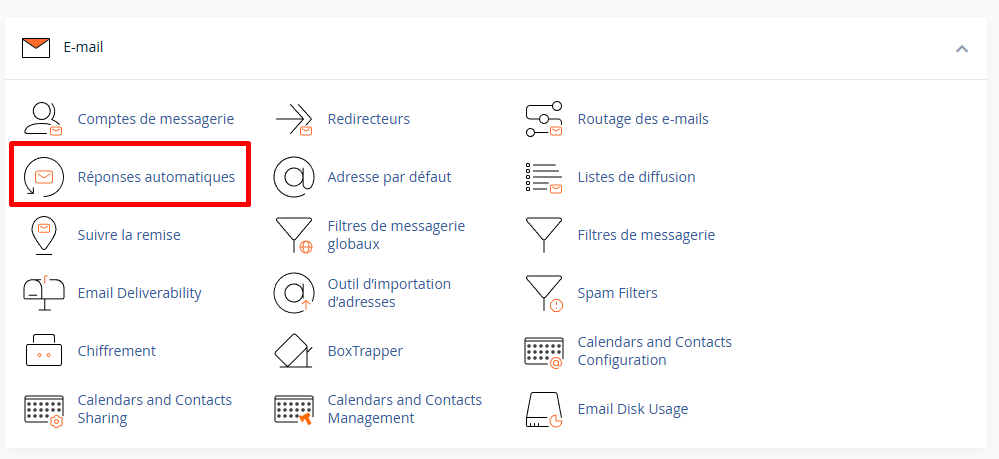
Step 2: Add an Autoresponder
- Select the relevant domain from the Manage dropdown (if you have multiple)
- Click on Add Autoresponder
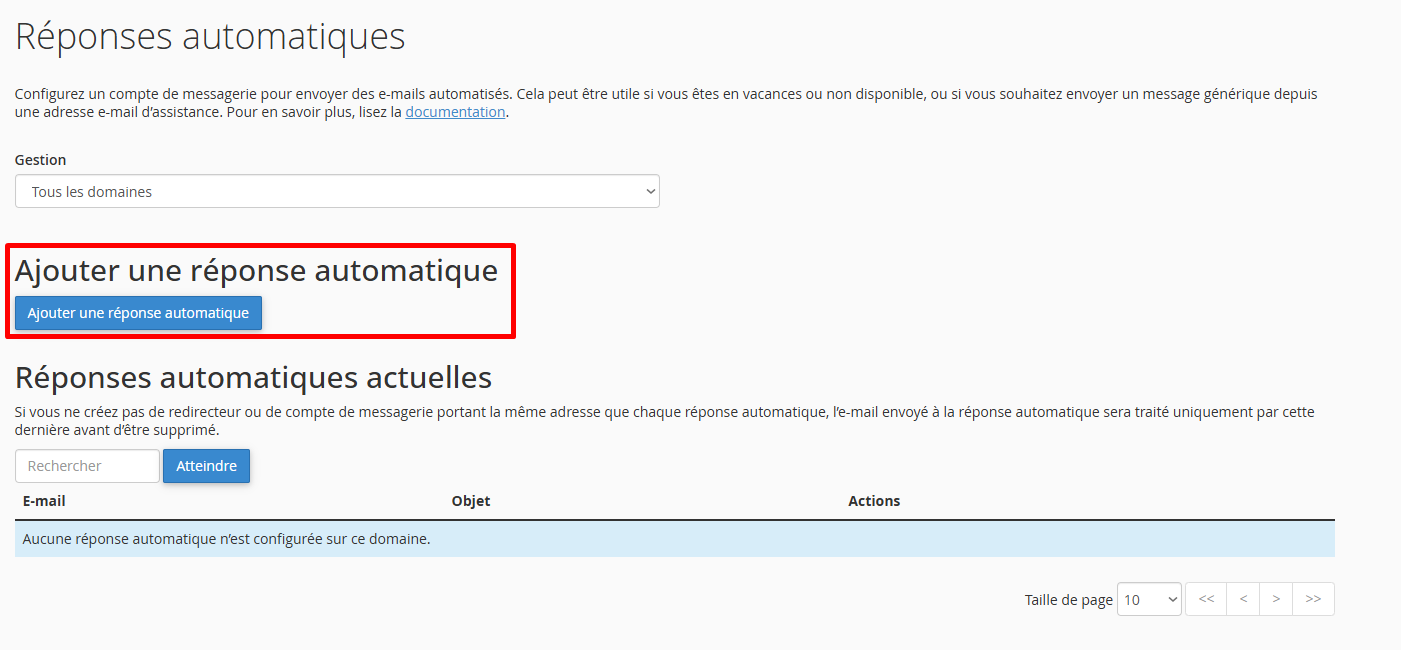
Step 3: Configure the Autoresponder
Fill in the following fields:
General Settings
| Field | Description | Recommendation |
|---|---|---|
| Character Set | Character encoding | utf-8 (default) |
| Interval | Delay before resending to the same sender | 8 hours minimum |
💡 Interval Tip : Set at least 8 hours to avoid spamming the same person with repeated responses.
Email Information
| Field | Description | Example |
|---|---|---|
| Part before the @ | contact | |
| Domain | Domain of the address | yourdomain.com |
| From | Name or address of the sender | Customer Service or contact@yourdomain.com |
| Subject | Subject of the automatic message | Re: Your message - Acknowledgment of receipt |
Message Content
| Option | Description |
|---|---|
| This message contains HTML | Check if you are using HTML formatting |
| Body | The content of your automatic message |
Scheduling
| Option | Description |
|---|---|
| Start | Immediately or Custom (specific date/time) |
| Stop | Never or Custom (end date/time) |
⚠️ Important : If you choose
Custom, the end date must be after the start date.
Step 4: Save
Click on Create/Modify to activate the autoresponder.
📝 Dynamic Variables
You can customize your messages with variables that will be automatically replaced:
| Variable | Replaced by | Example |
|---|---|---|
%subject% | Subject of the received email | "Request for quote" |
%from% | Name of the sender | "John Doe" |
%email% | Email address of the sender | "john@example.com" |
Example Usage
Hello %from%,

Thank you for your message regarding "%subject%".

We have received your email and will get back to you as soon as possible.

Best regards,
The Support Team
📋 Message Templates
🏖️ Out-of-office Message (Vacation)
Subject : Out of Office - Back on [DATE]
Hello %from%,

Thank you for your message.

I am currently out of the office from [START DATE] to [END DATE],
with limited access to my emails.

I will review your message upon my return and respond to you
as soon as possible.

For urgent matters, you can contact:
📧 [COLLEAGUE EMAIL]
📞 [PHONE NUMBER]

Best regards,

[YOUR NAME]
[YOUR POSITION]
[YOUR COMPANY]
🏢 Out of Office Hours Message
Subject : Acknowledgment of Receipt - Response within 24 business hours
Hello %from%,

Thank you for contacting us.

Our team is available Monday to Friday, from 9:00 AM to 6:00 PM.

Your message has been received and will be processed as soon as our offices reopen. We commit to responding within 24 business hours.

For emergencies only: [EMERGENCY NUMBER]

Best regards,

The [COMPANY NAME] Team
---
[ADDRESS]
[PHONE]
[WEBSITE]
✅ Acknowledgment of Receipt (Support)
Subject : Ticket received: %subject%
Hello %from%,

We have received your request regarding:
"%subject%"

📋 Your ticket has been logged in our support system.

⏱️ Estimated response time: 24 to 48 business hours.

In the meantime, you can check our FAQ: [FAQ LINK]

Thank you for your patience and trust.

The Support Team
[COMPANY NAME]
📧 No-reply Address
Subject : This address does not receive replies
Hello,

You have sent an email to an address that is not monitored (no-reply).

⚠️ Your message will not be read or processed.

To contact us, please use:
📧 contact@yourdomain.com
📞 01 23 45 67 89
🌐 www.yourdomain.com/contact

Best regards,
[COMPANY NAME]
📋 Automatic Sending of Information (Rates)
Subject : Our Rates - [COMPANY NAME]
Hello %from%,

Thank you for your interest in our services.

Below are our current rates:

┌─────────────────────────────────────────┐
│           RATE GRID                     │
├─────────────────────────────────────────┤
│ Service A ................ 99€ HT/month  │
│ Service B ................ 199€ HT/month │
│ Service C ................ 299€ HT/month │
└─────────────────────────────────────────┘

📄 Complete catalog: [LINK]
💬 Customized quote: contact@yourdomain.com

Our sales team is available for any questions.

Best regards,

The Sales Team
[COMPANY NAME]
[PHONE]
🛒 Order Confirmation / E-commerce Contact
Subject : We have received your message
Hello %from%,

Thank you for contacting us!

✅ Your message has been received by our team.

Our advisors are available Monday to Friday from 9 AM to 6 PM
and will respond within 24 to 48 hours.

📦 For tracking your orders: [TRACKING LINK]
❓ Frequently asked questions: [FAQ LINK]
↩️ Returns and exchanges: [RETURNS LINK]

See you soon!

The [STORE NAME] Team
🎄 Seasonal Message (Holidays)
Subject : Happy Holidays! We will return on [DATE]
Hello %from%,

🎄 The entire team at [COMPANY NAME] wishes you happy holidays!

Our offices are closed from [START DATE] to [END DATE].

We will process your message upon our return on [RETURN DATE].

For any urgent matters during this period: [EMERGENCY EMAIL/PHONE]

We thank you for your trust throughout this year
and wish you an excellent year [YEAR]!

Warm regards,

The [COMPANY NAME] Team
🎨 HTML Message (Formatted)
For a more professional message with formatting, check "This message contains HTML" and use HTML code:
<!DOCTYPE html>
<html>
<head>
    <meta charset="UTF-8">
</head>
<body>
    <div>

        <div>
            <h1>Thank you for your message!</h1>
        </div>

        <div>
            <p>Hello <strong>%from%</strong>,</p>

            <p>We have received your message regarding:</p>
            <p>
                <em>%subject%</em>
            </p>

            <p>Our team will respond within <strong>24 to 48 business hours</strong>.</p>

            <div>
                <a href="https://yourdomain.com/faq">
                    Check our FAQ
                </a>
            </div>
        </div>

        <div>
            <p>
                <strong>Company Name</strong><br>
                123 Example Street, 75000 Paris<br>
                📞 01 23 45 67 89 | 🌐 www.yourdomain.com
            </p>
        </div>

    </div>
</body>
</html>
✏️ Modify an Autoresponder
- Go to Email → Autoresponders
- Under Current Autoresponders, find the autoresponder to modify
- Click on Edit in the Actions column
- Make your changes
- Click on Create/Modify to save
🗑️ Delete an Autoresponder
- Go to Email → Autoresponders
- Under Current Autoresponders, find the autoresponder to delete
- Click on Delete in the Actions column
- Confirm by clicking on Delete Autoresponder
💡 Tip : If you often use the same autoresponder (e.g., vacation), instead of deleting it, change the email address to a non-existent address to temporarily disable it. You can easily reactivate it later.
⚠️ Best Practices
To Do ✅
| Practice | Reason |
|---|---|
| Set an interval of at least 8 hours | Avoid spamming senders |
| Indicate a specific return date | Manage correspondents' expectations |
| Provide an alternative contact | For emergencies |
| Use a clear subject | Facilitates message identification |
| Schedule an end date | Avoid forgetting to disable |
| Test before leaving | Ensure it works |
To Avoid ❌
| Practice | Risk |
|---|---|
| Interval of 0 | Repeated spam to the same sender |
| Message too long | Risk of being ignored |
| Sensitive information | Security (exact vacation dates = empty house) |
| Forget to disable | Outdated messages sent |
| Reply to newsletters | Generates unnecessary spam |
🔧 Troubleshooting
The autoresponder is not working
Future start datePast end date| Possible Cause | Solution |
|---|---|
| Incorrect email address | Check the exact spelling |
| Non-existent email account | Create the email account first |
| Check the start date | |
| Check/change the end date |
Emails are still arriving
This is normal! The autoresponder:
- ✅ Sends an automatic response
- ✅ The original email still arrives in your inbox
The autoresponder does not filter emails; it simply responds to them.
Too many responses sent
Problem : The same sender receives multiple responses.
Solution : Increase the Interval value (minimum 8 hours recommended).
Special characters displayed incorrectly
Problem : Accents appear as é or ?.
Solution : Ensure that Character Set is set to utf-8.
The autoresponder responds to spam
Unfortunately, the cPanel autoresponder responds to all emails received, including spam.
Solutions :
- Set up anti-spam filters before the autoresponder
- Use a high interval to limit responses
- Enable SpamAssassin in cPanel
📊 Summary Table
| Parameter | Recommended Value | Description |
|---|---|---|
| Character Set | utf-8 | Support for accents |
| Interval | 8 to 24 hours | Delay between responses to the same sender |
| From | Name or email | Identifies the sender |
| Subject | Clear and descriptive | Ex: "Acknowledgment of receipt" |
| Start | As needed | Immediately or specific date |
| Stop | Return date | Avoids forgetfulness |
📝 Recap
CREATE AN AUTORESPONDER:

1. cPanel → Email → Autoresponders
2. Click on "Add Autoresponder"
3. Fill in the fields:
   ├── Character Set : utf-8
   ├── Interval : 8 (minimum hours)
   ├── Email : your-address
   ├── Domain : yourdomain.com
   ├── From : Name or email
   ├── Subject : Subject of the message
   ├── Body : Content of the message
   ├── Start : Immediately or Custom
   └── Stop : Never or Custom (end date)
4. Click on "Create/Modify"

AVAILABLE VARIABLES:
├── %subject% → Subject of the received email
├── %from% → Name of the sender
└── %email% → Email of the sender

VACATION MESSAGE EXAMPLE:
"Hello %from%,
I am out from [DATE] to [DATE].
For emergencies: [CONTACT]
Best regards, [NAME]"

BEST PRACTICES:
├── Minimum interval: 8 hours
├── Always indicate a return date
├── Provide an alternative contact
├── Schedule the end date
└── Test before leaving!