
 Client area
Estimated Time: 10-20 minutes
Difficulty: Intermediate ⭐⭐
Prerequisites: Minecraft Server on OuiPanel
📋 Introduction
A modpack is a collection of preconfigured and optimized mods designed to work together. Instead of installing mods one by one, a modpack provides you with a complete and balanced gaming experience in a single download.
Advantages of Modpacks
| Advantage | Description |
|---|---|
| ✅ Pre-configured | Mods are tested to work together |
| ✅ Optimized | Configurations fine-tuned for performance |
| ✅ Easy | Installation in a few clicks |
| ✅ Community | Support and guides available |
| ✅ Updated | Regular updates by creators |
🎮 Popular Modpacks
Adventure & Survival Modpacks
| Modpack | Mods | RAM | Description |
|---|---|---|---|
| RLCraft | ~120 | 6-8 GB | Realistic and challenging hardcore survival |
| SkyFactory 4 | ~200 | 6-8 GB | Skyblock with automation |
| Pixelmon | ~50 | 4-6 GB | Pokémon in Minecraft |
| Cobblemon | ~30 | 4-6 GB | Modern alternative to Pixelmon |
| Better Minecraft | ~200 | 6-8 GB | Enhanced Vanilla |
| Vault Hunters | ~150 | 8-10 GB | Adventure and dungeons |
Technology & Magic Modpacks
| Modpack | Mods | RAM | Description |
|---|---|---|---|
| All The Mods 9 | ~400 | 10-12 GB | Comprehensive mega-modpack |
| All The Mods 10 | ~400 | 10-12 GB | Latest ATM version |
| FTB Academy | ~100 | 4-6 GB | Ideal for beginners |
| FTB University | ~150 | 6-8 GB | FTB Academy's sequel |
| Create: Above and Beyond | ~150 | 6-8 GB | Focus on the Create mod |
| Enigmatica 9 | ~300 | 8-10 GB | Quests and exploration |
Light Modpacks
| Modpack | Mods | RAM | Description |
|---|---|---|---|
| Simply Optimized | ~20 | 2-3 GB | Pure performance |
| Fabulously Optimized | ~30 | 2-4 GB | Optimization + QoL |
| Adrenaline | ~15 | 2-3 GB | Ultra-performance |
| Medieval MC | ~150 | 6-8 GB | Medieval ambiance |
⚙️ Method 1: OuiHeberg Validated Modpacks (Recommended)
OuiPanel offers validated modpacks by the OuiHeberg team, tested and optimized to work flawlessly.
Advantages of Validated Modpacks
| Advantage | Description |
|---|---|
| ✅ Tested | Verified by the OuiHeberg team |
| ✅ Automatic Java | Java version updated automatically |
| ✅ Optimized Configs | Preconfigured server settings |
| ✅ 1-Click Installation | Simplified process |
| ✅ Support | Assistance available |
Installation Steps
- Log in to OuiPanel
- Select your Minecraft server
- In the side menu, click on Version Manager
- Select the Modpack tab

- In the OuiHeberg Validated Modpacks section, browse the available modpacks
- Click on the desired modpack
- Select the version of the modpack
- Click Install
⚠️ Attention: Installing a modpack deletes all existing files on the server. Make a backup before!
- Wait for the installation to complete (may take several minutes depending on size)
- The server configures automatically
- Start your server
⚙️ Method 2: Import from CurseForge
If the desired modpack is not in the validated modpacks, you can import it from CurseForge.
Step 1: Find the Modpack on CurseForge
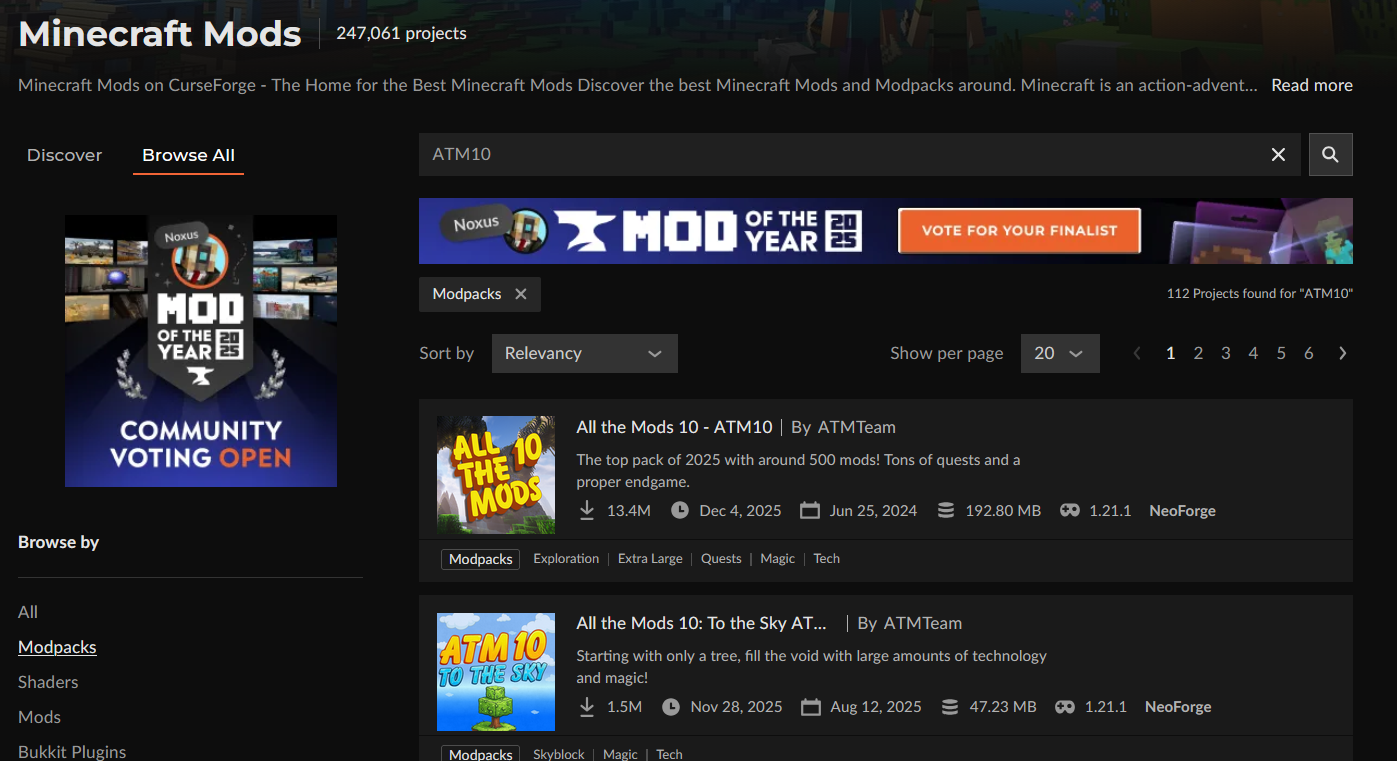
- Go to curseforge.com/minecraft/modpacks
- Use the search bar or browse categories
- Filter by Minecraft version if needed
- Click on the desired modpack
Step 2: Note Important Information
On the modpack page, take note of:
| Information | Where to Find | Example |
|---|---|---|
| Exact Name | Page title | "All The Mods 9" |
| Minecraft Version | Under the title | 1.20.1 |
| Mod Loader | Tags or description | Forge / Fabric |
| Recommended RAM | Description or FAQ | 8-10 GB |
| Modpack Version | Files tab | 0.2.60 |
Step 3: Install on OuiPanel
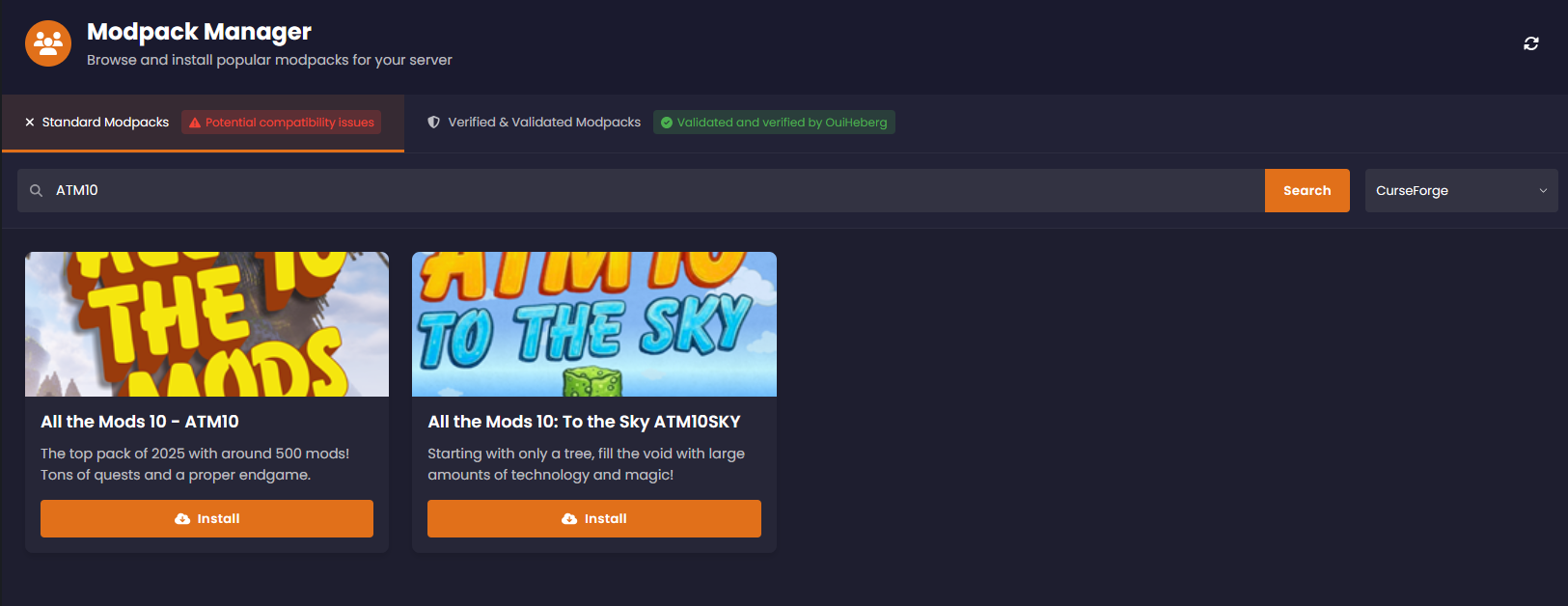
- In OuiPanel, go to Version Manager → Modpack
- In the Unverified Modpacks section, select CurseForge
- In the search field, type the modpack name
- Select the modpack from the results
- Filter by Minecraft version if needed
- Select the desired modpack version
- Click Install
⚠️ Reminder: Installation deletes all existing files!
- Wait for the download and installation to finish
- Start the server
⚙️ Method 3: Import from Modrinth
Modrinth is a modern alternative to CurseForge with optimized modpacks.
Step 1: Find the Modpack on Modrinth
- Go to modrinth.com/modpacks
- Use the filters:
- Loaders: Forge or Fabric
- Versions: Your Minecraft version
- Categories: Gameplay type
- Click on the desired modpack
Step 2: Install on OuiPanel
- In OuiPanel, go to Version Manager → Modpack
- In the Unverified Modpacks section, select Modrinth
- Search for the modpack by its name
- Select the desired version
- Click on Install
⚙️ Method 4: Import from FTB (Feed The Beast)
FTB offers quality modpacks, especially for experienced players.
Popular FTB Modpacks
| Modpack | Type | RAM |
|---|---|---|
| FTB Academy | Learning | 4-6 GB |
| FTB University | Intermediate | 6-8 GB |
| FTB Presents Direwolf20 | Technology | 6-8 GB |
| FTB Inferno | Expert | 8-10 GB |
| FTB StoneBlock 3 | Reverse Skyblock | 6-8 GB |
Installation
- In OuiPanel, go to Version Manager → Modpack
- Select FTB from the sources
- Search for the FTB modpack
- Select the version
- Click on Install
⚙️ Method 5: Import from Technic
Technic Launcher also offers popular modpacks.
Popular Technic Modpacks
| Modpack | Type | RAM |
|---|---|---|
| Tekkit | Classic Technology | 4-6 GB |
| Hexxit | Adventure | 4-6 GB |
| Attack of the B-Team | Fun and Creative | 4-6 GB |
| Blightfall | Adventure/Survival | 6-8 GB |
Installation
- In OuiPanel, go to Version Manager → Modpack
- Select Technic from the sources
- Search for the modpack
- Install the desired version
💾 Memory (RAM) Configuration
RAM configuration is crucial for modpacks. Insufficient RAM will cause crashes and lag.
RAM Recommendations Table
| Modpack Size | Number of Mods | Minimum RAM | Recommended RAM |
|---|---|---|---|
| Light | 1-30 mods | 3 GB | 4 GB |
| Medium | 30-100 mods | 4 GB | 6 GB |
| Heavy | 100-200 mods | 6 GB | 8 GB |
| Very Heavy | 200-300 mods | 8 GB | 10 GB |
| Mega-modpack | 300+ mods | 10 GB | 12-16 GB |
RAM for Popular Modpacks
| Modpack | Minimum RAM | Recommended RAM |
|---|---|---|
| Pixelmon | 4 GB | 6 GB |
| RLCraft | 5 GB | 8 GB |
| SkyFactory 4 | 5 GB | 8 GB |
| All The Mods 9/10 | 8 GB | 12 GB |
| Better Minecraft | 5 GB | 8 GB |
| Create: Above and Beyond | 5 GB | 8 GB |
| FTB Academy | 4 GB | 6 GB |
| Enigmatica 9 | 6 GB | 10 GB |
| Vault Hunters | 6 GB | 10 GB |
| Cobblemon | 4 GB | 6 GB |
Check/Modify RAM on OuiPanel
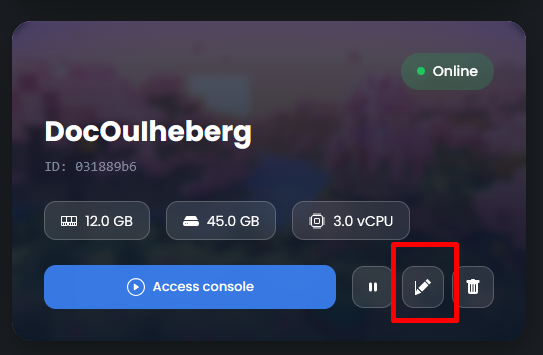
For OuiBox (Cloud) offers
- Go to OuiBox (main menu)
- Find your server in the list
- Click on Modify
- Adjust the RAM slider
- Click on Save
Check Allocated RAM
- In OuiPanel, go to the Global View of your server
- Check the RAM gauge which indicates:
- Used RAM
- Total allocated RAM
Symptoms of Insufficient RAM
| Symptom | Probable Cause |
|---|---|
| 🔴 Server crashes on startup | Insufficient RAM to load mods |
| 🟡 Significant lag (low TPS) | RAM close to the limit |
| 🟡 "OutOfMemoryError" in logs | Exhausted RAM |
| 🟡 Server very slow at startup | RAM limit, swap used |
| 🔴 Players randomly disconnected | Overloaded garbage collector |
☕ Java Configuration
Modpacks often require a specific version of Java.
Java Version by Minecraft Version
| Minecraft Version | Required Java |
|---|---|
| 1.16.5 and earlier | Java 8 |
| 1.17.x | Java 16 or 17 |
| 1.18.x - 1.20.4 | Java 17 |
| 1.20.5+ | Java 21 |
Change Java Version on OuiPanel
- Go to Configuration → Server Settings
- Find the System Version field (or Docker Image)
- Select the appropriate Java version
- Click on Save
- Restart the server
💡 Note: OuiHeberg validated modpacks automatically configure the correct Java version.
👥 Install Client-Side Modpack
For players to join your server, they must have the exact same modpack installed on their computer.
Option 1: CurseForge App (Recommended)
- Download CurseForge App from curseforge.overwolf.com
- Install and launch the application
- Click on Minecraft under games
- Search for the same modpack as on the server
- Click on Install
- Once installed, click Play
Option 2: Modrinth App
- Download Modrinth App from modrinth.com/app
- Install and log in with your Microsoft account
- Click on Browse → Modpacks
- Search for and install the modpack
- Launch the game
Option 3: Prism Launcher
- Download Prism Launcher from prismlauncher.org
- Create a new instance
- Import the modpack (.zip or .mrpack file)
- Configure the RAM (see next section)
- Launch the game
Configure RAM on the client side
RAM must also be configured on the players' computer!
In CurseForge App
- Click on the ⚙️ icon Settings (bottom left)
- In the left menu, click on Minecraft
- Find Java Settings
- Adjust the slider Allocated Memory
- Recommended: 6-10 GB depending on the modpack
In Prism Launcher
- Select the modpack instance
- Click on Edit → Settings
- Tab Java
- Check Memory and adjust the values
- Minimum: 4096 MB | Maximum: 8192 MB (or more)
🔄 Update a Modpack
On OuiPanel
- Go to Version Manager → Modpack
- The current modpack is displayed
- If an update is available, click on Update
- Select the new version
- Confirm the installation
⚠️ Attention: Make a backup before updating!
Check Compatibility
Before updating:
- Check the modpack release notes
- Ensure the update is compatible with your world
- Inform your players to update their client
- Test the update on a copy if possible
🔧 Troubleshooting
Server doesn't start after installation
| Cause | Solution |
|---|---|
| Insufficient RAM | Increase the allocated RAM |
| Incorrect Java version | Change the version in the settings |
| Corrupted files | Reinstall the modpack |
| Mod conflicts | Check the logs to identify the problematic mod |
Error "OutOfMemoryError"
java.lang.OutOfMemoryError: Java heap space
Solutions:
- Increase the server RAM (minimum +2 GB)
- Reduce the view distance (
view-distancein server.properties) - Pre-generate the world with Chunky to reduce the load
Players cannot connect
| Cause | Solution |
|---|---|
| Different version | Players and server must have the same version of the modpack |
| Missing mods | Ensure all required mods are installed on the client side |
| Excess mods | Some client-only mods should not be on the server |
Server very slow (low TPS)
Check in the console:
- The TPS (Ticks Per Second) should be close to 20
- If < 15, the server lags
Solutions:
- Increase the RAM
- Reduce
view-distanceto 8-10 - Reduce
simulation-distanceto 6-8 - Install optimization mods (Spark, ServerCore)
- Pre-generate the world
Corrupted world after update
- Restore a backup prior to the update
- Check the release notes for incompatibilities
- Some updates require a new world
💡 Best Practices
Before Installation ✅
| Action | Reason |
|---|---|
| Make a full backup | To be able to revert |
| Check required RAM | To avoid crashes |
| Read the modpack notes | To know the prerequisites |
| Inform players | So they prepare their client |
After Installation ✅
| Action | Reason |
|---|---|
| Check logs at startup | To detect errors |
| Test the connection | To ensure it works |
| Configure permissions | To secure the server |
| Schedule backups | To protect the world |
Avoid ❌
| Action | Risk |
|---|---|
| Install without backup | Data loss |
| Ignore RAM recommendations | Crashes and lag |
| Mix versions | Incompatibilities |
| Add mods to the modpack without testing | Conflicts |
📊 Comparison of Modpack Sources
| Source | Modpacks | Ease | Update |
|---|---|---|---|
| OuiHeberg Validated | Selection | ⭐⭐⭐⭐⭐ | ⭐⭐⭐⭐⭐ |
| CurseForge | 10,000+ | ⭐⭐⭐⭐ | ⭐⭐⭐⭐ |
| Modrinth | 3,000+ | ⭐⭐⭐⭐ | ⭐⭐⭐⭐⭐ |
| FTB | 100+ | ⭐⭐⭐⭐ | ⭐⭐⭐⭐ |
| Technic | 5,000+ | ⭐⭐⭐ | ⭐⭐⭐ |
📝 Summary
INSTALLING A MODPACK ON OUIPANEL:

1. CHOOSE THE MODPACK
   ├── OuiHeberg Validated modpacks (recommended)
   ├── CurseForge (largest selection)
   ├── Modrinth (modern and optimized)
   ├── FTB (premium quality)
   └── Technic (classics)

2. CHECK PREREQUISITES
   ├── Sufficient RAM (see table)
   ├── Compatible Java version
   └── Available disk space

3. INSTALL
   ├── OuiPanel → Version Manager → Modpack
   ├── Select the source
   ├── Search for the modpack
   ├── Choose the version
   └── Click Install
   ⚠️ BACK UP BEFORE! Installation = file deletion

4. CONFIGURE
   ├── Check/adjust RAM if necessary
   ├── Check Java version
   └── Start the server

5. CLIENT SIDE
   ├── Install the same modpack (CurseForge/Modrinth App)
   ├── Configure client RAM (6-10 GB)
   └── Connect to the server

RECOMMENDED RAM:
├── Light (1-30 mods)     → 4 GB
├── Medium (30-100 mods)   → 6 GB
├── Heavy (100-200 mods)  → 8 GB
├── Very heavy (200-300)  → 10 GB
└── Mega-pack (300+)      → 12-16 GB

JAVA BY MC VERSION:
├── 1.16.5 and below → Java 8
├── 1.17.x          → Java 17
├── 1.18 - 1.20.4   → Java 17
└── 1.20.5+ → Java 21Need a Minecraft server?
Discover our Minecraft hosting plans starting from $2.28/month with automatic mod installation.