
 Client area
How to install an automatic resource pack on your Minecraft server
Giving a true visual identity to your Minecraft server involves applying a resource pack automatically to all your players. No need to send them a link, explain where to put the file, or check that they have activated it: everything is done at the time of connection.
In this tutorial, we will see how to host your resource pack, retrieve the necessary information (URL and hash), and then configure your server via the server.properties file so that the pack is offered or enforced to every player who joins.
Prepare your resource pack
Before touching the server configuration, you need a ready-to-use resource pack. If you have created one yourself or downloaded an existing pack, make sure it is compatible with the version of your server. A pack intended for another version may cause display bugs or loading errors.
Your pack must be in .zip format. If that's good, move on to the next step.
Host the pack and retrieve the information
For your server to distribute the resource pack to players, the file must be accessible online via a direct URL. The easiest way is to use a service like CraftPacks that manages hosting and automatically generates the SHA-1 hash you will need.
Go to https://craftpacks.fr/ and drag and drop your .zip file onto the page. Confirm the upload and wait during the upload process.
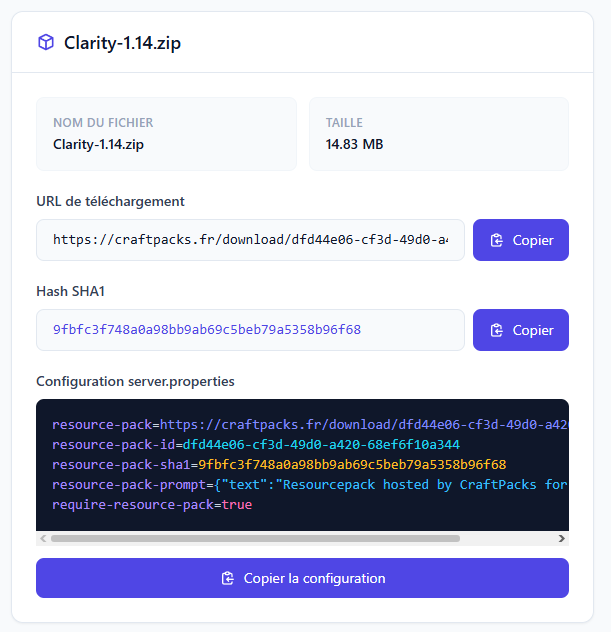
Once the upload is complete, the site displays two essential pieces of information:
- The URL of the resource pack: the direct link to your hosted file
- The SHA-1 hash: a fingerprint that allows the server to verify that the file downloaded by the player is indeed the correct one
Click the button to copy this information. Keep it handy, as you will paste it into your server configuration.
Tip: Bookmark CraftPacks. If you update your resource pack later, you can re-upload the new version and retrieve the new information in seconds.
Configure the resource pack in server.properties
This is where everything happens. You will modify your server's server.properties file to add the URL and hash of your resource pack.
Access the file
Log in to your OuiHeberg server panel, then open the Files tab. Look for the server.properties file at the root of your server and open it.
[IMAGE: Screenshot of the OuiHeberg panel file manager with the server.properties file visible]
Edit the resource pack lines
In the file, locate the following lines (they may be empty by default):
resource-pack=
resource-pack-sha1=
Replace them with the information copied from CraftPacks. You should get something like:
resource-pack=https://craftpacks.fr/download/xxxxxxxx
resource-pack-sha1=abc123def456...
The URL must be complete (with https://) and the hash must exactly match the one provided by CraftPacks.
Option: make the pack mandatory
By default, players can refuse to download the resource pack and play with the vanilla textures. If you want to enforce the use of the pack, look for the line:
require-resource-pack=false
And change it to:
require-resource-pack=true
With this option enabled, a player who refuses the pack will be disconnected from the server.
Save and restart
Once you have made your changes, save the file and then restart your server for the changes to take effect.
Warning: Do not touch the other lines in the
server.propertiesfile if you are not sure what you are doing. An incorrect value can prevent your server from starting.
Check that everything works
After the restart, launch Minecraft and connect to your server. At the time of connection, a message should appear asking if you accept to download the server's resource pack.
Accept, and Minecraft will download the pack, install it, and activate it automatically. If everything is configured correctly, you will immediately see the new textures, sounds, or visual modifications of your pack.
All your players will now have the same visual experience as soon as they join the server, without having to do anything on their side.
Good to know: If a player refuses the download and you have not enabled
require-resource-pack=true, they will simply play with the default Minecraft textures.
In summary
Installing an automatic resource pack on your Minecraft server is simple once you know the method: host the pack on a service like CraftPacks, retrieve the URL and the hash, and then add them to server.properties. In a few minutes, all your players enjoy the same visual atmosphere without any manipulation on their part.
Need a Minecraft server to set all this up? OuiHeberg offers optimized hosting plans with easy access to your configuration files. Launch your server in minutes and customize it as you wish.
Need a Minecraft server?
Discover our Minecraft hosting plans starting from $9.98/month with automatic mod installation.