
 Client area
How to install mods on tour minecraft server (Forge/Fabric)
Estimated Time: 15-30 minutes
Difficulty: Intermediate ⭐⭐
📋 Introduction
Mods (modifications) allow you to add content, gameplay mechanics, and features to Minecraft. To install mods on your server, you first need to install a mod loader like Forge or Fabric.
What is a mod loader?
A mod loader is a software that enables Minecraft to load and run mods. Without it, mods won't work.
| Mod Loader | Description | Ideal for |
|---|---|---|
| Forge | The oldest and most popular, large mod library | Large modpacks, content mods |
| Fabric | Lightweight and fast, quick updates | Performance, recent versions |
| NeoForge | Modern Forge fork | New versions, recent projects |
🔄 Forge vs Fabric: Which One to Choose?
Comparison Table
| Criterion | Forge | Fabric |
|---|---|---|
| Age | 2011 | 2018 |
| Number of Mods | ⭐⭐⭐⭐⭐ Very High | ⭐⭐⭐⭐ High |
| Performance | ⭐⭐⭐ Average | ⭐⭐⭐⭐⭐ Excellent |
| Updates | ⭐⭐⭐ Slow | ⭐⭐⭐⭐⭐ Very Fast |
| Modpack Compatibility | ⭐⭐⭐⭐⭐ Excellent | ⭐⭐⭐⭐ Good |
| Ease of Use | ⭐⭐⭐⭐ Easy | ⭐⭐⭐⭐ Easy |
| Required RAM | Higher | Lighter |
When to Choose Forge?
- ✅ You want to play popular modpacks (RLCraft, All The Mods, etc.)
- ✅ You are looking for content mods (Biomes O'Plenty, Tinkers' Construct)
- ✅ You play on older versions (1.12.2, 1.16.5)
- ✅ You want Pixelmon, Create, or other large mods
When to Choose Fabric?
- ✅ You want optimization mods (Sodium, Lithium, Starlight)
- ✅ You play on the latest versions of Minecraft
- ✅ You are looking for a lightweight and performant server
- ✅ You want server-side mods only
⚠️ Golden Rule: Version Compatibility
🚨 VERY IMPORTANT: Mods must match exactly with:
- The Minecraft version (e.g., 1.20.1)
- The mod loader (Forge OR Fabric, never both)
- The mod loader version (e.g., Forge 47.2.0)
Example:
- Server: Minecraft 1.20.1 with Forge
- Compatible Mod:
mymod-1.20.1-forge.jar✅ - Incompatible Mod:
mymod-1.19.2-fabric.jar❌
⚙️ Step 1: Install the Mod Loader on OuiPanel
Method 1: Via the Version Manager (Recommended)
- Log in to OuiPanel
- Select your Minecraft server
- In the side menu, click on Version Manager
- Select the Versions tab
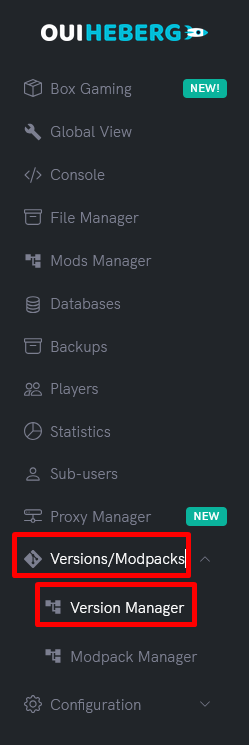
Choose Your Server Type
| Type | Description |
|---|---|
| Forge | Classic modded server, great compatibility |
| Fabric | Lightweight and fast modded server |
| NeoForge | Modern Forge fork (recent versions) |
| Mohist | Forge hybrid + Spigot/Bukkit plugins |
Install Forge or Fabric
- Click on the desired mod loader (e.g., Forge or Fabric)
- Select the desired Minecraft version
- Choose the installation type:
| Option | Description | Recommendation |
|---|---|---|
| Simple Update | Only downloads server files | ✅ Preserves your worlds and configs |
| Full Reinstall | Deletes everything and reinstalls | ⚠️ Data loss! |
- Click on Install
- Wait for the installation to complete
- Restart your server
💡 Tip: Make a backup before changing versions!
Check the Installation
After the restart, verify in the Console that the mod loader is properly loaded:
For Forge:
[main/INFO]: Forge mod loading, version 47.2.0
[main/INFO]: MinecraftForge v47.2.0 Initialized
For Fabric:
[main/INFO]: Loading Minecraft 1.20.1 with Fabric Loader 0.15.0
[main/INFO]: Loading 4 mods
📥 Step 2: Download Mods
Official Download Sites
| Site | URL | Advantages |
|---|---|---|
| CurseForge | curseforge.com/minecraft/mc-mods | Largest library |
| Modrinth | modrinth.com/mods | Modern interface, open-source |
| Planet Minecraft | planetminecraft.com | Active community |
⚠️ Attention: Download only from official sites to avoid malware!
How to Download a Mod on CurseForge
- Go to curseforge.com/minecraft/mc-mods
- Use the filters:
- Game Version: Select your version (e.g., 1.20.1)
- Mod Loader: Select Forge or Fabric
- Click on the desired mod
- Go to the Files tab
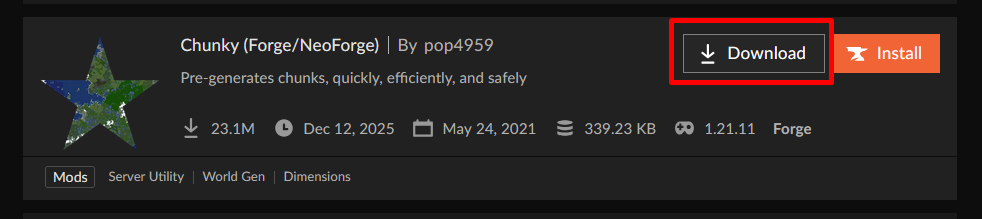
- Download the corresponding
.jarfile for your version
How to Download a Mod on Modrinth
- Go to modrinth.com/mods
- Use the filters:
- Loaders: Forge or Fabric
- Versions: Your Minecraft version
- Environment: Server (for server mods only)
- Click on the mod
- Tab Versions → Download the
.jar
⚠️ Fabric API (Required for Fabric)
If you are using Fabric, you must install Fabric API :
- Download Fabric API from curseforge.com/minecraft/mc-mods/fabric-api
- Choose the version corresponding to your Minecraft
- Place the file in the
mods/folder
🚨 Without Fabric API, most Fabric mods will not work!
📤 Step 3: Adding Mods to the Server
Method 1: Using OuiPanel File Manager
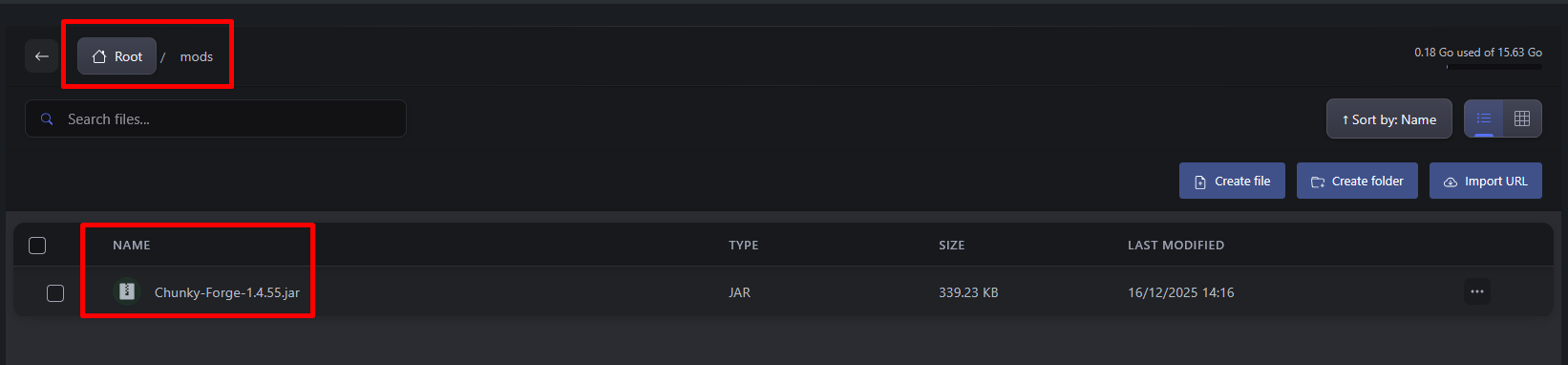
- In OuiPanel, go to File Manager
- Navigate to the
modsfolder- If the folder does not exist, create it
- Click on Upload (or drag and drop)
- Select your
.jarfiles - Wait for the upload to complete.
⚠️ Limit: 100 MB per file. For larger files, use SFTP.
Method 2: Using SFTP (Large Files)
For large mods or modpacks (> 100 MB), use SFTP:
- In OuiPanel, go to Configuration → SFTP Access
- Take note of the connection information:
- Host
- Port
- Username
- Password
- Download FileZilla or WinSCP
- Connect using your credentials
- Navigate to the
mods/folder - Transfer your
.jarfiles
Method 3: Using Mods Manager (Premium)
If you have a Premium offer, you can use the built-in Mods Manager:
- In OuiPanel, go to Mods Manager
- Search for the desired mod
- Click on Install
💡 This method automatically downloads the correct version of the mod.
Method 4: Import from URL
- In the File Manager, navigate to
mods/ - Click on Import URL
- Paste the direct link to the mod's
.jarfile - Click Download
🔄 Step 4: Restart the Server
After adding your mods:
- Go to the Console
- Click on Stop to properly stop the server
- Wait for the complete shutdown
- Click on Start
Check Mod Loading
In the console, you should see your mods loading:
Forge :
[main/INFO]: Found mod file create-1.20.1-0.5.1.jar
[main/INFO]: Found mod file jei-1.20.1-forge-15.2.0.jar
[main/INFO]: Forge mod loading complete, 12 mods loaded
Fabric :
[main/INFO]: Loading 8 mods:
    - fabricloader 0.15.0
    - fabric-api 0.92.0
    - lithium 0.12.0
    - sodium 0.5.8
🎮 Recommended Popular Mods
🔧 Optimization Mods (Server)
| Mod | Loader | Description |
|---|---|---|
| Lithium | Fabric | Optimizes general performance |
| Starlight | Fabric/Forge | Optimizes light calculation |
| FerriteCore | Fabric/Forge | Reduces RAM usage |
| Chunky | Fabric/Forge | Chunk pre-generation |
| Spark | Fabric/Forge | Performance profiler |
🏗️ Content Mods (Popular)
| Mod | Loader | Description |
|---|---|---|
| Create | Forge/Fabric | Steampunk machines and automation |
| Biomes O'Plenty | Forge/Fabric | New biomes |
| Just Enough Items (JEI) | Forge | Recipe visualizer |
| Applied Energistics 2 | Forge/Fabric | Digital storage |
| Tinkers' Construct | Forge | Custom tool crafting |
| Mekanism | Forge | Technology and energy |
| Ice and Fire | Forge | Dragons and mythical creatures |
🎨 Server-Side Only Mods
These mods only need to be installed on the server:
| Mod | Loader | Description |
|---|---|---|
| LuckPerms | Fabric/Forge | Permission management |
| WorldEdit | Fabric/Forge | Terrain editing |
| Chunky | Fabric/Forge | World pre-generation |
| Simple Voice Chat | Fabric/Forge | In-game voice chat |
| BlueMap | Fabric/Forge | 3D web map |
🎒 Performance Mods Pack (Fabric)
For an optimized server, install these mods together:
mods/
├── fabric-api-0.92.0+1.20.1.jar     (Required)
├── lithium-mc1.20.1-0.11.2.jar      (General performance)
├── starlight-1.1.2+fabric.jar       (Light)
├── ferritecore-6.0.0-fabric.jar     (RAM)
├── krypton-0.2.3.jar                (Network)
└── chunky-1.3.92.jar                (Pre-generation)
📁 Mods Folder Structure
Here is how your folder should look after installation:
/
├── mods/
│   ├── fabric-api-0.92.0+1.20.1.jar
│   ├── lithium-mc1.20.1-0.11.2.jar
│   ├── create-1.20.1-0.5.1.jar
│   └── jei-1.20.1-forge-15.2.0.jar
├── config/                           (Mods configurations - auto-generated)
├── world/
├── server.properties
└── forge-1.20.1-47.2.0.jar          (or fabric-server-launch.jar)
⚠️ Client/Server Compatibility
Types of Mods
| Type | Installation | Examples |
|---|---|---|
| Server Only | Server only | LuckPerms, Chunky, WorldEdit |
| Client Only | Client only | Optifine, Shaders, Minimaps |
| Both | Server AND clients | Create, JEI, Applied Energistics |
🚨 Important: If a mod needs to be installed on the client side, all players must have it!
Checking if a Mod Requires Client-Side
On CurseForge or Modrinth, check for the indication:
- Server = Server only
- Client = Client only
- Both / Server & Client = Both required
🔧 Troubleshooting
The server won't start
| Error | Cause | Solution |
|---|---|---|
java.lang.NoClassDefFoundError | Missing dependency | Install the required mods (e.g. Fabric API) |
Mod X requires Minecraft 1.20.1 | Incompatible version | Download the correct mod version |
Duplicate mod ID | Same mod duplicated | Remove the duplicate in mods/ |
OutOfMemoryError | Not enough RAM | Increase RAM or reduce mods |
Error "Forge/Fabric mismatch"
Error: Mod X requires Forge, but Fabric is installed
Solution: You have installed a mod for the wrong loader. Download the correct version (Forge or Fabric).
Mod conflicts
If the server crashes after adding a mod:
- Stop the server
- Remove the last added mod from the
mods/folder - Restart the server
- If it works, the mod was incompatible
- Look for an alternative version or a similar mod
Finding the cause of a crash
- Go to the Console in OuiPanel
- Look for lines containing
ERRORorFATAL - Identify the mentioned mod
- Possible solutions:
- Update the mod
- Check dependencies
- Remove the incompatible mod
Known incompatible mods
| Mod A | Mod B | Issue |
|---|---|---|
| Optifine | Sodium | Performing the same task (client) |
| Some mods | Mohist | Hybrid incompatibility |
| Old mods | New versions | Changed APIs |
💡 Best Practices
Do's ✅
| Practice | Reason |
|---|---|
| Backup before adding mods | Ability to revert back |
| Test mods one by one | Identify issues easily |
| Check versions | Avoid incompatibilities |
| Read mod pages | Understand dependencies |
| Regularly update | Bug fixes and security |
Don'ts ❌
| Practice | Risk |
|---|---|
| Install too many mods at once | Difficult to debug |
| Mix Forge and Fabric | Incompatible |
| Download from unofficial sites | Malware risks |
| Ignore prerequisites | Crashes |
| Neglect RAM | Slow server or crashes |
📊 Recommended RAM
| Number of mods | Minimum RAM | Recommended RAM |
|---|---|---|
| 1-10 mods | 2 GB | 3-4 GB |
| 10-30 mods | 4 GB | 6 GB |
| 30-50 mods | 6 GB | 8 GB |
| 50-100 mods | 8 GB | 10-12 GB |
| Large modpack | 10 GB+ | 12-16 GB |
📝 Summary
INSTALLING MODS ON OUIPANEL:

1. INSTALL THE MOD LOADER
   ├── OuiPanel → Version Manager
   ├── Choose Forge or Fabric
   ├── Select Minecraft version
   └── Click Install

2. DOWNLOAD MODS
   ├── CurseForge or Modrinth
   ├── Filter by version AND mod loader
   ├── Download .jar files
   └── ⚠️ Fabric API required for Fabric!

3. UPLOAD MODS
   ├── OuiPanel → File Manager
   ├── Navigate to /mods/
   ├── Upload .jar files
   └── (or use SFTP for large files)

4. RESTART
   ├── Console → Stop
   ├── Wait for complete shutdown
   └── Start

COMPATIBILITY RULES:
├── Minecraft Version = Mod Version
├── Mod Loader = Mod type (Forge ≠ Fabric)
├── Fabric API = Mandatory for Fabric
└── Client/Server = Check requirements

QUICK TROUBLESHOOTING:
├── Crash on startup → Check versions
├── Mod not loading → Check dependencies
├── Conflict → Remove last added mod
└── OutOfMemory → Increase RAM
📚 Useful Resources
| Resource | URL |
|---|---|
| CurseForge | curseforge.com/minecraft/mc-mods |
| Modrinth | modrinth.com/mods |
| Forge | files.minecraftforge.net |
| Fabric | fabricmc.net |
| Fabric Wiki | fabricmc.net/wiki |
Need a Minecraft server?
Discover our Minecraft hosting plans starting from $2.28/month with automatic mod installation.