
 Client area
Estimated time: 10 minutes
Difficulty: Intermediate ⭐⭐
Prerequisites: Access to cPanel, basic command line knowledge
📋 Introduction
CRON tasks (or Cron Jobs) allow you to automate the execution of scripts and commands at regular intervals on your server. It is a powerful tool to automate repetitive tasks without manual intervention.
Common use cases
| Task | Typical Frequency |
|---|---|
| 🔄 Automatic backups | Daily or weekly |
| 📧 Newsletter sending | Weekly |
| 🗑️ Temporary files cleanup | Daily |
| 📊 Reports generation | Daily or monthly |
| 🔔 WordPress WP-Cron | Every 15-30 minutes |
| 💾 Data synchronization | Every hour |
| 📬 Email checking | Every 5 minutes |
| 🛒 Stock updates (e-commerce) | Every hour |
🔢 Understanding CRON Syntax
Structure of a CRON expression
A CRON task is defined by 5 time fields + the command to execute:
*    *    *    *    *    command to execute
│    │    │    │    │
│    │    │    │    └─── Day of the week (0-7) (0 and 7 = Sunday)
│    │    │    └──────── Month (1-12)
│    │    └───────────── Day of the month (1-31)
│    └────────────────── Hour (0-23)
└─────────────────────── Minute (0-59)
Possible values
| Field | Values | Special characters |
|---|---|---|
| Minute | 0-59 | * , - / |
| Hour | 0-23 | * , - / |
| Day of the month | 1-31 | * , - / |
| Month | 1-12 or jan-dec | * , - / |
| Day of the week | 0-7 or sun-sat | * , - / |
Special characters
| Character | Meaning | Example |
|---|---|---|
* | All values | * * * * * = every minute |
, | List of values | 1,15,30 = at minutes 1, 15, and 30 |
- | Range of values | 1-5 = from 1 to 5 |
/ | Interval | */15 = every 15 units |
Examples of CRON expressions
| Expression | Meaning |
|---|---|
* * * * * | Every minute |
*/5 * * * * | Every 5 minutes |
*/15 * * * * | Every 15 minutes |
0 * * * * | Every hour (at minute 0) |
0 */2 * * * | Every 2 hours |
0 0 * * * | Every day at midnight |
0 2 * * * | Every day at 2 AM |
30 4 * * * | Every day at 4:30 AM |
0 0 * * 0 | Every Sunday at midnight |
0 0 * * 1-5 | From Monday to Friday at midnight |
0 0 1 * * | The 1st of each month at midnight |
0 0 1 1 * | January 1st at midnight |
0 8,12,18 * * * | At 8 AM, 12 PM, and 6 PM every day |
0 9-17 * * 1-5 | From 9 AM to 5 PM, Monday to Friday |
⚙️ Creating a CRON Task on cPanel
Step 1: Accessing CRON tasks
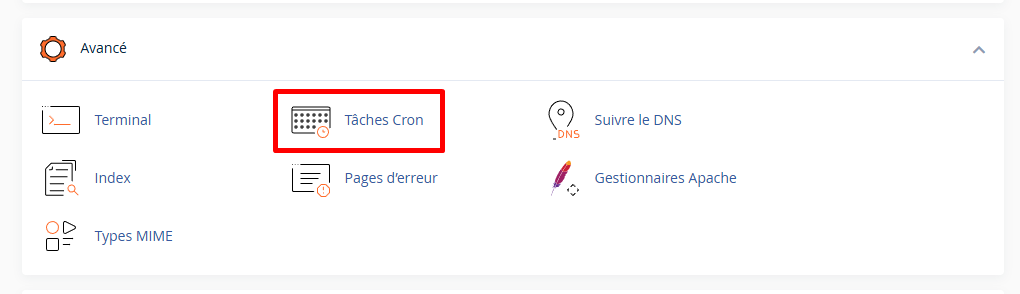
- Log in to cPanel
- In the Advanced section, click on Cron Jobs
Step 2: Configuring email notifications
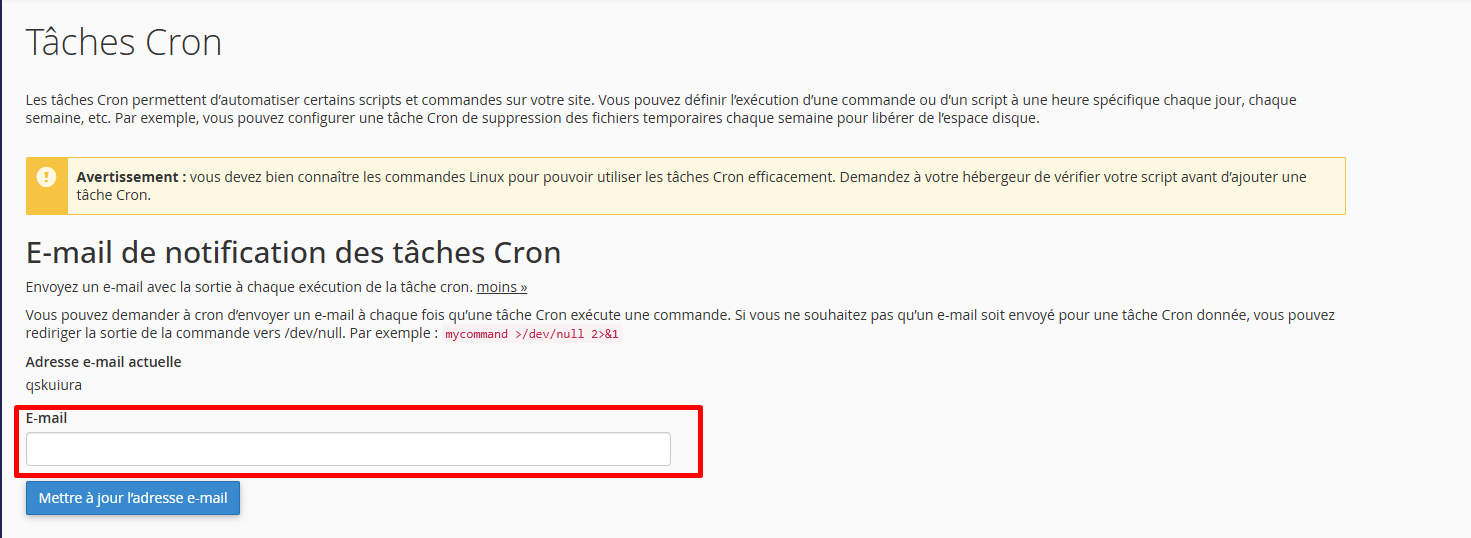
Before creating tasks, configure the email address to receive the results:
- In the Email Cron section, enter your email address
- Click on Update Email
💡 Tip: To disable notifications for a specific task, add
>/dev/null 2>&1at the end of the command.
Step 3: Adding a new CRON task
- Scroll down to the Add New Cron Job section
- Common settings: Use the dropdown menu to select a predefined interval
| Option | Generated Expression |
|---|---|
| Once per minute | * * * * * |
| Every 5 minutes | */5 * * * * |
| Twice per hour | 0,30 * * * * |
| Once per hour | 0 * * * * |
| Twice per day | 0 0,12 * * * |
| Once per day | 0 0 * * * |
| Once per week | 0 0 * * 0 |
| Once per month | 0 0 1 * * |
Step 4: Customizing the interval (optional)
If the predefined options are not suitable, manually fill in the fields:
- Minute:
0-59or* - Hour:
0-23or* - Day:
1-31or* - Month:
1-12or* - Day of the week:
0-7or*
Step 5: Entering the command
In the Command field, enter the complete command with the absolute path.
Examples of commands:
# Run a PHP script
/usr/local/bin/php /home/username/public_html/script.php

# Run with wget (call a URL)
/usr/bin/wget -q -O /dev/null https://mysite.com/cron.php

# Run with curl
/usr/bin/curl -s https://mysite.com/cron.php > /dev/null 2>&1

# Delete files older than 7 days
/usr/bin/find /home/username/public_html/tmp -type f -mtime +7 -delete
Step 6: Save
Click on Add New Cron Job
The task will appear in the list of Current Cron Jobs.
📝 Common CRON Commands
Run a PHP script
/usr/local/bin/php /home/username/public_html/my-script.php
💡 The path to PHP may vary. Common paths:
/usr/local/bin/php/usr/bin/php/usr/local/bin/ea-php81(for a specific version)
Calling a URL with wget
/usr/bin/wget -q -O /dev/null https://mysite.com/cron.php
| Option | Meaning |
|---|---|
-q | Silent mode |
-O /dev/null | Do not save the output |
Calling a URL with curl
/usr/bin/curl -s https://mysite.com/cron.php > /dev/null 2>&1
| Option | Meaning |
|---|---|
-s | Silent mode |
> /dev/null 2>&1 | Redirect all output to null |
Remove temporary files
# Remove .tmp files older than 24 hours
/usr/bin/find /home/username/public_html/cache -name "*.tmp" -mtime +1 -delete

# Remove files older than 7 days in a directory
/usr/bin/find /home/username/logs -type f -mtime +7 -delete
Backup a database
/usr/bin/mysqldump -u db_user -p'password' db_name > /home/username/backups/backup_$(date +\%Y\%m\%d).sql
⚠️ Security: Avoid storing passwords in plain text. Use a secure
.my.cnffile.
Compress files
/usr/bin/tar -czf /home/username/backups/site_$(date +\%Y\%m\%d).tar.gz /home/username/public_html
🔵 CRON Tasks for WordPress
Issue with WP-Cron
WordPress uses a "pseudo-cron" system called WP-Cron that runs on every page load. On low-traffic sites, scheduled tasks can be delayed.
Solution: Disable WP-Cron and use a real system CRON.
Step 1: Disable WP-Cron
Edit the wp-config.php file and add this line before /* That's all, stop editing! */:
define('DISABLE_WP_CRON', true);
Step 2: Create a system CRON task
Option A: Using wget
/usr/bin/wget -q -O /dev/null https://mysite.com/wp-cron.php?doing_wp_cron > /dev/null 2>&1
Option B: Using curl
/usr/bin/curl -s https://mysite.com/wp-cron.php?doing_wp_cron > /dev/null 2>&1
Option C: Using PHP directly
/usr/local/bin/php /home/username/public_html/wp-cron.php > /dev/null 2>&1
Recommended Frequency for WordPress
| Site Type | Frequency |
|---|---|
| Personal Blog | Every hour (0 * * * *) |
| Showcase Site | Every 30 minutes (*/30 * * * *) |
| WooCommerce E-commerce | Every 15 minutes (*/15 * * * *) |
| High-Traffic Site | Every 5 minutes (*/5 * * * *) |
Complete WordPress Configuration
| Interval | Command |
|---|---|
*/15 * * * * | /usr/bin/wget -q -O /dev/null https://mysite.com/wp-cron.php?doing_wp_cron > /dev/null 2>&1 |
📋 Practical Examples
Example 1: Daily Backup at 3 AM
| Field | Value |
|---|---|
| Minute | 0 |
| Hour | 3 |
| Day | * |
| Month | * |
| Weekday | * |
| Command | /usr/local/bin/php /home/username/public_html/backup.php > /dev/null 2>&1 |
Full Expression: 0 3 * * *
Example 2: Cache Cleanup Every 6 Hours
| Field | Value |
|---|---|
| Minute | 0 |
| Hour | */6 |
| Day | * |
| Month | * |
| Weekday | * |
| Command | /usr/local/bin/php /home/username/public_html/clear_cache.php |
Full Expression: 0 */6 * * *
Example 3: Weekly Report on Mondays at 9 AM
| Field | Value |
|---|---|
| Minute | 0 |
| Hour | 9 |
| Day | * |
| Month | * |
| Weekday | 1 |
| Command | /usr/local/bin/php /home/username/public_html/weekly_report.php |
Full Expression: 0 9 * * 1
Example 4: Price Updates Every Hour (E-commerce)
| Field | Value |
|---|---|
| Minute | 0 |
| Hour | * |
| Day | * |
| Month | * |
| Weekday | * |
| Command | /usr/bin/curl -s https://mysite.com/update-prices.php > /dev/null 2>&1 |
Full Expression: 0 * * * *
Example 5: Delete Expired Sessions Daily
| Field | Value |
|---|---|
| Minute | 30 |
| Hour | 2 |
| Day | * |
| Month | * |
| Weekday | * |
| Command | /usr/bin/find /home/username/tmp/sessions -type f -mtime +1 -delete |
Full Expression: 30 2 * * *
✏️ Modify or Delete a CRON Task
Modify a task
- In the Current Cron Jobs section, find the task to modify
- Click on Edit
- Make your changes
- Click on Edit Line
Delete a task
- In the Current Cron Jobs section, find the task to delete
- Click on Delete
- Confirm the deletion
🔧 Troubleshooting
CRON Task Not Running
| ❌ Possible Cause | ✅ Solution |
|---|---|
| Incorrect path to PHP | Check with which php in SSH |
Find the path to PHP
Log in via SSH and run:
which php
Typical result: /usr/local/bin/php
For a specific version:
which ea-php81
Manually test a command
Before creating the CRON task, test the command in SSH:
/usr/local/bin/php /home/username/public_html/my-script.php
If the script works manually, it should work in CRON.
Receive error notifications
To debug, temporarily remove > /dev/null 2>&1 from the command.
You will then receive errors by email.
Common errors
"No such file or directory"
/bin/sh: /home/username/public_html/script.php: No such file or directory
Solution: Check that the path is correct and the file exists.
"Permission denied"
/bin/sh: /home/username/public_html/script.php: Permission denied
Solution: Make the script executable:
chmod 755 /home/username/public_html/script.php
Or explicitly use the PHP interpreter:
/usr/local/bin/php /home/username/public_html/script.php
"Command not found"
/bin/sh: php: command not found
Solution: Use the full path to PHP (/usr/local/bin/php).
Check CRON logs
CRON logs are usually in /var/log/cron (root access required).
On shared hosting, use email notifications for debugging.
⚠️ Best Practices
Task Frequency
| ⚠️ Avoid | ✅ Recommended |
|---|---|
* * * * * (every minute) without reason | Minimum 5-15 minutes between executions |
| Multiple heavy tasks at the same time | Stagger tasks over time |
| Unnecessary tasks | Delete obsolete tasks |
⚠️ Shared hosting: Most hosts limit CRON to a minimum of 5-15 minutes.
Security
| Practice | Recommendation |
|---|---|
| Passwords | Do not include in clear text in commands |
| Sensitive scripts | Place outside public_html |
| Logs | Regularly monitor executions |
| Permissions | Limit script permissions |
Optimization
# Best practice: use nice to limit priority
nice -n 15 /usr/local/bin/php /home/username/public_html/script.php

# Best practice: redirect output to avoid emails
/usr/local/bin/php /home/username/script.php > /dev/null 2>&1

# Best practice: log to a file for debugging
/usr/local/bin/php /home/username/script.php >> /home/username/logs/cron.log 2>&1
📊 Useful Tools
CRON Expression Generators
| Tool | URL |
|---|---|
| Crontab Guru | crontab.guru |
| Cron Maker | cronmaker.com |
| Crontab Generator | crontab-generator.org |
Test a CRON Expression
On crontab.guru, enter your expression to see when it will run:
*/15 * * * *
Result: "At every 15th minute" Next executions: 00:00, 00:15, 00:30, 00:45, 01:00...
📝 Summary
SET UP A CRON TASK:

1. cPanel → Advanced → Cron Jobs
2. Configure notification email (optional)
3. Select interval (dropdown menu or custom)
4. Enter command with absolute path
5. Click "Add New Cron Job"

CRON SYNTAX:
┌─────────── Minute (0-59)
│ ┌───────── Hour (0-23)
│ │ ┌─────── Day of the month (1-31)
│ │ │ ┌───── Month (1-12)
│ │ │ │ ┌─── Day of the week (0-7)
│ │ │ │ │
* * * * *  command

COMMON INTERVALS:
├── */5 * * * *    → Every 5 minutes
├── 0 * * * *      → Every hour
├── 0 0 * * *      → Every day at midnight
├── 0 0 * * 0      → Every Sunday at midnight
└── 0 0 1 * *      → 1st of every month

COMMON COMMANDS:
├── PHP: /usr/local/bin/php /path/script.php
├── wget: /usr/bin/wget -q -O /dev/null https://url
├── curl: /usr/bin/curl -s https://url > /dev/null 2>&1
└── find: /usr/bin/find /path -mtime +7 -delete

WORDPRESS WP-CRON:
1. Add to wp-config.php: define('DISABLE_WP_CRON', true);
2. Create CRON: */15 * * * * wget -q -O /dev/null https://site.com/wp-cron.php?doing_wp_cron

DISABLE NOTIFICATIONS:
Add at the end of the command: > /dev/null 2>&1