
 Client area
Satisfactory Server: Create and Configure Your Multiplayer Server
Satisfactory is primarily a factory-building game, but it is in multiplayer that the experience truly comes to life. Coordinating a production chain with multiple players, dividing tasks between extraction, logistics, and automation, building a mega-factory with 4 or 8 players: it's a whole new level of gameplay.
To play together, there are two options: the co-op mode integrated into the game (one player hosts, others join) or a dedicated Satisfactory server that runs continuously, independently of the host's presence. This guide covers the creation, configuration, backups, mods, and optimization of a satisfactory dedicated server for multiplayer.
Why a Dedicated Satisfactory Server?
Dedicated Server vs Co-op: The Differences
The co-op mode of Satisfactory is simple: one player starts their game, opens the session, and others join via Steam or the multiplayer menu. It's quick to set up, but it has a major drawback: when the host disconnects, everyone is ejected and production stops.
A dedicated Satisfactory server solves this problem. The satisfactory server runs on a separate machine, 24/7 if you wish, and players can connect and disconnect freely without interrupting the game. The factory continues to produce even when no one is online (if automatic pause is disabled), backups are managed server-side, and performance does not depend on the host's PC.
Other advantages of a dedicated server: reliable automatic backups, the ability to add server-side mods, complete control over game settings, and stable latency for all players since the server is hosted on optimized network infrastructure.
What is the Maximum Number of Players?
Satisfactory officially supports up to 4 players in co-op and up to 16 players on a dedicated server. In practice, beyond 8 players on the same map with a complex factory, performance may degrade depending on the size of the base and the power of the server.
For 2-4 players, an offer with 8 GB of RAM is more than sufficient. For 4-8 players with a mid-game factory, plan for 12 GB. For 8+ players or a late-game mega-factory with hundreds of machines, 16 GB is recommended.
Create a Satisfactory Server with OuiHeberg
Choose an Offer
Go to the OuiHeberg Satisfactory hosting page. Select a OuiBox offer with at least 8 GB of RAM. The OuiBox system allows you to create multiple game servers in the same box, so you can host a Satisfactory server and a Minecraft server on the same offer if you wish.
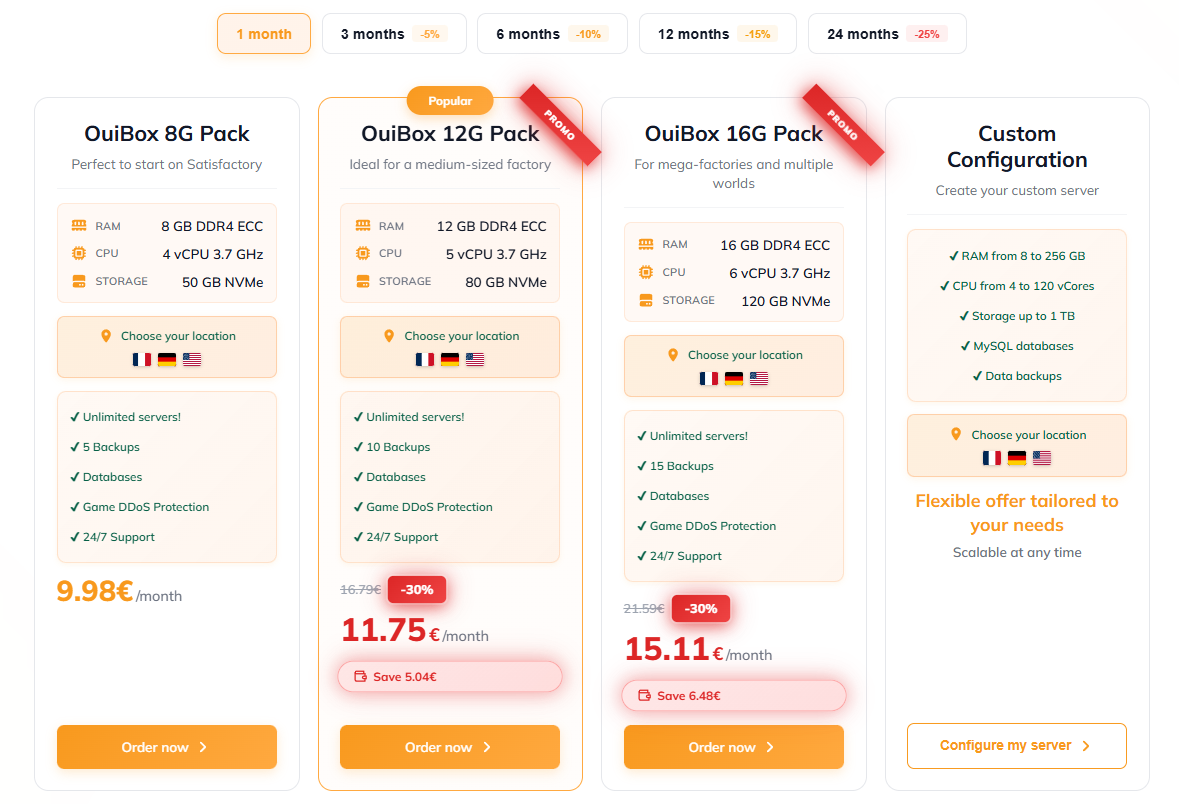 After placing your order, your OuiBox is delivered in less than 60 seconds. You receive access to OuiPanel, the management panel for your servers.
Configure and Launch
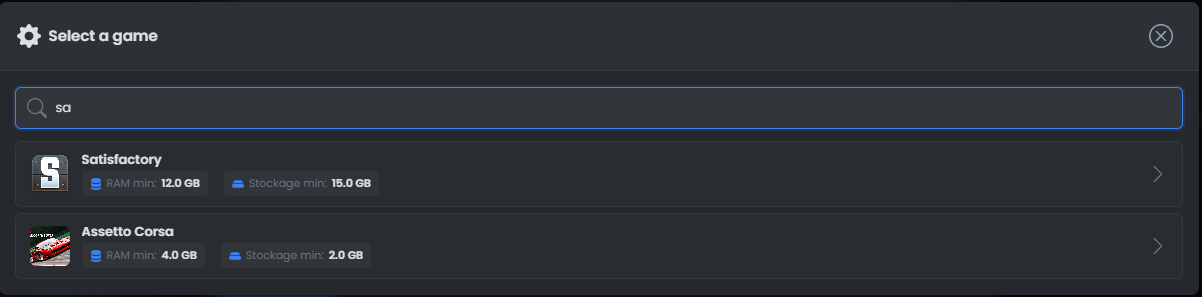
In OuiPanel, create a new game server and select Satisfactory from the list of available games. The server is automatically installed with the latest version of the Satisfactory Dedicated Server. No manual intervention is required: the game files, default configuration, and ports are deployed automatically.
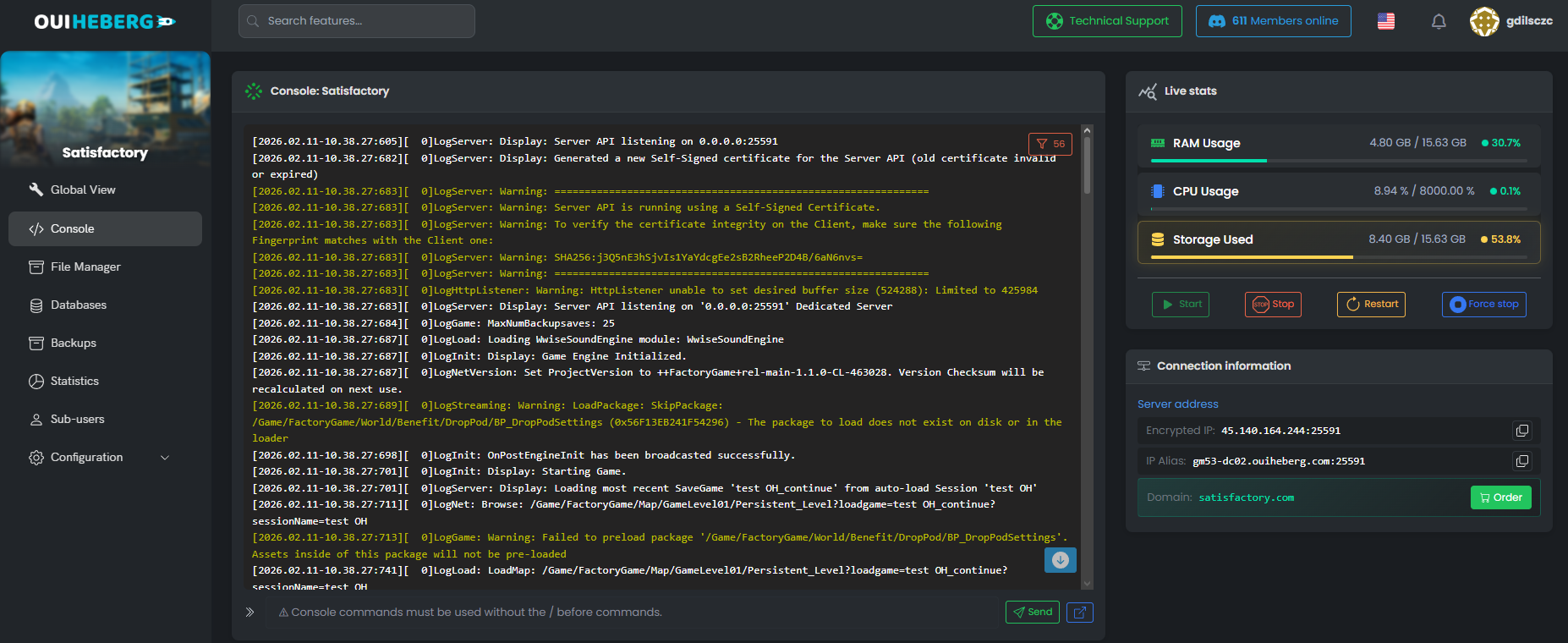
 Once the installation is complete, click Start in the OuiPanel console. The first launch takes a few minutes as the server must initialize the configuration files and prepare the map. Monitor the console: when you see a message confirming that the server is ready, you can connect.
 Connect to the Server
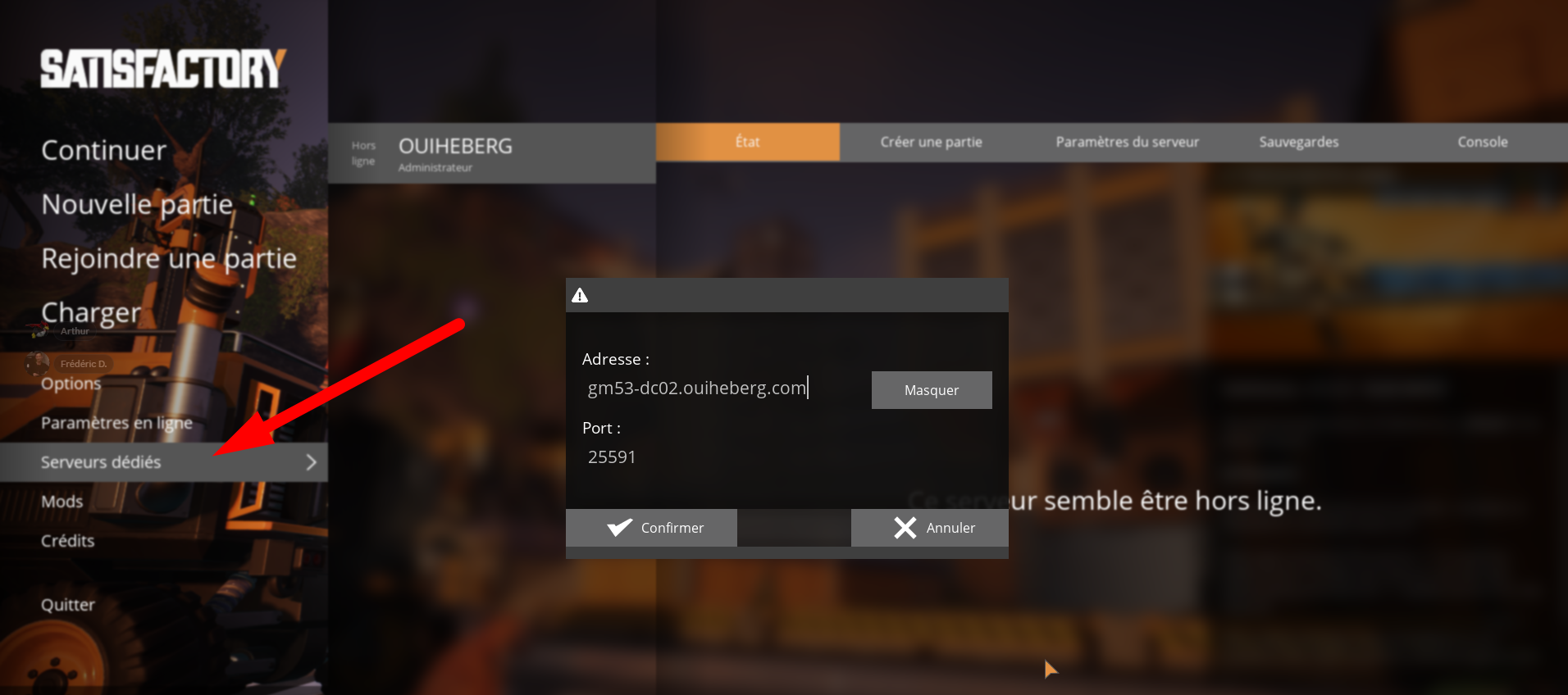
Launch Satisfactory on your PC. In the main menu, click on Server Manager. Add a new server by entering the IP address and port provided in OuiPanel. Upon the first connection, the game will ask you to set up an admin password and create or load a game. Once the game is created, players can join by adding the same server in their manager.
 You can also find your server via the Steam server browser if you have made it visible in the settings.
Configure Server Settings
The basic configuration can be done directly from the in-game Server Manager or from OuiPanel. The most important settings to adjust are as follows.
Server Name. The name that appears in the browser. Choose something recognizable so your friends can easily find you.
Password. Protects access to the server. Without a password, anyone can join if the server is publicly visible.
Admin Password. Distinct from the player password, it grants access to admin commands (backup, kick, advanced configuration).
Automatic Pause. By default, the server pauses the simulation when no players are connected. To keep your factory running continuously, disable this option. Check our guide to disable automatic pause for a detailed tutorial.
Network. The server listens by default on ports 7777 (game), 15000 (query), and 15777 (beacon). In OuiPanel, these ports are configured automatically.
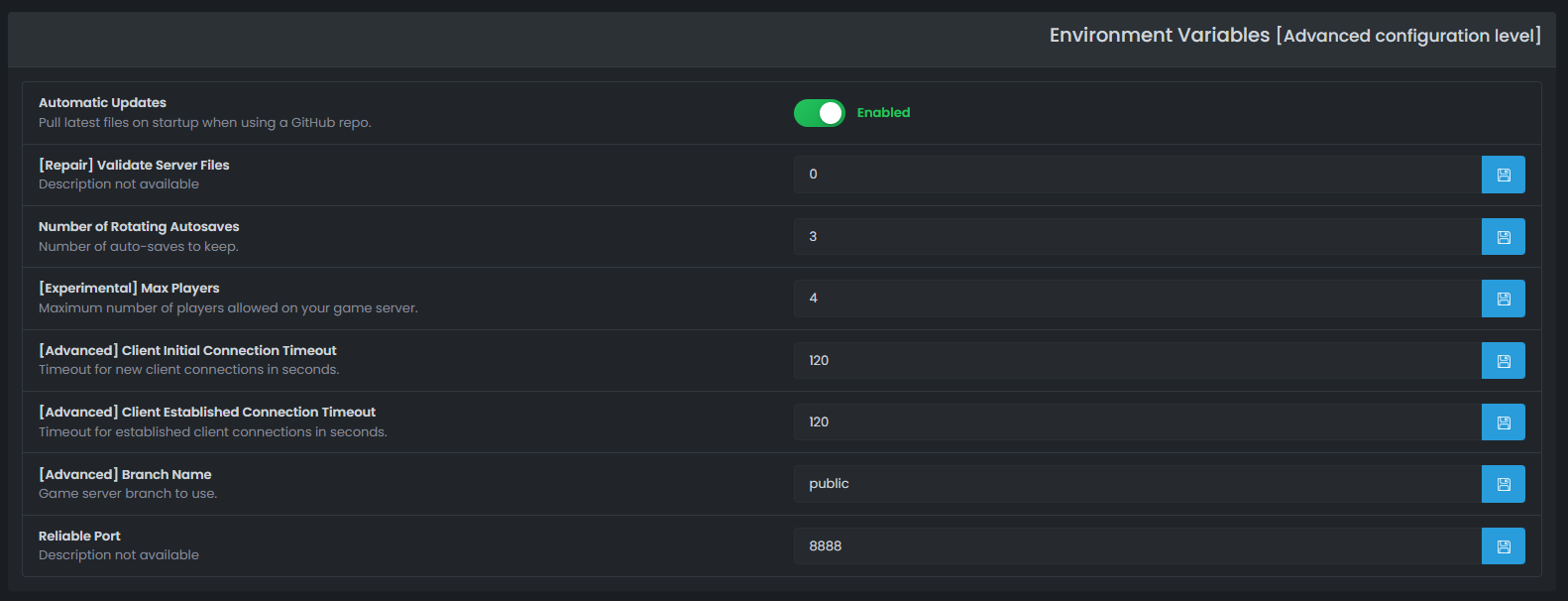 Advanced configuration files are located in the server folder under
 .config/Epic/FactoryGame/Saved/Config/LinuxServer/. The Game.ini, Engine.ini, and ServerSettings files allow for finer parameter modifications if necessary.
Manage Backups
Automatic Backups
Satisfactory Dedicated Server creates automatic backups at regular intervals (by default every 5 minutes in-game). These files are stored on the server in the SaveGames/ folder. In OuiPanel, you can also configure scheduled backups of the entire server via the task system, which protects you in case of file corruption or user error.
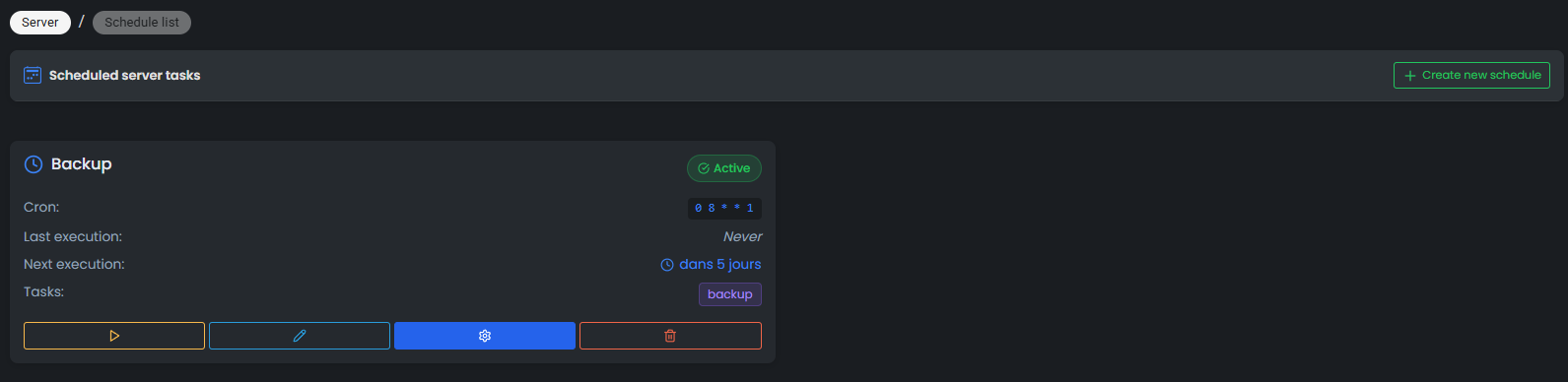
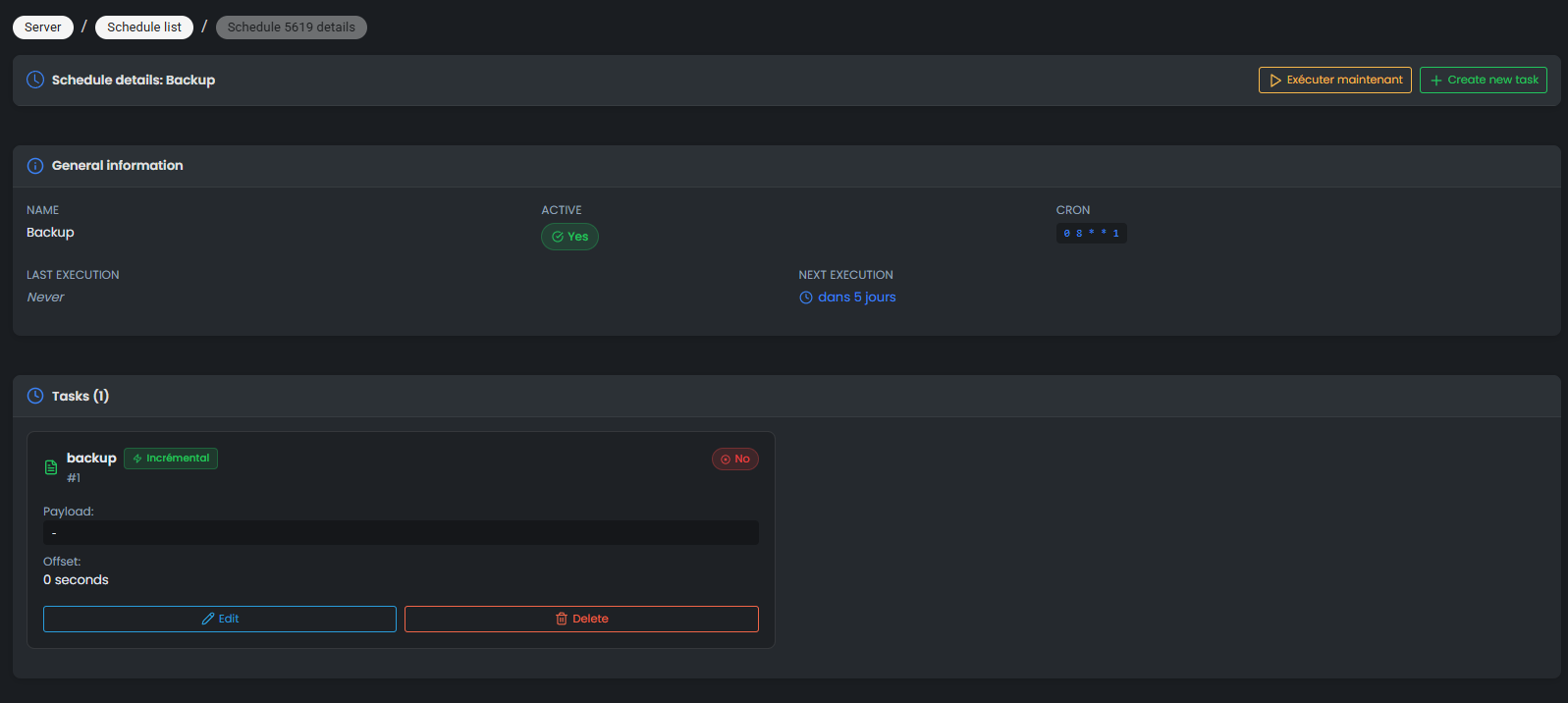 The server keeps several backups in rotation: the current backup, recent autosaves, and manual backups that you create from the in-game admin menu. Remember to make a manual backup before any risky operation (game update, adding mods, modifying config).
Restore a Backup
To restore a backup, stop the server in OuiPanel. Access the File Manager and navigate to the backups folder. Identify the .sav file corresponding to the desired date. From the in-game Server Manager (after restarting), select the backup to load. The server will resume exactly from the saved state.
If you need to transfer a backup from your PC to the server (for example, migrating a solo game to multiplayer), use the SFTP access from OuiPanel to upload your .sav file to the correct directory.
Add Mods to Satisfactory
Satisfactory Mod Manager
The Satisfactory community has an active mod ecosystem, primarily managed via the Satisfactory Mod Manager (SMM). This tool installs on your PC and connects directly to your server via SFTP to deploy mods automatically, without having to copy files manually.
The installation is detailed in our guide to install Satisfactory mods with SMM. In summary: install SMM, add your server using the SFTP credentials from OuiPanel, enable the desired mods, and SMM deploys them on the server. Restart, and you're ready.
Players must also install the same mods client-side via SMM to be able to connect.
Recommended Server Mods
SMART! Advanced building tools: grid placement, structure copying, improved snapping. Essential for large constructions.
Refined Power. Adds new energy sources (solar panels, wind turbines, advanced reactors) that diversify energy management.
X3 Roads. Additional roads and foundations to organize your bases more cleanly and aesthetically.
Linear Motion. Elevators and moving platforms for navigating vertical constructions.
Pak Utility Mod. QoL tools: creative flight, noclip, instant teleportation. Useful for admins who need to quickly inspect large bases.
To share constructions between players, also consider blueprints: our guide to importing blueprints on a server explains the procedure.
Optimize Performance
Recommended RAM
Satisfactory is a particularly memory-intensive game, especially in late-game when your factory has hundreds of machines, conveyors, and vehicles.
Early Game (Tier 1-4, small base). 8 GB of RAM is sufficient for 2-4 players. The server consumes about 4-6 GB while running.
Mid-Game (Tier 5-7, structured factory). 12 GB for 4-8 players. Trains, drones, and large production chains significantly increase consumption.
Late Game / Mega-Factories (Tier 8+, massive factory). 16 GB minimum for 4+ players. The most ambitious bases (turbo-fuel, large-scale aluminum, nuclear production) can consume 10-14 GB of RAM server-side.
Reduce Lag
If your server starts showing signs of lag, several avenues can be explored.
Limit Autonomous Vehicles. Trains and drones calculate routes in real-time and consume CPU. If you have dozens of them, this is likely the primary cause of lag.
Reduce Visible Conveyors. Conveyors transporting items generate constant calculations. Encapsulate them in closed foundations when possible: the server still calculates the transport, but the client-side rendering is lighter.
Clean Up Ground Entities. Items that have fallen to the ground accumulate and consume resources. Check that there is no overproduction spilling over somewhere.
Disable Unnecessary Features. If you don't need the factory to run offline, keep the automatic pause enabled; it saves resources when no one is playing.
Update the Game. Coffee Stain Studios regularly releases optimization patches. Ensure that your server and clients are up to date.
Satisfactory Server FAQ
Is Satisfactory available on console? Satisfactory was released in 1.0 on PC (Steam and Epic Games Store) in September 2024. No console version has been officially announced at this time.
Can a solo game be migrated to a server? Yes. Copy your backup file (.sav) from your PC to the SaveGames folder of the server via SFTP. Upon the next startup, the backup will appear in the Server Manager.
Are mods compatible with multiplayer? Yes, provided that all players and the server have exactly the same mods installed. SMM facilitates this synchronization.
How much does a Satisfactory server cost? At OuiHeberg, OuiBox offers start at just a few euros per month and allow you to create servers for Satisfactory and 32+ other games on the same box.
Hosting a dedicated Satisfactory server transforms the multiplayer experience: active factory 24/7, reliable backups, shared mods, and stable performance. In just a few clicks on OuiPanel, your server is ready, and your friends can join the adventure.
Need a Satisfactory server?
Discover our Satisfactory hosting plans starting from $9.98/month with instant deployment.