
 Client area
Does a partner, a developer or your accountant need access to your services or invoices? Don't share your password. Give them their own access as a sub-user of your client area. They log in with their own credentials and only see what you allow. You remain the sole account holder.
Open the Sub-users page
Log in at dash.ouiheberg.com.
Click your name at the top right to open the account menu, then click Sub-users. This page is not in the left menu. You can also open it directly at dash.ouiheberg.com/sub-users.
The page lists your sub-users. Each card shows the name, the email address, an Active switch, an Edit button, a bin icon and the permissions granted.

Create the sub-user
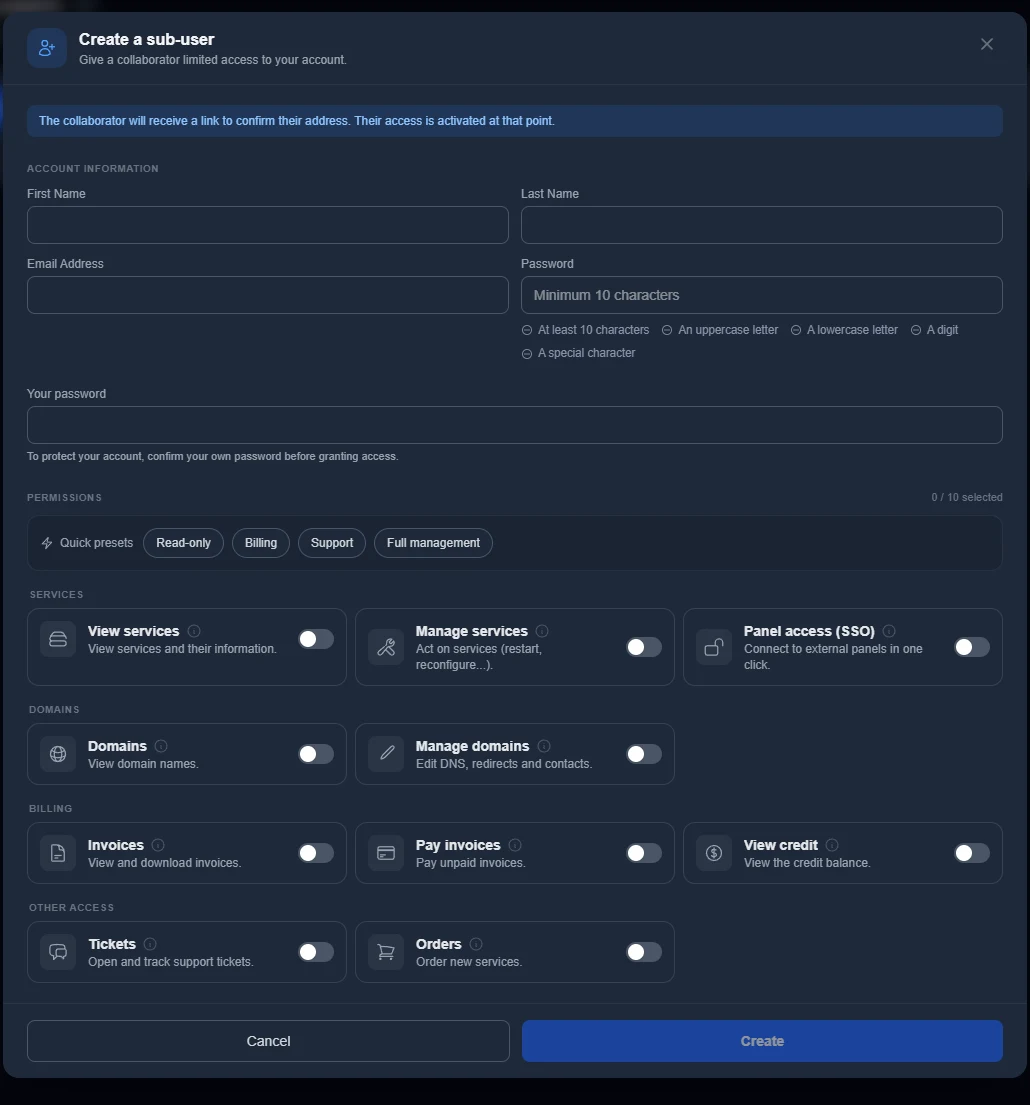
Click Add a sub-user. The Create a sub-user window opens.
Under Account information, enter the person's first name, last name and email address.
Choose their password. It needs at least 10 characters, with an uppercase letter, a lowercase letter, a number and a special character.
In Your password, type your own password. This confirmation protects your account before any new access is granted.
Choose the permissions (see the next section), then click Create.
The sub-user then receives a link to confirm their email address. Their access only becomes active once they have followed that link. Until then, they show as "Awaiting confirmation". If they received nothing, or if the link has expired, use Resend email to send a new one.
Once the address is confirmed, they log in at dash.ouiheberg.com with their email and the password you chose. Send them that password through a secure channel.
Choose the permissions
Click a permission to enable it. The info icon next to each name gives the details. The counter at the top shows how many of the 10 permissions are enabled.
The Quick presets (Read-only, Billing, Support, Full management) enable a set of permissions in one click. Then check the switches and adjust them if needed.
| Permission | What it allows |
|---|---|
| View services | View all your services, their status, renewal date and details, without taking any action on them. |
| Manage services | Act on services: restart, reinstall, configuration and options. Includes viewing them. |
| Panel access (SSO) | Open the management panels of your services in one click, without entering any credentials. |
| Domains | View your domain names (expiry, status, DNS) without changing them. |
| Manage domains | Edit DNS records, redirects, name servers and contacts. Includes viewing domains. |
| Invoices | View the billing history and download invoices as PDF, without paying them. |
| Pay invoices | Pay unpaid invoices. Includes viewing invoices. |
| View credit | See the account credit balance. Topping up remains reserved for the account holder. |
| Tickets | Open support tickets, reply to them and follow requests. |
| Orders | Order new services from the shop and manage the cart. |
💡 Only grant what is needed. For an accountant, Invoices and Pay invoices are often enough. For a developer, View services, Manage services and Panel access (SSO).
Some areas stay reserved for the account holder whatever the permissions. This includes the affiliate program, topping up credit and some sections of the account settings.
Edit, suspend or remove access
Edit opens the Edit sub-user window, where you change their permissions. The password field is optional there: leave it empty to keep the current one.
The Active switch cuts access without deleting the sub-user. They then show as Inactive, and you can reactivate them later.
The bin icon deletes the sub-user. This action is irreversible.
Has your sub-user forgotten their password? They need to contact you. Give them a new one with Edit.
Monitor your sub-users' logins
Open My profile in the account menu, then the Security tab (dash.ouiheberg.com/settings?section=security).
In Login History, the Team members tab lists your sub-users' sign-ins.
Collaborators' Devices shows the IP addresses they have validated. You can view them, and each sub-user removes their own from their own space.
Does a login look suspicious? Turn off the Active switch for that sub-user, then check with them.
Need help?
Open a ticket from Tickets › Open a Ticket (dash.ouiheberg.com/tickets/new), or reach us on the OuiHeberg Discord.