
 Client area
Every OuiHeberg plan is ordered from the store in the client area, at dash.ouiheberg.com/shop. You can browse it and configure a plan without an account. You only need to log in when you complete the order. This guide follows the example of a Linux VPS, from the search to the order button.
Opening the store
If you are logged in, click Order in the left-hand menu, under Services. Otherwise, go straight to dash.ouiheberg.com/shop. Without an account, a login button appears top right.
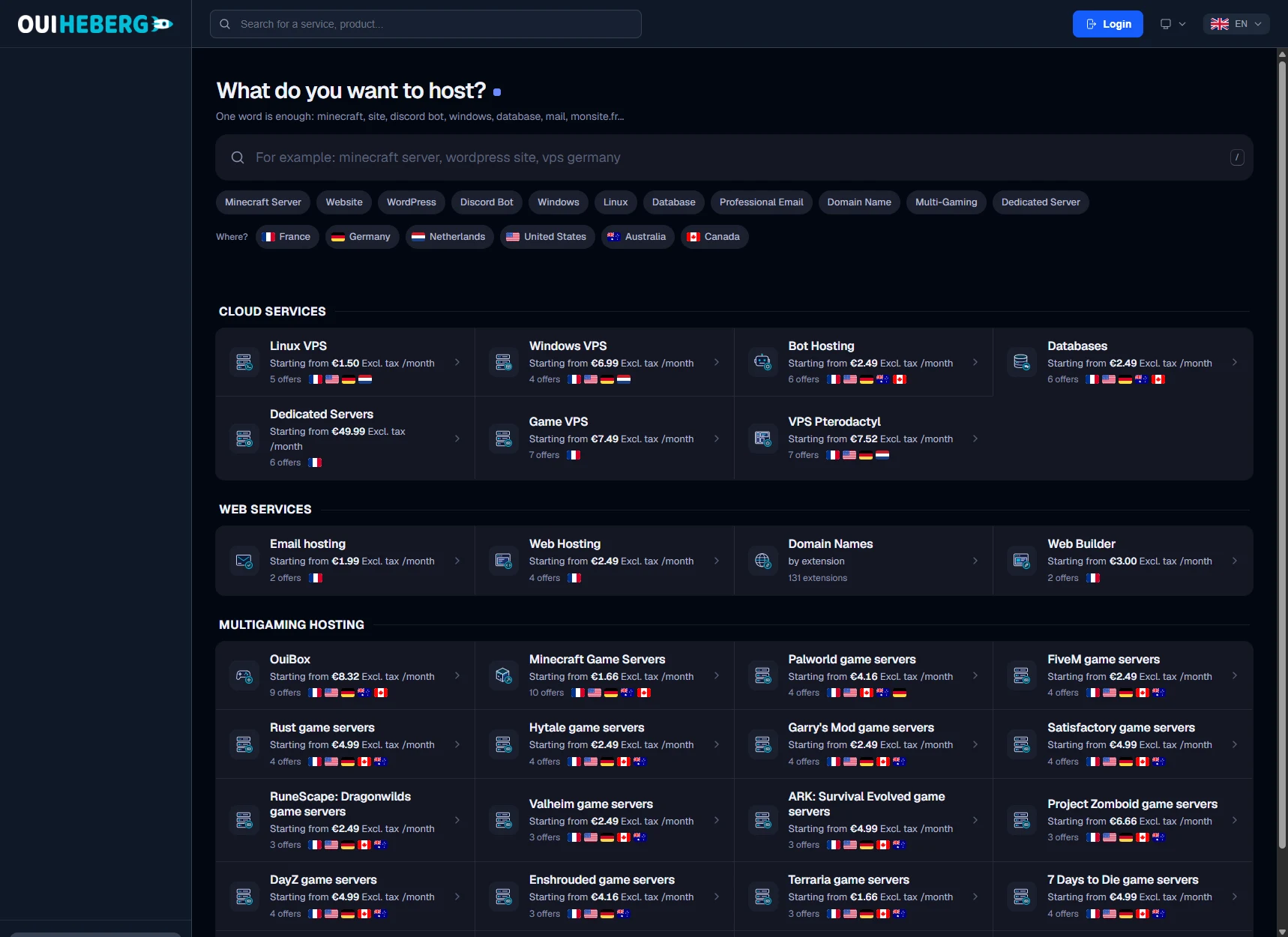
The page opens with the question What do you want to host? Plans are grouped into three blocks.
Cloud services cover VPS, dedicated servers, bot hosting and databases.
Web services cover email, web hosting, domain names and the Web Builder.
Multi-gaming hosting covers the OuiBox and game servers (Minecraft, Palworld, FiveM, Rust…).
Each card shows the starting price per month excluding tax, the number of plans and, with flags, the available countries.
Finding the right plan
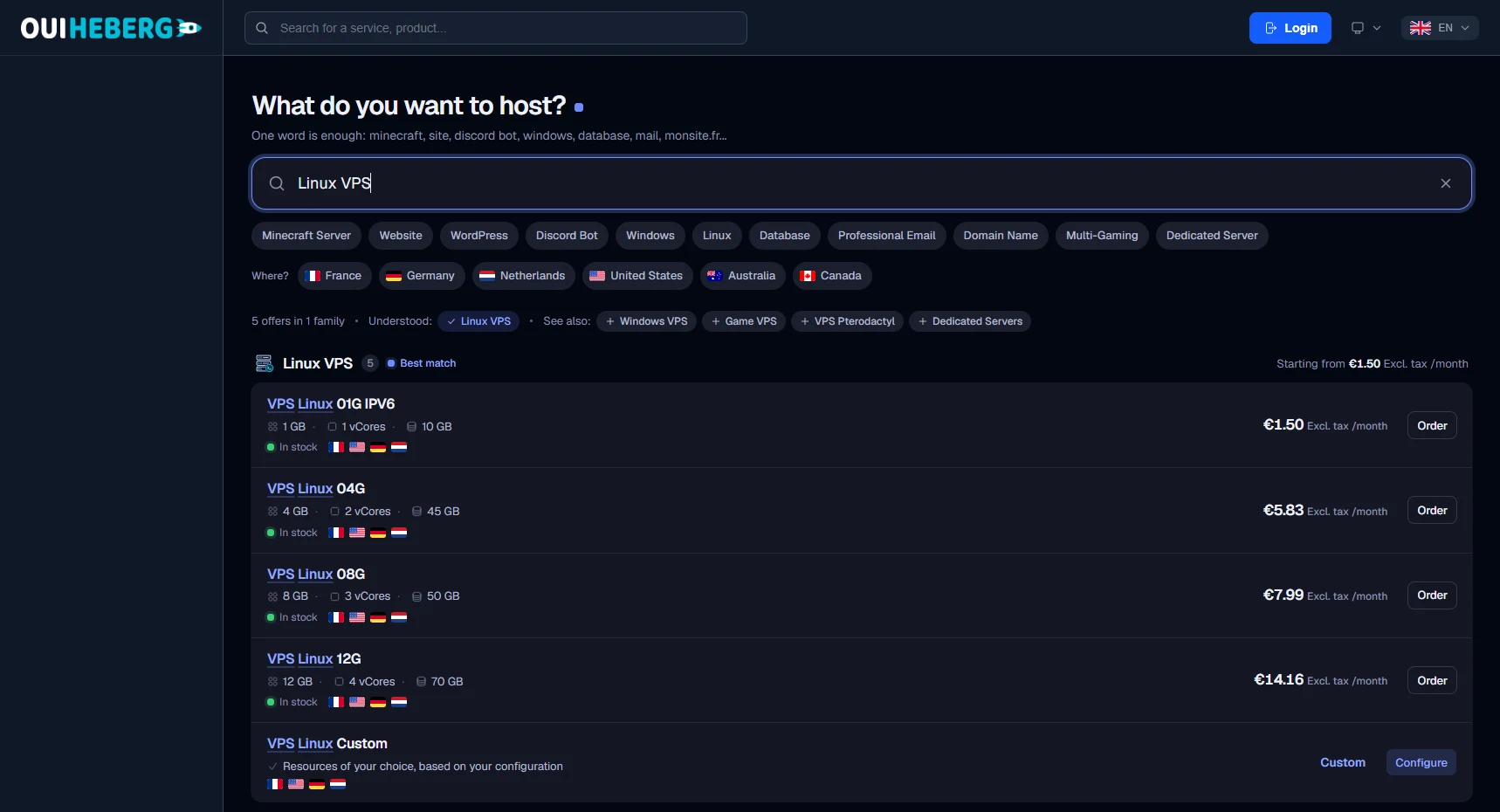
The big search bar understands plain words. Type "minecraft", "site", "discord bot" or "windows". The / key on your keyboard puts the cursor straight into the bar. For a domain name, type it as is, for example mysite.com.
The chips below it (Minecraft Server, Website, WordPress, Discord bot…) run a ready-made search.
The Where? row filters by country: France, Germany, the Netherlands, the United States, Australia or Canada.
Clicking a family card shows all of its plans.
Above the results, Understood: shows what the store picked up from your search, and See also: suggests related families. The most relevant family carries the Best match label.
Each row gives the plan's resources (memory, vCores, disk), its availability (In stock), the countries on offer and the monthly price excluding tax. Click Order next to the plan you want. For a Custom plan, the button is called Configure and you pick the resources yourself.
Configuring the plan
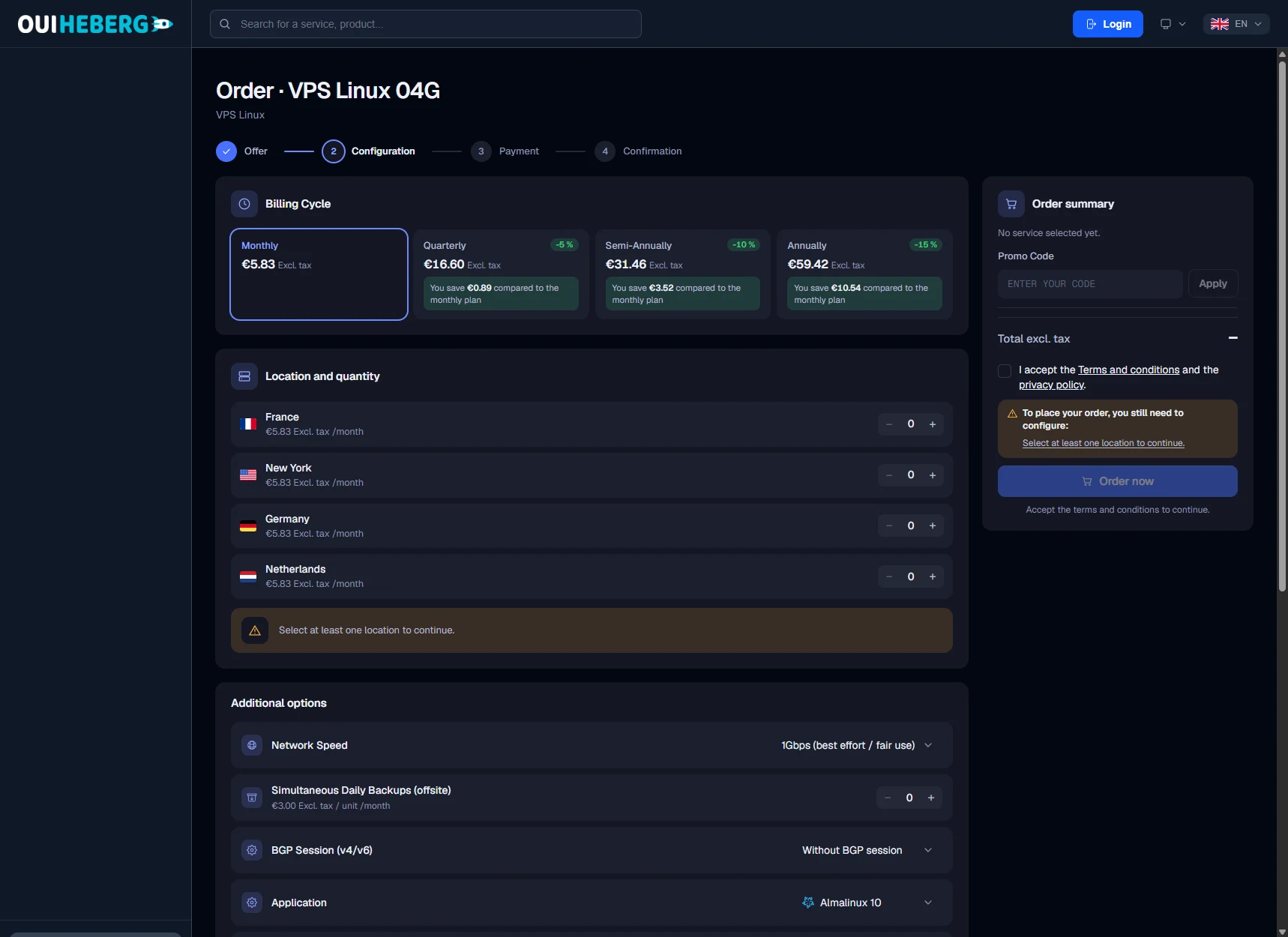
The order page opens, titled Order followed by the plan name. At the top, four steps follow each other: Offer, Configuration, Payment and Confirmation. You are on the second one. The blocks depend on the plan. Here are those of a Linux VPS.
Billing Cycle
Choose Monthly, Quarterly, Semi-Annually or Annually. Longer cycles show their discount and how much you save compared with paying monthly. In the example, the discount is 5% per quarter, 10% per half-year and 15% per year.
Location and quantity
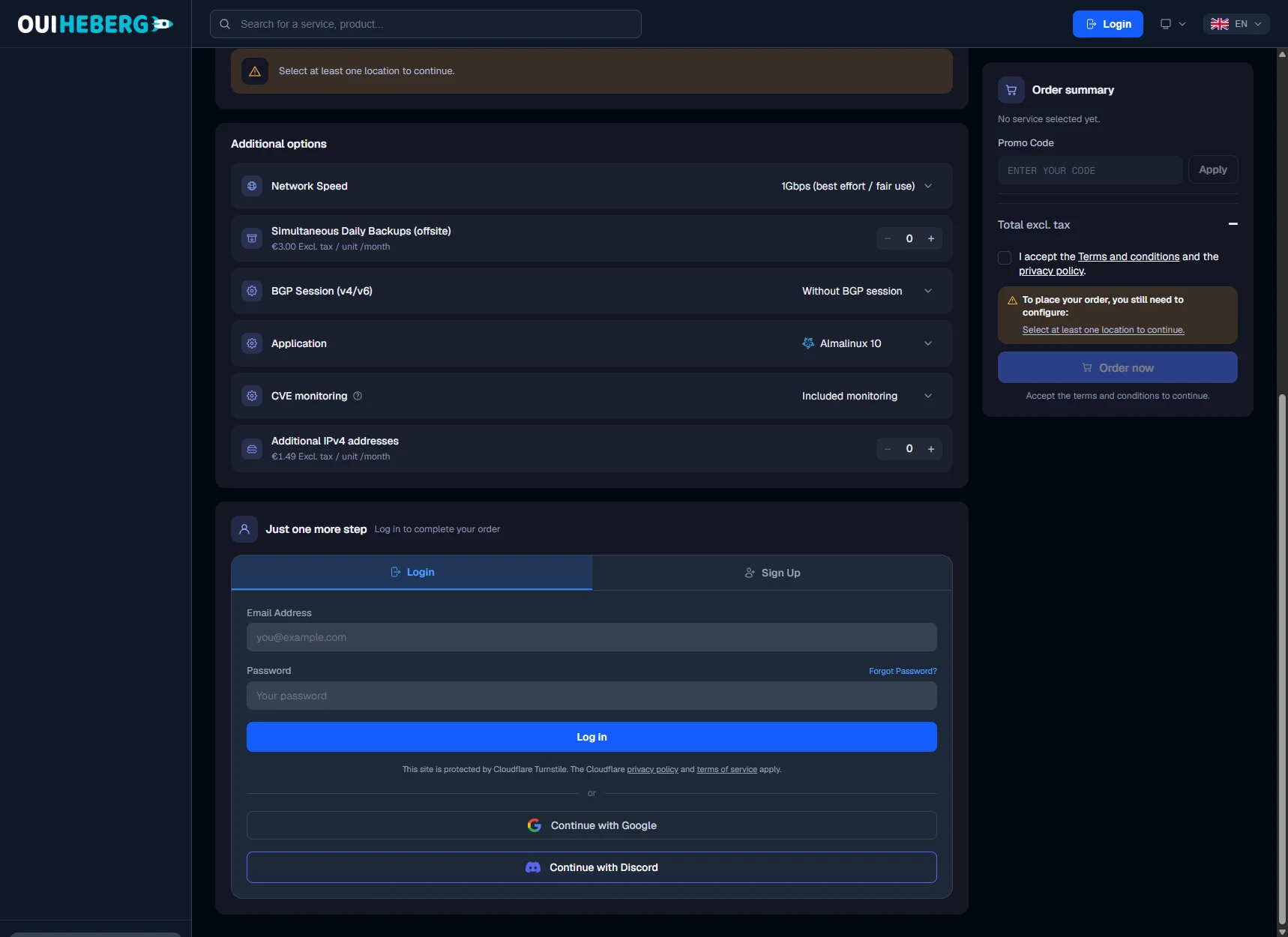
Each country has its own counter. Click + to add a server in that country. You can take several, in several countries, in a single order. Until a country is chosen, the page shows "Select at least one location to continue."
Additional options
Each option is set with a drop-down menu or a counter, and shows its unit price. For a Linux VPS you will find, for example, the network speed, daily off-site backups, the system to install or extra IPv4 addresses.
Other plans may ask for other settings, such as choosing a domain name.
The order summary
The right-hand column, Order summary, updates with every choice.
If you have a promo code, enter it in Promo Code and click Apply.
Check the total excluding tax.
Read the To place your order, you still need to configure: box if it appears. It lists what is still missing.
Tick the box accepting the terms and conditions and the privacy policy.
Click Order now.
Logging in to complete the order
Without an account, a Just one more step block appears below the options. Its two tabs, Login and Sign Up, let you log in or create your account without leaving the page. The Google and Discord buttons work too.
Paying for the order
After Order now, the order moves to the Payment step. It creates an invoice, which you pay on a secure payment page with the method of your choice. If you leave before paying, find that invoice under Invoices (dash.ouiheberg.com/invoices) and click Pay. Our guide on paying invoices covers this step in detail.
Once the payment is confirmed, the service is activated automatically and an email sums up your order. You will then find it under My Services.
💡 For a dedicated server, allow between 1 and 48 hours for delivery after payment.
Need help?
A question before buying, or a problem with an order? Open a ticket with the SUPPORT COMMERCIAL department (sales support) from Tickets › Open a Ticket (dash.ouiheberg.com/tickets/new).
For a service that is already active, the Contact support tile on its page opens a ticket linked to that service.
You can also write to us on our Discord.