
 Client area
Every service and every domain name has a due date. This guide shows where to find it in the client area at dash.ouiheberg.com, how a service is renewed and how to manage auto-renewal for a domain.
Check your upcoming due dates
The My Services page shows each service's due date in the Due date column. Each line gives the date and the time left, for example "in 44 days". A past due date is shown as a number of days ago.
To keep only what is coming up soon, pick the To renew within 15 d filter.
The dashboard also sums up upcoming due dates in its Renewals card, with two counters, Within 5 days and Within 15 days. On a domain page, the top banner shows the Expiration Date.
How a service is renewed
A VPS, a hosting plan or a game server is renewed through an invoice. It is issued before the due date, and paying it is what extends the service.
Open Invoices. The renewal invoice is listed there with the Unpaid status.
Click it, choose your payment method and pay it.
The guide How to pay a OuiHeberg invoice walks you through the payment step by step.
If you have a balance on your account, it is used automatically for your renewals. The same guide explains how to top it up.
Once the due date has passed, the invoice shows a warning. Pay it without delay to avoid suspension of the related services.
💡 Invoices, payment reminders and domain renewal notices are also sent by email. To make sure you get them, keep Billing emails and Domain name emails turned on. You will find these settings in the account menu at the top right, under My profile › Notifications.
Auto-renewal for a domain name
In My Services, click the domain.
In the left-hand menu of the page, open the Renewal tab.
The Renewal card shows whether Auto Renewal is Enabled. If it is, an invoice is issued before the due date. Once paid, it extends the domain. The card also shows the Expiration Date, the renewal Period (for example 1 year) and the Price.
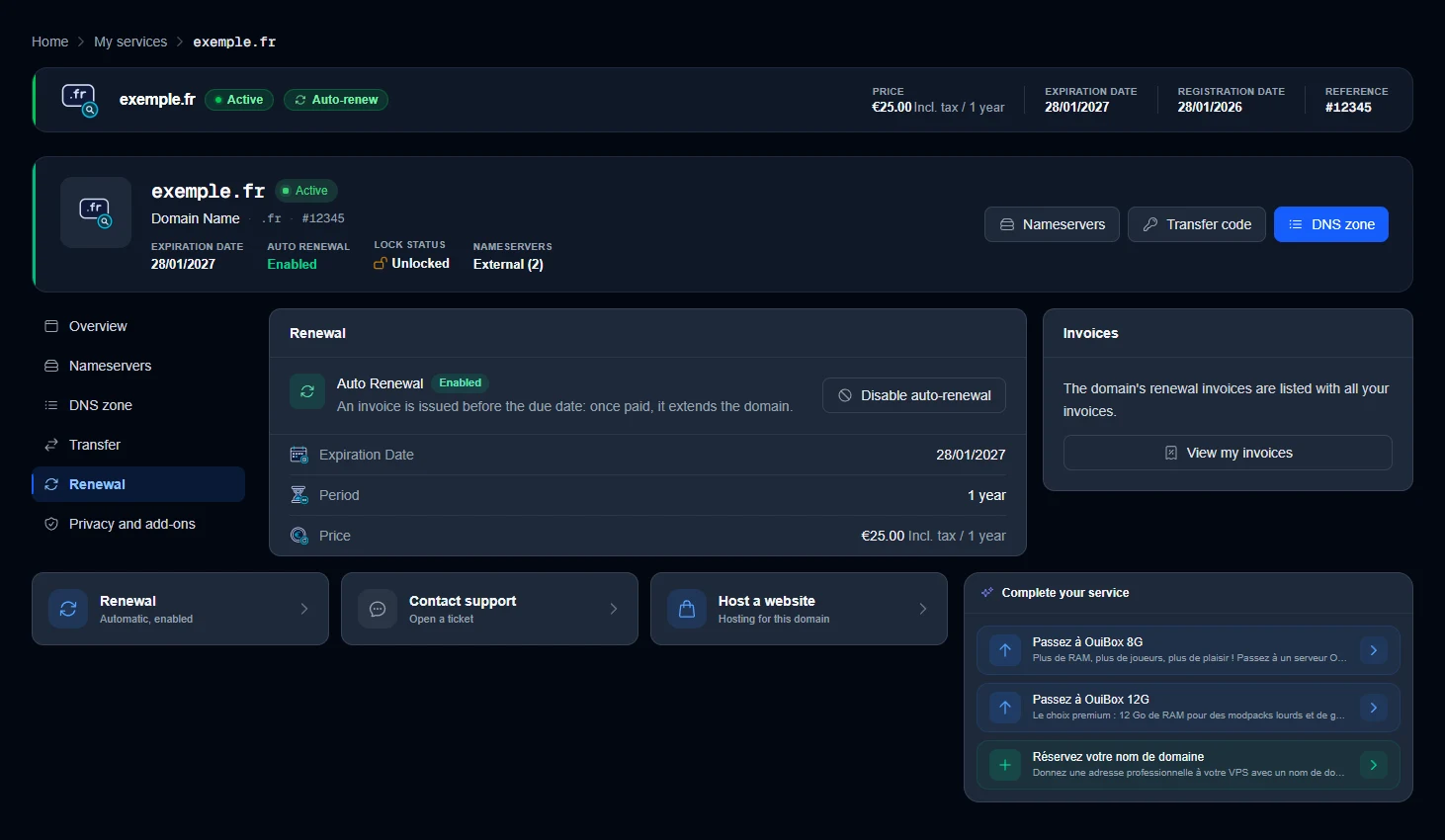
The same status appears elsewhere on the page. The top banner carries the Auto-renew badge, and the Renewal tile at the bottom reads "Automatic, enabled".
Find the domain's invoice
The Invoices card on the right reminds you that the domain's renewal invoices are listed with all your invoices. The View My Invoices button takes you there. Pay the invoice before the expiration date.
Turn auto-renewal off or back on
The Disable auto-renewal button turns off automatic renewal. The domain will then not be renewed at its due date. It will expire and may be lost. Keep it on for any domain you want to keep.
To turn it back on, return to the Renewal tab and click Enable auto-renewal.
If your domain has expired
In My Services, an expired domain shows how many days ago its date passed. Renew it quickly. After the grace period, a domain may be lost or cost more to recover.
No renewal invoice waiting in Invoices? Open a ticket with the SUPPORT COMMERCIAL department (sales). Do the same if a domain's due date is getting close and no invoice has been issued.
Need help?
Open a ticket from Tickets › Open a Ticket (dash.ouiheberg.com/tickets/new), or from the Contact support tile at the bottom of the service or domain page. You can also ask your question on the OuiHeberg Discord.