
 Client area
OuiHeberg e-mails you about your invoices, tickets, domains and servers, and sometimes about its offers. In the client area, the Notifications section lets you choose, category by category, which e-mails you receive. This guide goes through each setting, the e-mails that always reach you, sending copies of your invoices to another address, and the history of the e-mails you received.
Open the Notifications section
Log in to dash.ouiheberg.com.
At the top right, click your name, then My profile.
In the menu of the Account Settings page, choose Notifications.
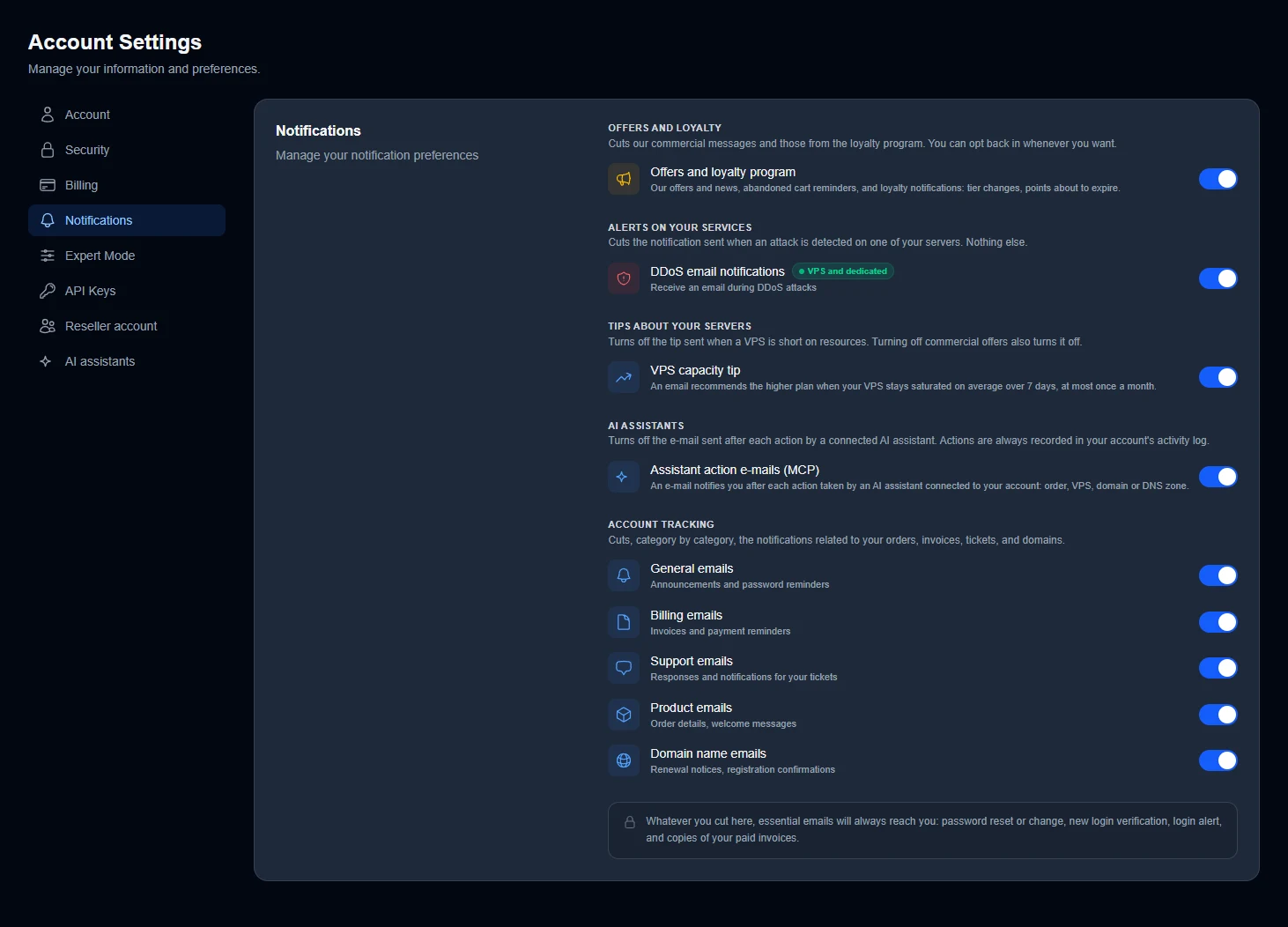
Each line has its own switch. Turn it off to stop receiving those e-mails, turn it back on to get them again.
Choose which e-mails you receive
The settings are sorted into five groups, Offers and loyalty, Alerts on your services, Tips about your servers, AI assistants and Account tracking.
| Setting | What you receive |
|---|---|
| Offers and loyalty program | Our offers and news, abandoned cart reminders, loyalty notices (tier changes, points about to expire). |
| DDoS email notifications | An e-mail when an attack is detected on one of your VPS or dedicated servers. |
| VPS capacity tip | A suggestion to move to the higher plan when your VPS stays saturated on average over 7 days, at most once a month. |
| Assistant action e-mails (MCP) | An e-mail after each action taken by an AI assistant connected to your account (order, VPS, domain or DNS zone). |
| General emails | Announcements and password reminders. |
| Billing emails | Invoices and payment reminders. |
| Support emails | Replies and notifications for your tickets. |
| Product emails | Order details, welcome messages. |
| Domain name emails | Renewal notices, registration confirmations. |
Good to know before you turn anything off.
Turning off Offers and loyalty program also turns off the VPS capacity tip.
Turning off the AI assistant e-mails removes nothing from your account's activity log. Every action is still recorded there.
💡 Keep at least the billing, support and domain name e-mails. They are the ones that remind you of an invoice to pay, a reply from support or a domain to renew.
E-mails you always receive
Whatever you turn off, some essential e-mails always reach you.
Password reset or password change.
Verification of a new login and login alerts.
Copies of your paid invoices.
Send your paid invoices to another address
For each paid invoice, the PDF can also be sent to other addresses, such as your accountant's or your accounting software's. This works for manual payments as well as automatic debits.
In Account Settings, choose Billing (dash.ouiheberg.com/settings?section=billing).
In the Emails for invoice copies card, type the address in the field.
Click Add. The address joins the list below.
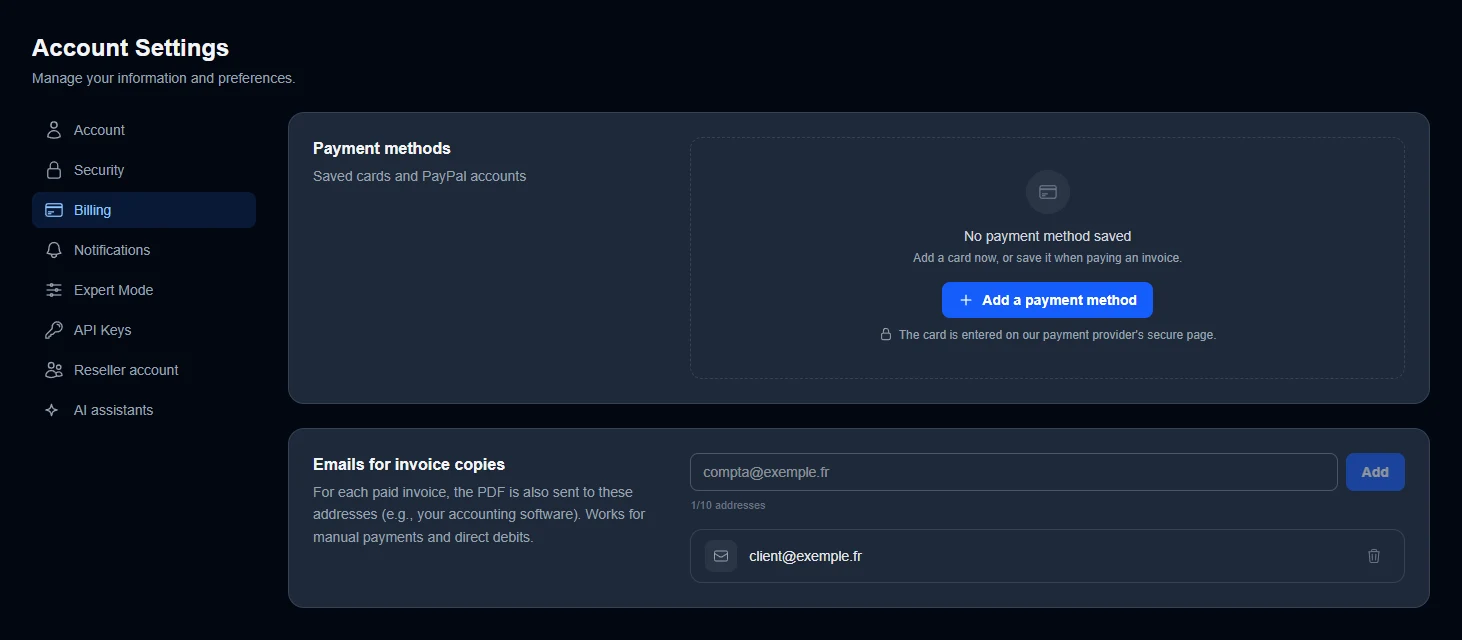
You can save up to 10 addresses, and the counter under the field shows how many you have used. To remove an address, click the bin icon on its line.
The same section manages your payment methods. Our guide How to pay a OuiHeberg invoice and manage your balance and payment methods covers them in detail.
Find an e-mail you received
Can't find an e-mail in your inbox? At the top right, click your name, then Emails. The Email History page lists every e-mail OuiHeberg has sent to your account, with a search by subject.
Do not confuse it with the bell at the top of the screen, which shows what is waiting for you in the client area, such as an unpaid invoice.
Need help?
Open a ticket from Tickets › Open a Ticket (dash.ouiheberg.com/tickets/new).
You can also write to us on our Discord.