
 Client area
Your invoices, account balance and saved cards are all managed in the client area at dash.ouiheberg.com. Every payment is made from the page of the invoice concerned. This guide shows you how to find an invoice, pay it, top up your balance and save a payment method.
Finding your invoices
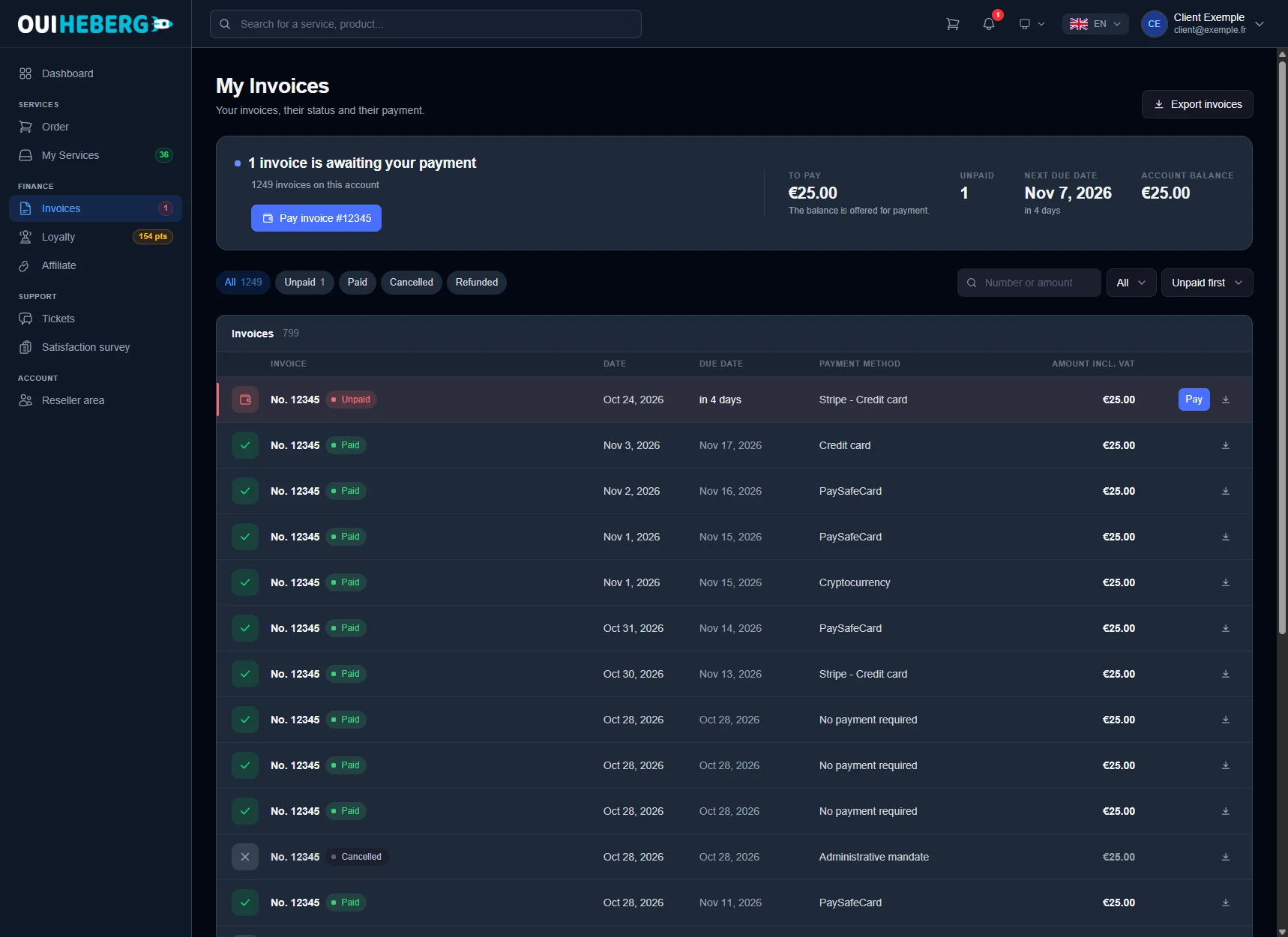
Click Invoices in the left-hand menu, under Finance. The My Invoices page opens (dash.ouiheberg.com/invoices).
The top banner sums things up. If an invoice is still due, it says so ("1 invoice is awaiting your payment") and offers a Pay invoice button followed by the invoice number. On the right, four figures give the amount to pay, the number of unpaid invoices, the next due date and the account balance.
Below the banner, a few tools help you search.
The All, Unpaid, Paid, Cancelled and Refunded filters.
The search field, which accepts a number or an amount.
The period selector and the sort order, for example Unpaid first.
The table shows each invoice's status, date, due date, payment method and amount including tax. An unpaid invoice has a Pay button. The arrow icon at the end of each row downloads the PDF.
Two other paths lead to an unpaid invoice. On the dashboard, a red card offers Pay now. The notification bell flags it too.
💡 The Export invoices button, top right, downloads several invoices at once as a ZIP archive. Handy for your bookkeeping.
Paying an invoice
Click the invoice, or its Pay button. The invoice page opens. It shows the invoice status, issue date, due date and the Amount due. The PDF button downloads it.
In the Pay this invoice card on the right, choose your Payment method. You can pay by bank card through Stripe, with PayPal, with PaySafeCard or in cryptocurrency.
Click the Pay button followed by the amount.
Complete the payment on the secure page that opens.
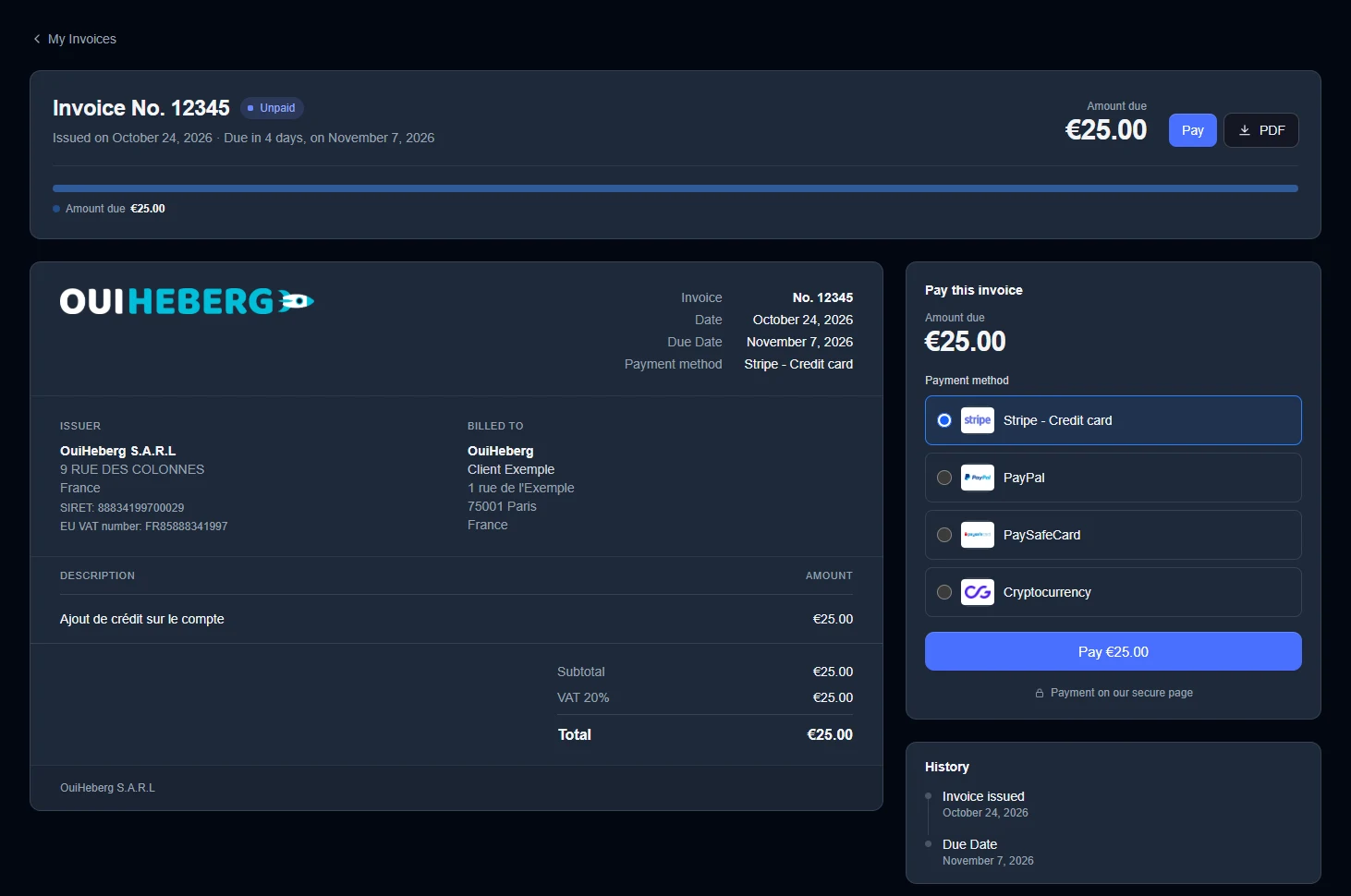
Below the header, the page reproduces the invoice itself. You will find the issuer, your details under Billed to, each line with its description and amount, then the subtotal, VAT and total. Check them before paying.
Once the payment is received, the invoice status changes to Paid. The History block, below the payment card, keeps track of each step.
Depending on your situation
You have a balance. The page may offer to use it for this invoice. If it is not enough, it covers part of the amount straight away and you pay the rest with another method.
You have a saved card. The page may offer to pay with that card, shown by its last four digits. The charge is immediate, after you confirm.
The due date has passed. Pay the invoice without delay to avoid suspension of the related services.
A question about an invoice? Its page has the link A question about this invoice? Contact support.
Topping up your balance
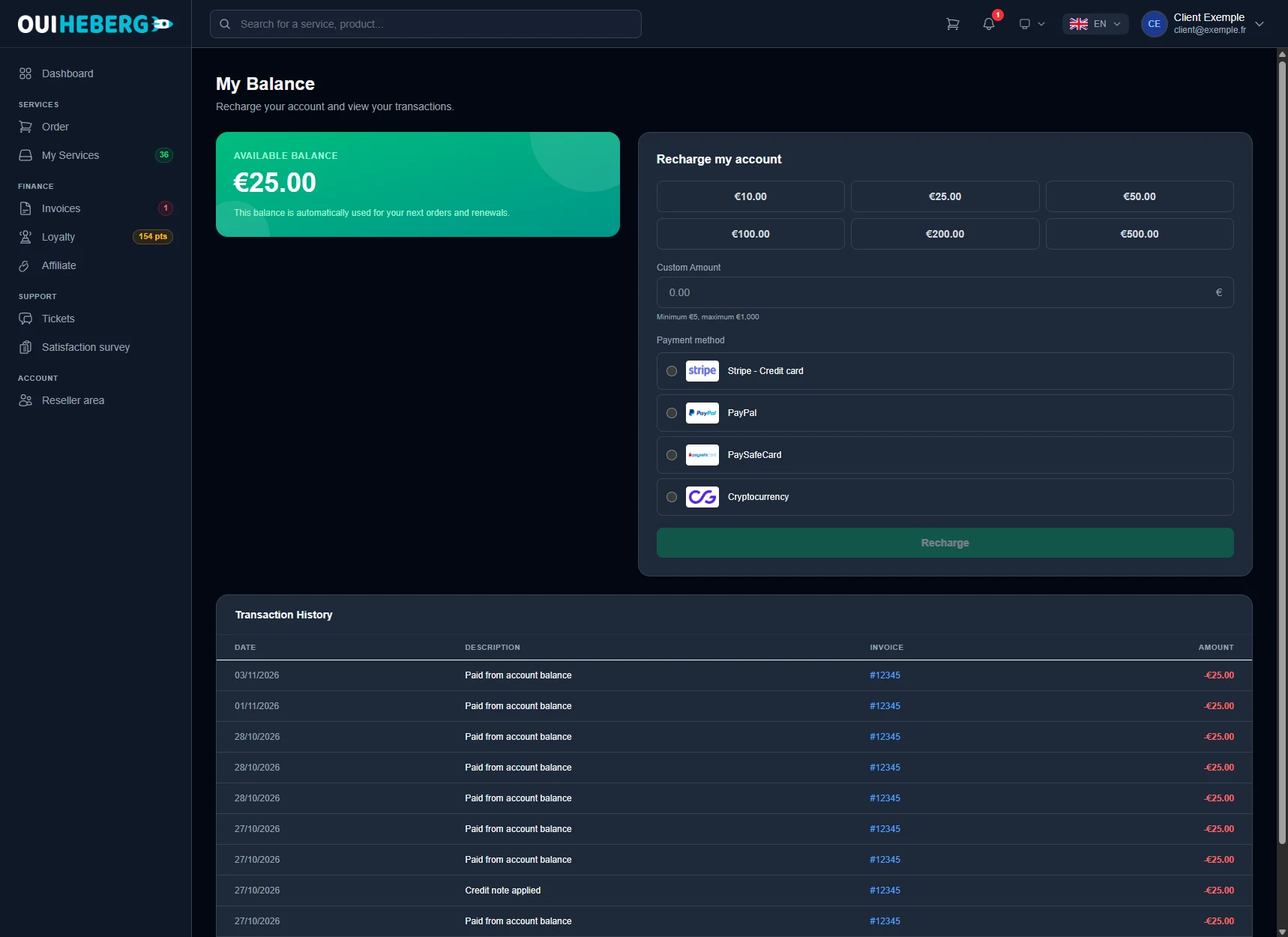
Your balance is credit held on your account. It is used automatically for your next orders and renewals. To add funds, click Recharge in the dashboard banner, or open dash.ouiheberg.com/credit. The My Balance page appears.
In the Recharge my account card, click one of the suggested amounts, up to €500. You can also enter a Custom Amount, from €5 minimum to €1,000 maximum.
Choose the payment method.
Click Recharge.
The top-up goes through an invoice called "Credit added to the account", which you pay like any other. Your balance is credited once that invoice is paid.
Further down, the Transaction History lists every movement with its date, description, linked invoice and amount.
Saving a payment method
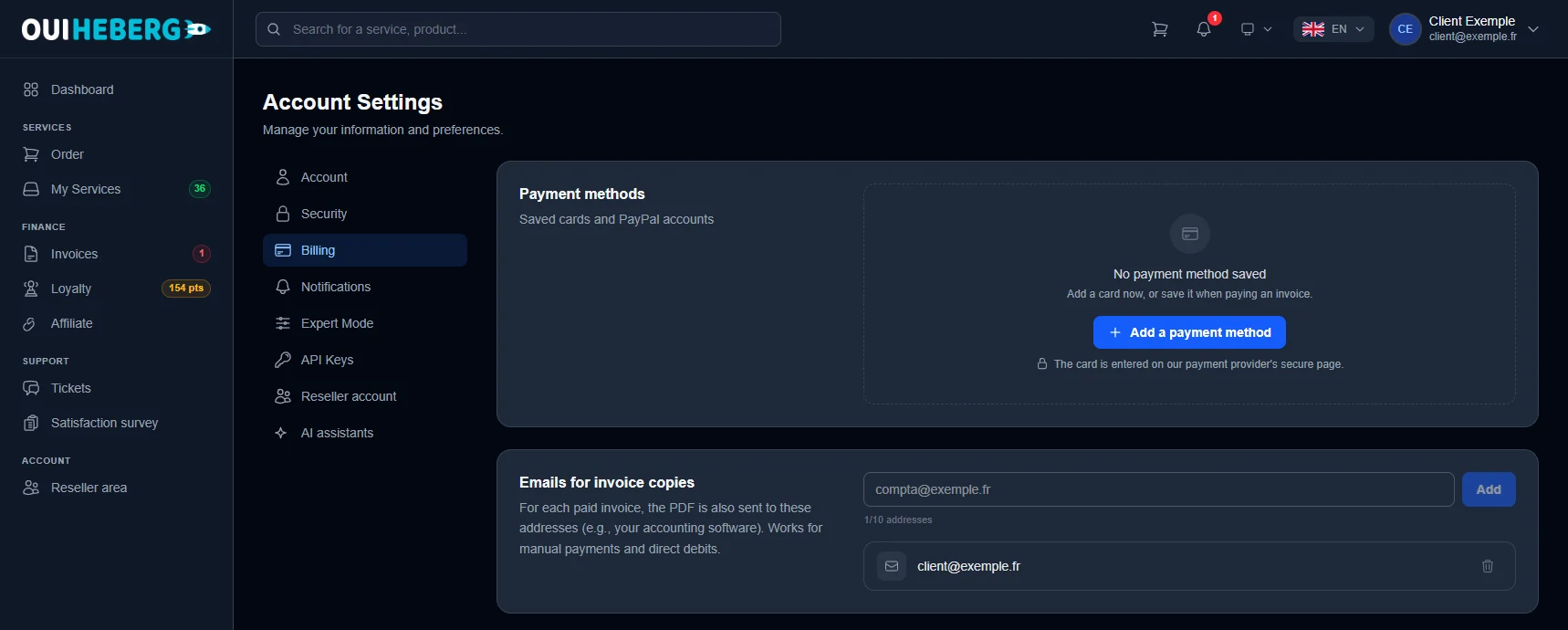
Open the account menu (your name, top right), click My profile, then the Billing section. The direct link is dash.ouiheberg.com/settings?section=billing.
Payment methods
This card lists your saved cards and PayPal accounts. To add one, click Add a payment method. Card details are entered on our payment provider's secure page. You can also save a card when paying an invoice.
Once a method is saved, you can set it as the default, rename it so you can recognise it (for example "Business card") or delete it. Deletion is permanent.
Emails for invoice copies
Each time an invoice is paid, its PDF is also sent to the addresses in this list. Useful for your accountant or your accounting software. Enter an address and click Add. You can save up to 10. It works for manual payments as well as automatic charges.
Need help?
For a billing question, open a ticket with the SUPPORT COMMERCIAL department (sales) from Tickets › Open a Ticket (dash.ouiheberg.com/tickets/new).
For a specific service, the Contact support tile on its page opens a ticket linked to that service.
You can also write to us on our Discord.