
 Client area

OuiHeberg support answers through tickets, from the client area at dash.ouiheberg.com. There is no live chat with a person. The OuiHeberg Assistant is an AI that can point you towards a ticket. This guide shows you how to open a ticket, pick the right team and follow up on the answer.
Before you write
Has your service stopped responding? First check the service status, at the bottom of the dashboard or at dash.ouiheberg.com/status. If an incident is under way in your region, our teams are already on it. There is no need to open a ticket for that problem.
Opening the form
Several paths lead to the same form.
The Tickets menu entry, under Support, then the Open a Ticket button top right.
The direct link dash.ouiheberg.com/tickets/new.
On the dashboard, the New ticket button in the Support card.
At the bottom of a service page, the Contact support tile. The ticket is then already linked to that service.
On a domain name page, the Open a ticket button in the help card.
Picking the right team
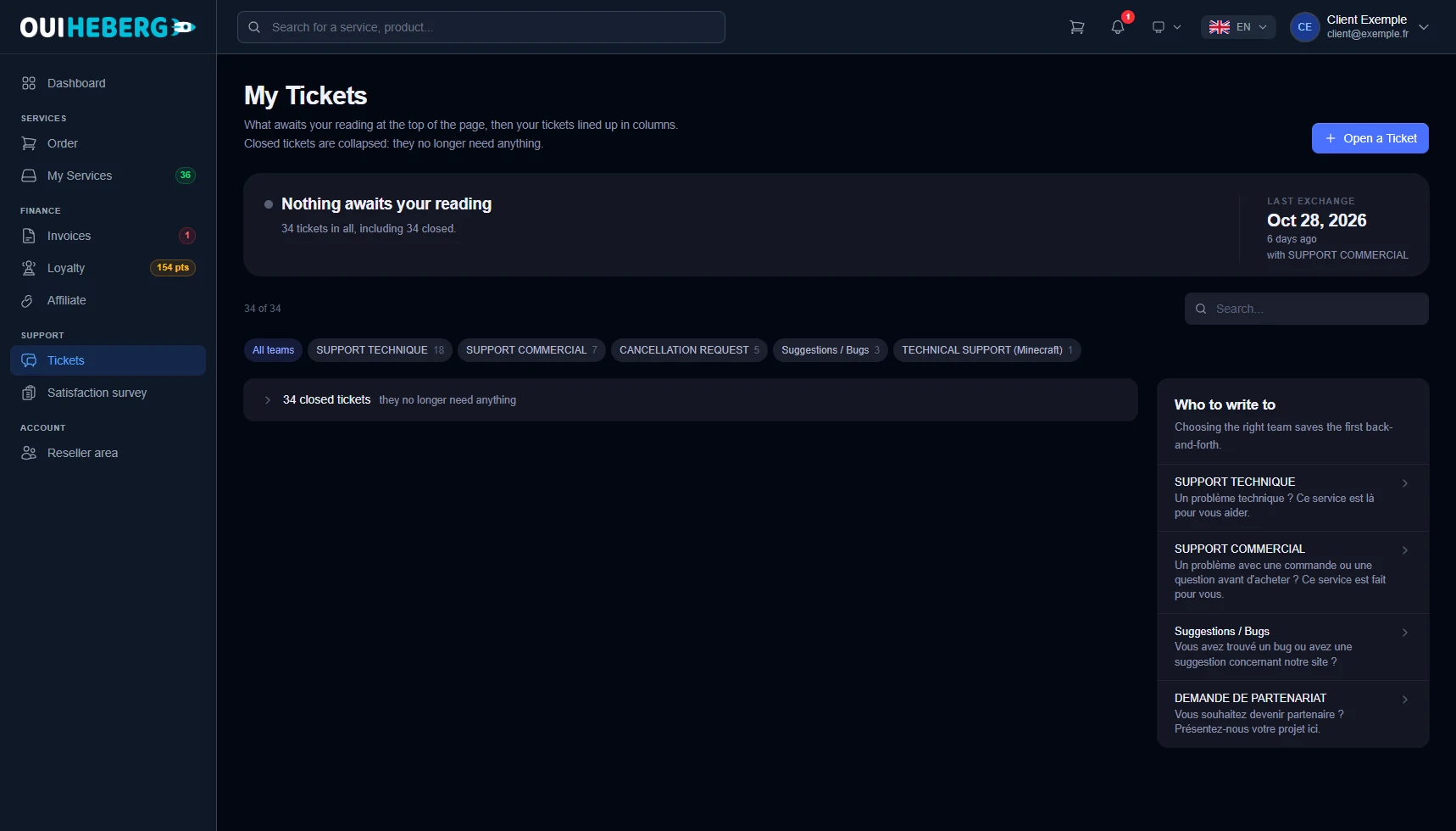
The My tickets page (dash.ouiheberg.com/tickets) shows a Who to write to block on the right. As it says, choosing the right team saves the first back-and-forth.
| Department | What it handles |
|---|---|
| SUPPORT TECHNIQUE | Technical problems with a service |
| SUPPORT TECHNIQUE (Minecraft) | Minecraft hosting services |
| SUPPORT COMMERCIAL | A problem with an order, or a question before buying |
| Suggestions / Bugs | A bug you found or a suggestion about the website |
| DEMANDE DE PARTENARIAT | Becoming a partner and presenting your project |
Filling in the form
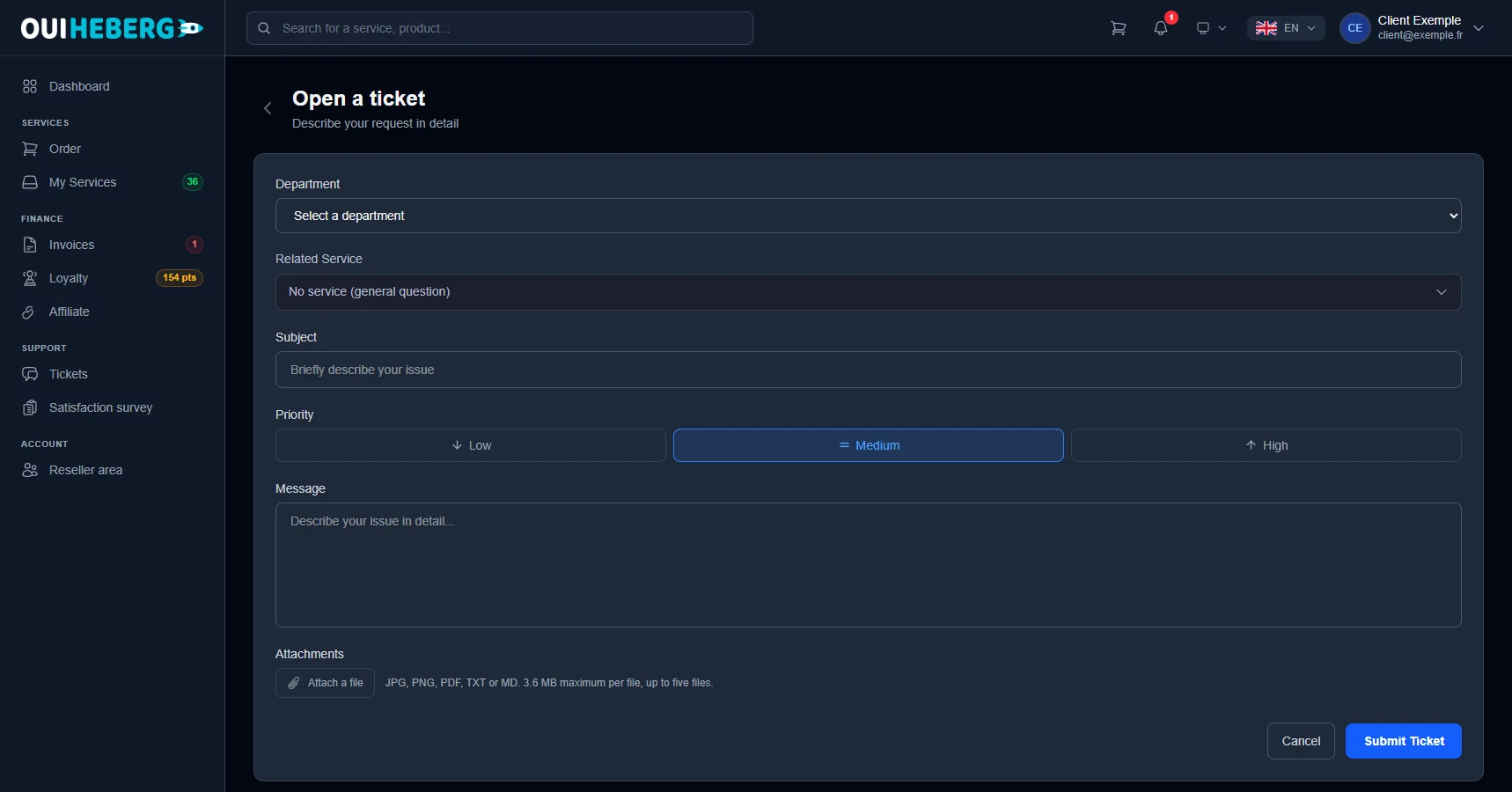
The Open a ticket page asks you to describe your request in detail.
Department. Choose the team from the list.
Related Service. Choose the service concerned, or leave No service (general question).
Subject. Sum up the problem in one short sentence.
Priority. Choose Low, Medium or High. Medium is selected by default. Keep High for a service that has stopped working altogether.
Message. Describe your request in detail.
Attachments. Click Attach a file to add a screenshot or a log. Accepted formats are JPG, PNG, PDF, TXT and MD, up to 3.6 MB per file and five files at most.
Click Submit Ticket. The Cancel button drops the request.
If the service you chose is in a region affected by a disruption, dash warns you before sending. Your problem very likely comes from there, and our teams are already working on it. Click I understand, continue if your request is about something else, or Change Service.
What helps support answer quickly
What you were trying to do, and what happened instead.
The exact error message, copied as is.
What you have already tried.
A screenshot of the problem.
Following up on your request
Open the Tickets menu. The top of the My tickets page shows what is waiting for you. When there is nothing, it reads "Nothing awaits your reading". When support has replied, it tells you, for example "A support reply is waiting for you". On the right, Last exchange gives the date of the latest message and the team involved.
The team filters, starting with All teams, and the search field help you find a ticket.
Closed tickets are folded into a single line. One click expands them.
The notification bell can also flag a reply from support.
Click a ticket to read the conversation and reply. A closed ticket reopens automatically if you reply to it. Once your problem is solved, you can close the ticket yourself.
💡 To cancel a service, use the Request cancellation tile at the bottom of its page instead.
Need help?
Can't log in to open a ticket? Write to us on our Discord.
To reach the form at any time, keep the link dash.ouiheberg.com/tickets/new handy.