
 Client area

Some tools in the client area are grouped under Expert Mode. It is neither a paid option nor a higher access level, just a display setting. When it is off, these tools stay behind a padlock. When it is on, they open directly. This guide explains what Expert Mode shows, how to turn it on and how to turn it off again.
What Expert Mode shows
While the mode is off, an expert tool carries a padlock and the note Expert Mode required. A few examples:
on a VPS page, the Network Traffic and Availability tabs;
on a web hosting page, the DNS zone tab;
in the shop, filters by type, budget, memory and processor, plus sorting.
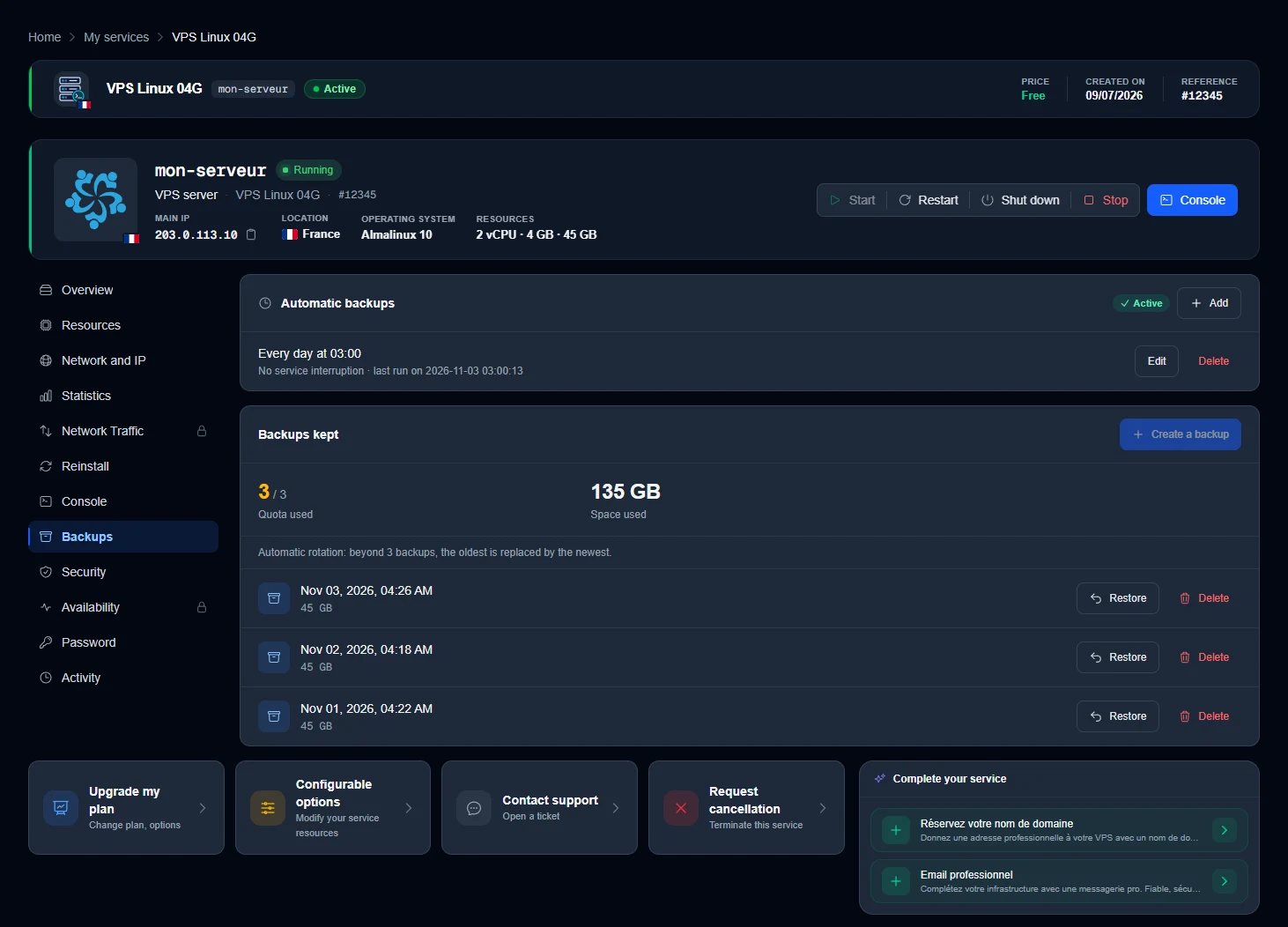
These tools are already included with your services. Expert Mode grants no additional rights, it simply shows them. Without it, you manage your services as usual and everything essential remains available.
For the rest of these pages, see our guides Manage your VPS and Manage your web hosting.
Turn on Expert Mode in the settings
Log in to dash.ouiheberg.com.
At the top right, click your name, then My profile.
In the menu of the Account Settings page, choose Expert Mode. The direct link is dash.ouiheberg.com/settings?section=expert.
On the Show expert tools line, click the switch on the right. The badge changes from Disabled to Enabled.
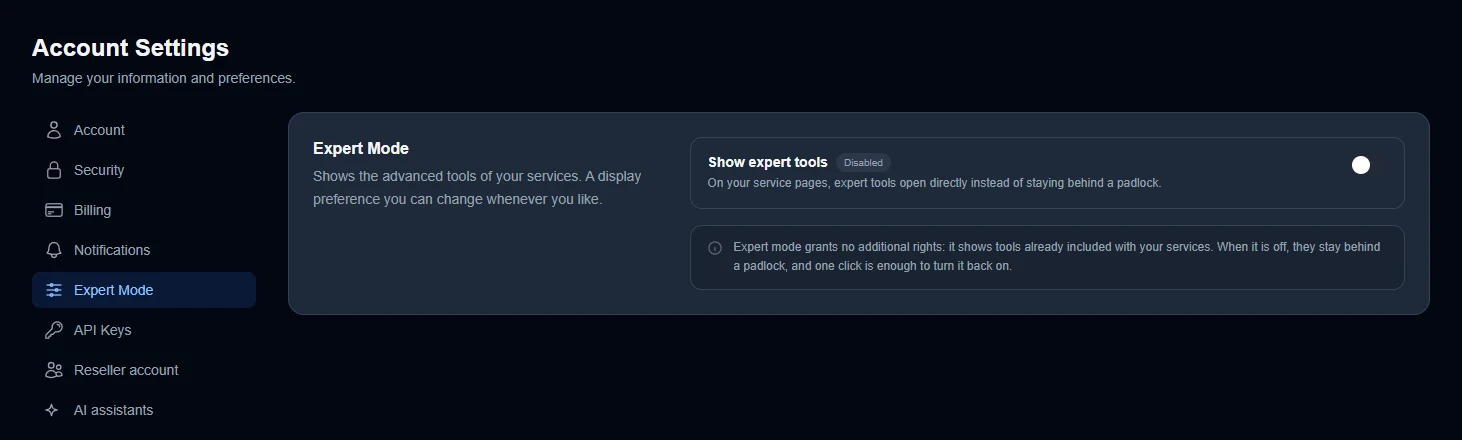
💡 In dark mode, the switch is hard to see when it is off, only its white dot shows. Rely on the badge next to Show expert tools.
Turn it on from a locked tool
You do not have to go through the settings. Click a tool marked with a padlock and the Expert Mode window opens.
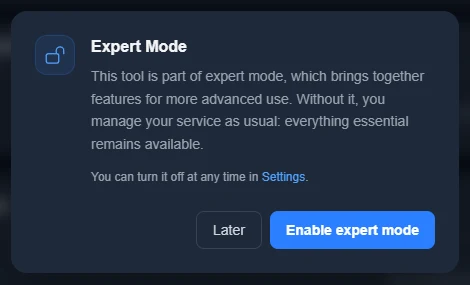
Enable expert mode turns the mode on, just like the switch in the settings.
Later closes the window without changing anything.
Turn off Expert Mode
Go back to Account Settings › Expert Mode and click the switch again. The expert tools go back behind their padlock. One click is enough to get them back, in the settings or on a locked tool. You can change this setting whenever you like.
Need help?
Open a ticket from Tickets › Open a Ticket (dash.ouiheberg.com/tickets/new). For a specific service, the Contact support tile on its page opens a ticket linked to that service.
You can also write to us on our Discord.