
 Client area
The OuiHeberg client area lives at dash.ouiheberg.com. The old address, manager.ouiheberg.com, redirects there. This guide shows you how to log in, create an account or recover your password. It then walks you through the interface so you can quickly find your services, your invoices and support.
Logging in
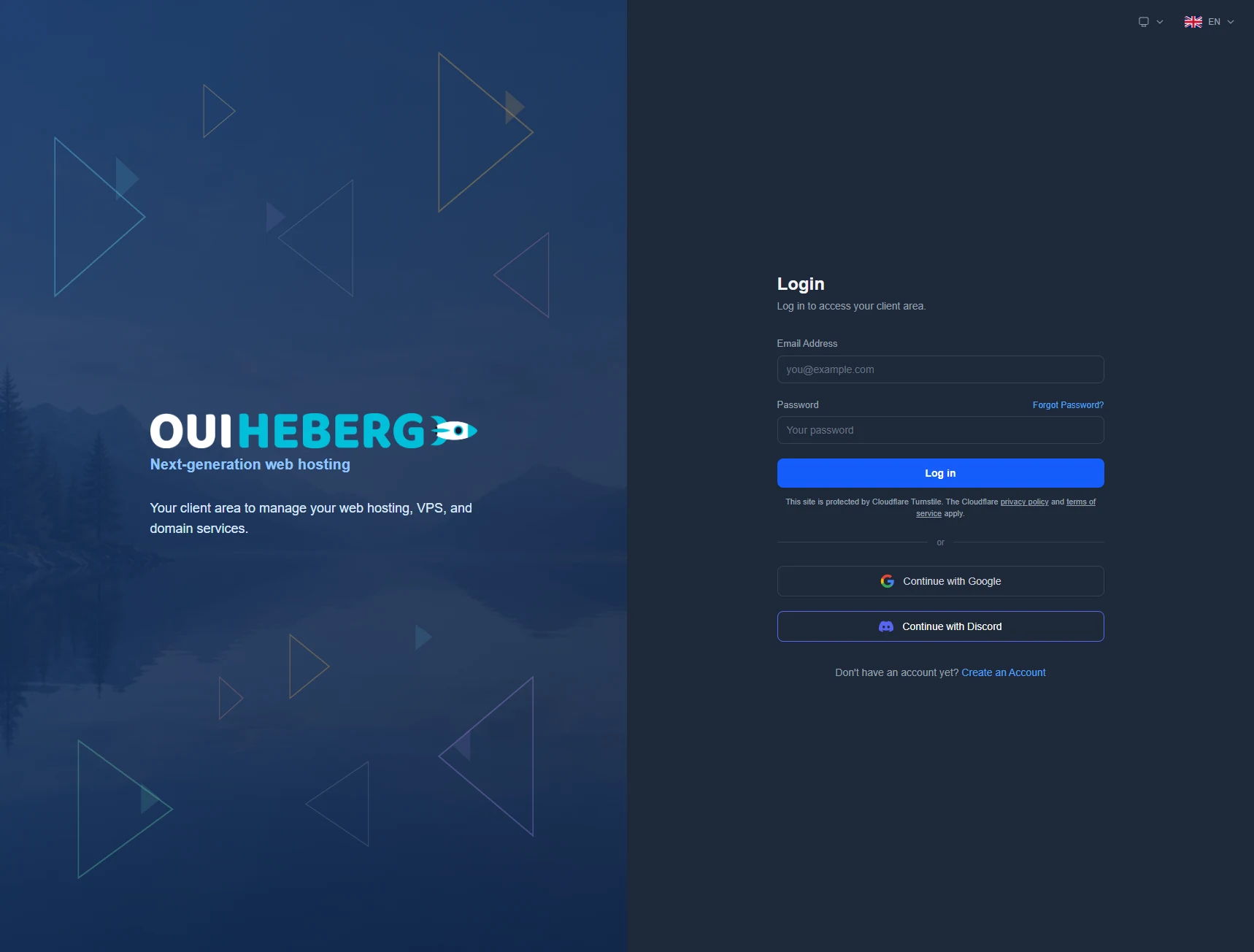
Open dash.ouiheberg.com/login. The Login screen appears.
Enter your Email Address and Password.
Click Log in.
You can also use Continue with Google or Continue with Discord. For Discord, your Discord account needs a verified email address.
💡 Did you have an account on the old client area? Use the same email address and password. Your dash account is created the first time you log in.
Checks after the password
Depending on your account settings, dash may ask for one more step.
Login from a new IP address. The Security verification screen appears and dash sends you an email. Enter the code it contains. Nothing arrived? Check your spam folder, or click Resend email.
Two-factor authentication (2FA). If you turned it on, enter the 6-digit code from your authenticator app. One of your backup codes also works.
If dash says the security verification could not load, disable your ad blocker for this site and try again.
Creating an account
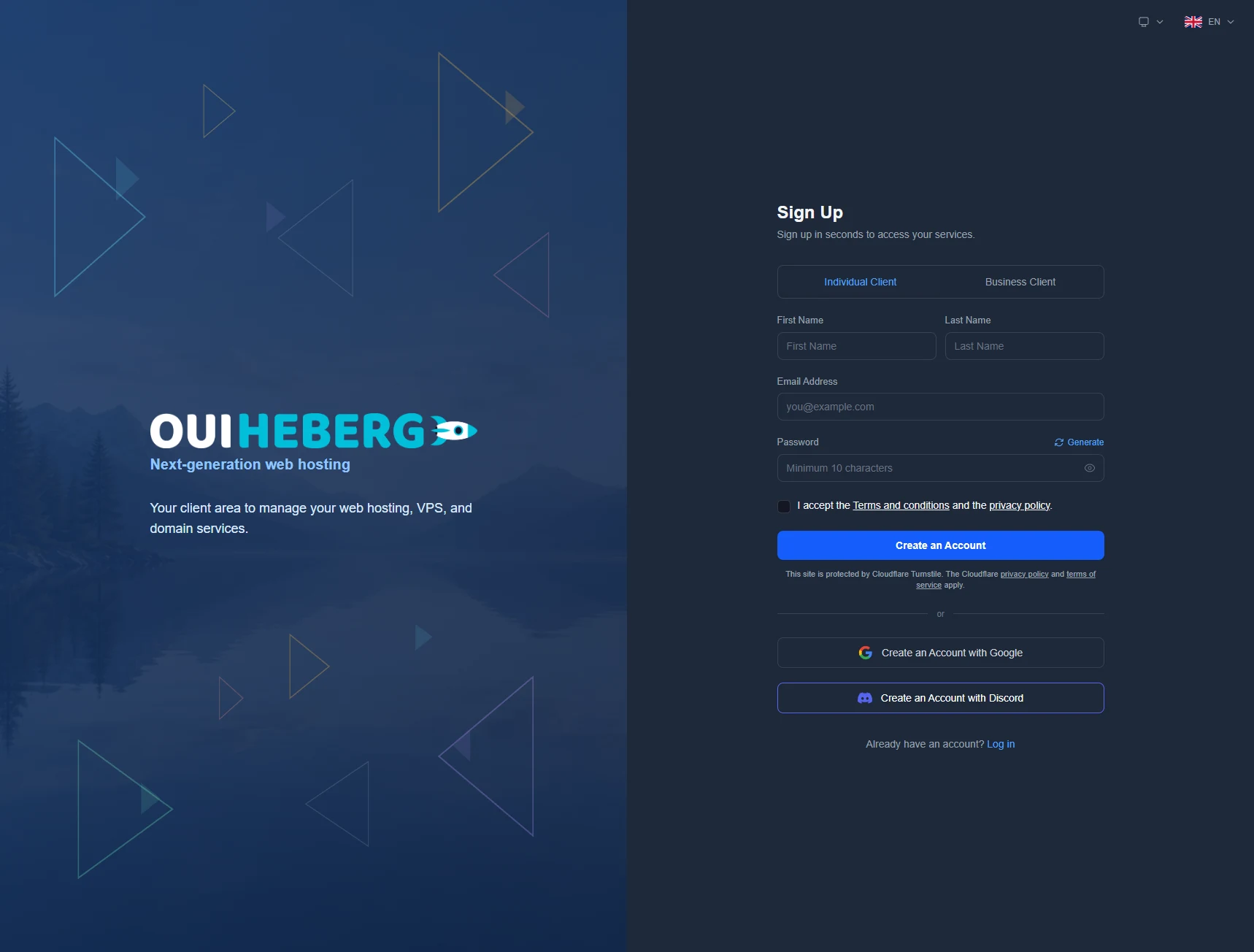
Not a customer yet? On the login screen, click Create an Account, or go straight to dash.ouiheberg.com/register.
Pick the Individual Client or Business Client tab. The second one opens the account in a company's name.
Fill in your first name, last name and email address.
Choose a password of at least 10 characters. The Generate link can create one for you.
Tick the box accepting the terms and conditions and the privacy policy.
Click Create an Account.
The Create an Account with Google and Create an Account with Discord buttons do the same with one of those accounts.
Recovering your password
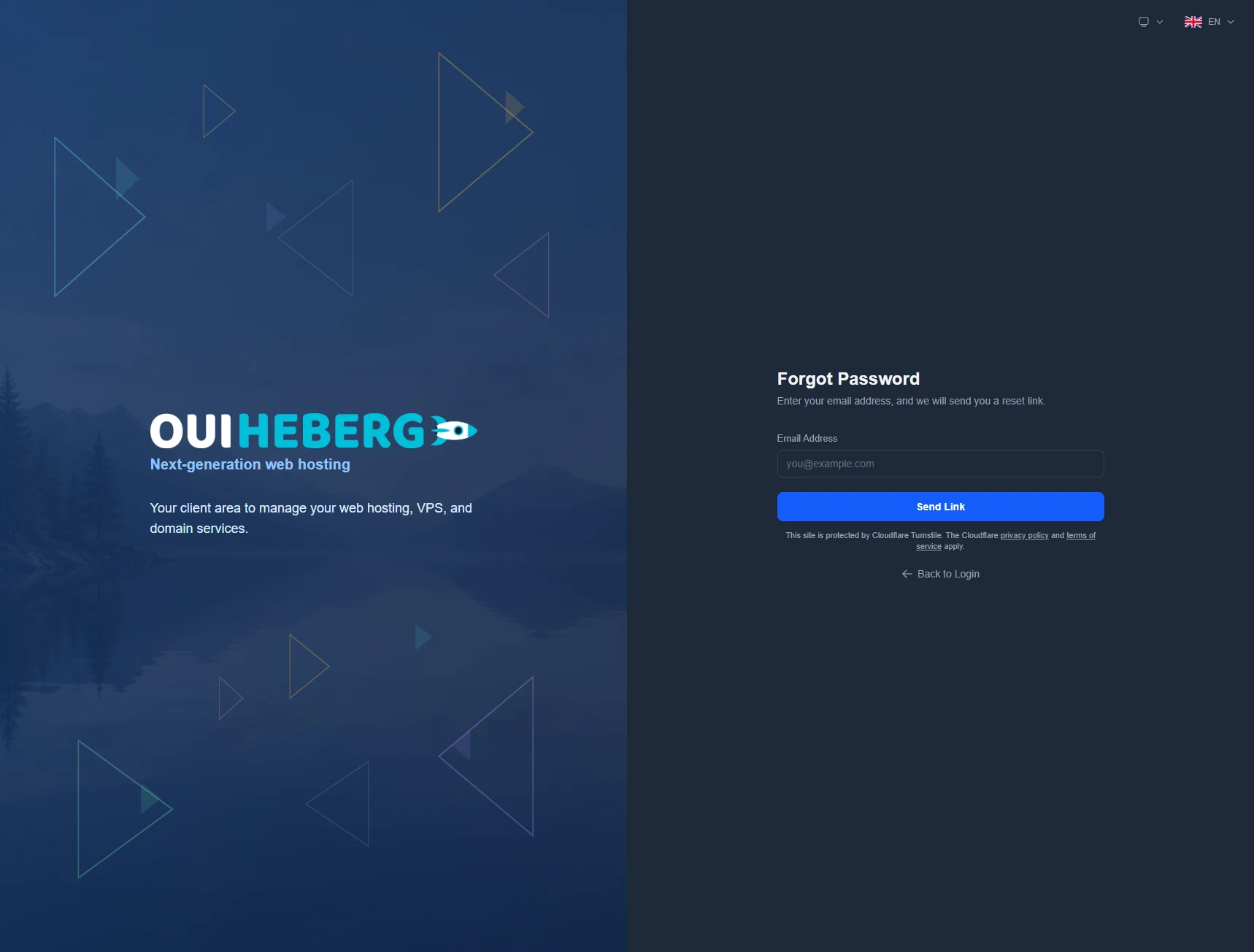
On the login screen, click Forgot Password? The page dash.ouiheberg.com/forgot-password opens.
Enter your account's email address, then click Send Link.
Open the email you receive and follow its link. On the Reset Password page, choose your new password.
No email? Check your spam folder and the address you typed. If dash says the link is invalid or has expired, request a new one. Once the password is changed, every device logged in to your account is signed out, for security.
💡 Are you a team member (sub-user) on someone else's account? You cannot reset your own password. Ask the account holder.
The dashboard
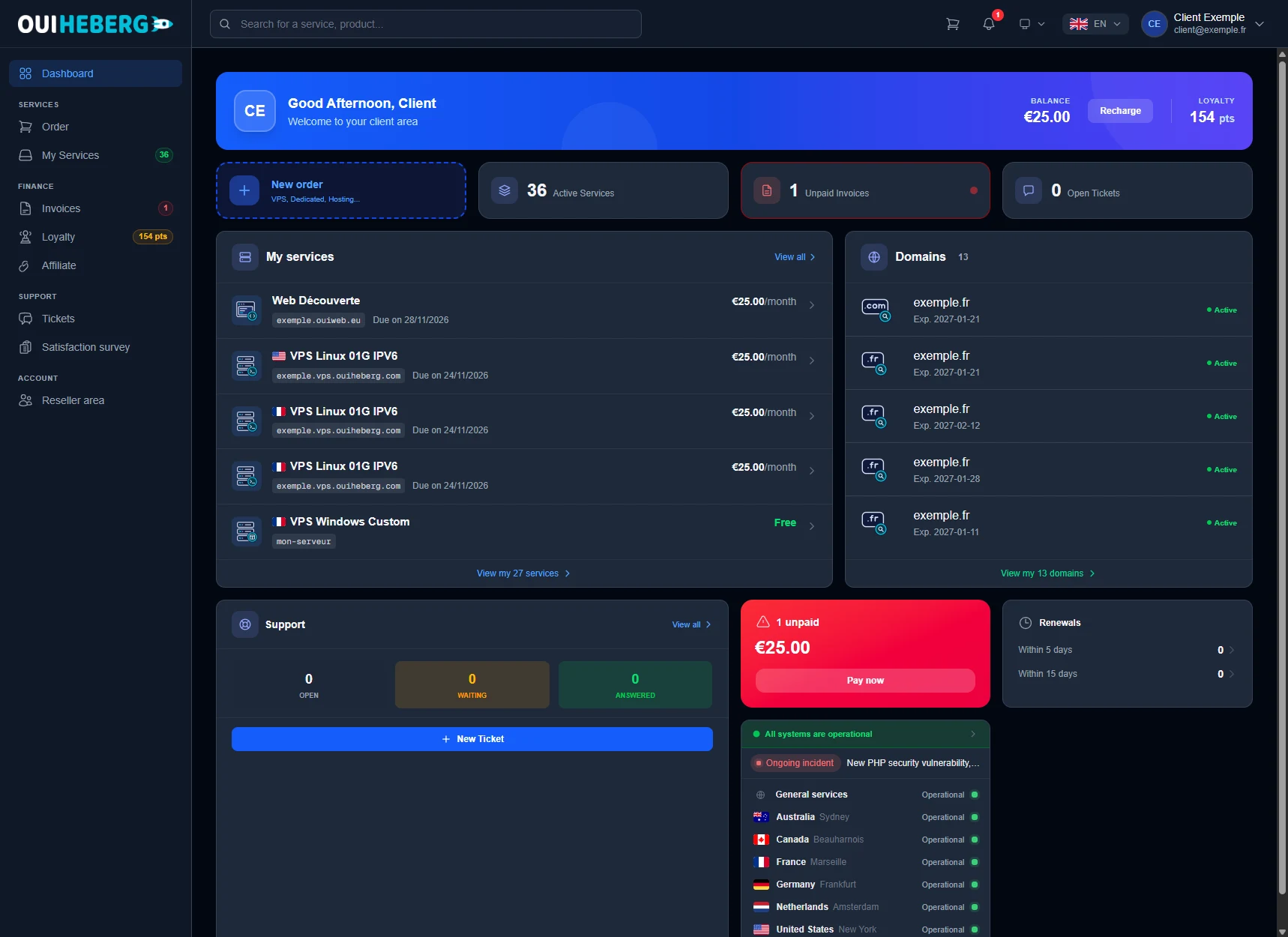
After logging in, you land on the Dashboard. It sums up your account on one screen.
The top banner shows your Balance, with the Recharge button, and your Loyalty points.
The New Order tile is for ordering a service. The next three count your active services, unpaid invoices and open tickets.
The My services card lists your latest services. View All opens the full list.
The Domains card lists your domain names with their expiry date.
The Support card counts your open, waiting and answered tickets. Its New ticket button opens the request form.
A red card flags your unpaid invoices. Its Pay now button is there to settle them.
The Renewals card counts the services due for renewal within 5 days and within 15 days.
At the bottom, the service status shows whether everything is running, country by country. Details are on dash.ouiheberg.com/status.
The left-hand menu
It stays visible on every page.
| Section | Entries |
|---|---|
| Top | Dashboard |
| Services | Order, My Services |
| Finance | Invoices, Loyalty, Affiliate |
| Support | Tickets, Satisfaction survey |
| Account | Reseller area |
Account settings are not in this menu. You reach them from the account menu, top right.
The top bar
Search
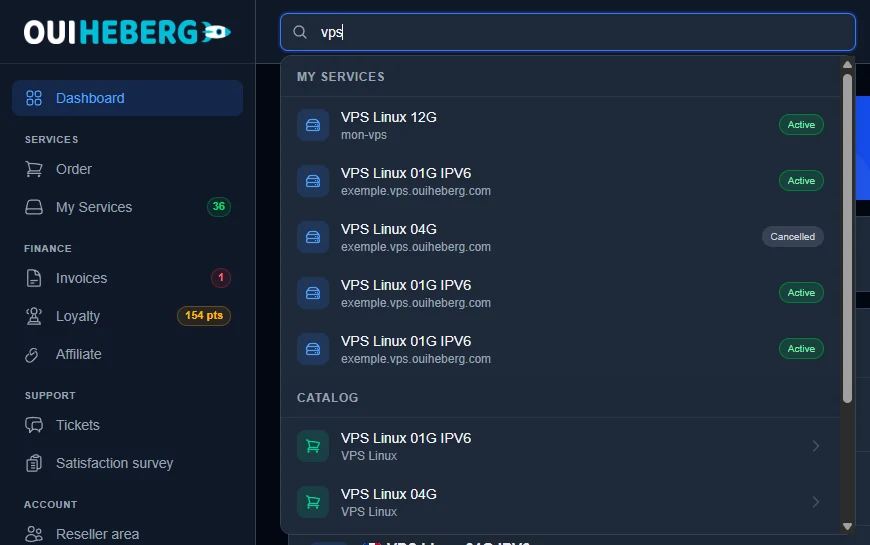
The Search for a service, product... field searches the whole client area. Type "vps", for example. The list first shows your own services under My services, with their status. It then suggests plans you can order under Catalog.
Notifications
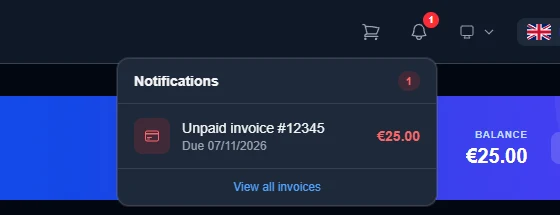
The bell shows a counter when something needs you. An unpaid invoice appears there with its due date and amount. The View all invoices link opens your invoice list.
The account menu
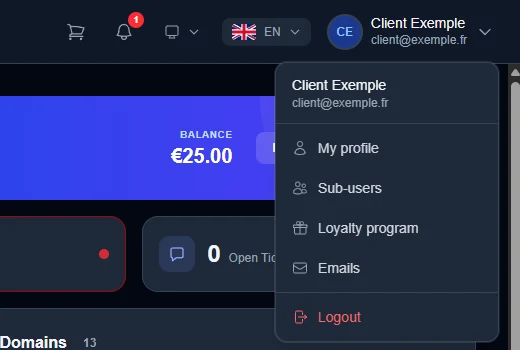
Click your name, far right.
My profile opens your account settings.
Sub-users lets you give a team member access.
Loyalty program shows your points and your tier.
Emails keeps a history of the emails OuiHeberg has sent you. Handy when a message has gone missing.
Logout ends your session.
Account settings
My profile opens the Account Settings page. Pick a section on the left.
| Section | What you set there |
|---|---|
| Account | Name, address, phone, company, VAT number, language |
| Security | Password, two-factor authentication (2FA), login history |
| Billing | Saved payment methods, email copies of invoices |
| Notifications | Which emails you receive |
| Expert Mode | Shows advanced settings on service pages, such as the DNS zone |
| API Keys | Create or revoke an API key |
You will also find Reseller account and AI assistants. To replay the interface tour, open the Account section and use the Replay the tour button on the Panel Guided Tour card.
💡 dash strongly recommends turning on two-factor authentication. You set it up in Account Settings › Security.
Theme and language
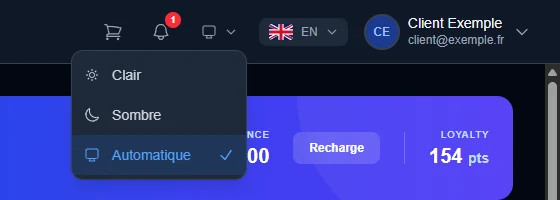
The screen icon, left of the flag, changes the theme. Choose light, dark or automatic, which is the default. The flag changes the interface language. Your choice is saved to your account.
My services
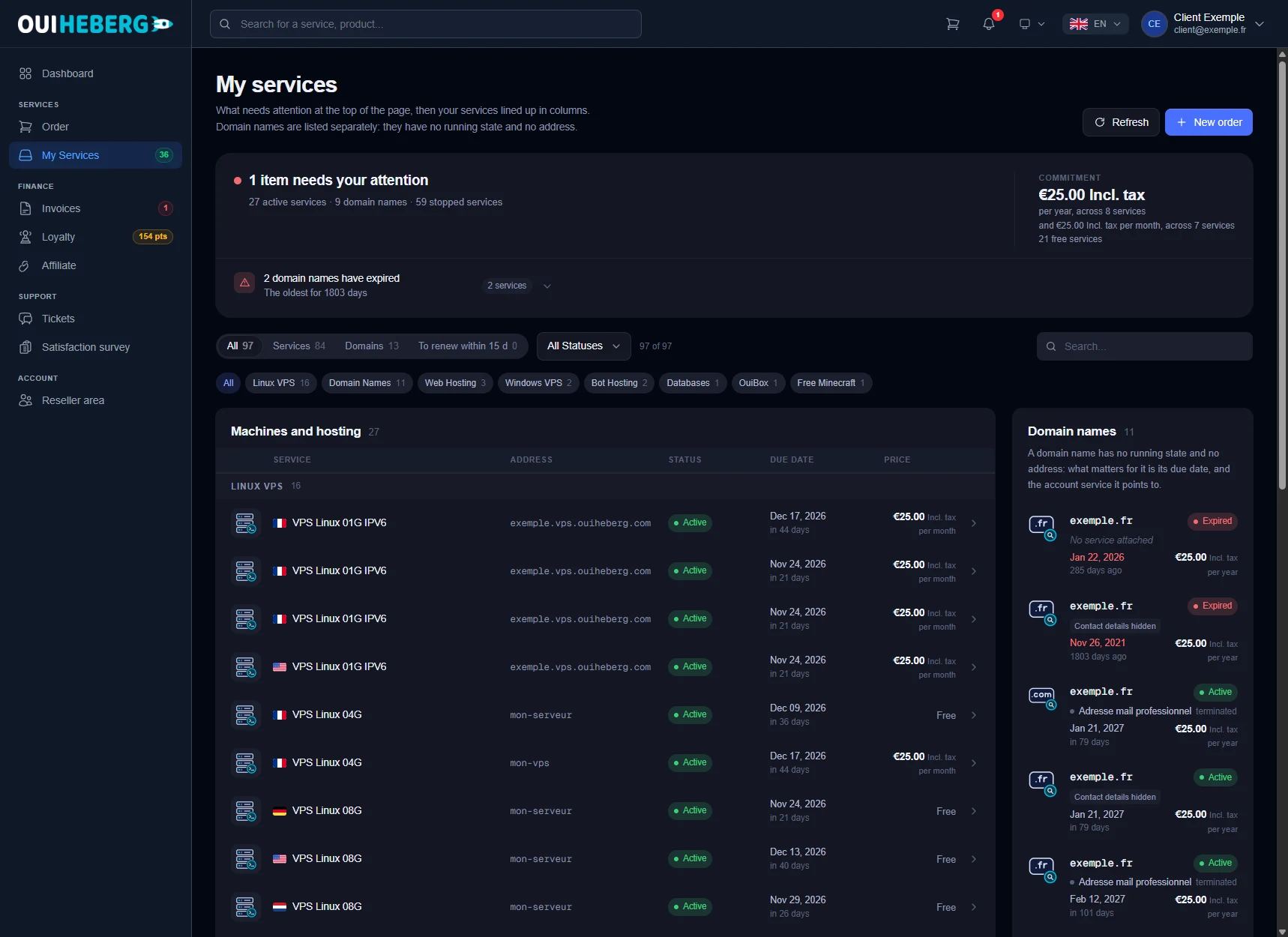
The My Services menu entry opens dash.ouiheberg.com/services. The page starts with whatever needs your attention, such as an expired domain name. On the right, the Commitment block sums up what you pay per month and per year.
The All, Services and Domains filters, the renewals-within-15-days filter, the All Statuses menu and the search field narrow the list down.
The chips below filter by product family (Linux VPS, web hosting, OuiBox…).
The Machines and hosting table gives each service's address, status, due date and price.
Your domains are listed separately, in the Domains column, with their due date.
Click a row to open the service page. That is where you manage it day to day. The Refresh button at the top reloads the list.
To move to a higher plan from a service page, follow the guide How to upgrade your OuiHeberg hosting.
Need help?
Open a ticket from Tickets › Open a Ticket, or directly at dash.ouiheberg.com/tickets/new.
On a service page, the Contact support tile opens a ticket already linked to that service.
Can't log in? Write to us on our Discord.