
 Client area
You request the cancellation of a service from its page in the client area at dash.ouiheberg.com. You choose whether it stops at its renewal date or right away. This guide covers each step, what happens next and how the right of withdrawal works.
Before you cancel
When a service ends, its files and data are deleted. Retrieve everything you want to keep beforehand (site files, databases, game worlds, emails…).
Request the cancellation
Log in to dash.ouiheberg.com.
In the left-hand menu, click My Services, then the service concerned.
At the bottom of the page, click the Request cancellation tile, subtitled "Terminate this service".

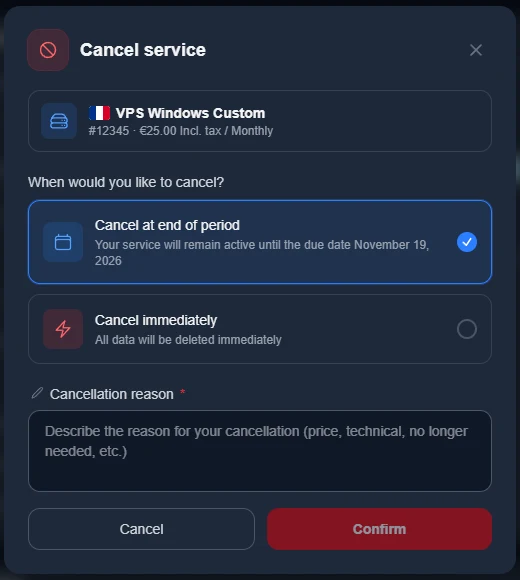
The Cancel service window opens. It reminds you of the plan, its reference and its price.
Under When would you like to cancel?, choose an option.
Cancel at end of period, selected by default. Your service stays active until its renewal date, shown in the window.
Cancel immediately. All data is deleted.
Fill in the Cancellation reason field, which is required (price, technical issue, no longer needed…).
Click Confirm. The Cancel button closes the window without changing anything.
After you confirm
Depending on the service, an intermediate screen may appear, such as an offer or an invitation to contact support. At this point, the cancellation is not recorded yet. Read the screen, then choose whether to go ahead.
Immediate cancellation. A last window asks you to click Confirm immediate cancellation. The service is then stopped and its data deleted.
Cancellation at end of period. The service keeps running normally until its renewal date, then stops. In the meantime, the page shows Cancellation pending and offers a Cancel cancellation button in case you change your mind.
Right of withdrawal
For a new order placed less than 14 days ago, the right of withdrawal applies. The cancellation window says so before you confirm, with the line "Automatic refund to your account balance, under your right of withdrawal" followed by the amount.
The refund is credited to your account balance, VAT included. It does not go back to your payment method.
Your balance is then used automatically for your next orders and renewals. You can check it on the My Balance page.
Renewing a service does not open a right of withdrawal, and an order older than 14 days is not refunded.
If your plan included a free domain name, already registered for you, the refund cannot be calculated automatically. Your cancellation is still recorded. Contact support to get your refund.
Game servers: sleep mode
For a game server, the cancellation window may show a Keep your server in sleep mode box. It only appears when sleep mode is offered for that service. If you click Put my server in sleep mode, here is what changes.
The server is stopped and cannot be reached during sleep mode.
Your files, worlds and settings are kept.
Sleep mode has its own monthly price, shown in the box along with its start date.
Your cancellation request is withdrawn.
To wake the server up, you pay for one period at its current price.
Only the account holder can put a server in sleep mode.
Need help?
A question before cancelling, or about a refund? Open a ticket from Tickets › Open a ticket (dash.ouiheberg.com/tickets/new), or click the Contact support tile on the service page. You can also reach us on Discord.