
 Client area
Difficulty: Beginner ⭐
Compatible servers: Enshrouded on OuiPanel
📋 Introduction
This guide shows how to set up your Enshrouded server in OuiPanel. It covers the passwords of the four player groups and their permissions, the server name and player count, then the game settings. The last part explains how to join the server and import a world.
The name, the player count and the passwords are set in the server variables. Group permissions and game settings are changed in the enshrouded_server.json file.
🔑 The four groups and their passwords
Enshrouded has no single server password, but one per group. There are four groups, Admin, Friend, Guest and Visitor. The password a player types when joining decides their group, and so their permissions.
Your server comes with four different 16-character passwords, created at random on delivery. You read them in four OuiPanel variables.
- Open your Enshrouded server in OuiPanel.
- Go to Configuration › Server Settings, then scroll down to the Environment Variables card.
- Read the passwords in [USER GROUP] ''Admin'' Group Password, [USER GROUP] ''Friend'' Group Password, [USER GROUP] ''Guest'' Group Password and [USER GROUP] ''Visitor'' Group Password.
![Environment Variables card of an Enshrouded server in OuiPanel, with [SERVER] Server Name set to My Enshrouded server, [SERVER] Max Players at 16 and the masked passwords of the Admin, Friend, Guest and Visitor groups, the Friend one being changed](https://www.ouiheberg.com/assets/img/enshrouded/guides/configurer-serveur-enshrouded-mots-de-passe-reglages-import-variables-en.webp)
| Group | Default permissions |
|---|---|
| Admin | Full rights. Builds, expands the base, opens chests and inventories, kicks and bans. |
| Friend | Opens chests, builds and expands the base, but cannot kick or ban. |
| Guest | Does not open chests and does not touch bases. |
| Visitor | Cannot change anything. |
Give each player the password of the group that suits them, and keep the Admin password to yourself.
Change a password
- Type the new password in the group's variable.
- Click the check mark to the right of the field to save it.
- Restart the server from the Console.
The four passwords cannot all be the same. None of them can be empty or made only of digits.
🛡️ Change permissions or add a group
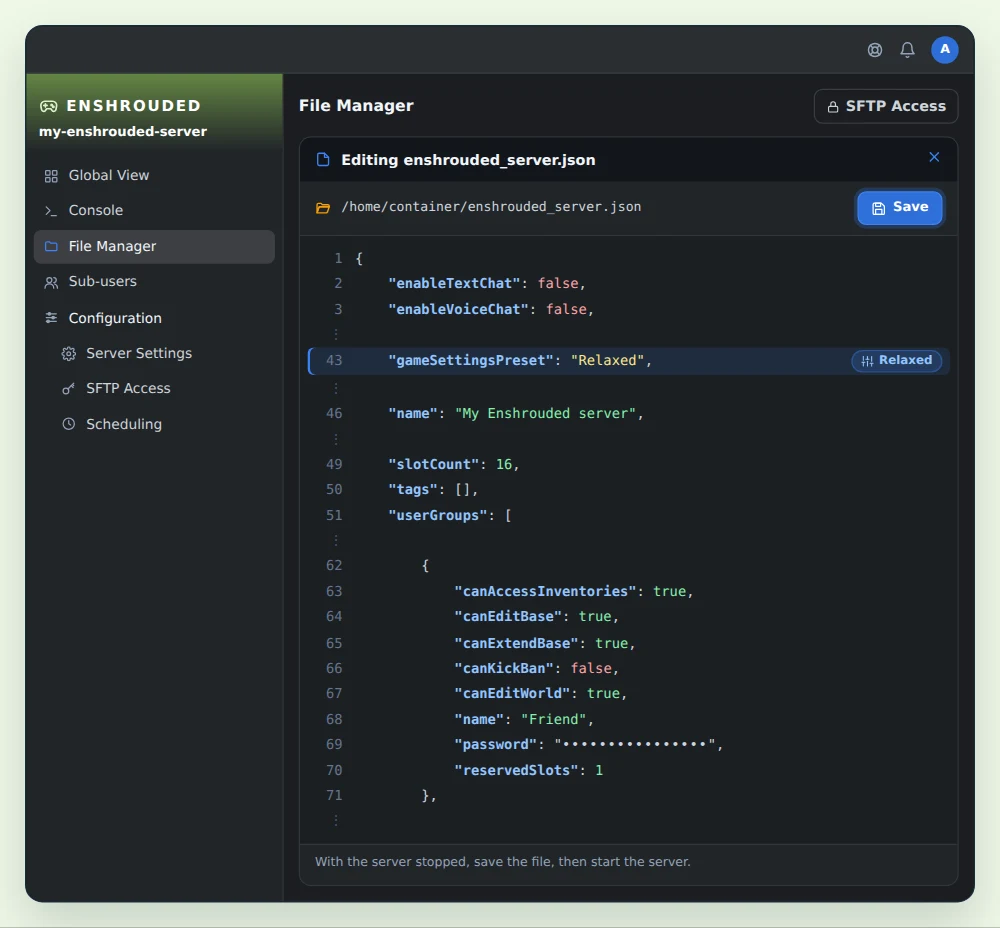
Group permissions live in the enshrouded_server.json file, at the root of the server. You open it with the OuiPanel File Manager or over SFTP, as our guide How to connect via SFTP with FileZilla explains.
At every startup, the server writes the variable values into this file. That covers the name, the port, the player count and the passwords of the first four groups. Groups 2 to 4 keep the names Friend, Guest and Visitor. So change these values in the variables. The rest of the file is yours to edit, such as permissions, reserved slots, extra groups, game settings, tags and chat.
| Field | What it does |
|---|---|
canKickBan | Kick and ban players. |
canAccessInventories | Open chests and inventories. |
canEditWorld | Edit the world. |
canEditBase | Edit bases. |
canExtendBase | Expand bases. |
reservedSlots | The number of slots reserved for the group on the server. |
The first five fields take true (allowed) or false (not allowed).
- Stop the server from the Console.
- Open
enshrouded_server.jsonin the File Manager. - In
userGroups, set the fields you want totrueorfalse. For a new group, copy the block of a group, from the opening brace to the closing brace, and paste it after the last group, with a comma between the two blocks. Give it its own name and password. - Click Save, then start the server.
Example of a fifth group that builds and opens chests, without expanding the base or kicking anyone. Its password is set in the file, as no variable covers it.
{
    "canAccessInventories": true,
    "canEditBase": true,
    "canExtendBase": false,
    "canKickBan": false,
    "canEditWorld": true,
    "name": "Builder",
    "password": "ChooseAPassword",
    "reservedSlots": 0
}
⚠️ Never delete one of the first four groups from the file. If one is missing, the server no longer applies any variable, neither the name, the port nor the passwords. To close a group, give it a password nobody knows.
🏷️ Server name and player count
Two more variables, on the same Environment Variables card, set the name and the size of the server. Save each value, then restart the server.
| Variable | What it does |
|---|---|
| [SERVER] Server Name | The name shown in the in-game server list, My Enshrouded Server on delivery. |
| [SERVER] Max Players | The maximum number of players, 16 by default. The game does not accept more than 16. |
🎮 Game settings
The game preset is chosen in enshrouded_server.json, on the gameSettingsPreset line. There is no variable for it in OuiPanel.
| Value | Effect |
|---|---|
Default | The game's base settings. This is the delivered value. |
Relaxed | Fewer enemies and more resources. |
Hard | A harder game. |
Survival | Extra survival mechanics. |
Custom | You set about forty settings yourself in the gameSettings block, such as health, mana, stamina, hunger, day and night length, enemy count and boss damage. |
- Stop the server from the Console.
- Open
enshrouded_server.jsonin the File Manager. - Replace the value of
gameSettingsPreset, for example with"Relaxed". - Click Save, then start the server.
Example with Custom
Set gameSettingsPreset to Custom, then change the values you want in the gameSettings block. In this excerpt, players get more health and enemies hit less hard. The ellipses stand for the lines you leave as they are.
"gameSettings": {
    …
    "enemyDamageFactor": 0.5,
    …
    "playerHealthFactor": 1.5,
    …
},
"gameSettingsPreset": "Custom",
Text and voice chat
Text chat and voice chat are off by default. To turn them on, set enableTextChat and enableVoiceChat to true, again with the server stopped.
🌍 Join the server
- Launch Enshrouded on PC and open the server list from the menu to join a game.
- Look for your server's name. If you cannot see it, check the list filters.
- Enter your group's password.
Each player needs their own copy of Enshrouded on Steam. The server is a PC server. PlayStation 5 players cannot join it, and there is no crossplay.
🗺️ Import a world
The server's world is in the savegame folder, at the root. Since 1.0, it is the savegame/world0.ksd file. The game also keeps ten rotating copies of this file in savegame/backup, from world0.ksd.backup-0 to world0.ksd.backup-9.
A world from before 1.0
A world in the pre-1.0 format is made of the files 3ad85aea, 3ad85aea-1 to 3ad85aea-9 and 3ad85aea-index. The server converts it on its own.
- Stop the server from the Console. Never touch the
savegamefolder while the server is running. - If you want to keep the current world, first download
savegame/world0.ksdto your computer. - Upload the world files to the
savegamefolder, over SFTP or with the File Manager. - Start the server.
On the first startup, the server converts this world to world0.ksd and moves the original files to savegame/migrated.
A world saved in 1.0
To import a world saved since 1.0, such as a solo game, contact our support. They will help you move it to your server.
🔄 Updates
With [SYSTEM] Auto Update on, as it is on delivery, the server updates the game at every startup. To keep it up to date without thinking about it, schedule a restart every night in Configuration › Scheduling.
🚀 No server yet?
Our Enshrouded server hosting runs in Europe, the United States and Australia, with OuiPanel, SFTP access and DDoS protection.
Need an Enshrouded server?
Enshrouded server hosting from $5.78/mo, with a password for each group, up to 16 players, SFTP access and DDoS protection included.