
 Client area
Estimated time: 5 minutes
Difficulty: Beginner ⭐
Compatible servers: RuneScape: Dragonwilds on OuiPanel
📋 Introduction
A RuneScape: Dragonwilds dedicated server needs the Owner ID of its owner. According to the official Jagex guide, the server won't start without it.
This guide shows where to find your Owner ID, how to enter it in OuiPanel, then how to set the world name and the passwords before you invite your friends.
🆔 Find your Owner ID in the game
The Owner ID is your player ID. The account that provides it becomes the owner of the server and has full rights over it.
- Launch RuneScape: Dragonwilds with the account that will manage the server.
- Open the Settings menu.
- Your player ID is shown at the bottom of the menu. Click the copy button to put it in your clipboard.
⚙️ Set the variables in OuiPanel
- Open your Dragonwilds server in OuiPanel.
- Go to Configuration › Server Settings, then scroll down to the Environment Variables card.
- In Owner ID, replace the default text “Player ID” with your ID, then click the check mark to the right of the field (Save).
- Set the other variables the same way, saving each one with its check mark.
- In Console, click Restart. The variables are read when the server starts.
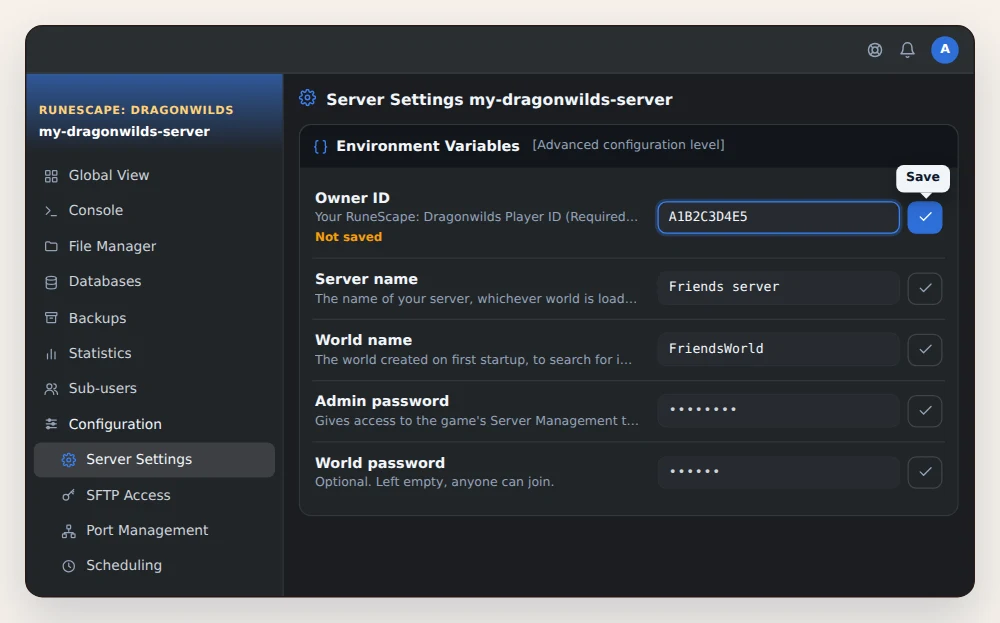
| Variable | Role | Required |
|---|---|---|
| Owner ID | Your player ID. It makes you the owner of the server. | Yes |
| Server name | The name of the server, whichever world is loaded. | Yes |
| World name | The name of the world created on first startup. This is the name your friends search for in the game. | Yes |
| Admin password | Gives admin rights to anyone who enters it in the game. | Yes |
| World password | Asked from players to join. Left empty, the world is open to everyone. | No |
💡 The world password set here replaces the one that may be saved in the world.
🔑 Become an admin in the game
The owner, the one behind the Owner ID, can ban and unban anyone. To give rights to a friend, share the admin password with them.
- In the game, open the pause menu, then Settings.
- Open the Server Management tab and enter the admin password.
An admin can ban connected players, but can't lift a ban. They keep their rights until the admin password is changed. The list of players who have used this password is written in the DedicatedServer.ini file, in the RSDragonwilds/Saved/Config folder, which you open from the File Manager.
🌍 Join the server
- Start the server from OuiPanel's Console and wait for the startup to finish.
- In the game, open the Worlds screen, then the Public tab.
- In the search box, type the exact name of your world. The search is case sensitive.
- The server shows up after a few seconds. Join it, with the world password if it has one.
💡 According to Jagex, Steam invitations to a dedicated server don't work yet. Give your friends the exact world name instead.
❓ Common issues
The server won't start
Check the Owner ID variable. It must no longer say “Player ID”, but hold your full player ID, copied with the button in the Settings menu. Save, restart, then read the last lines of the Console.
The world doesn't show up in the Public tab
The name you type must match the world name exactly, capitals included. Check the versions too. The server and the game must run the same one, and Jagex points out that mismatches happen with every update. The server version is shown at the top of its log, the game version at the top left of the screen. After an update, restart the server, which updates itself on startup.
A friend lost their admin rights
The admin password has changed. Give them the new one, then they enter it again in Server Management.
➡️ What's next
Pick up an existing game with our guide Dragonwilds save location: import your world to a server. To play with friends on console, read Dragonwilds crossplay on a server: PC and consoles.
🚀 No server yet?
Our RuneScape: Dragonwilds server hosting sets up your dedicated server in a few minutes, with anti-DDoS, SFTP access and on-demand or scheduled backups.
Need a RuneScape: Dragonwilds server?
RuneScape: Dragonwilds dedicated server hosting from $3.46/month, with crossplay on PC and consoles, Owner ID and passwords set from the panel, world import over SFTP and DDoS protection included.