
 Client area
The OuiHeberg client area has its own API. With an API key, a script or an application can query your account without going through the interface, for example to keep track of your domains or invoices. This guide shows where to create a key, how to read the documentation, make a first call, stay within the rate limits and revoke a key.
Open the API Keys section
Log in to dash.ouiheberg.com.
At the top right, click your name, then My profile.
In the menu of the Account Settings page, choose API Keys.
The direct link is dash.ouiheberg.com/settings?section=apikeys.
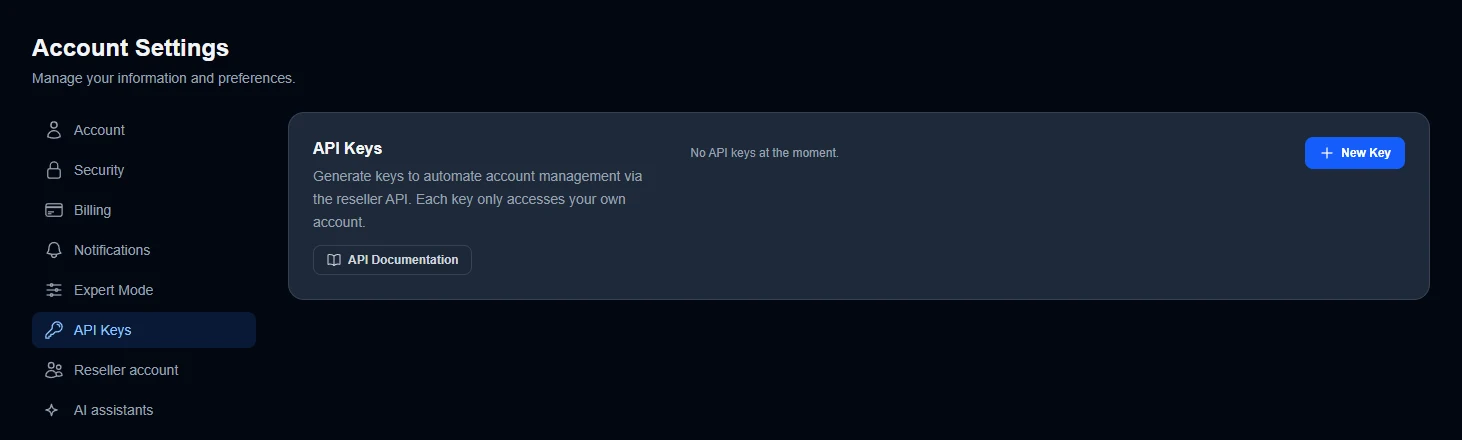
This section lists your keys. Until you create one, it shows No API keys at the moment. Each key only accesses your own account.
Create a key
Click New Key.
Give it a meaningful name, such as the name of the script or tool that will use it. When that script is retired, you will know which key to revoke.
Confirm the creation of the key.
The client area shows the key only once. Copy it right away and store it somewhere safe, such as a password manager. It cannot be displayed again.
A key can also be restricted to certain IP addresses, for example those of the servers that use it. Without a list, it works from any address. With a list, a call from any other address is refused.
💡 If the client area asks you to turn on two-factor authentication before creating a key, follow our guide Enable two-factor authentication (2FA), then come back to API Keys.
Read the API documentation
The API Documentation button in this section opens dash.ouiheberg.com/settings/api-docs.
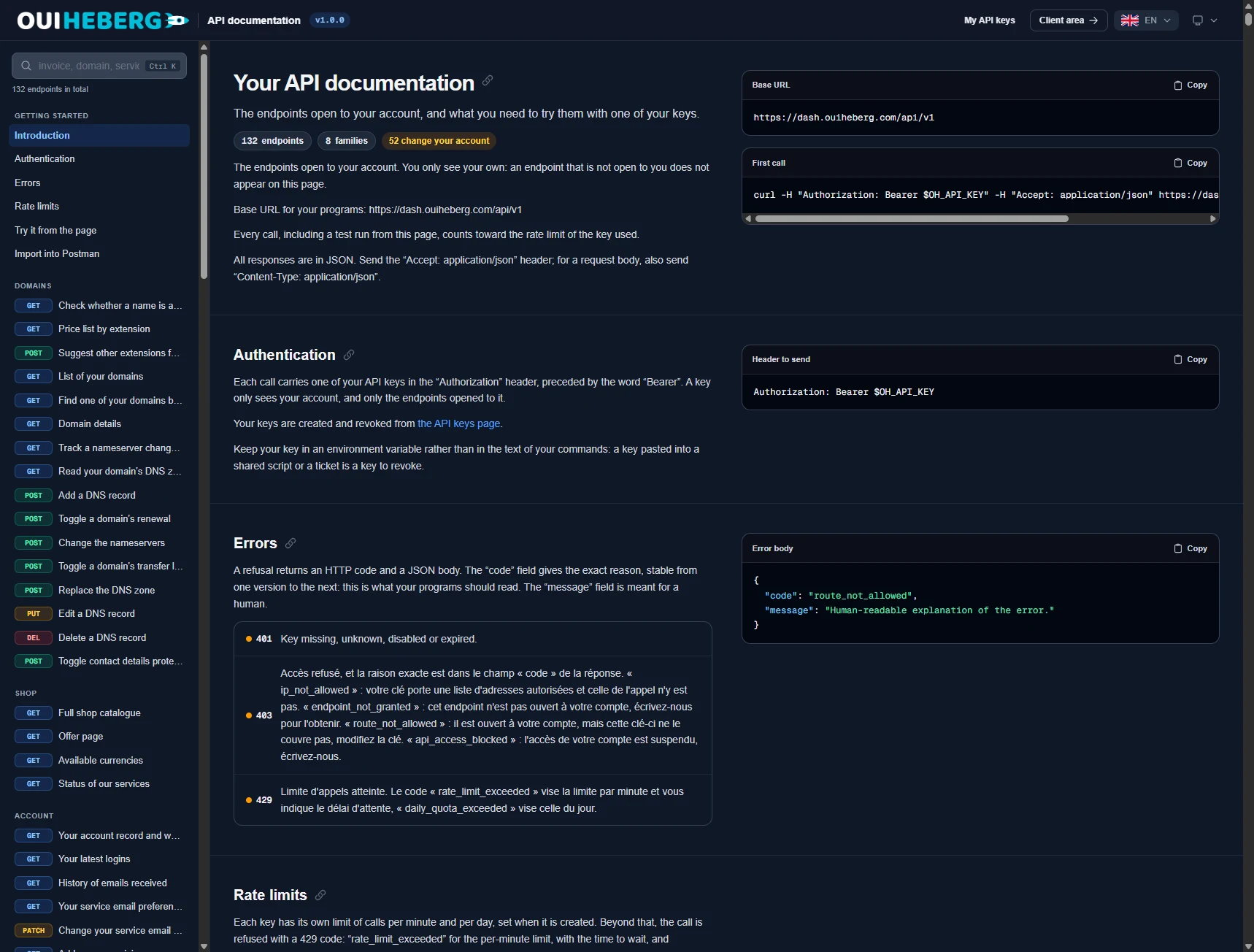
This documentation is built for your account. It only shows the endpoints open to you, grouped by family (domains, shop, account…). Each line shows its method, GET to read, POST, PUT or PATCH to send or change data, DEL to delete. At the top, badges show how many endpoints are open to you and how many of them change your account. The search box at the top left finds an endpoint from a word such as “invoice” or “domain”.
Three points from the introduction are worth remembering.
The base URL of the API is
https://dash.ouiheberg.com/api/v1.All responses are in JSON. Send the
Accept: application/jsonheader, and addContent-Type: application/jsonwhen the request has a body.At the top of the page, My API keys takes you back to your keys and Customer area to the client area.
An endpoint you need is missing? It is not open to your account. Open a ticket and tell us what you want to automate.
Make a first call
Every call carries your key in the Authorization header, preceded by the word Bearer. Keep the key in an environment variable, here OH_API_KEY, rather than typing it in your commands. A key pasted into a shared script or into a ticket is a key to revoke.
Here is the first call suggested by the documentation.
curl -H "Authorization: Bearer $OH_API_KEY" -H "Accept: application/json" https://dash.ouiheberg.com/api/v1/domains/checkTo see an endpoint's parameters and what it returns, expand it in the documentation.
Try it from the page
The documentation also lets you send a call without installing anything. Paste one of your keys into the page. It is not saved there and disappears when you reload. Then run the test from the expanded endpoint.
These tests are real calls. A call that changes your account changes it for good, and the page asks you to confirm before sending it. A call that places an order issues a real invoice, exactly as an order from the shop would.
Import into Postman
The Import into Postman section offers a ready-to-import collection, with your endpoints grouped by family. The file does not contain your key. You enter it in Postman, in the variable provided for that purpose.
Postman never asks you to confirm. A call that changes your account or places an order goes through as soon as you send it.
Rate limits
Each key has its own limit of calls per minute and per day, set when the key is created. Every call counts, including tests run from the documentation. The Rate limits section of the documentation explains how this works.
Beyond the limit, the API returns a 429 error. Build a pause into your scripts rather than retrying the call in a loop. The per-minute limit frees up after a minute, the daily limit the next day.
Understand errors
A refused call returns an HTTP status code and a JSON body. The code field gives the exact reason and stays stable from one version to the next. That is the field your programs should read. The message field is meant for humans.
| Response | Meaning |
|---|---|
401 | The key is missing, unknown, disabled or expired. Check that it was copied in full. |
403 ip_not_allowed | The key only accepts certain IP addresses, and the call came from another one. |
403 endpoint_not_granted | This endpoint is not open to your account. Contact us to get it. |
403 route_not_allowed | The endpoint is open to your account, but this key does not cover it. Edit the key or use another one. |
403 api_access_blocked | API access for your account is suspended. Contact us to find out why. |
429 rate_limit_exceeded | The key's per-minute limit has been reached. The response tells you how long to wait. |
429 daily_quota_exceeded | The key's daily limit has been reached. |
Revoke a key
Revoke a key as soon as it is no longer used, or at the slightest doubt, for example if it was pasted into a ticket, shared in a script or left on a lost computer.
Open Account Settings › API Keys.
On the key's line, click Revoke.
Programs that used this key now get a 401 error. If they need to keep running, create a new key and replace the old one in their configuration.
💡 Are you a reseller? Reseller API keys are not created here. They are created from the reseller area, which you open from the Reseller account section.
Need help?
To have an endpoint opened or API access restored, open a ticket from Tickets › Open a Ticket (dash.ouiheberg.com/tickets/new) and describe what you want to automate. Never paste your key into the ticket.
You can also write to us on our Discord.