
 Client area
A password can be guessed, reused elsewhere or exposed in a data leak. With two-factor authentication (2FA), the password alone is no longer enough. Each time you log in, the client area also asks for a temporary code generated by an app on your phone. This guide shows how to turn it on, then goes through the other security settings of your account.
Before you start
Install an authenticator app on your phone, such as Google Authenticator or any other TOTP-compatible app.
Open the Security section
Log in to dash.ouiheberg.com.
At the top right, click your name, then My profile.
In the menu of the Account Settings page, choose Security.
You can also go straight to dash.ouiheberg.com/settings?section=security.
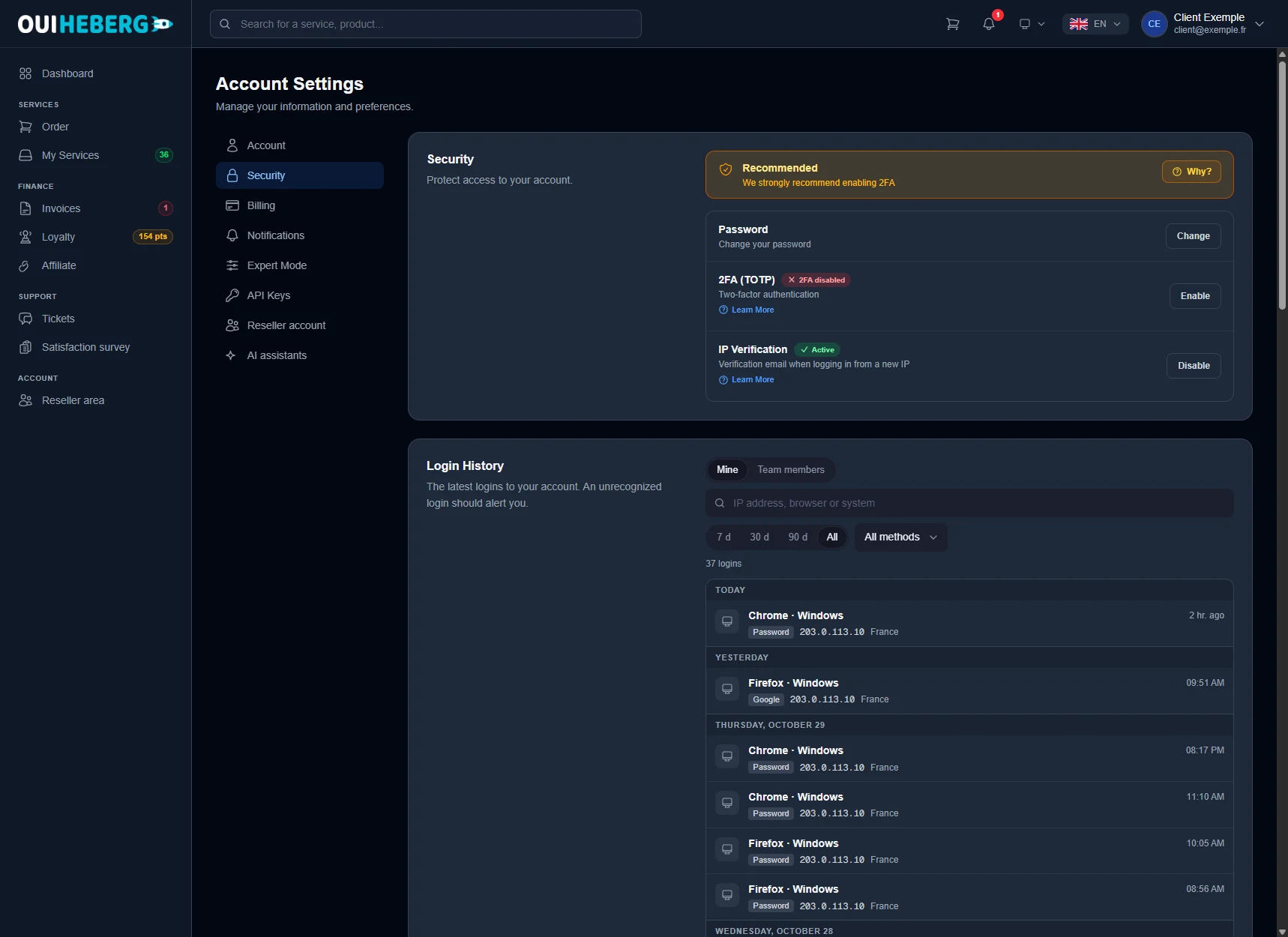
The section opens with three lines: Password, 2FA (TOTP) and IP Verification. While two-factor authentication is off, its line shows 2FA disabled and a Recommended box invites you to enable it. The Why? button sums up the benefits.
Turn on two-factor authentication
On the 2FA (TOTP) line, click Enable. The Set up 2FA window opens.
Open your authenticator app and scan the QR code shown. If you cannot scan it, type the Manual key into the app instead.
The app shows a 6-digit code that refreshes regularly. Enter it in the field provided to confirm the setup.
The client area gives you Recovery codes. Click Download codes and store the file somewhere safe, not on your phone. Each code can only be used once.
Click Done. The line now shows 2FA activated.
💡 Recovery codes are your only way in if you lose your phone. Do not skip this step.
Log in with two-factor authentication
After your email address and password, the Two-step verification screen appears. Enter the 6-digit code shown in your app, then click Verify.
Don't have your phone? Click Use a recovery code and enter one of your recovery codes.
After too many wrong codes, two-factor authentication on the account is locked for one hour, and an alert email is sent to the account holder.
Recovery codes and turning 2FA off
Once 2FA is on, the Security section lets you manage your recovery codes.
Regenerate creates new codes, which is useful if you lost the old ones. The client area asks for your password and a code from your app. Your old recovery codes stop working immediately.
Disable 2FA turns two-factor authentication off. You need your password and a code from your app, or a recovery code.
Getting a new phone? While the old one still works, disable 2FA and enable it again to scan a new QR code with the new device.
Other ways to protect your account
Password
On the Password line, the Change button lets you pick a new one. Choose a long password that you do not use anywhere else.
IP Verification
When IP Verification is on, any login from an unknown IP address must be approved. You receive an email with a validation link, and the login only goes through once you click it. Keep it on.
Login History
Further down, the Login History lists recent sign-ins with the browser, operating system, IP address and method used. You can filter by period and by method, or search for an IP address. The Team members tab shows the logins of your sub-users. Any login you do not recognise should ring alarm bells.
Trusted devices
This list holds the IP addresses already approved by email. The Forget button removes one, so a new verification will be required the next time someone logs in from it.
Active sessions
Here you see the devices currently logged in to your account. Disconnect closes one session. Disconnect everywhere else closes all the others and keeps you logged in on the current device.
💡 An unknown login in the history? Change your password, click Disconnect everywhere else and turn on two-factor authentication if you have not already.
Need help?
Open a ticket from Tickets › Open a ticket (dash.ouiheberg.com/tickets/new). If you can no longer log in because you lost both your phone and your recovery codes, contact our support on Discord.