
 Client area
Difficulty: Beginner ⭐
Compatible servers: Arma Reforger on OuiPanel
📋 Introduction
This guide shows you how to set up your Arma Reforger server in OuiPanel. The name, the password, the scenario and the player count are set in the panel variables. Workshop mods go into the config.json file. The end of the guide covers how to get your players in and what to do before a reinstall.
Your server installs in a few minutes, without a Steam account and without a copy of the game, so you have nothing to supply for it to start.
📂 Open the server files
There are two ways to reach the server files.
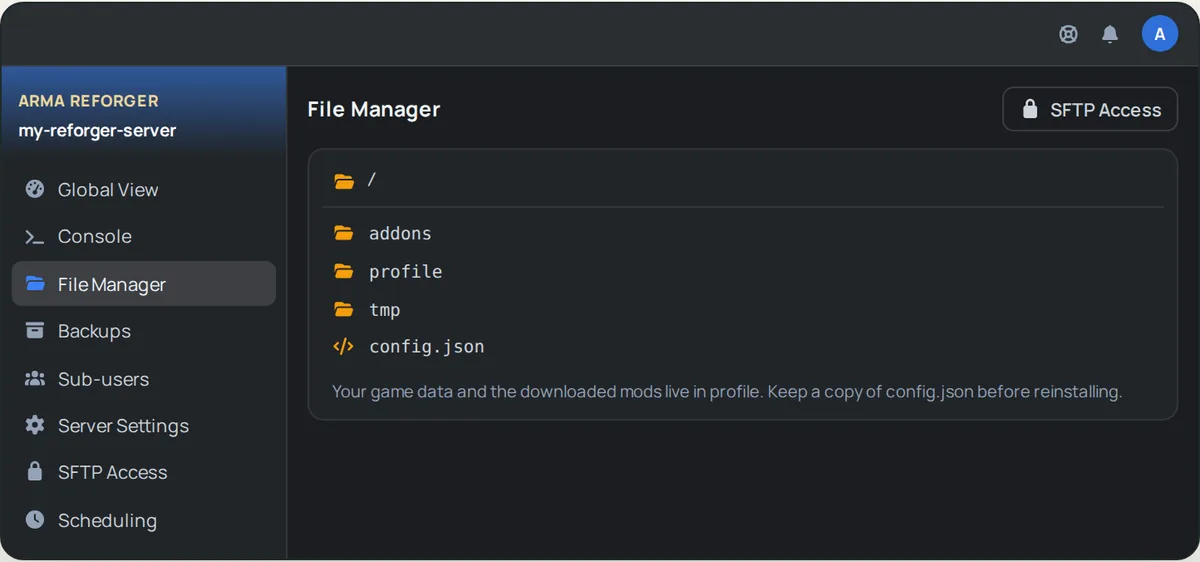
- The OuiPanel File Manager. Open your server and click File Manager in the menu. Click a file to open it, edit it, then save.
- SFTP, with a client such as FileZilla. Our guide How to connect via SFTP with FileZilla walks you through the connection.
At the root of the server you will find the config.json file and three folders: addons (the game data), profile (your game, the logs and the downloaded mods) and tmp.
⚙️ Set up the server in the variables
The main settings are in the OuiPanel variables. Every time it starts, the server copies them into config.json.
| Variable | What it does |
|---|---|
Server Name | The name of your server. |
Server Password | The password players must enter. Leave it empty and anyone can join. |
Scenario ID | The scenario the server runs. By default, Conflict on Everon. |
Max Players | The number of players the server accepts, 32 by default. |
Admin Password | The admin password, generated when your server is delivered (see "Become an admin"). |
Crossplay | The game's crossplay, on by default (true). Set false to keep the server for PC players only. |
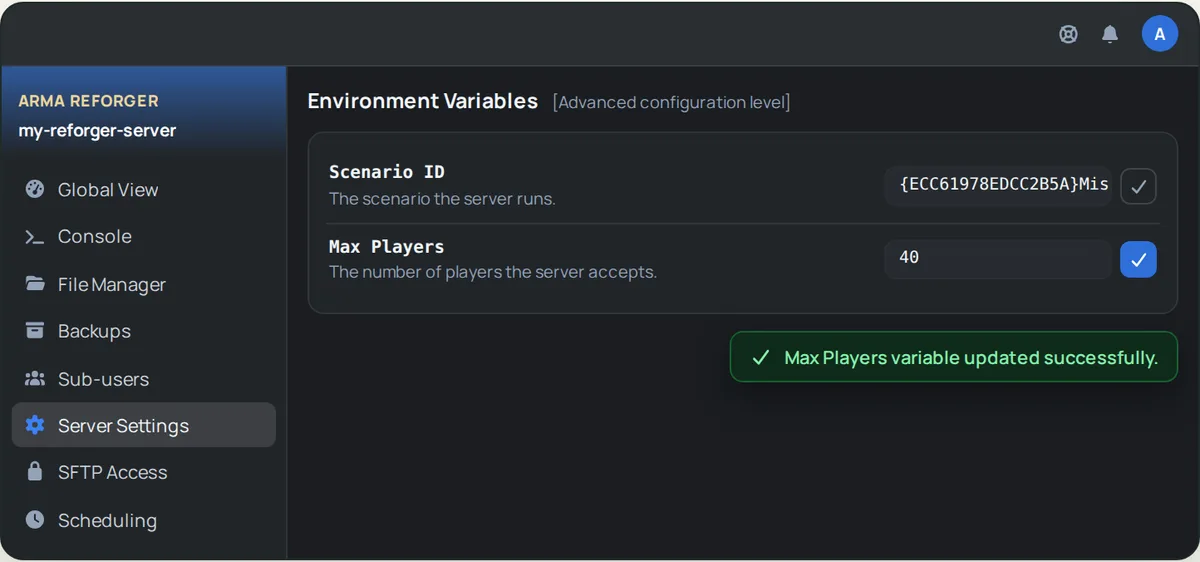
- In OuiPanel, go to Configuration › Server Settings.
- Scroll down to the Environment Variables section.
- Change the value you want, then click the check mark to the right of the field to save it.
- Restart the server from the Console.
⚠️ These settings are rewritten into
config.jsonevery time the server starts. Editing them directly in the file does nothing, so always use the variables.
💡 Avoid a name or a password made only of digits, for example
1234, and spaces in passwords: the server would not start.
👑 Become an admin
The admin password is generated when your server is delivered, in the Admin Password variable. Keep it to yourself.
- Copy the password from the Admin Password variable.
- In the game, connected to your server, open the chat.
- Type
#loginfollowed by a space and the password, then confirm. This is the command Bohemia provides to get admin rights.
To change the password, edit the variable, save with the check mark, then restart the server.
🗺️ Pick the scenario
You pick the scenario with its ID. The ID of the default scenario, Conflict on Everon, is:
{ECC61978EDCC2B5A}Missions/23_Campaign.conf - Open the OuiPanel Console and start the server. At startup, the console lists the official scenarios with their IDs.
- Copy the ID of the scenario you want, curly braces included.
- Paste it into the Scenario ID variable, save with the check mark, then restart the server.
A scenario added by a mod only works if that mod is also in the mods list of config.json (see the next section).
🧩 Add Workshop mods
Arma Reforger has its own Workshop, the Bohemia Interactive one, which you open in the game or on the reforger.armaplatform.com/workshop website. The server downloads the mods you list in config.json by itself.
- On the mod page in the Workshop, note its ID: a 16-character code, for example
0123456789ABCDEF. On the website, it is the string of letters and digits that follows/workshop/in the address. - Open
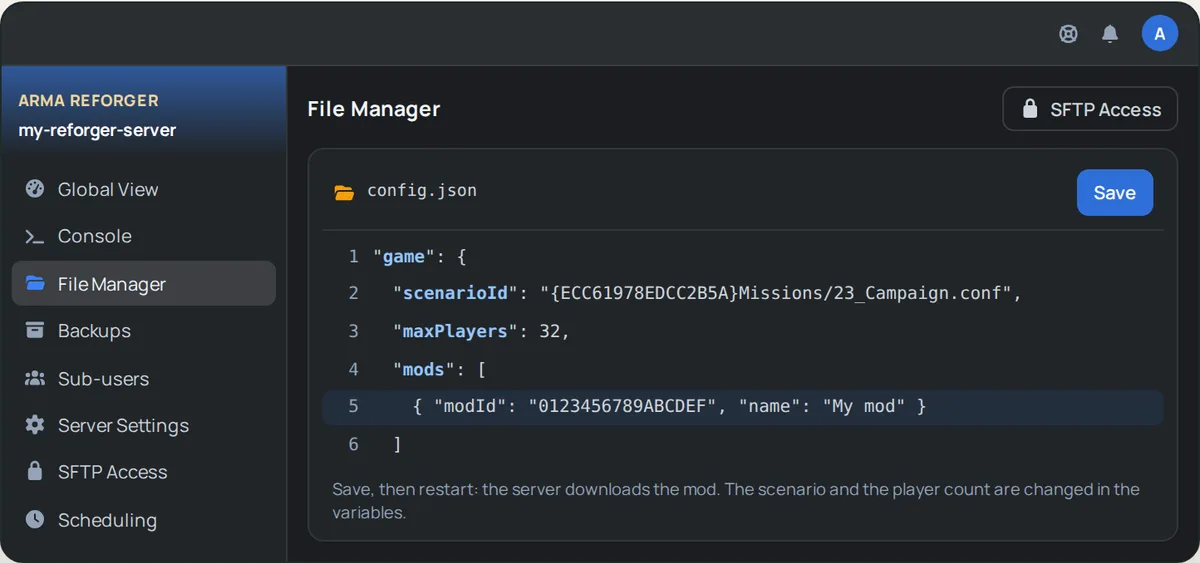
config.jsonin the File Manager. - In the
gamepart, find the"mods": []list and add your mods to it, as in the example below. - Save, then restart the server.
"mods": [
    { "modId": "0123456789ABCDEF", "name": "My first mod" },
    { "modId": "FEDCBA9876543210", "name": "My second mod" }
] 
The name field is only a reminder for you. Separate the mods with a comma, with no comma after the last one. At startup, the server downloads the mods into the profile/addons folder, then updates them at every start. Your players have nothing to install: the game downloads the server's mods when they join.
💡 Mods are not covered by our support. If the server no longer starts after you add a mod, remove it from the list and restart.
💾 Backups
In OuiPanel, the Backups page creates a backup on demand, and the Scheduling page schedules them, for example every night. A backup keeps your game (the profile folder) and config.json, without the game files or the mods: the server downloads them again at the next start.
To go back, restore the backup from the same page: the server picks up your game. Depending on the server size and the time of day, a restore takes from a few minutes to several hours. Make a backup before adding mods.
🔄 Updates
Every time it starts, the server checks for Arma Reforger and mod updates, then installs them. After a game update, restart your server so your players can still join it.
🌍 Join the server
The IP address and port of your server are shown in OuiPanel. In the game, connect with that address and port. If you filled in Server Password, the game asks for the password.
🔁 Before a reinstall
A reinstall rewrites the whole config.json file, mods list included. Before you reinstall, make a backup, or download a copy of config.json through the File Manager or over SFTP. Then put your mods list back into the new file.
❓ Common issues
| Issue | Solution |
|---|---|
The server no longer starts after a change to config.json | The file is probably no longer valid JSON: a comma too many or too few, or a missing quote. Re-read the mods list, fix it, then restart. The console shows the startup messages. |
| The server no longer starts after a change of name or password | A name or password made only of digits, or a space in a password, blocks the startup. Add a letter, remove the spaces, then restart. |
| My name or scenario change keeps disappearing | You made it in config.json. Make it in the OuiPanel variables instead, which are copied over at every start. |
| A mod does not download | Check its ID in the Workshop, with no spaces, then restart the server. |
| My settings are gone after a reinstall | A reinstall rewrites config.json. Put your mods list back from your copy. |
🚀 No server yet?
OuiHeberg is an Arma Reforger server hosting provider with OuiPanel, Workshop mods and Game anti-DDoS, so you can launch your server without a Steam account.
Need an Arma Reforger server?
Arma Reforger server hosting from $6.92/mo, with Workshop mods, the scenario of your choice and Anti-DDoS Game included.