
 Client area
Difficulty: Beginner ⭐
Compatible servers: Terraria vanilla and tModLoader on OuiPanel
📋 Introduction
This guide shows how to set up your Terraria server in OuiPanel. It starts with the choice between the base game and tModLoader, then covers world settings, single-player world import and mods. The last part deals with the password, the console, backups and updates.
World settings live in the server variables. Worlds and mods are uploaded over SFTP, as our guide How to connect via SFTP with FileZilla explains.
🎮 Vanilla or tModLoader
Your Terraria server runs either vanilla, the base game, or tModLoader, the version that loads mods. The two do not use the same version of Terraria.
| Version | Good to know |
|---|---|
| Vanilla | Terraria 1.4.5, the newest version at install time. This is the default. Players launch Terraria. |
| tModLoader | Terraria 1.4.4, as the 1.4.5 release of tModLoader is not out yet. Players launch tModLoader, the free app on Steam. |
The two versions do not mix. A player on 1.4.5 cannot join a tModLoader server, so every player launches the same version as the server.
To play with mods, choose tModLoader on the Game version page in OuiPanel. Before the change, it warns you that worlds do not carry over from one version to the other, and it offers a backup. On tModLoader, start from a new world or upload a tModLoader world.
On a OuiBox, this page does not exist. You change game from the game grid instead.
🌍 Set up the world before the first start
The server creates the world by itself on its first start, using the values of its variables. So set them before you start it.
- Open your Terraria server in OuiPanel.
- Go to Configuration › Server Settings, then scroll down to the Environment Variables card.
- Change the values you want. Click the check mark to the right of each field to save it.
- Start the server from the Console.
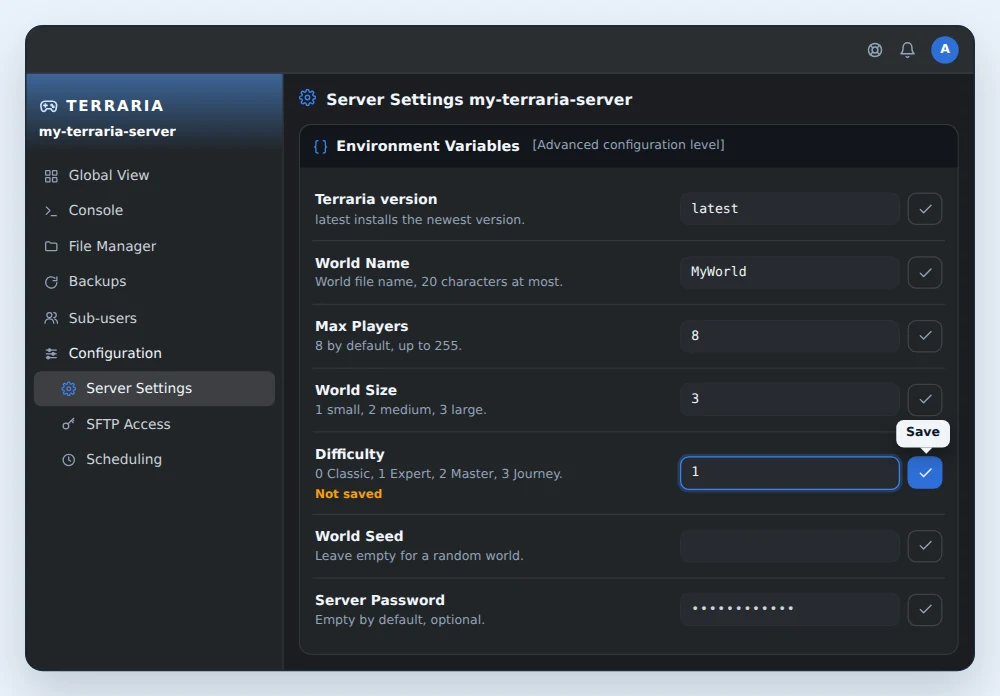
| Variable | What it does |
|---|---|
| World Name | The world file name, 20 characters at most. |
| World Size | The world size, 1 small, 2 medium or 3 large. |
| Difficulty | The difficulty, 0 Classic, 1 Expert, 2 Master or 3 Journey. |
| World Seed | The world seed. Leave the field empty for a random world. |
| Max Players | The maximum number of players, 8 by default, up to 255 on the vanilla server. On tModLoader, it stays at 8. |
| Server Password | The password to join the server, covered further down. |
The world is created with the chosen size and difficulty. These two settings only apply at creation, and an existing world keeps its own. For a new world, enter another name in World Name. The server creates it on the next start, and the old world stays in the saves/Worlds folder.
On tModLoader, there is no World Seed variable.
📂 Import a single-player world
You can bring a world created in single player to the server. It must come from the same version as the server, Terraria for a vanilla server, tModLoader for a tModLoader server.
On PC, Terraria single-player worlds are in Documents\My Games\Terraria\Worlds. tModLoader worlds are in Documents\My Games\Terraria\tModLoader\Worlds. A vanilla world is a single .wld file. A tModLoader world also has a .twld file with the same name, which holds the mod data.
- Stop the server from the Console.
- Connect over SFTP and open the
saves/Worldsfolder. - Upload the world's
.wldfile. On tModLoader, upload its.twldfile too. - In Environment Variables, type the file name without
.wldin World Name, for exampleMyWorldforMyWorld.wld. Save it with the check mark. - Start the server. It loads the imported world instead of creating one.
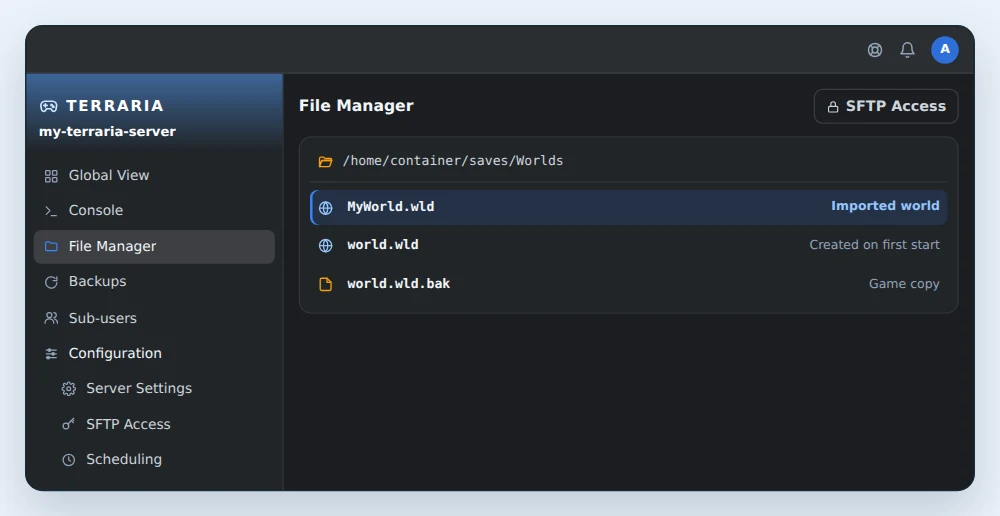
World Name takes 20 characters at most. If the file name is longer, shorten it before uploading. On tModLoader, give the .wld and the .twld the same name.
🧩 Install tModLoader mods
Mods only work on a tModLoader server. They are .tmod files that you upload over SFTP. Mods are installed without support from our team.
- Stop the server from the Console.
- Connect over SFTP and open the
modsfolder at the root of the server. Mind the case. The server runs on Linux, wheremodsandModsare two different folders. - Upload the
.tmodfiles of your mods there. - Add the
enabled.jsonfile to the same folder. It lists the enabled mods, each under its file name without.tmod. You can also write it in the OuiPanel File Manager. - Start the server, which then loads the mods.
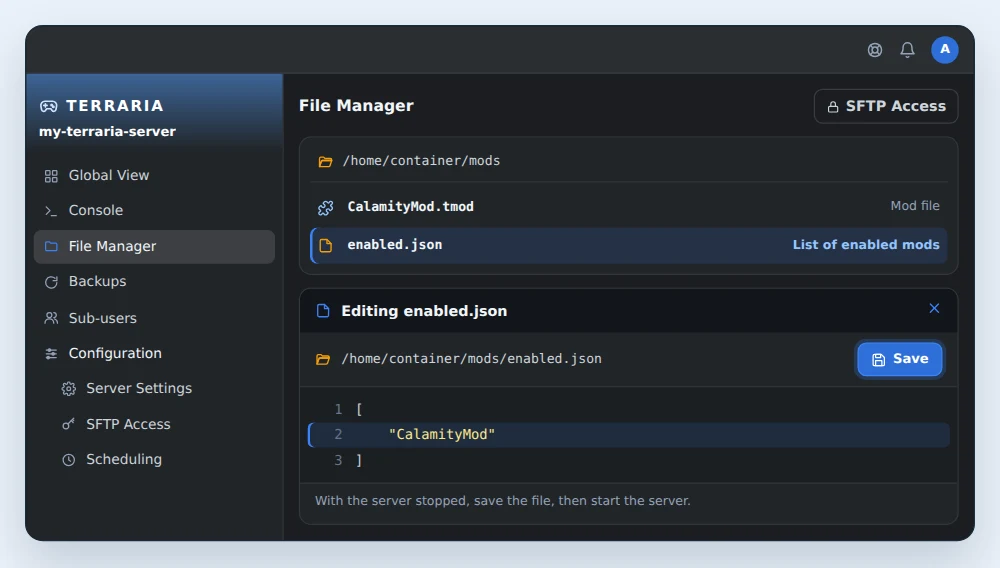
Example of enabled.json with a single enabled mod, Calamity.
[
    "CalamityMod"
]
Every player needs the same mods as the server in their tModLoader.
For memory, 2 GB is enough for vanilla or a few content mods. For Calamity and large packs, choose the Plus plan with 4 GB, which holds 124 mods on a large world. The game uses a single core, but more cores speed up mod loading at startup.
Good to know about mods
- The Import URL button in the File Manager rejects GitHub links that redirect. Use a direct link to the file, or go through SFTP.
- Mods required by a mod are not installed on their own. Upload them to
modstoo and add them toenabled.json. - The GitHub version of a mod can be older than the one on the Steam Workshop.
🔑 Password and joining the server
The password is optional and empty by default. To set one, fill in Server Password, save it with the check mark, then restart the server. The variable has the same name on vanilla and tModLoader, and it is kept when you change versions.
Join the server
- Note the server address and port, shown in the OuiPanel Global View.
- Launch Terraria, or tModLoader for a modded server.
- Choose Multiplayer › Join via IP.
- Enter the address, then the port from OuiPanel. The game suggests a default port. Replace it with your server's port, between 17701 and 17799.
- Enter the password if there is one.
⌨️ Useful console commands
The OuiPanel Console sends your commands to the Terraria server. Type them without a slash.
| Command | Effect |
|---|---|
help | Shows the list of commands. |
save | Saves the world. |
say <message> | Sends a message to all players. |
playing | Shows the connected players. |
kick <player> | Kicks a player. |
ban <player> | Bans a player. |
exit | Saves the world and stops the server. |
The OuiPanel Stop button sends exit as well.
💾 Backups
OuiPanel backs up the server on demand or on a schedule. Depending on your plan, you get 2 to 5 backup slots.
- For an on-demand backup, open the Backups page and click Create backup.
- For scheduled backups, go to Configuration › Scheduling, create a schedule, then add a Backup task to it.
- To restore a backup, click Restore on the one you want in the Backups page. The server is stopped during the restore, which takes from a few minutes to several hours depending on the size and the time of day.
Before each version change, the Game version page offers a backup too.
The game also keeps its own copies. Each world has a .wld.bak file next to its .wld. tModLoader also stores one archive per day in saves/Worlds/Backups.
To keep a copy at home, download your world files over SFTP from time to time.
🔄 Update the server
The server keeps its version until you reinstall it. On a vanilla server, the Terraria version variable is set to latest, so a reinstall picks the newest version of Terraria. You can also enter a specific version number there.
- To be safe, create a backup or download your world over SFTP.
- Go to Configuration › Server Settings, click Reinstall server, then confirm.
- Wait for the install to finish, then start the server from the Console.
tModLoader is updated the same way. Players then update their game too.
🚀 No server yet?
Our Terraria server hosting runs vanilla or tModLoader in Europe, North America and Australia, with OuiPanel, SFTP access and DDoS protection.