
 Client area
Estimated time: 10 minutes
Difficulty: Beginner ⭐
Compatible servers: Project Zomboid (Build 42) on OuiPanel
📋 Introduction
Your Project Zomboid server runs Build 42. It comes with an admin account whose password is generated at random. This guide shows how to join the server as admin, give it a name and a password, set the player count, switch to a whitelist and add Steam Workshop mods.
Everything is set in two places. The OuiPanel variables handle the admin account and game updates. The server's .ini file handles the rest.
Allow about 10 minutes the first time, while the game downloads (15 minutes on Build 41), then 1 to 2 minutes at every startup. The server reserves almost all of its memory at startup, which is how the game normally works.
⚙️ Open the server variables
- Open your Project Zomboid server in OuiPanel.
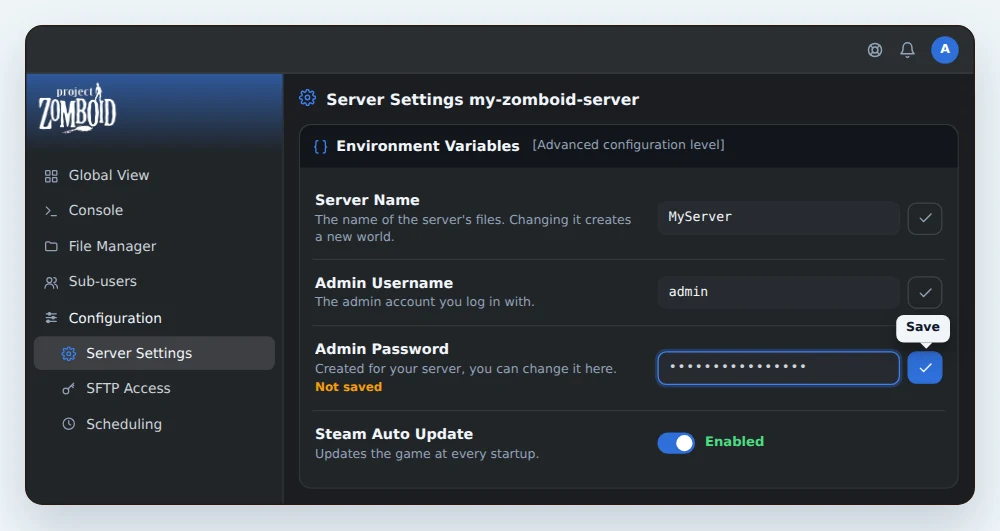
- Go to Configuration › Server Settings, then scroll down to the Environment Variables card.
- Change a value, then click the check mark to the right of the field (Save). Switches save on their own.
- In Console, click Restart. Variables are read when the server starts.
| Variable | What it does |
|---|---|
| Server Name | The name of the server's files and of its world, such as MyServer. Don't change it, or the server will start a new world. |
| Admin Username | The admin account name, admin by default. |
| Admin Password | The admin account password, generated at random for your server. You can replace it. |
| Steam Auto Update | When on, the game updates at every server startup. |
👑 The admin account
The admin account is created with your server. Its name is in Admin Username (admin by default) and its password in Admin Password. Keep this password to yourself, it unlocks every server command.
To change it, type the new password in Admin Password, save, then restart. The game picks up this password at every startup.
🌍 Join the server
- Start the server from the OuiPanel Console.
- Note the server's IP address and port, shown in the OuiPanel Global View.
- In Project Zomboid, choose to join a server, then add this IP address and port, plus the server password if it has one.
- Pick an account name and a password. They belong to this server only, they are not your Steam login.
- Connect. For your server to appear in the public server list, add the line
Public=trueto the .ini file (see below).
To log in as admin, type admin as the account name and the password from Admin Password. Every server command is then yours.
📝 Open the server's .ini file
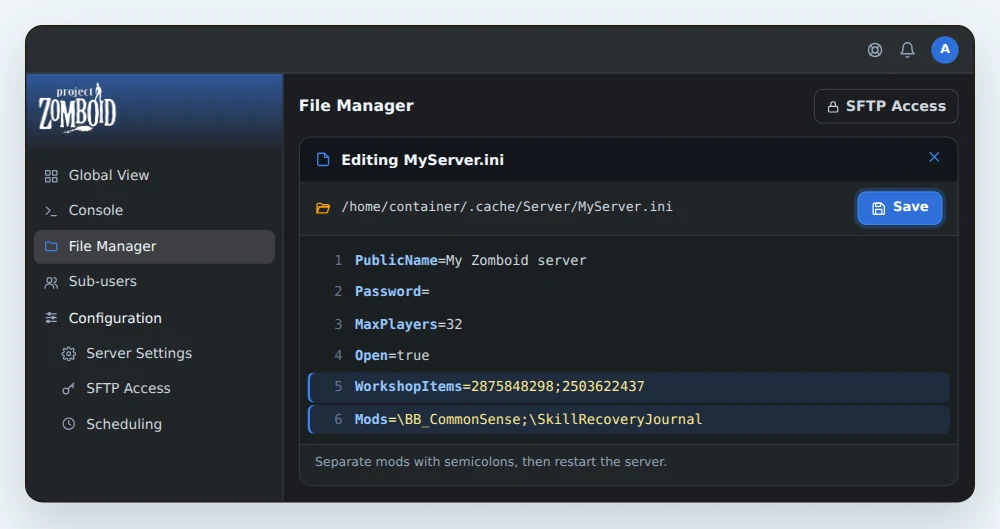
The server settings are in .cache/Server/MyServer.ini. The file is named after the Server Name variable.
- Open the OuiPanel File Manager, then the
.cacheandServerfolders. - Click the .ini file named after your server to open it.
- Change your lines, then click Save.
- In Console, click Restart to apply the changes.
You can also open the file from your computer over SFTP, as our guide How to connect via SFTP with FileZilla explains.
| Line | What it does |
|---|---|
| PublicName | The server name your players see. |
| Password | The password to join the server. Empty, the server is open to everyone. |
| MaxPlayers | The maximum number of players, 32 by default and 254 at most. The game warns that above 32, map loading and sync may degrade. |
| Open | true by default. With false, the server switches to a whitelist. |
| Public | With Public=true, the server appears in the public server list. Restart after saving. |
| WorkshopItems | The numbers of the Steam Workshop mods. |
| Mods | The IDs of those same mods. |
🛡️ Switch to a whitelist
With Open=false, nobody creates an account on arrival. Only players whose account an admin created can join.
- In the .ini file, set the line to
Open=false. Save, then restart. - Join the server with the admin account.
- In the game chat, create each player's account with
/adduser "username" "password", as listed in the admin commands of the official game wiki. - Give each player their username and password. They use them to log in.
🧩 Add Steam Workshop mods
Each mod takes two lines in the .ini file. Its number goes in WorkshopItems, its ID in Mods.
- Open the mod page in the Steam Workshop. Its number is the figure after
id=in the address, such as2875848298. - Find its ID on the Mod ID line at the bottom of the description. If it isn't there, it is in the
id=field of the mod'smod.infofile. - Add the number to
WorkshopItemsand the ID toMods. Separate mods with semicolons. - In Build 42, the game writes a backslash before each ID in
Mods. Do the same. - Save the file, then restart the server.
Example with two mods, Common Sense and Skill Recovery Journal.
WorkshopItems=2875848298;2503622437
Mods=\BB_CommonSense;\SkillRecoveryJournal
The server downloads mods on its own at startup and picks up their updates at every restart. Your players have nothing to install, they receive the mods from the Steam Workshop when they join the server.
💡 Mods come without support from us.
👥 Give admin rights to a friend
Logged in with the admin account, type /setaccesslevel "username" admin in the game chat, replacing username with your friend's account name.
The official game wiki also lists the moderator, overseer, gm and observer levels.
🔄 Game updates
With Steam Auto Update on, the server downloads the latest game version at every startup. The server and the players must run the same version, currently Build 42. After a game update on Steam, restart the server so it picks it up.
🕹️ Playing on Build 41
Build 42 stays the default version, and the one we recommend. If you prefer Build 41, the server can run on its branch, named legacy41.
- In OuiPanel, go to Configuration › Server Settings, Environment Variables card.
- Put
legacy41in the Steam Beta Branch variable and save it. - Reinstall the server. The variable says it needs a reinstall ("requires reinstall").
To go back to Build 42, put public in the same variable (don't leave it empty), then reinstall the server.
Two things to know. A Build 42 world does not open in Build 41. And your players must switch their game to the same branch in Steam, in the game's properties, under the betas section.
💾 Back up and restore
Backups are managed from the Backups page in OuiPanel. You can create one at any time, or schedule them. How many backups you can keep depends on your plan, which is 2 on Start, 3 on Plus and 10 on Pro.
- Open your Project Zomboid server in OuiPanel, then the Backups page.
- Click Create backup. It shows up in the list once it is ready. You can Download it to keep a copy on your computer.
To back up automatically, open the Scheduling page and create a task. For example, a task that creates a backup and then restarts the server every night.
To restore, go back to the Backups page and click Restore next to the backup you want. The server restarts on the saved world.
A restore takes from a few minutes to several hours, depending on the size of the server and the time of day. It can take longer at night.
💡 Make a backup before adding mods or changing version (Build 41 or 42). Download it if you want to keep a copy.
Restore an automatic game backup
The game also makes its own backups, as zip files, in the .cache/backups folder. You restore them by hand, from the OuiPanel File Manager. OuiPanel backups, described above, remain the method we recommend.
- In Console, click Stop, then wait until the server is off.
- In the File Manager, open
.cache/backups/startup, which gets a backup at every startup, or.cache/backups/version, which gets one before every game update. Pick the zip by its date, not by its number. The numbers rotate with each new backup, and the oldest one is deleted. Copy the zip with Copy, then paste it into.cachewith Paste. - In
.cache/Saves/Multiplayer, rename the world folder, for example fromMyServertoMyServer-old. This folder is named after the Server Name variable. It is your safety copy. - In
.cache, click Decompress on the pasted zip. The world, the accounts and the settings go back to the date of the backup. Delete the zip afterwards. - In Console, click Start and wait for the
SERVER STARTEDline. Then join the server to check your world. - If everything is fine, delete the
MyServer-oldfolder.
⚠️ Step 3 is essential. Decompressing overwrites the files but keeps the ones that are not in the zip. So you need to set the old world aside, or newer files would stay mixed in with the backup.
❓ Common issues
A mod doesn't load
Check both lines. The number must be in WorkshopItems and the ID in Mods, with the backslash in front in Build 42 and a semicolon between two mods. Save, then restart the server.
My world is gone after changing Server Name
Server Name is the name of the server's files. With a new name, the server starts a new world, but the old one is still there. Put the old name back in Server Name, save, then restart to get it back. To change the name players see, use PublicName.
The connection is refused
Check the IP address and port, copied from the OuiPanel Global View. If the server has a password, type the one from the Password line. With Open=false, an admin must create the player's account first.
The game reports a different version
The player and the server must run the same version of Project Zomboid. Update the game in Steam, then restart the server with Steam Auto Update on so it moves to the same version.
🚀 No server yet?
With our Project Zomboid server hosting, you play on Build 42 with Steam Workshop mods, SFTP access and DDoS protection up to 3 Tbps.
Need a Project Zomboid server?
Project Zomboid server hosting from $9.26/mo on Build 42, with the admin account created for you, Steam Workshop mods, SFTP access and DDoS protection included.