
 Client area
A OuiBox groups your game servers in one shared allocation of memory, processor and storage. This guide shows how to check what is still free, then add resources or options from the client area at dash.ouiheberg.com. It also shows where these settings are on a VPS.
See what is left in your allocation
Open My Services and click your OuiBox.
In the left-hand menu of the page, choose the Resources and options tab.
Six tiles sum things up: Allocated memory, Allocated processor, Allocated storage, Allocated backups, Allocated databases and Allocated ports. Each one shows how much is still free out of the pack total.
The Breakdown by server table lists each server's share of memory, processor and storage. The Free row shows what is not allocated to any server. The Allocation row gives the pack total.
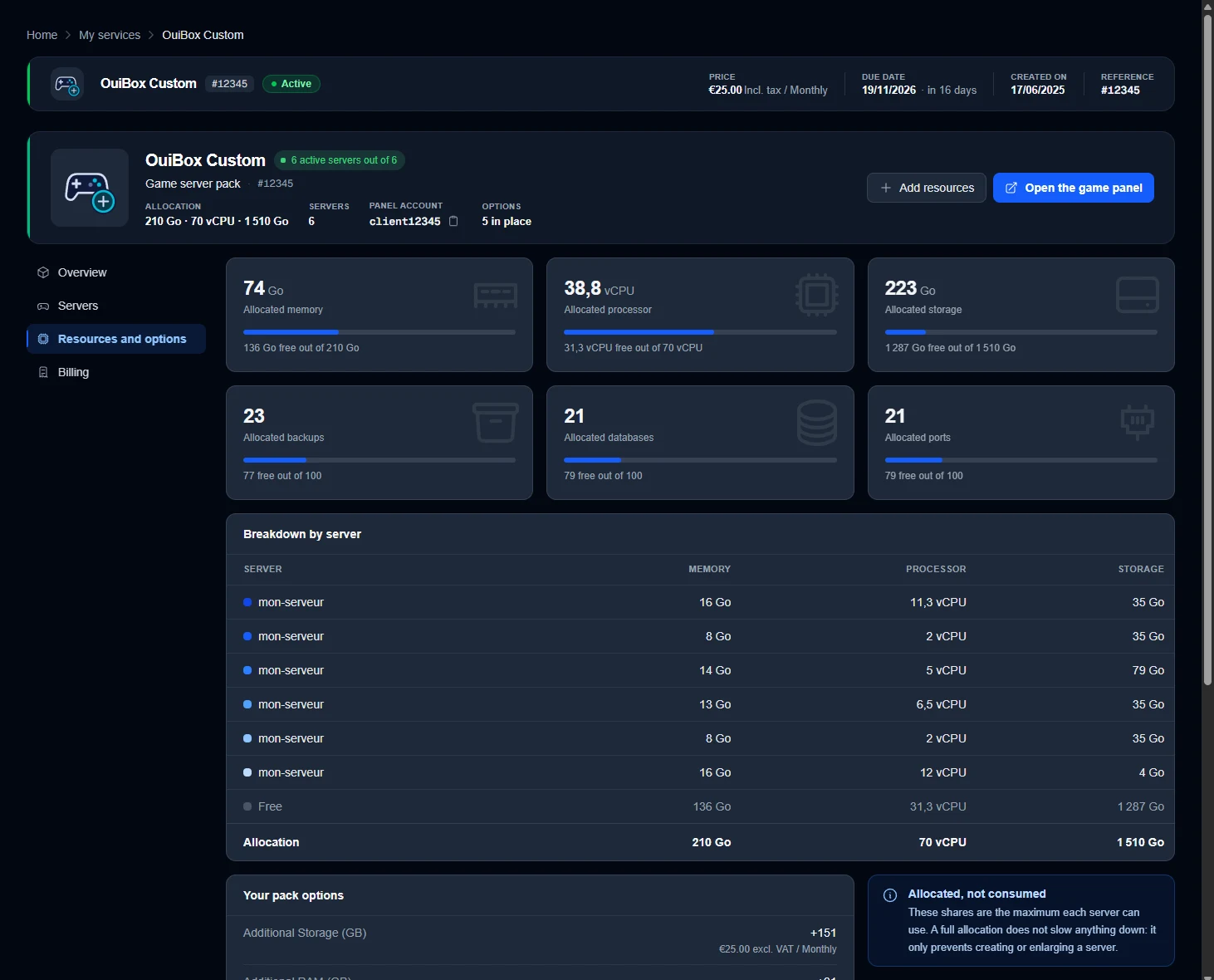
💡 These figures are allocated shares, not actual usage. A full allocation does not slow your servers down. It only stops you from creating a new server or enlarging one.
Move resources without buying anything
Is the Free row not empty? That room can be used to create another server or to enlarge one. You can also shrink one server to enlarge another. Each server's share is set on the game panel, in the server settings, and your invoice does not change.
The Open the game panel button at the top of the page takes you there. The guide How to create and manage your servers on OuiBox walks you through the game panel.
Add resources to your OuiBox
At the top of the OuiBox page, click Add resources.
The Configurable options window opens. Its subtitle shows the plan and the billing cycle.
Each option shows its Current value, the minimum and maximum allowed, then its price per unit per month. Set the quantity with the - and + buttons.
Confirm your changes in the window. As long as nothing has been changed, it only offers Close.
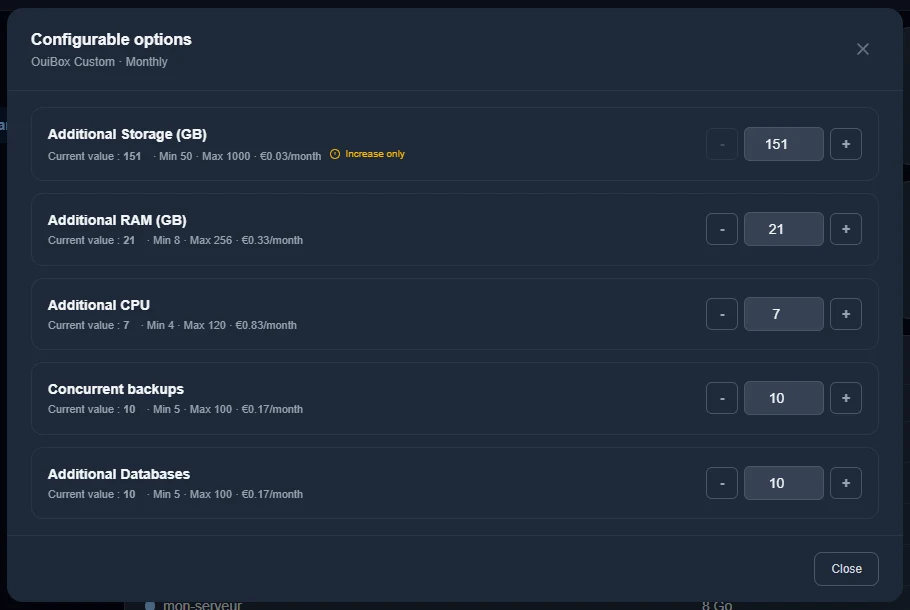
Storage is marked Increase only. You can raise it but not lower it. The other options can go down to their minimum. Before lowering one, check the Free row of the breakdown by server.
A prorated invoice for the current period is generated for these changes. At the next renewal, the price of the options is added to the invoice.
Your pack options
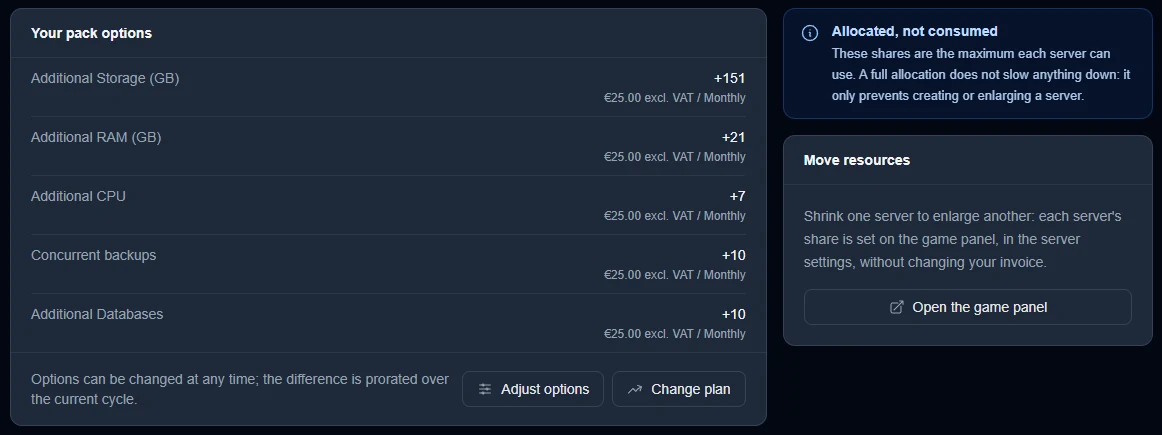
Further down the Resources and options tab, the Your pack options card lists the options in place. Each line shows the quantity added and its price excluding tax for the billing cycle. You will find extra storage, extra memory (RAM) and processor (CPU), concurrent backups and extra databases.
Below the list, dash reminds you that options can be changed at any time and that the difference is prorated over the current cycle. Two buttons follow, Adjust options and Change plan.
At the bottom of the page, two tiles also lead to these settings. Configurable options is for changing the service's resources. Upgrade my plan is for switching to another plan.
What about a VPS?
A VPS page also has the Configurable options tile at the bottom, with the note "Modify your service resources".
To move to a more powerful plan, use the Upgrade my plan tile. Moving to a higher plan does not require a reinstall. An upgrade cannot be undone.
On a VPS, new resources apply after a full stop. Click Shut down at the top of the page, then Start.
Automatic backups are added from the VPS's Backups tab. The guide Automatic VPS backups covers this option in detail.
Need help?
Open a ticket from Tickets › Open a Ticket, or from the Contact support tile at the bottom of the OuiBox or VPS page. You can also ask your question on the OuiHeberg Discord.