
 Client area
Difficulty: Beginner ⭐
Compatible servers: 7 Days to Die on OuiPanel
📋 Introduction
This guide shows you how to set up your 7 Days to Die server in OuiPanel. You start with the serverconfig.xml file, which holds the server name and password. Next, you pick the number of player slots. After that, you name your admins, add mods and get your players in.
Nearly everything is set in the server files. The player slots are set in OuiPanel instead.
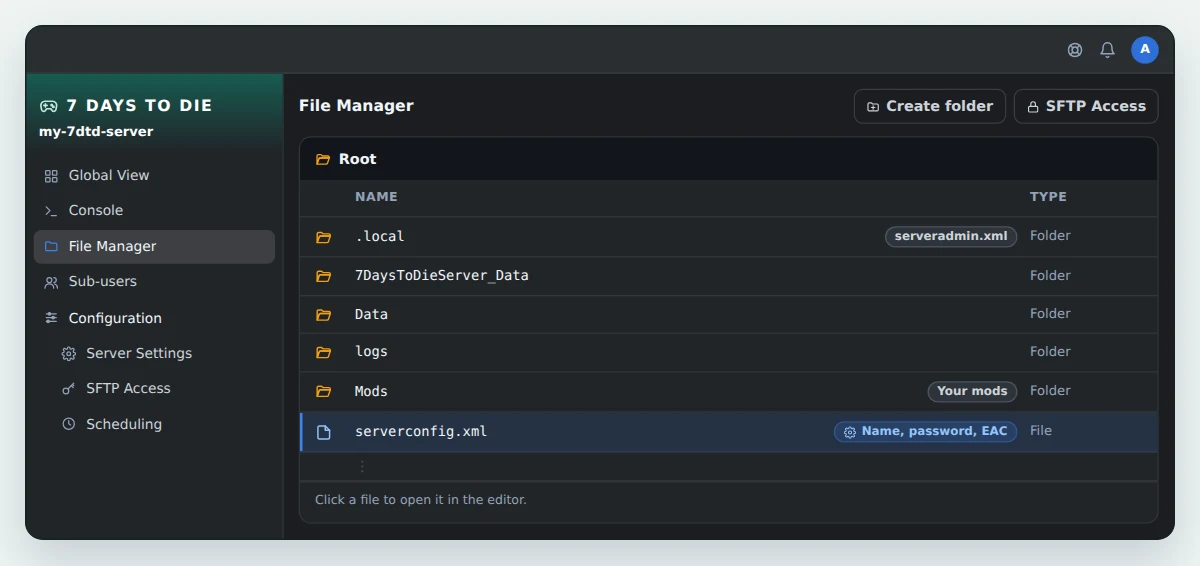
📂 Open the server files
There are two ways to reach the server files.
- The OuiPanel File Manager. Open your server and click File Manager in the menu. Click a file to open it, edit it, then click Save.
- SFTP, with a client such as FileZilla. This is the easiest way to upload mods. Our guide How to connect via SFTP with FileZilla walks you through the connection.
The serverconfig.xml file and the Mods folder sit at the root of the server. The .local folder holds the admin file and your world data.
⚙️ Edit serverconfig.xml
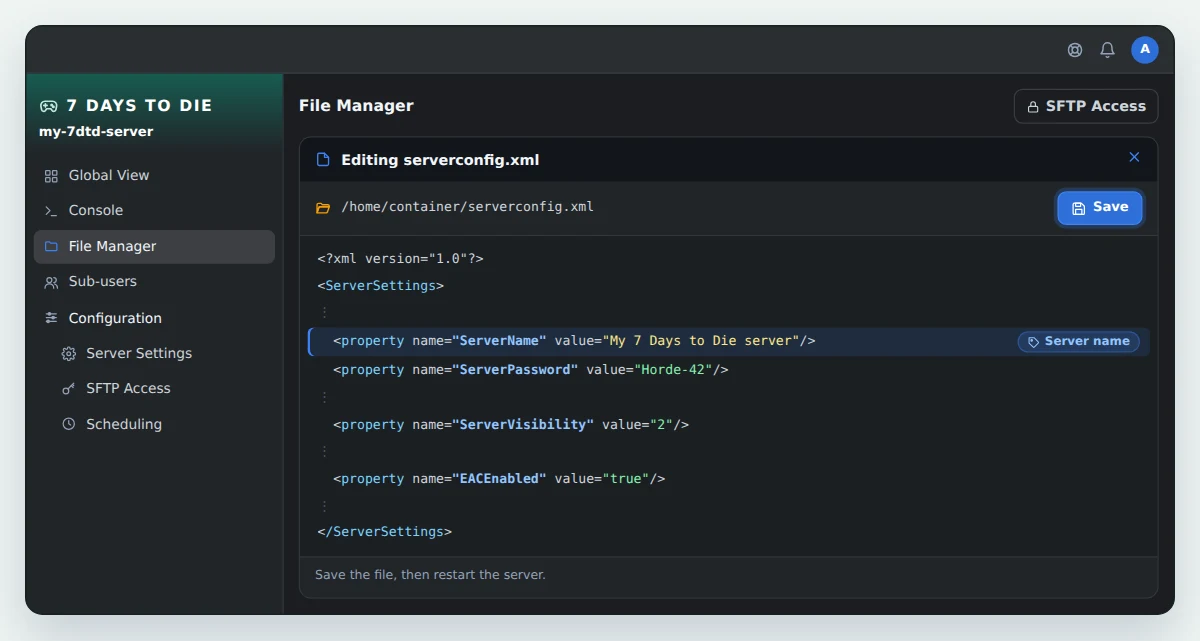
The serverconfig.xml file gathers the game settings. Each setting is one line written as <property name="..." value="..."/>. You only change the text between the quotes of value.
| Setting | What it does |
|---|---|
ServerName | The server name, as shown in the in-game server list. |
ServerPassword | The password players must enter. Leave it empty and anyone can join. |
ServerVisibility | Who can see the server. 2 makes it public. With 0, it stays off the list and players join with its IP address. |
EACEnabled | Easy Anti-Cheat. true turns it on, false turns it off. Only turn it off for a mod that contains a DLL. |
- Open the File Manager and click
serverconfig.xml. - Change the values you need, as in the example below.
- Click Save.
- Restart the server from the Console.
<property name="ServerName" value="My 7 Days to Die server"/>
<property name="ServerPassword" value="Horde-42"/>
<property name="ServerVisibility" value="2"/>
<property name="EACEnabled" value="true"/>
⚠️ OuiPanel sets the port, the player slots and the difficulty every time the server starts. Changing them in
serverconfig.xmlhas no effect. You set the player slots in OuiPanel, as shown in the next section.
👥 Set the player slots
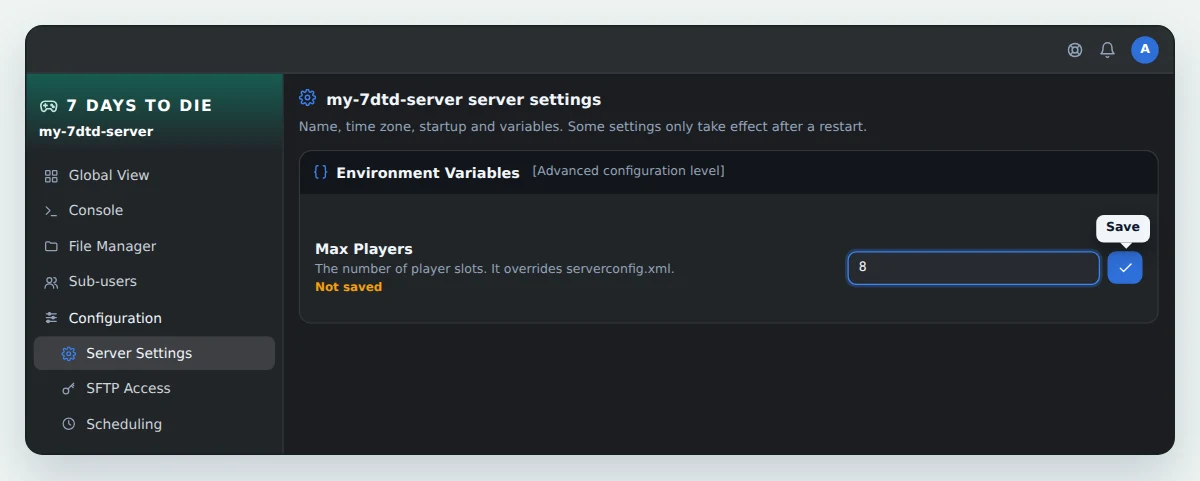
The player count comes from the Max Players variable in OuiPanel. For this setting, the line in serverconfig.xml does not count.
- In OuiPanel, go to Configuration › Server Settings.
- Scroll down to the Environment Variables section.
- Type the number of slots you want in Max Players. Click the check mark to the right of the field to save it.
- Restart the server from the Console.
👑 Add admins
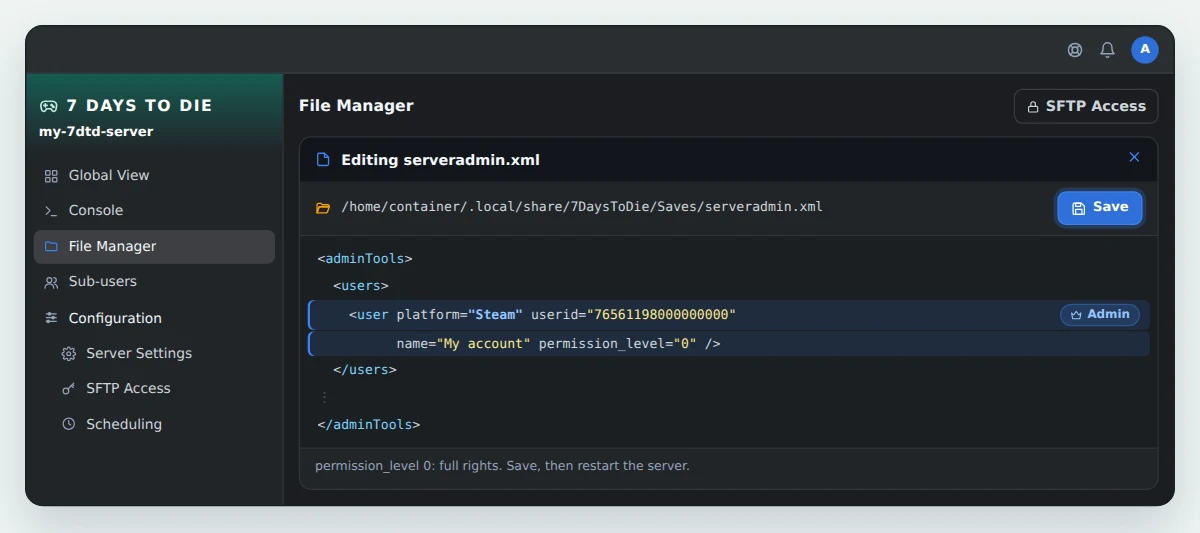
Admins are listed in the serveradmin.xml file. The game creates it the first time the server starts, in the .local/share/7DaysToDie/Saves/ folder.
- Find the player's 64-bit Steam ID. It is a 17-digit number that starts with 7656.
- Open the File Manager, then the
.local/share/7DaysToDie/Saves/folder. Clickserveradmin.xml. - In the
<users>section, add one line per admin, following the example below. - Click Save, then restart the server.
<users>
    <user platform="Steam" userid="76561198000000000" name="My account" permission_level="0" />
</users>
Replace 76561198000000000 with the player's ID. The name field is only a reminder for you. permission_level="0" gives the player full rights. The higher the number, the fewer the rights.
The file already contains examples between <!-- and -->. Those lines are inactive, so write yours outside them.
🧩 Add mods
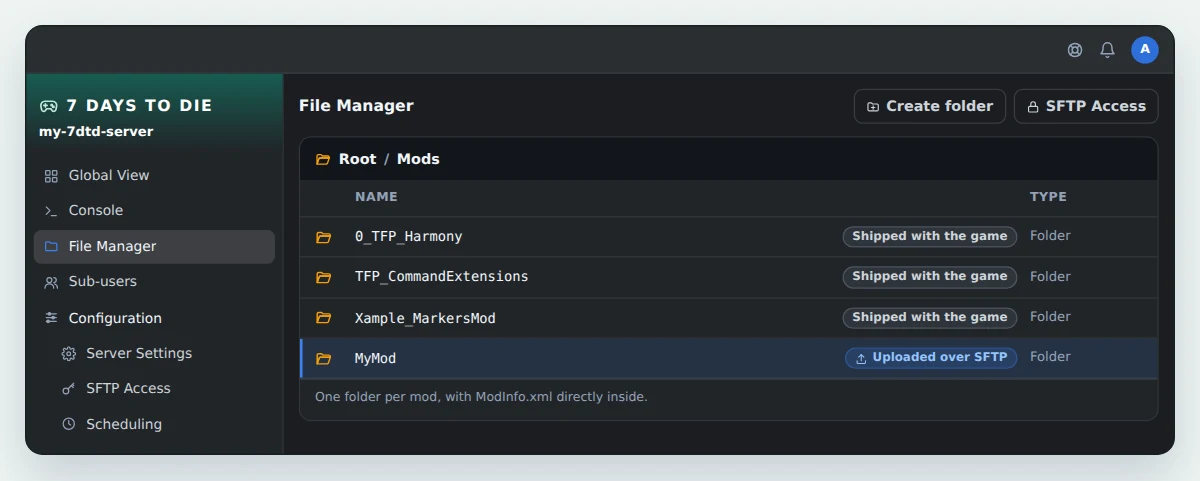
The Mods folder is there from the start, at the root of the server. It already holds three mods that ship with the game, 0_TFP_Harmony, TFP_CommandExtensions and Xample_MarkersMod. Do not delete them.
- Unzip the mod on your computer.
- Over SFTP, upload the mod folder into
Mods. Each mod keeps its own folder, with itsModInfo.xmlfile directly inside. - Restart the server.
XML modlets and DLL mods
- A modlet contains only XML files. It works with Easy Anti-Cheat on, with nothing else to change.
- A mod with a DLL needs Easy Anti-Cheat turned off. Set
EACEnabledtofalseinserverconfig.xml, then restart the server.
A mod that adds items or textures must also be installed by every player, in the same version as on the server.
💡 Mods are not covered by our support.
🌍 Join the server
- Note the IP address and port of the server, shown in the OuiPanel Global View.
- In the game, open the server list and click Connect to IP.
- Enter the IP address and port, then connect.
- If
ServerPasswordis set, the game asks for the password. Type the one from the file.
🔁 Before a reinstall
Before you reinstall the server, keep a copy of serverconfig.xml on your computer over SFTP. If you care about your world and your admins, copy the .local folder too. You can put these files back once the reinstall is done.
❓ Common issues
A change in serverconfig.xml has no effect
The server reads this file when it starts. Check that you clicked Save, then restart the server. If the setting is the port, the player slots or the difficulty, OuiPanel sets it. Change the player slots with the Max Players variable.
A mod does not load
A mod that contains a DLL only works with Easy Anti-Cheat off. Check that EACEnabled is set to false. Also check that the mod is made for the game version installed on the server. Last, its ModInfo.xml file must sit directly in the mod folder.
A player is turned away
If the server has a password, the player must type the exact ServerPassword value. The player and the server must also run the same game version. With a different version, the player cannot join.
🚀 No server yet?
With our 7 Days to Die server hosting, you get OuiPanel and SFTP access to set up your files and add your mods.
Need a 7 Days to Die server?
7 Days to Die server hosting from $6.92/mo, with your mods over SFTP, full access to serverconfig.xml and DDoS protection included.