
 Client area
🎓 Installation Guide - All the Mons (ATMons)
Welcome to this comprehensive guide to install the modpack All the Mons (ATMons)! This pack is the perfect fusion between the legendary progression of All the Mods 10 and the universe of Cobblemon. Whether you are a trainer or an engineer, this tutorial will guide you step by step for a successful client and server installation.
French Video Tutorial: https://www.youtube.com/watch?v=vrEi8-Iim_Y
English Video Tutorial: https://www.youtube.com/watch?v=jpieKXlK8PY
Spanish Video Tutorial: https://www.youtube.com/watch?v=ny7uAOm5CZE
📋 Modpack Information
| Feature | Detail |
|---|---|
| Name | All the Mons (ATMons) |
| Creator | ATMTeam |
| Minecraft Version | 1.21.1 |
| Mod Loader | NeoForge |
| Type | Adventure, Tech, Magic, Quests, Cobblemon |
About All the Mons
All the Mons fully integrates Cobblemon into the All the Mods 10 (ATM10) experience. It blends over 300 famous mods with a complete Pokémon experience.
- Cobblemon + ATM10: Classic ATM progression with Pokémon quests and mechanics.
- Custom Content: Unique trainer battles and specific global structures.
- The ATM Star: The ultimate endgame goal requires mastering both technical/magic aspects and capturing rare Pokémon.
- Custom Recipes: Crafting Pokéballs through automated processes and modded materials.
🖥️ PART 1: Client Installation (CurseForge)
Prerequisites
- RAM: Allocate 8 GB to the game (12 GB recommended for smooth gameplay).
- Java: Ensure you have Java 21 installed (required for Minecraft 1.21.1).
Step 1: Install the Modpack
- Launch the CurseForge application.
- Go to the Minecraft tab.
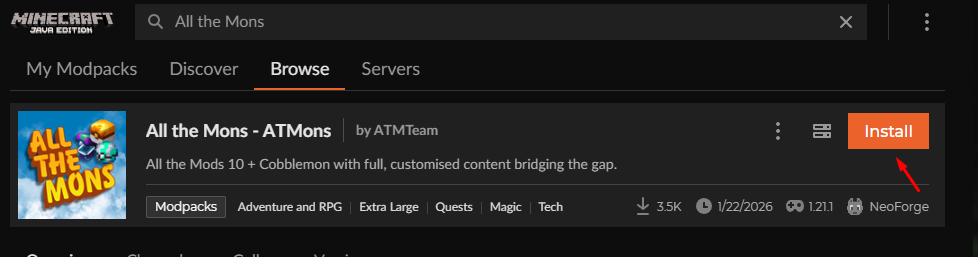
- Click on Browse Modpacks.
- Search for:
All the Mons. - Locate the pack by ATMTeam and click Install.
Step 2: Configure RAM (Crucial)
ATM packs are large. To prevent crashes:
- Go to CurseForge Settings (gear icon at the bottom left).
- Click on Minecraft in the sidebar.
- Scroll down to Java Settings.
- Adjust the memory slider to at least 8192 MB (8 GB). If you have 16 GB of RAM, set it to 10240 MB (10 GB).
🌐 PART 2: Server Installation (OuiHeberg)
Prerequisites
- A reliable Minecraft server hosting requires at least 8 GB of RAM, with 12–16 GB
- Access to OuiPanel.
Step 1: Server Preparation
- Log in to your OuiPanel.
- Completely stop your server.
- (Optional but recommended) Backup or clear your files for a clean installation.
Step 2: Installation via Modpack Manager
- In the side menu, go to Version/Modpack then Modpack Manager.
- Search for
All the Monsin the search bar. - Click Install (ensure the version matches 1.21.1).
- Important: In the Startup tab, make sure the Java version is set to Java 21.
Step 3: First Launch
- Go back to the console and click Start.
- Accept Minecraft's EULA when prompted.
- Wait (the first launch may take 5 to 10 minutes as the pack needs to generate ATM structures and Pokémon spawns).
🔗 PART 3: Joining the Server
- Launch your game via CurseForge.
- In the Minecraft menu, go to Multiplayer.
- Add a server with the IP address provided on your OuiPanel (e.g.,
123.456.78.90:25565). - Connect and start your adventure!
❓ FAQ - Frequently Asked Questions
The game closes during loading? It's almost always due to insufficient RAM. Increase the allocation in CurseForge to 10 GB.
What is NeoForge? It is Forge's successor for recent Minecraft versions. The modpack installs it automatically, no manual action required.
Why can't I see Pokémon? Ensure the server has finished starting. If you are in an existing world, it's recommended to generate new chunks to see Pokémon structures.
📝 Quick Summary
- Client: CurseForge → Search "All the Mons" → 8-10 GB RAM → Play.
- Server: OuiPanel → Stop → Modpack Manager → Install ATMons → Java 21 → Start.
Good luck on your quest for the ATM Star and your Pokémon captures! 🎮✨
Need a Minecraft server?
Discover our Minecraft hosting plans starting from $9.98/month with automatic mod installation.